
DOOGEE T35
DOOGEE T35 Tablet User Manual
Model: T35 | Brand: DOOGEE
1. Introduction
This manual provides essential information for the operation and maintenance of your DOOGEE T35 tablet. Please read it thoroughly before using the device to ensure proper functionality and longevity.
The DOOGEE T35 is an 11-inch tablet featuring a Helio G99 Octa-core processor, Android 14 operating system, and a 2.5K FHD+ display. It comes equipped with 20GB RAM and 256GB internal storage, expandable up to 2TB. Key features include 4G LTE calling, 5G Wi-Fi, an 8580mAh battery with 33W fast charging, and a 20MP camera. Accessories such as a keyboard, stylus, and protective case are included to enhance productivity and user experience.
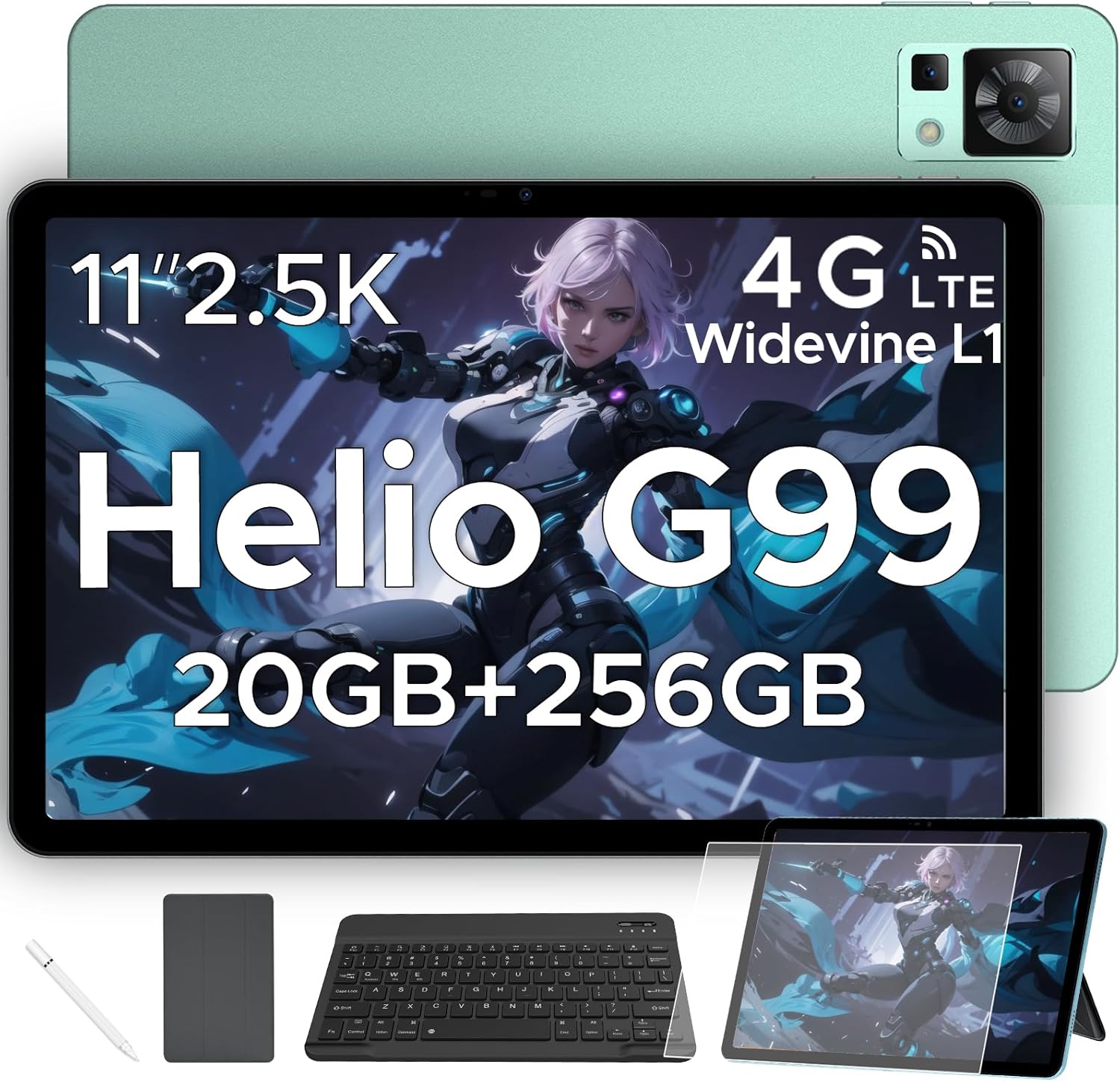
Figure 1.1: DOOGEE T35 Tablet and its accompanying accessories.
2. What's in the Box
Upon opening the package, verify that all items listed below are present and in good condition:
- DOOGEE T35 Tablet
- Charger
- Type-C USB Cable
- SIM Card Tray Ejector Tool
- User Manual
- Bluetooth Keyboard
- Protective Film
- Touching Pen (Stylus)
- Business Leather Case
Video 2.1: An unboxing video demonstrating the contents of the DOOGEE T35 package, including the tablet and all listed accessories.
3. Setup
3.1 Initial Power On
- Press and hold the Power button located on the side of the tablet until the DOOGEE logo appears.
- Follow the on-screen prompts to select your language, region, and connect to a Wi-Fi network.
- Sign in with your Google account or create a new one to access the Google Play Store and other services.
3.2 Inserting SIM Card and MicroSD Card
The DOOGEE T35 supports 4G LTE connectivity and expandable storage via a MicroSD card (up to 2TB).
- Locate the SIM card tray on the side of the tablet.
- Insert the provided SIM card tray ejector tool into the small hole next to the tray and gently push until the tray pops out.
- Place your Nano-SIM card(s) and/or MicroSD card into the designated slots on the tray, ensuring correct orientation.
- Carefully reinsert the tray into the tablet until it clicks into place.
3.3 Connecting Accessories
The tablet comes with a Bluetooth keyboard, stylus, and a business leather case.
- Bluetooth Keyboard: Turn on the keyboard and enable Bluetooth on your tablet. Search for the keyboard in the Bluetooth settings and pair it.
- Stylus: The stylus is ready for use directly on the screen for drawing or navigation.
- Business Leather Case: Insert the tablet into the protective case for enhanced protection and convenience.
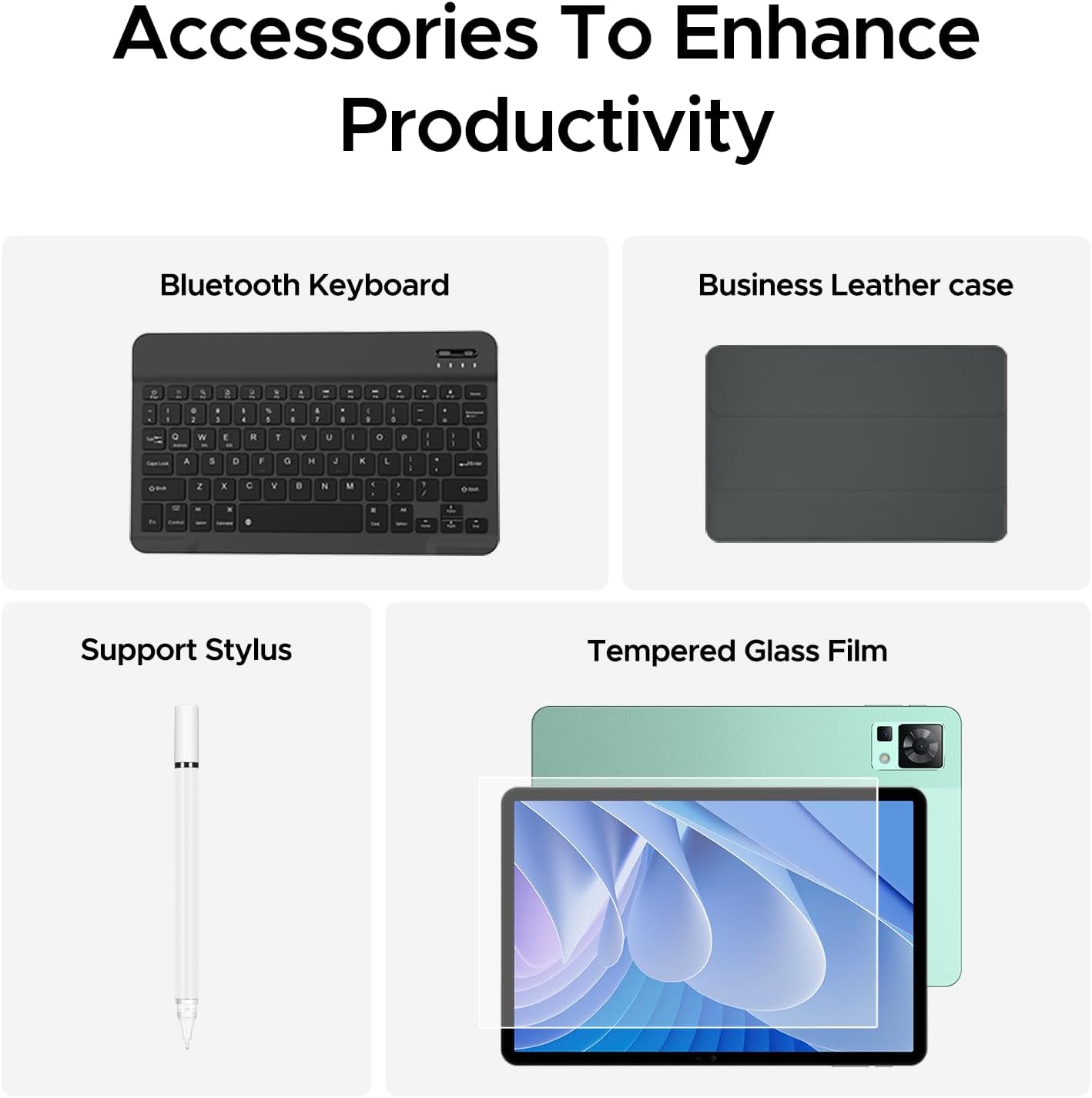
Figure 3.1: The DOOGEE T35 tablet with its included accessories, ready for use.
4. Operating Instructions
4.1 Display and Navigation
The DOOGEE T35 features an 11-inch 2.5K ultra-clear display (2560 x 1600 pixels) for a high-quality visual experience.
- Touch Gestures: Navigate the Android 14 interface using standard touch gestures like tap, swipe, pinch-to-zoom.
- Split Screen: Utilize the split-screen feature to run two applications simultaneously for enhanced multitasking.
- Reading Modes: Adjust the display settings to Warm, Standard, or Cool mode for comfortable reading in various lighting conditions.

Figure 4.1: The 11-inch 2.5K ultra-clear display provides excellent visuals for all content.
4.2 Performance and Storage
Powered by the Helio G99 Octa-core processor, the T35 offers robust performance for gaming, streaming, and productivity. It offers 20GB RAM (8GB base + 12GB extended) and 256GB ROM, expandable up to 2TB with a MicroSD card.
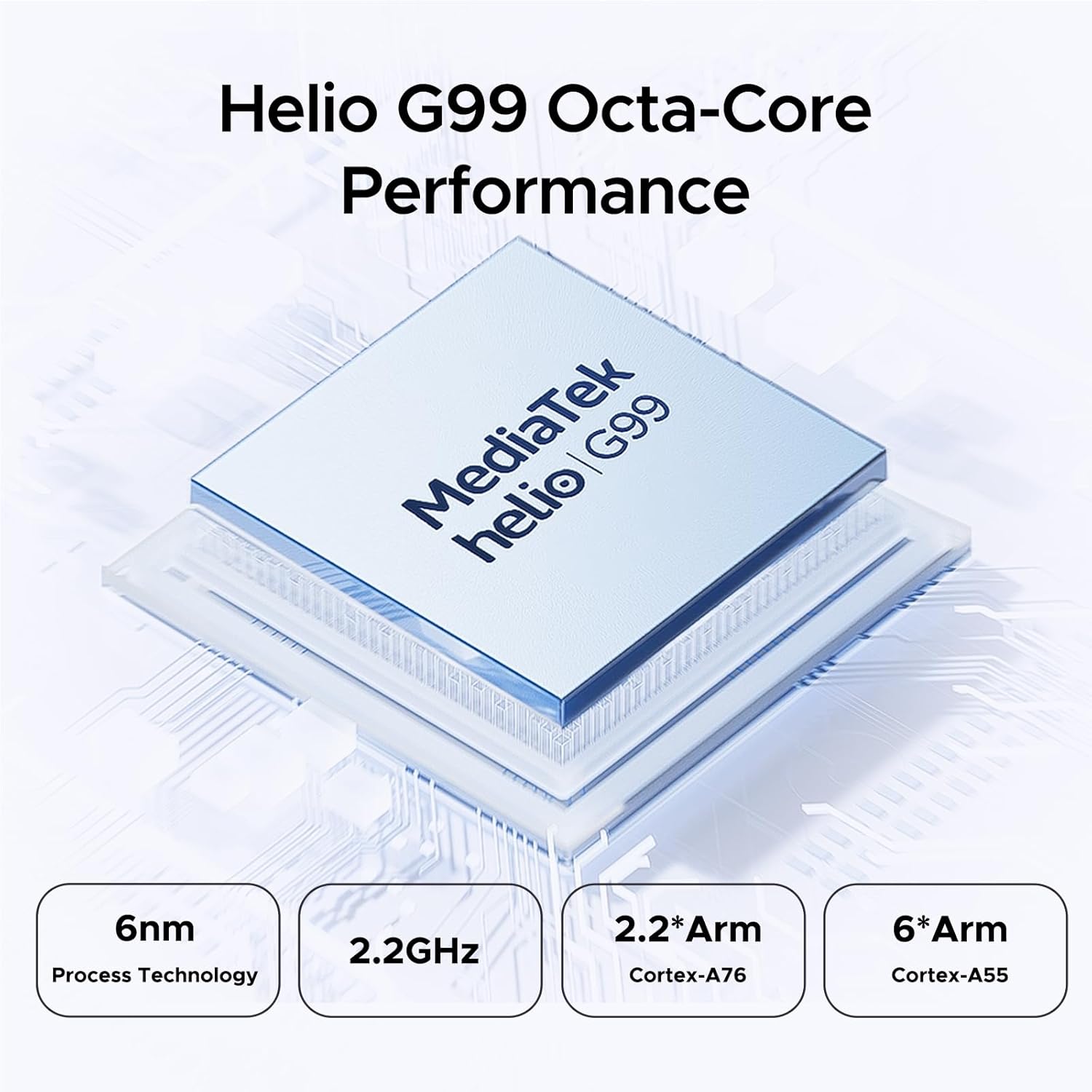
Figure 4.2: Helio G99 Octa-Core Processor for robust performance.

Figure 4.3: Memory and storage capabilities of the DOOGEE T35.
4.3 Battery Management
The 8580mAh large capacity battery provides extended usage. It supports 33W fast charging and reverse charging, allowing the tablet to act as a power bank for other devices.

Figure 4.4: 8580mAh Battery with 33W Fast Charging.
4.4 Connectivity
The tablet supports 4G LTE for cellular calls and data, and 5G Wi-Fi for high-speed internet. It also includes GPS, Glonass, Galileo, Beidou, and AGPS for accurate navigation.
4.5 Multimedia
Enjoy immersive audio with quad speakers and Smart PA. Widevine L1 support ensures high-quality streaming from platforms like Netflix and Amazon Prime Video.
Video 4.1: A promotional video showcasing the DOOGEE T35 Android Tablet and its accessories, highlighting its features and design.
5. Maintenance
5.1 Cleaning the Tablet
- Use a soft, lint-free cloth to clean the screen and body of the tablet.
- For stubborn smudges, slightly dampen the cloth with water or a screen cleaner. Avoid harsh chemicals.
- Ensure all ports are free of dust and debris.
5.2 Battery Care
- Avoid exposing the tablet to extreme temperatures.
- Do not fully discharge the battery regularly. Charge it before it drops below 20%.
- Use only the provided charger and cable for optimal charging performance and safety.
5.3 Software Updates
Regularly check for and install system updates to ensure your tablet has the latest features, security patches, and performance improvements. Go to Settings > System > System update to check for updates.
6. Troubleshooting
| Problem | Possible Cause | Solution |
|---|---|---|
| Tablet does not power on. | Low battery; software crash. | Charge the tablet for at least 30 minutes. Press and hold the power button for 10-15 seconds to force restart. |
| Wi-Fi connection issues. | Incorrect password; router issues; tablet Wi-Fi disabled. | Verify Wi-Fi password. Restart router. Toggle Wi-Fi off/on on tablet. |
| Apps crashing or freezing. | Insufficient RAM; app bug; outdated software. | Close background apps. Clear app cache/data. Update the app or system software. |
| Slow performance. | Too many apps running; low storage; outdated software. | Close unused apps. Free up storage space. Perform a system update. |
| Cannot connect to Google server/account. | Network issues; incorrect account details; software glitch. | Ensure stable internet connection. Verify Google account credentials. Restart tablet. If persistent, consider a factory reset (backup data first). |
7. Specifications
| Feature | Specification |
|---|---|
| Model | DOOGEE T35 |
| Operating System | Android 14 |
| Processor | MediaTek Helio G99 Octa-core (6nm, 2.2GHz) |
| Display | 11-inch 2.5K (2560 x 1600 pixels) |
| RAM | 8GB (expandable to 20GB) |
| Internal Storage (ROM) | 256GB |
| Expandable Storage | Up to 2TB via MicroSD card |
| Battery Capacity | 8580mAh |
| Charging | 33W Fast Charging, Reverse Charging |
| Connectivity | 4G LTE, 5G Wi-Fi (802.11ax), Bluetooth |
| Navigation | GPS, Glonass, Galileo, Beidou, AGPS |
| Audio | Quad Speakers with Smart PA, Hi-Res Audio, 3.5mm Headphone Jack |
| Security | Face ID |
| Dimensions (LxWxH) | 10.12 x 6.64 x 0.3 inches |
| Weight | 3 pounds |
8. Warranty and Support
DOOGEE provides comprehensive support for your T35 tablet:
- Money Back Guarantee: Enjoy a 30-day money-back guarantee and free returns.
- Limited Warranty: The tablet comes with a 2-year limited warranty.
- Customer Support: For any inquiries or assistance, please contact DOOGEE customer service.
For further assistance, please refer to the official DOOGEE website or contact their support channels.
Related documentsT35


Ask a question about this manual
Ask about setup, troubleshooting, compatibility, parts, safety, or missing instructions. Manuals+ will review the question and use this page’s manual context to help answer it.