1. Product Overview
The DOOGEE V Pad 5G is a high-performance Android tablet designed for versatile use, from entertainment to productivity. It features a large 12-inch 2.4K IPS display, powerful MediaTek Dimensity 7050 5G Octa-Core processor, and an 8800mAh battery, ensuring a smooth and immersive user experience.
1.1 Package Contents
Upon unboxing your DOOGEE V Pad 5G tablet, please verify that all the following items are included:
- 1* DOOGEE V Pad Tablet
- 1* Type-C Cable
- 1* 18W Charger
- 1* SIM Card Removal Needle
- 1* Packing Box
- 1* User Manual

The package includes the DOOGEE V Pad Tablet, a Type-C Cable, an 18W Charger, a SIM Card Removal Needle, the Packing Box, and this User Manual.
1.2 Device Layout
Familiarize yourself with the physical components of your tablet:
- Front Camera: Located at the top center when held horizontally.
- Display: The 12-inch 2.4K IPS screen.
- Power Button: Typically on the side, used to turn the device on/off or wake/sleep the screen.
- Volume Buttons: Adjacent to the power button, for adjusting audio levels.
- USB Type-C Port: At the bottom edge, for charging and data transfer.
- Speaker Grilles: Quad speakers located on the sides for immersive audio.
- SIM/TF Card Slot: On the side, for inserting SIM cards and expandable storage.
- Rear Camera Module: Located on the back, featuring the main camera.
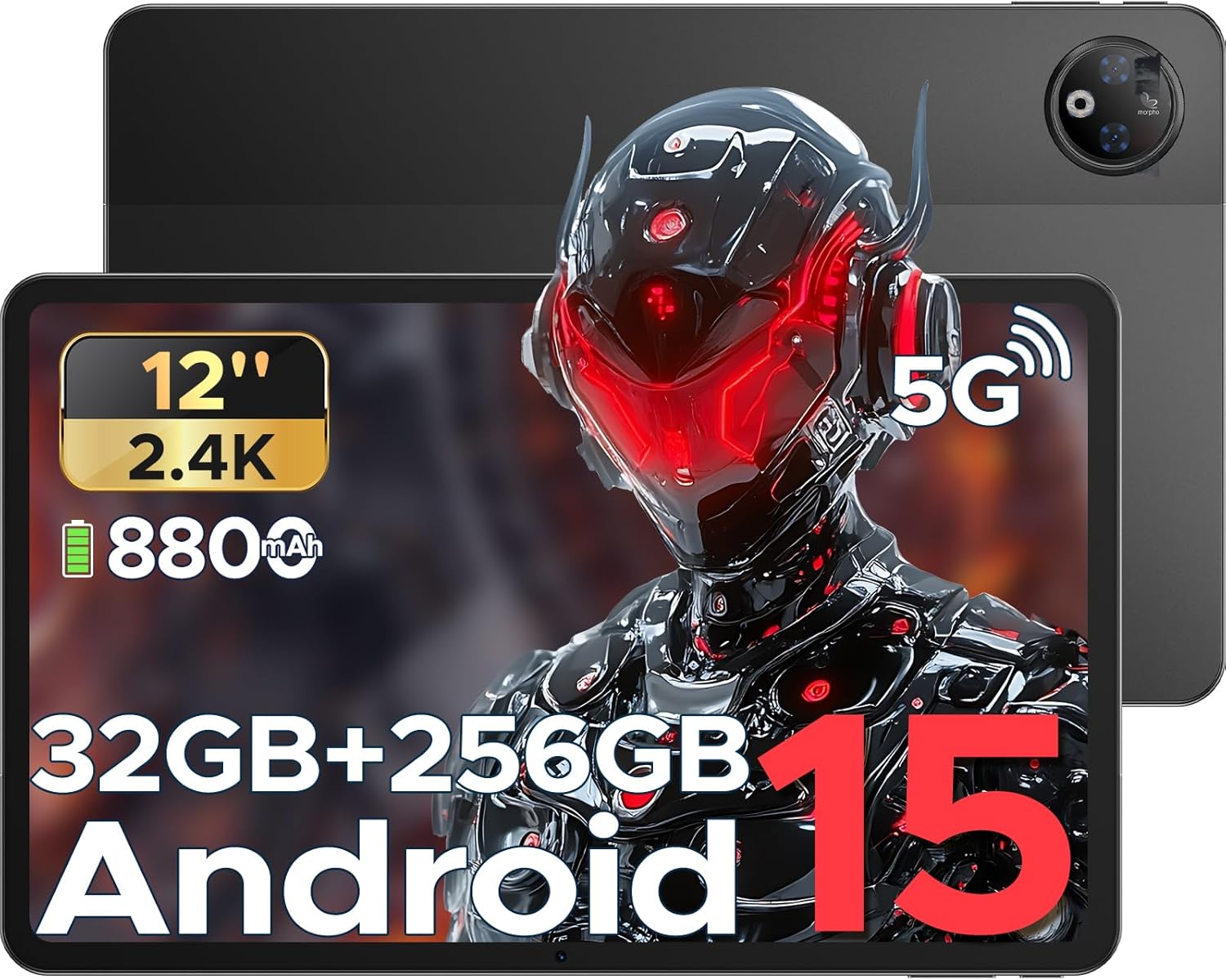
This image provides a general view of the DOOGEE V Pad 5G tablet, showing its front display and rear camera module.
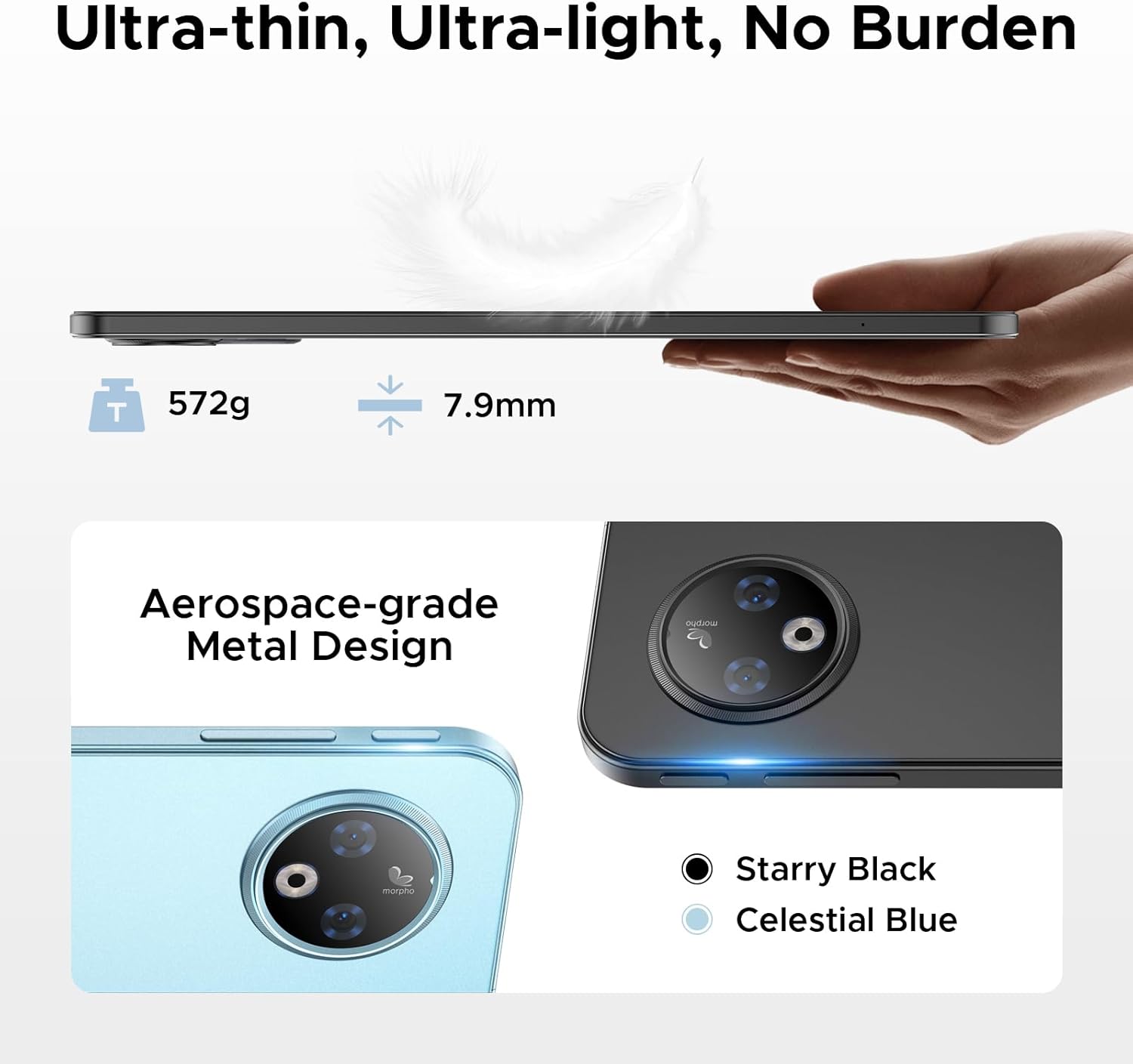
The side view of the tablet illustrates its 7.9mm ultra-thin design and the placement of physical buttons and ports.
2. Getting Started
2.1 Charging the Tablet
Before first use, fully charge your tablet. Connect the provided Type-C cable to the tablet's charging port and the 18W charger to a power outlet. The tablet supports 18W fast charging and can also function as an emergency power bank for other devices via reverse charging.

This image illustrates the tablet's large 8800mAh battery and its 18W fast charging feature, ensuring extended usage.
This video demonstrates the DOOGEE V Pad's powerful battery and its ability to support reverse charging, acting as an emergency power bank.
2.2 Power On/Off
- To Power On: Press and hold the Power button until the DOOGEE logo appears on the screen.
- To Power Off: Press and hold the Power button until the power options menu appears. Select 'Power off' and confirm.
- To Restart: From the power options menu, select 'Restart' and confirm.
2.3 Initial Setup
The first time you power on your tablet, you will be guided through an initial setup process. Follow the on-screen prompts to:
- Select your language.
- Connect to a Wi-Fi network.
- Sign in with your Google account or create a new one.
- Set up screen lock (PIN, pattern, password, or Face Unlock).
- Review and accept terms and conditions.

The Android 15 logo signifies the tablet's operating system, which offers a smarter, smoother, and safer user experience.
2.4 Inserting SIM/TF Card
To insert a SIM card for cellular data or a TF (microSD) card for expanded storage:
- Locate the SIM/TF card tray on the side of the tablet.
- Use the provided SIM card removal needle to gently eject the tray.
- Place the Nano-SIM card(s) and/or TF card into the designated slots on the tray, ensuring correct orientation.
- Carefully reinsert the tray into the tablet until it clicks into place.

This diagram illustrates the tablet's dual SIM 5G NR connectivity, allowing for ultra-fast internet access and communication.
3. Operating Your Tablet
3.1 Navigation and Gestures
The DOOGEE V Pad 5G utilizes intuitive touch gestures for navigation:
- Tap: To select an item or open an app.
- Swipe: To scroll through pages or menus.
- Pinch-to-Zoom: To zoom in or out on images and web pages.
- Long Press: To access contextual menus or move app icons.
- Split-Screen Multitasking: Utilize the smart split-screen feature to run two applications simultaneously, enhancing productivity.

This image shows the tablet's smart split-screen multitasking feature, allowing two applications to be viewed simultaneously.
3.2 Connecting to Wi-Fi
To connect your tablet to a Wi-Fi network:
- Go to Settings > Network & internet > Wi-Fi.
- Turn on Wi-Fi.
- Select your desired network from the list.
- Enter the password if prompted and tap Connect.
The tablet supports Wi-Fi 6 for faster and more stable wireless connections.

This image highlights the benefits of WiFi 6 high-speed transmission on the tablet, ensuring faster and more stable wireless connectivity.
3.3 Using the Cameras
The DOOGEE V Pad 5G is equipped with a 13MP rear camera and an 8MP front camera for capturing photos and videos. Open the Camera app to access various modes, including Portrait Mode, Beauty Mode, and Skew Correction for documents.

This image showcases the tablet's 13MP main camera and 8MP front camera capabilities, including various shooting modes for capturing lively moments.
3.4 Storage Management
Your tablet comes with 256GB of internal storage (ROM) and 32GB of RAM (8GB physical + 24GB extended virtual RAM). If you require more space, the tablet supports up to 2TB of expandable memory via a TF card (sold separately).

This image highlights the tablet's generous 256GB internal storage and 32GB RAM (8GB physical + 24GB virtual), along with the option to expand storage up to 2TB using a TF card.
3.5 Gemini AI Features
The DOOGEE V Pad 5G integrates Gemini AI, offering a range of intelligent functionalities to enhance your productivity and creativity:
- Content Creation: Assist in generating ideas and drafting content.
- Information Retrieval & Summarization: Quickly find and summarize information from various sources.
- Image Analysis: Understand and interpret visual content.
- Code Development: Provide assistance in programming tasks.
- Language Learning: Support language acquisition and practice.
- Smart Assistant: Act as a personal assistant for daily tasks and queries.

This image illustrates the various functions of the built-in Gemini AI, including content creation, information retrieval, image analysis, code development, language learning, and smart assistant capabilities.

This image demonstrates Gemini Live, enabling real-time AI conversations for various tasks, offering helpful tips and information.

This image illustrates Gemini Deep Research's ability to process vast amounts of data and provide instant, summarized insights.
3.6 Other Features
The tablet includes several other useful features:
- Face Unlock: Securely unlock your tablet using facial recognition.
- Precise Navigation System: Supports GPS, Beidou, GLONASS, and Galileo for accurate location tracking and navigation.
- FM Radio Function: Enjoy local radio broadcasts (requires headphones to be plugged in).
- Built-in PC-Level WPS Office: Pre-integrated WPS Office suite (Word, Excel, PPT) for productivity on the go.

This image highlights additional features such as facial recognition unlock, dual card slots, and Bluetooth 5.2 connectivity.

This image illustrates the tablet's precise navigation system, supporting GPS, Beidou, GLONASS, and Galileo for accurate location tracking.

This image shows the pre-integrated WPS Office suite (Word, Excel, PPT), allowing for PC-level productivity on the tablet.

This image explains the FM Radio function, noting that headphones must be plugged in to activate it.
4. Maintenance and Care
Proper maintenance ensures the longevity and optimal performance of your DOOGEE V Pad 5G tablet.
4.1 Battery Longevity
The tablet features an 8800mAh semi-solid state battery designed for extended life, with up to 800 charge and discharge cycles and an estimated 3-year lifetime. To maximize battery health:
- Avoid extreme temperatures. The tablet is designed to withstand cold conditions down to -10°C for up to 6 hours of video playback, but prolonged exposure to extreme heat or cold can degrade battery performance.
- Use only the provided charger and cable.
- Avoid completely draining the battery frequently.

This image details the tablet's advanced semi-solid state battery technology, which enhances low-temperature performance, offers 800 charge and discharge cycles, and has a 3-year lifetime.

This image demonstrates the tablet's durability in extreme cold, capable of operating at -10°C for 6 hours of video playback.
4.2 Eye Protection
The 12-inch 2.4K IPS display features eye-caring modes to reduce blue light and protect your eyes during prolonged use. You can switch between Warm Mode, Standard Mode, and Cool Mode in the display settings to find your preferred viewing comfort.

This image highlights the tablet's eye-caring mode, which reduces blue light emissions and offers Warm, Standard, and Cool display settings for user comfort.
5. Troubleshooting
This section addresses common issues you might encounter with your DOOGEE V Pad 5G tablet.
5.1 Common Issues and Solutions
| Issue | Possible Solution |
|---|---|
| Tablet not turning on | Ensure the battery is charged. Press and hold the Power button for at least 10-15 seconds to force a restart. |
| Wi-Fi connection issues | Restart your Wi-Fi router. Forget the network on your tablet and reconnect. Ensure Wi-Fi is enabled. |
| Slow performance | Close unused apps. Clear cache of frequently used apps. Restart the tablet. Check for system updates. |
| Apps crashing or freezing | Clear the app's cache and data (Settings > Apps > [App Name] > Storage). Reinstall the app. Ensure the app is updated. |
| Touchscreen unresponsive | Restart the tablet. If the issue persists, consider a factory reset (data will be lost). |
5.2 Factory Reset
If your tablet experiences persistent software issues, a factory reset may resolve them. Warning: A factory reset will erase all data from your tablet, including apps, photos, and settings. Back up important data before proceeding.
- Go to Settings > System > Reset options.
- Tap Erase all data (factory reset).
- Confirm your decision and enter your PIN/pattern/password if prompted.
- Tap Erase all data to begin the reset process.
6. Specifications
Detailed technical specifications for the DOOGEE V Pad 5G tablet:
| Feature | Specification |
|---|---|
| Model | V Pad |
| Processor | MediaTek Dimensity 7050 5G Octa-Core (2.6GHz, 6nm) |
| Display | 12-inch 2.4K IPS (1200*2000 pixels), 90Hz Refresh Rate |
| RAM | 32GB (8GB physical + 24GB extended) |
| Internal Storage | 256GB ROM |
| Expandable Storage | Up to 2TB via TF card (sold separately) |
| Battery | 8800mAh, 18W Fast Charging, Reverse Charging Support |
| Rear Camera | 13MP |
| Front Camera | 8MP |
| Operating System | Android 15 |
| Connectivity | 5G, Wi-Fi 6 (2.4/5GHz), Bluetooth 5.2 |
| Navigation | GPS, Beidou, GLONASS, Galileo, AGPS |
| Dimensions (LxWxH) | 11 x 6.8 x 0.3 inches |
| Item Weight | 14.7 ounces |
7. Warranty and Support
DOOGEE products are manufactured to the highest quality standards. For specific warranty details and terms, please refer to the warranty card included in your product package or visit the official DOOGEE website.
For technical support, troubleshooting assistance, or service inquiries, please contact DOOGEE customer support through their official channels. You can find more information and support resources by visiting the DOOGEE Store on Amazon.


