
1. Introduction
This manual provides instructions for the DOOGEE U11 Android 15 Tablet. It covers initial setup, operational procedures, maintenance guidelines, troubleshooting steps, and detailed product specifications. Please read this manual thoroughly to ensure proper use and optimal performance of your device.

Figure 1.1: Front and back view of the DOOGEE U11 Tablet.
2. Setup
2.1 Initial Power On
- Press and hold the power button located on the side of the tablet until the DOOGEE logo appears.
- Follow the on-screen prompts to select your language, region, and accept the terms of service.
2.2 Network Connection (Wi-Fi)
- Navigate to Settings > Network & internet > Wi-Fi.
- Toggle Wi-Fi to the On position.
- Select your desired Wi-Fi network from the list.
- Enter the network password if prompted and tap Connect. The tablet supports both 2.4G and 5G Wi-Fi networks.
2.3 Google Account Setup
- During initial setup or later via Settings > Accounts, add your Google account.
- This account is necessary for accessing the Google Play Store, Gmail, and other Google services.
2.4 Face Unlock Configuration
- Go to Settings > Security & privacy > Face unlock.
- Follow the on-screen instructions to register your face. Ensure adequate lighting for accurate recognition.
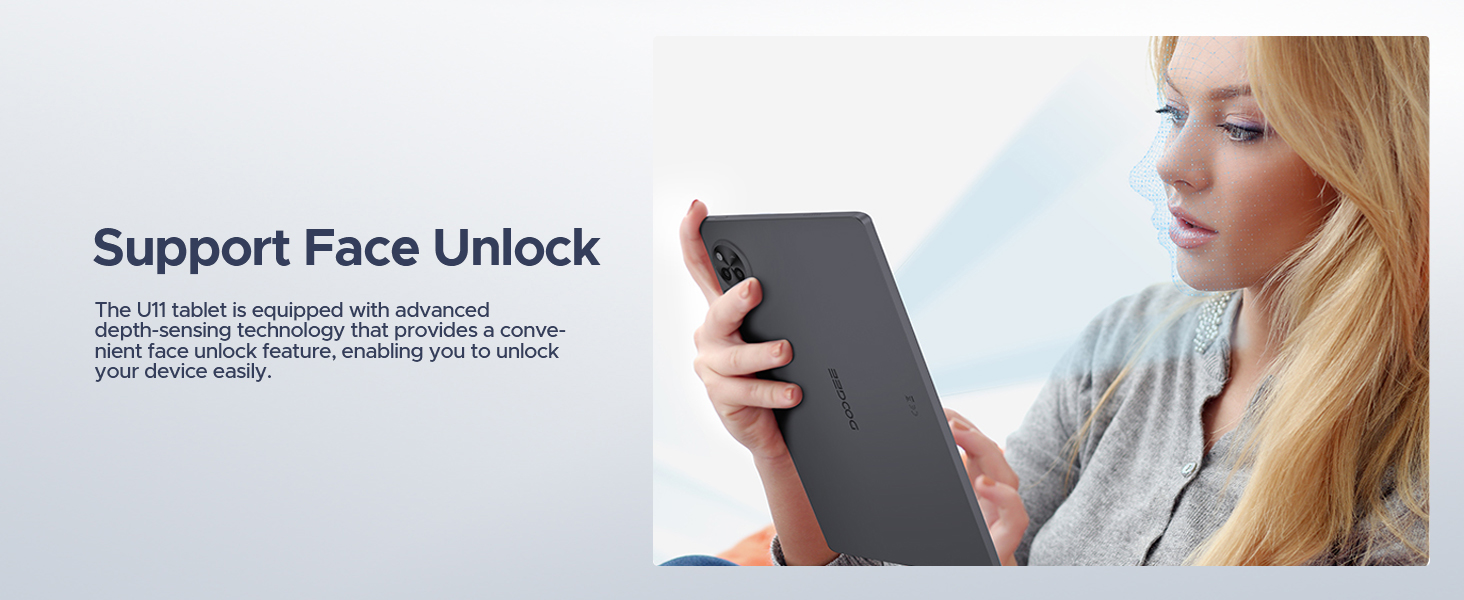
Figure 2.1: Face Unlock feature for convenient device access.
2.5 Memory Expansion (MicroSD/TF Card)
- Locate the SD card slot on the tablet.
- Insert a MicroSD/TF card (up to 2TB supported) into the slot until it clicks into place.
- The tablet will prompt you to format the card as either Portable storage or Internal storage. Select the appropriate option based on your usage needs.
Figure 2.2: The tablet supports 128GB internal storage with up to 2TB MicroSD/TF expansion.
3. Operating Instructions
3.1 Android 15 Operating System
The DOOGEE U11 operates on Android 15, offering features such as personalized settings, widgets, split-screen functionality, parental controls, and multi-user support. Data encryption and notification management are included for privacy protection.
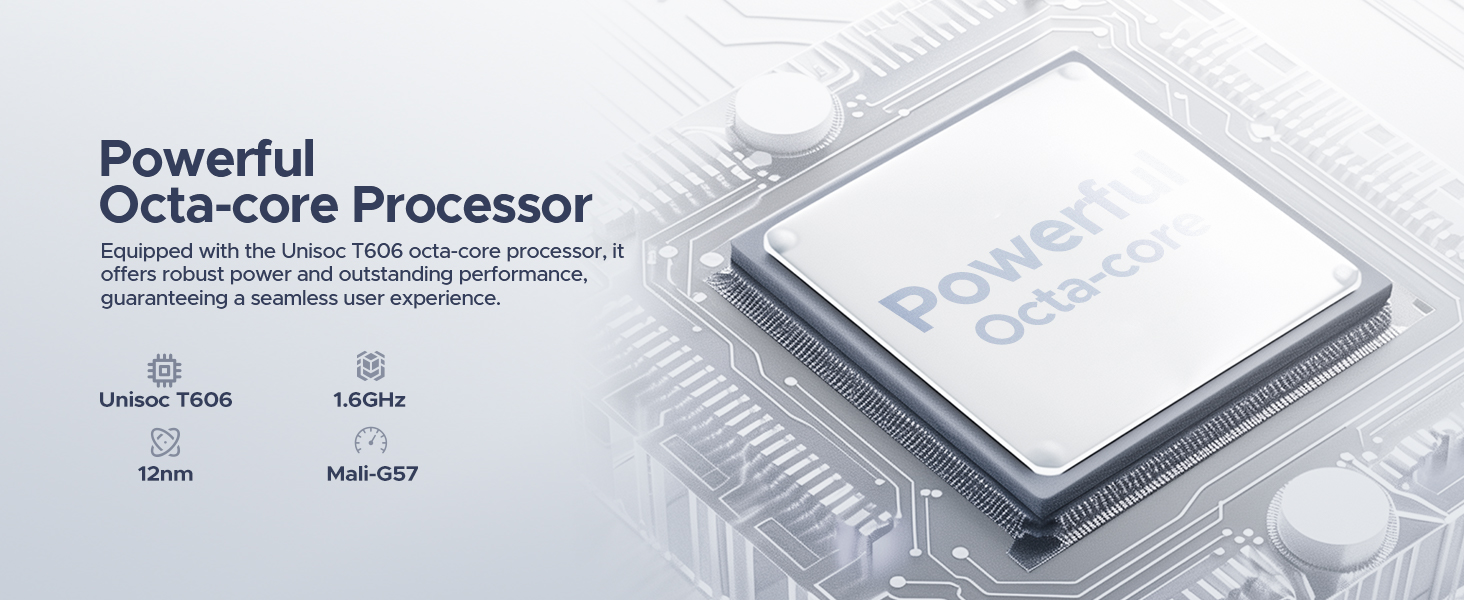
Figure 3.1: Overview of the Android 15 system interface.
3.2 Display Settings
The 11-inch IPS display features a 90Hz refresh rate for smooth visual experiences. You can adjust display settings via Settings > Display.
- Low Blue Light Mode: Activate this mode to reduce blue light emission, which can enhance visual comfort during extended use. Access via Settings > Display > Night Light or Eye Comfort Shield.
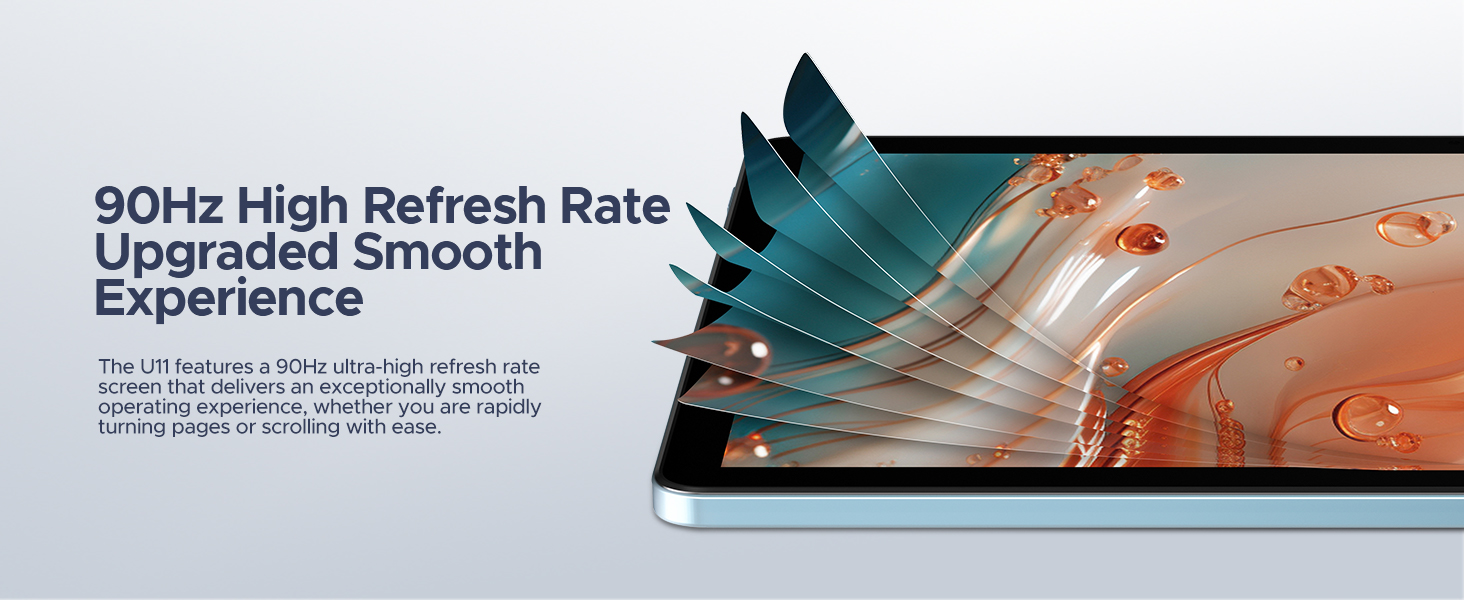
Figure 3.2: The 11-inch display with 90Hz refresh rate.
Figure 3.3: Low Blue Light Mode for eye protection.
3.3 Multitasking with Split-Screen
The split-screen feature allows two applications to run simultaneously. To activate, open an app, swipe up from the bottom of the screen and hold to access recent apps, then tap the app icon and select Split top. Choose a second app to open in the other half of the screen.
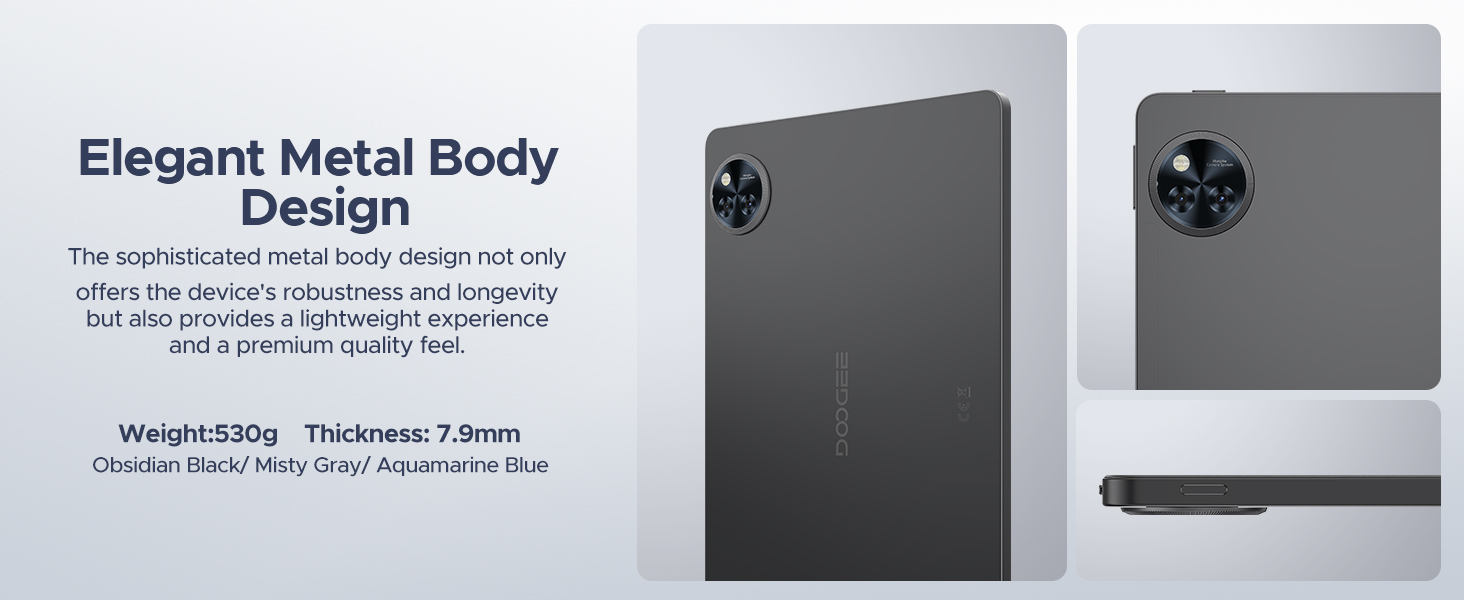
Figure 3.4: Efficient multitasking using split-screen functionality.
3.4 Camera Usage
The tablet is equipped with a 13MP main camera and a 5MP front camera. Open the Camera application to capture photos and videos.
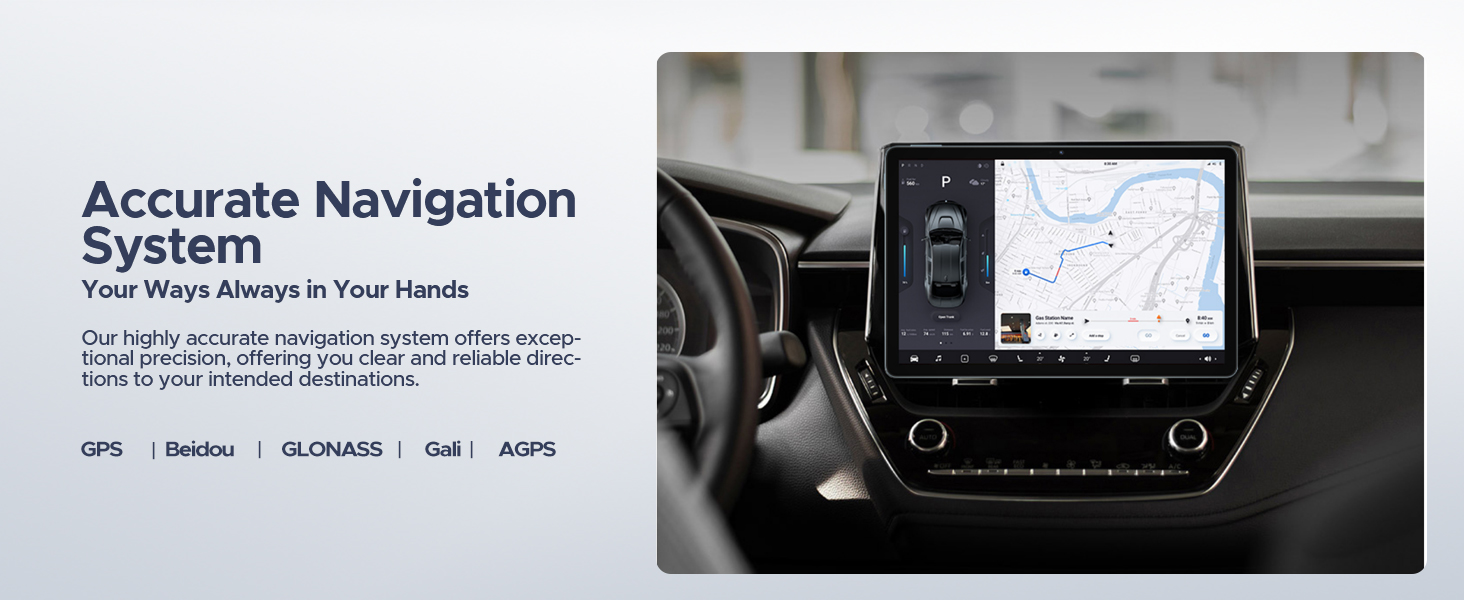
Figure 3.5: Camera specifications and example usage.
3.5 Audio Output
The DOOGEE U11 features dual speakers for audio output. A 3.5mm AUX headphone jack is also available for private listening.
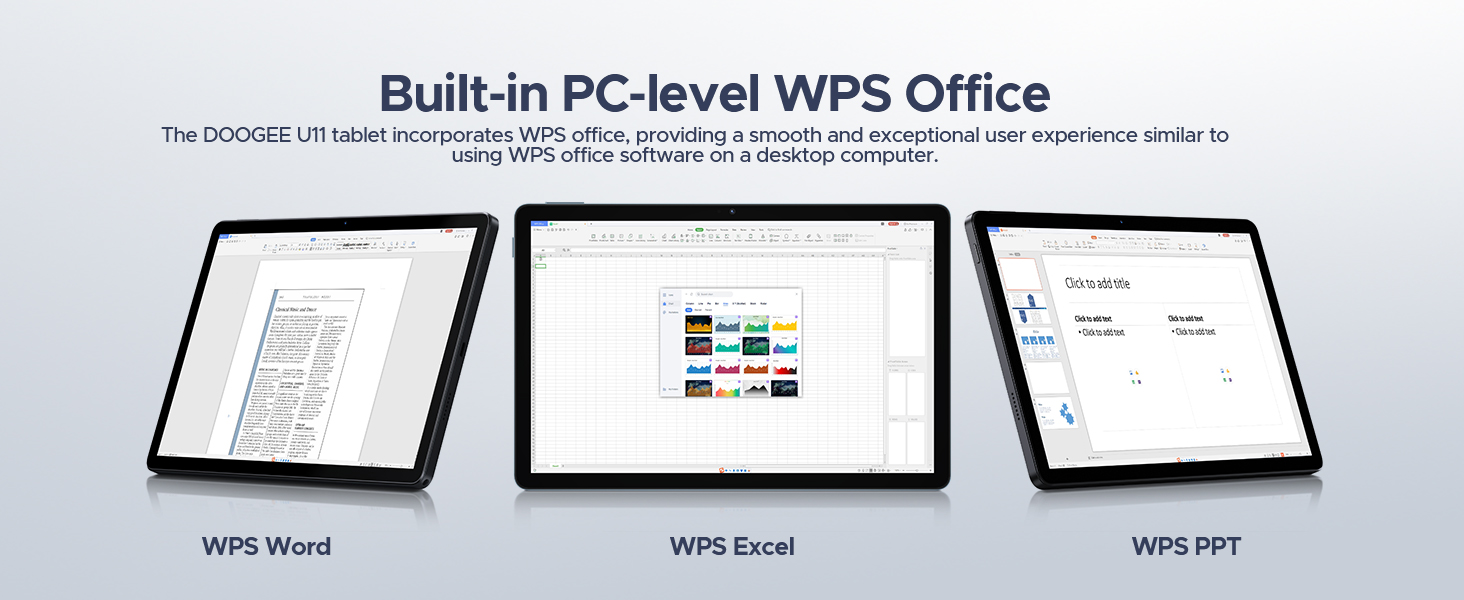
Figure 3.6: Dual speaker system for audio playback.
3.6 WPS Office Suite
The tablet includes a built-in PC-level WPS Office suite, allowing for document creation and editing, including Word, Excel, and PowerPoint files.
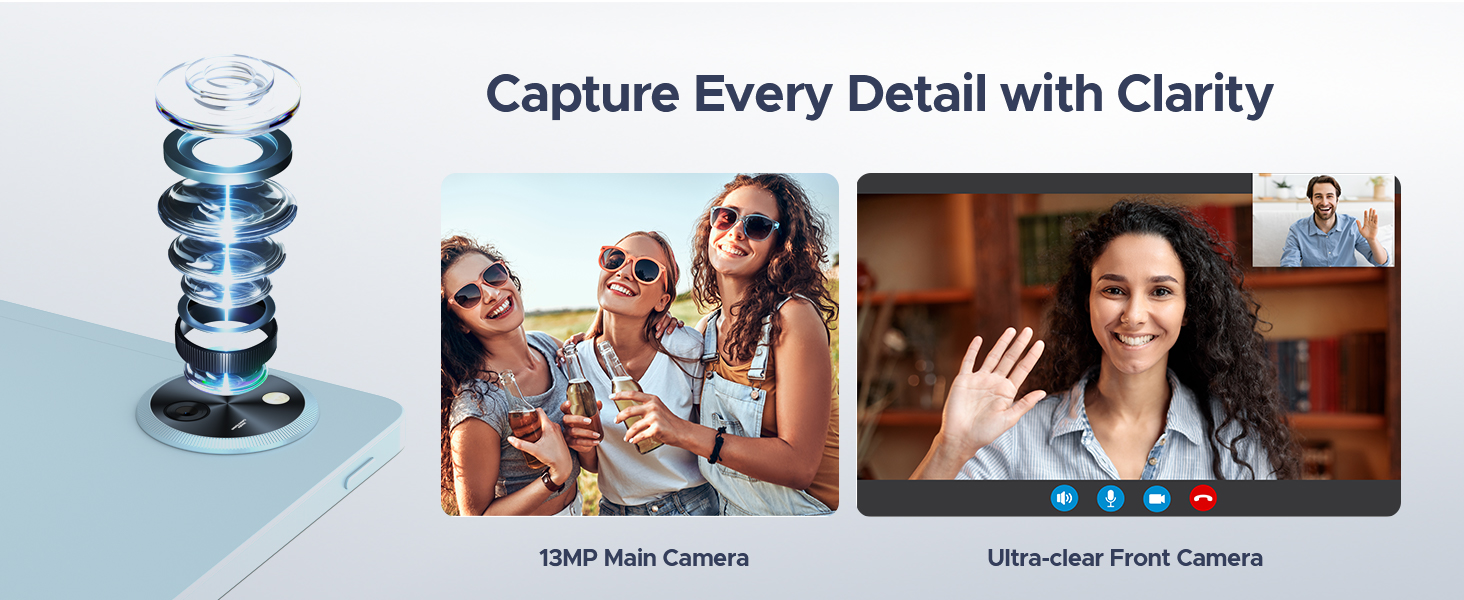
Figure 3.7: WPS Office applications for productivity.
3.7 FM Radio Function
The tablet features an FM radio. Connect headphones to the 3.5mm AUX jack, which acts as an antenna, to listen to local radio stations.
3.8 Navigation System
The integrated navigation system supports GPS, Beidou, GLONASS, Gali, and AGPS for precise positioning and route guidance.
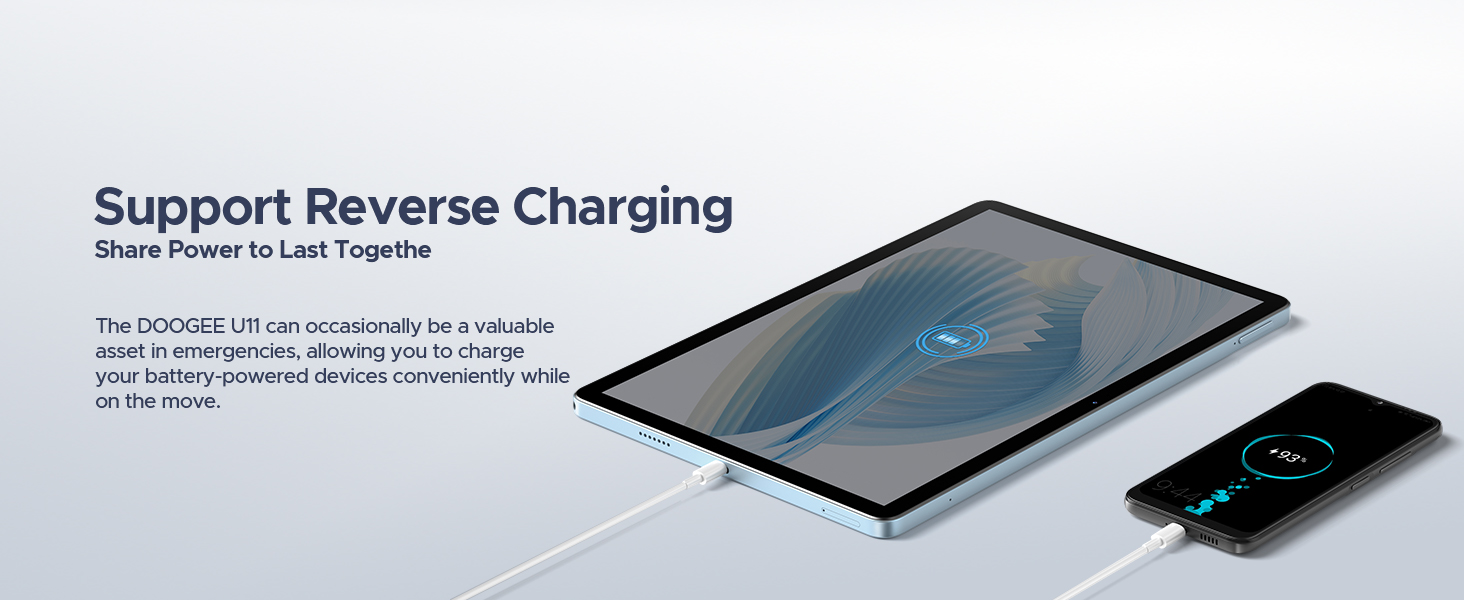
Figure 3.8: Navigation system in use.
3.9 Battery Management and Reverse Charging
The tablet is equipped with an 8580mAh battery. It supports reverse charging, allowing the tablet to act as a power bank for other devices via a Type-C cable.
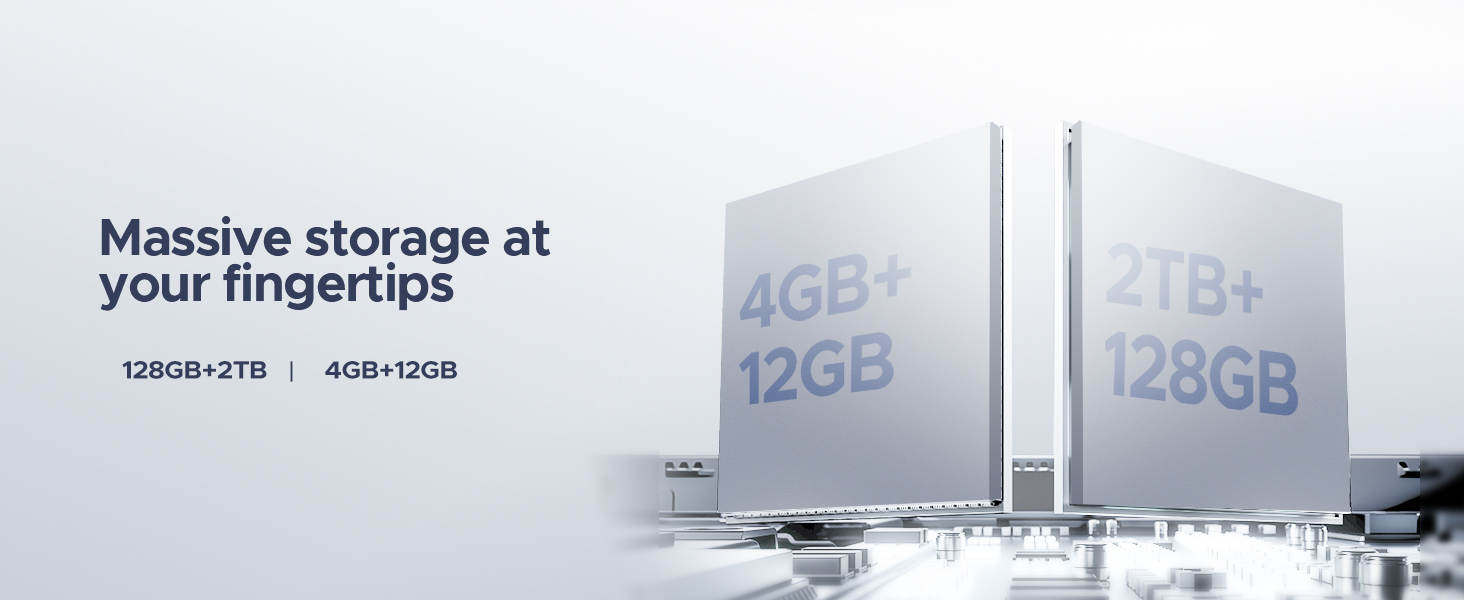
Figure 3.9: The 8580mAh battery provides extended usage time.
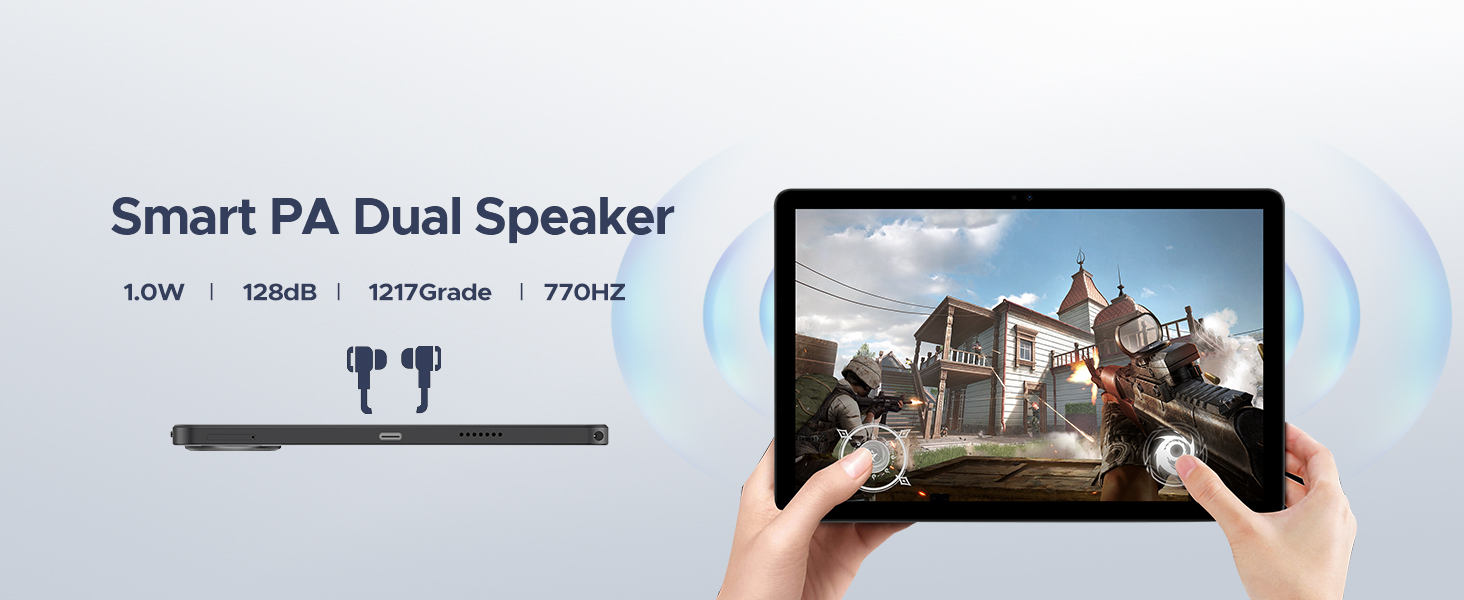
Figure 3.10: The tablet supports reverse charging for other devices.
4. Maintenance
4.1 System Optimization
The Memory Manager provides suggestions to free up storage space. This includes cleaning junk files, deleting duplicate files, removing large files, and managing downloaded content. Regularly performing these actions can help maintain device performance.
4.2 Battery Care
- Avoid exposing the tablet to extreme temperatures.
- Do not fully discharge the battery frequently.
- Use the provided charger or a certified compatible charger.
4.3 Software Updates
Periodically check for system updates via Settings > System > System update to ensure your device has the latest features and security patches.
5. Troubleshooting
This section addresses common issues you might encounter with your DOOGEE U11 tablet.
5.1 Device Not Powering On
- Ensure the battery is charged. Connect the tablet to its charger and allow it to charge for at least 30 minutes before attempting to power on again.
- Press and hold the power button for 10-15 seconds to perform a forced restart.
5.2 Slow Performance or App Freezing
- Close unnecessary background applications.
- Clear cache and data for problematic apps via Settings > Apps > [App Name] > Storage & cache.
- Utilize the Memory Manager for storage optimization.
- Restart the tablet.
5.3 Wi-Fi Connectivity Issues
- Ensure Wi-Fi is enabled on the tablet and the router is functioning correctly.
- Forget the network and reconnect by re-entering the password.
- Restart both the tablet and the Wi-Fi router.
5.4 Factory Reset
If persistent issues occur, a factory reset may be necessary. Warning: This will erase all data on your tablet. Back up important data before proceeding.
- Go to Settings > System > Reset options.
- Select Erase all data (factory reset).
- Confirm your decision and follow the prompts.
6. Specifications
| Feature | Specification |
|---|---|
| Model | DOOGEE U11 |
| Operating System | Android 15 |
| Processor | Unisoc T606 Octa-core (1.6GHz, 12nm, Mali-G57 GPU) |
| RAM | 16GB (4GB physical + 12GB expansion) |
| Internal Storage | 128GB |
| Expandable Storage | MicroSD/TF up to 2TB |
| Display Size | 11 inches |
| Display Type | IPS |
| Resolution | 1280*800 Pixels (Max Screen Resolution: 1920 x 1080 pixels) |
| Refresh Rate | 90Hz |
| Battery Capacity | 8580mAh Lithium Polymer |
| Main Camera | 13MP |
| Front Camera | 5MP |
| Wi-Fi | 802.11ac (5G WiFi), 802.11g (2.4G WiFi) |
| Bluetooth | Bluetooth 5.0 |
| Navigation | GPS, Beidou, GLONASS, Gali, AGPS |
| Ports | 1x Type-C, 1x 3.5mm AUX, 1x SD card slot |
| Dimensions (LxWxH) | 10.12 x 6.68 x 0.31 inches |
| Weight | 1.13 pounds (approx. 513g) |
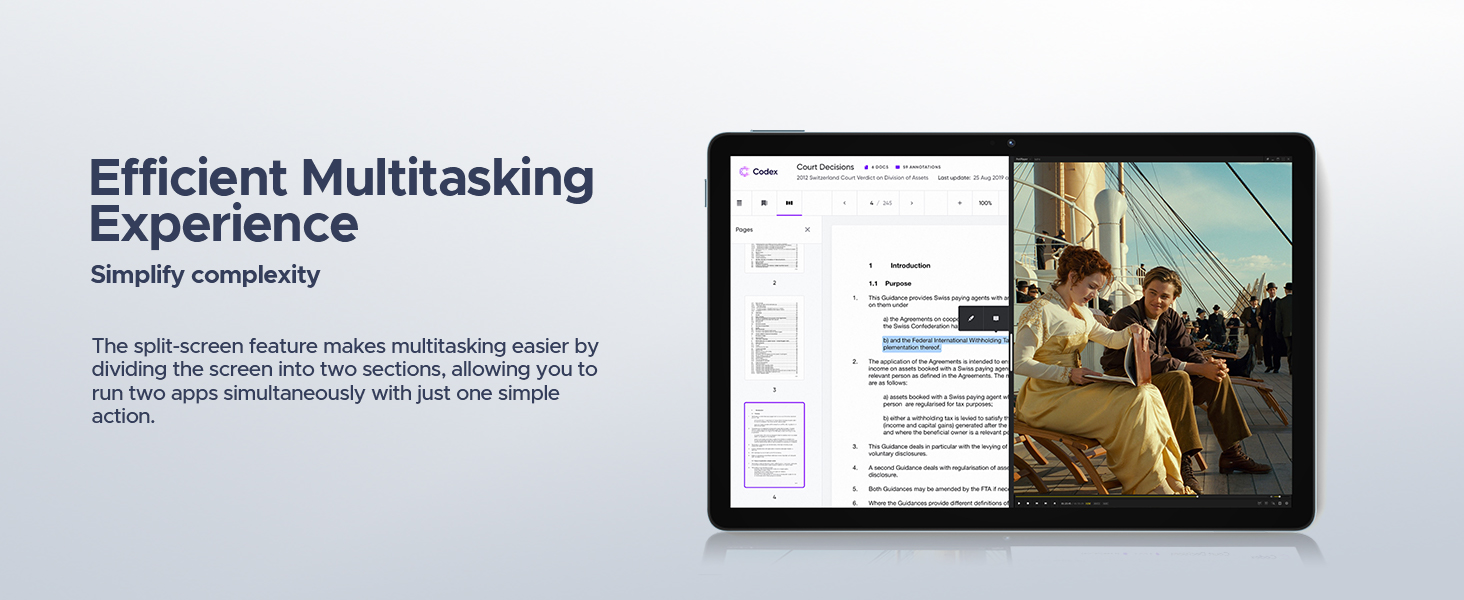
Figure 6.1: The Unisoc T606 Octa-core processor powers the DOOGEE U11.
7. Warranty Information
Warranty coverage for the DOOGEE U11 tablet is provided by the manufacturer or seller. Please refer to the warranty card included with your product or contact your point of purchase for specific terms and conditions. Protection plans may also be available for extended coverage.
8. Support
For further assistance, technical support, or service inquiries, please contact DOOGEE customer support through their official website or the contact information provided with your product packaging. You may also visit the DOOGEE store on Amazon for additional resources and FAQs.
DOOGEE Store: https://www.amazon.com/stores/DOOGEE/page/A39652BD-4C9E-4786-9C34-8ABB68DE0373


