
1. Introduction
The DOOGEE T35 is an 11-inch tablet designed for productivity and entertainment. It features a powerful Helio G99 Octa-core processor, a high-resolution 2.5K display, and runs on Android 14. This manual provides essential information for setting up, operating, maintaining, and troubleshooting your device.

Figure 1.1: DOOGEE T35 Tablet with included accessories.
2. What's in the Box
Verify that all items are present in the package:
- T35 Tablet
- Charger / Type-C USB Cable
- Tool for SIM card tray / User Manual
- Bluetooth Keypad
- Protective Film
- Touching Pen
- Business Leather Case
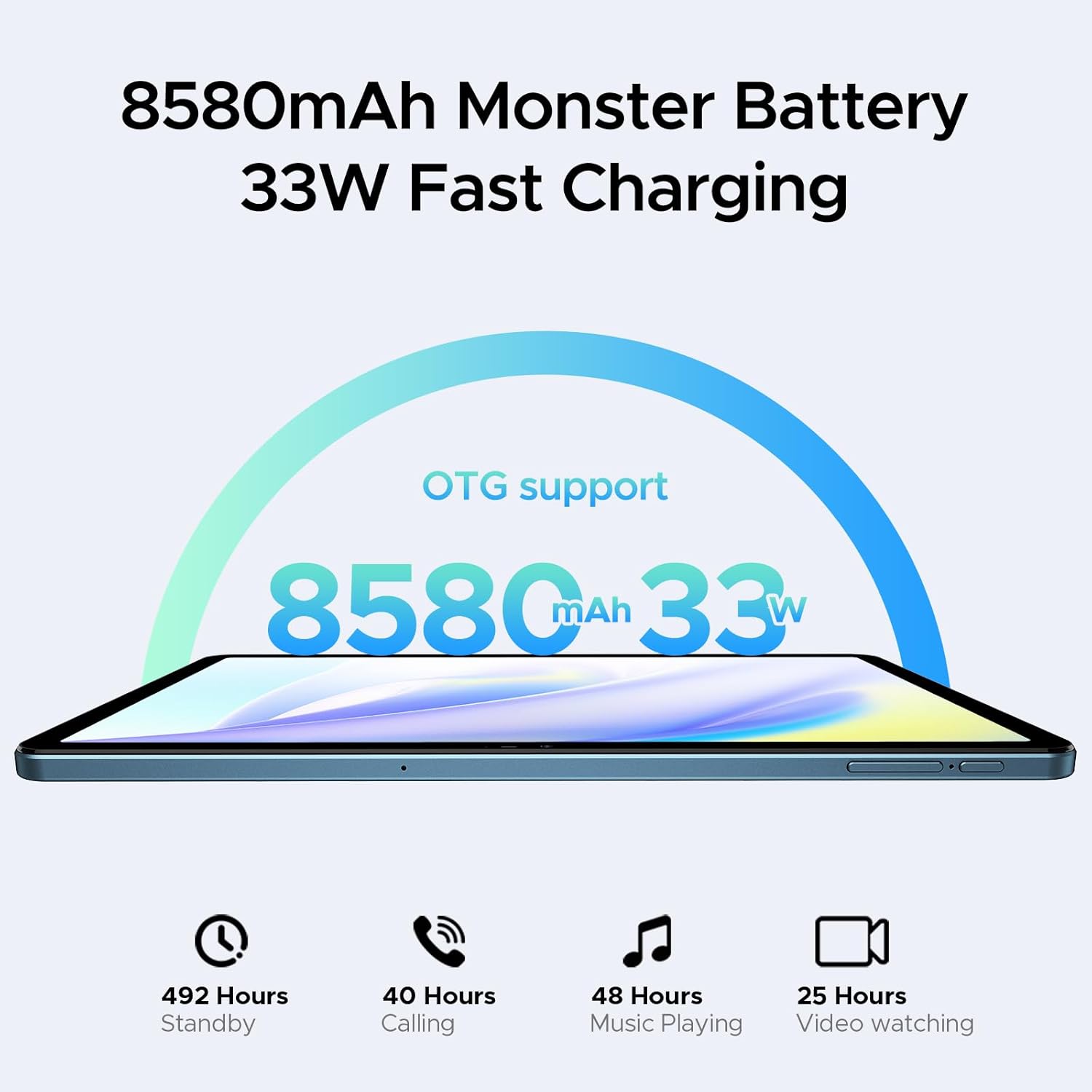
Figure 2.1: All standard accessories included with the DOOGEE T35 tablet.
3. Getting Started (Setup)
3.1 Powering On
- Press and hold the Power button located on the side of the tablet until the DOOGEE logo appears.
- Follow the on-screen prompts to complete the initial setup, including language selection, Wi-Fi connection, and Google account setup.
3.2 SIM Card and MicroSD Card Installation
The DOOGEE T35 supports 4G LTE connectivity and expandable storage.
- Locate the SIM card tray on the side of the tablet.
- Insert the provided SIM ejector tool into the small hole next to the tray and push gently until the tray pops out.
- Place your Nano-SIM card(s) and/or MicroSD card into the designated slots on the tray. Ensure correct orientation as indicated on the tray.
- Carefully reinsert the tray into the tablet until it clicks into place.
3.3 Connecting Accessories
The tablet comes with a Bluetooth keyboard and a stylus for enhanced productivity.
- Bluetooth Keyboard: Turn on the keyboard and enable Bluetooth on your tablet (Settings > Connected devices > Bluetooth). Select the keyboard from the list of available devices and follow pairing instructions.
- Stylus: The stylus is generally passive and does not require pairing. Simply use it directly on the screen for writing or drawing.
- Business Leather Case: Insert the tablet into the case for protection and to use it as a stand.

Figure 3.1: The Bluetooth keyboard provides a flexible input option.

Figure 3.2: The included stylus supports smooth writing and low latency.
4. Operating Your Tablet
4.1 Display
The DOOGEE T35 features an 11-inch 2.5K ultra-clear display with a resolution of 1600x2560 pixels. It supports Widevine L1 for high-definition streaming content.
- Resolution: 2560 x 1600 pixels.
- Screen-to-Body Ratio: 85%.
- Widevine L1 Support: Enables high-quality video playback from streaming services.

Figure 4.1: The 11-inch 2.5K ultra-clear display provides fine visuals.

Figure 4.2: Widevine L1 support for multi-platform audio and visual enhancement.
4.2 Performance
The tablet is powered by a MediaTek Helio G99 Octa-core processor, built on 6nm process technology, ensuring a balance of performance and energy efficiency. It is equipped with 20GB of RAM (8GB base + 12GB extended) and 256GB of internal storage, expandable up to 2TB via a MicroSD card.
- Processor: Helio G99 Octa-core (2.2GHz).
- RAM: 8GB Base RAM + 12GB Extended RAM (20GB total).
- Internal Storage: 256GB ROM.
- Expandable Storage: Up to 2TB via TF card.

Figure 4.3: Helio G99 Octa-Core processor details.

Figure 4.4: Memory and storage capacities of the DOOGEE T35.
4.3 Battery
The DOOGEE T35 is equipped with an 8580mAh battery, providing extended usage times. It supports 33W fast charging and reverse charging, allowing it to function as a power bank for other devices.
- Capacity: 8580mAh.
- Charging: 33W Fast Charging.
- Usage Times: Up to 492 hours standby, 40 hours calling, 48 hours music playing, 25 hours video watching.
- OTG Support: Enables reverse charging.
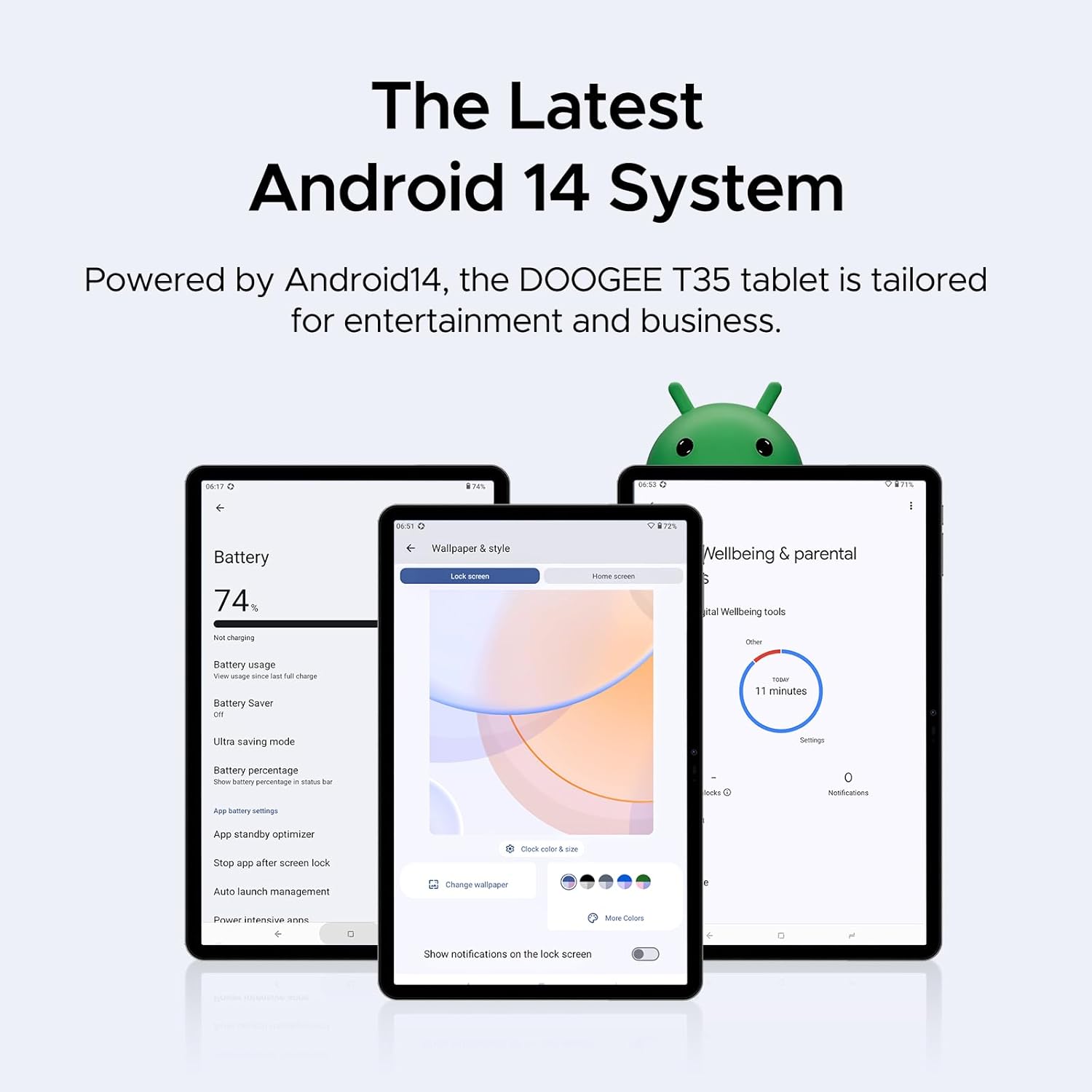
Figure 4.5: Battery capacity and charging features.
4.4 Connectivity
The tablet supports 4G LTE for cellular calls and data, and 5G Wi-Fi for high-speed wireless internet access.
- Cellular: 4G LTE calling capabilities.
- Wi-Fi: 802.11ac (5G Wi-Fi).
4.5 Software Features (Android 14)
The DOOGEE T35 runs on the latest Android 14 operating system, offering an enhanced user experience with new features and improvements.
- Operating System: Android 14.
- Productivity: Built-in WPS Office for Word, Excel, and PowerPoint documents.
- Security: Face Unlock for instant access.
- Navigation: Supports GPS, Glonass, Galileo, Beidou, and AGPS for accurate positioning.
- Reading Modes: Offers Warm, Standard, and Cool modes for optimized viewing comfort.
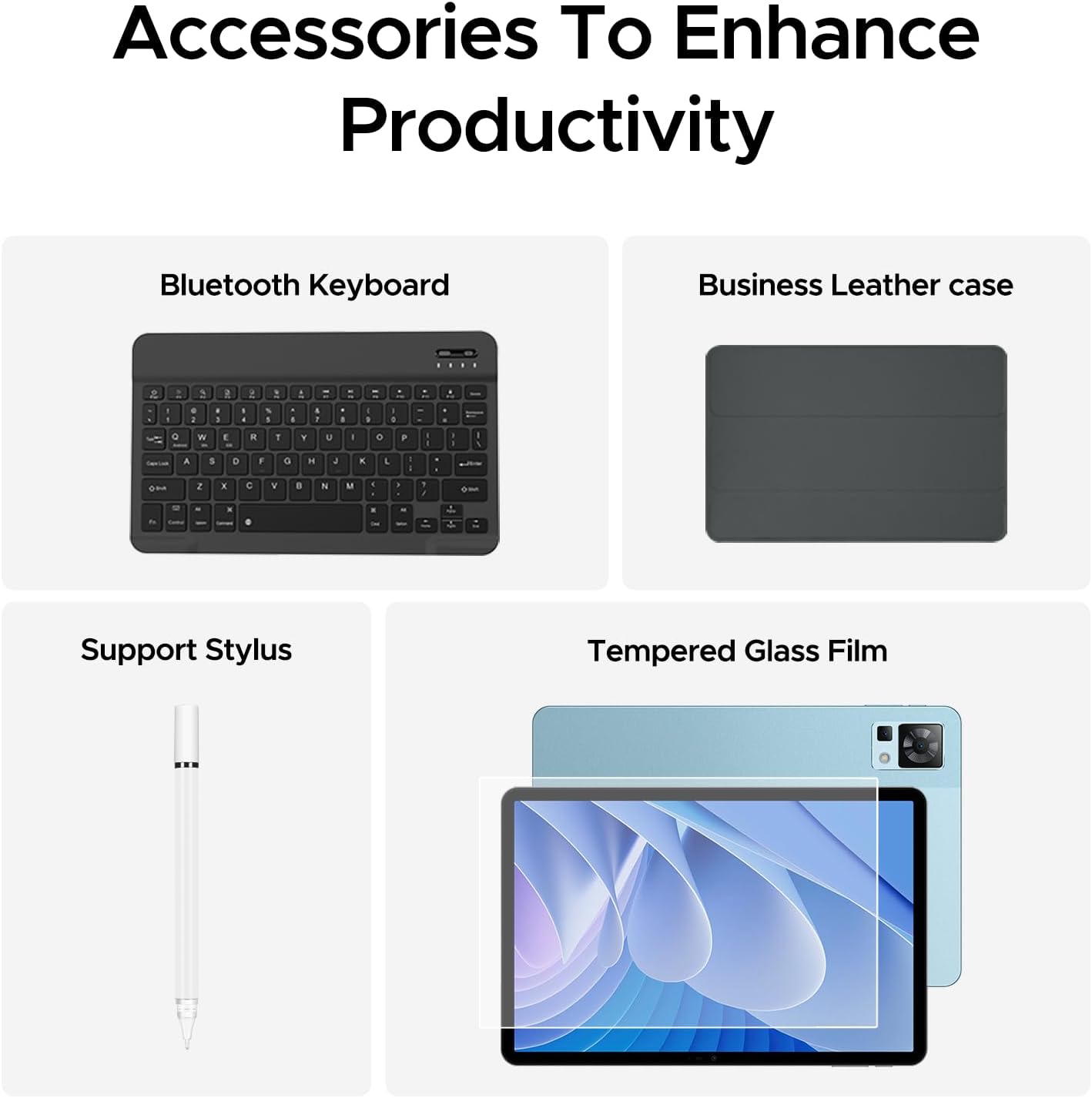
Figure 4.6: The latest Android 14 system tailored for entertainment and business.

Figure 4.7: Built-in WPS Office for document management.

Figure 4.8: Face Unlock provides instant access to your tablet.

Figure 4.9: Multiple navigation systems ensure you always find your way.

Figure 4.10: Optimize your viewing experience with Warm, Standard, and Cool reading modes.
4.6 Audio
The DOOGEE T35 features immersive quad speakers with Smart PA technology, providing enhanced audio quality for media consumption.
- Speakers: Quad Speakers with Smart PA.
- Headphone Jack: 3.5mm headphone jack available.

Figure 4.11: Experience ultimate audio quality with quad speakers.

Figure 4.12: The tablet includes a standard 3.5mm headphone jack.
5. Maintenance
To ensure the longevity and optimal performance of your DOOGEE T35 tablet, follow these maintenance guidelines:
- Cleaning: Use a soft, lint-free cloth to clean the screen and body. Avoid abrasive materials or harsh chemicals.
- Temperature: Operate and store the tablet within recommended temperature ranges (typically 0°C to 35°C or 32°F to 95°F) to prevent damage to the battery and internal components.
- Battery Care: Avoid fully discharging the battery frequently. For long-term storage, charge the battery to about 50% and store in a cool, dry place.
- Software Updates: Regularly check for and install system updates to ensure your tablet has the latest security patches and performance improvements.
- Protection: Use the provided business leather case and tempered glass film to protect the tablet from scratches and minor impacts.

Figure 5.1: The tempered glass film offers high strength and wear resistance.

Figure 5.2: The business leather case protects your tablet from all angles.
6. Troubleshooting
If you encounter issues with your DOOGEE T35 tablet, try the following common troubleshooting steps:
- Tablet not turning on: Ensure the battery is charged. Connect the tablet to the charger and wait a few minutes before attempting to power on again.
- Screen frozen or unresponsive: Press and hold the Power button for about 10-15 seconds to force a restart.
- Wi-Fi connectivity issues: Turn Wi-Fi off and on again in Settings. Restart your Wi-Fi router. Forget the network and reconnect.
- Poor performance/lag: Close unused applications. Clear cache from apps (Settings > Apps > [App Name] > Storage > Clear cache). Restart the tablet.
- Accessories not connecting: Ensure Bluetooth is enabled on the tablet and the accessory is in pairing mode. Check battery levels of Bluetooth accessories.
- Apps crashing: Ensure apps are updated to their latest versions. Clear app data or reinstall the app if the issue persists.
For more complex issues, refer to the official DOOGEE support website or contact customer service.
7. Technical Specifications
| Feature | Specification |
|---|---|
| Brand | DOOGEE |
| Model Name | T35 |
| Operating System | Android 14 |
| Standing Screen Display Size | 10.95 Inches |
| Screen Resolution | 2560 x 1600 pixels |
| Max Screen Resolution | 1600*2560 Pixels |
| Processor Brand | MediaTek |
| Chipset Brand | ARM |
| Memory Storage Capacity | 256 GB (expandable to 2TB) |
| RAM | 20GB (8GB Base + 12GB Extended) |
| Wireless Type | 802.11ac (5G Wi-Fi) |
| Battery Capacity | 8580mAh |
| Average Battery Life | 2 years (estimated lifespan) |
| Item Weight | 3 pounds |
| Product Dimensions | 10.12 x 6.64 x 0.3 inches |
| Color | Blue |
8. Warranty and Support
DOOGEE provides comprehensive support for your T35 tablet:
- 30-Day Money Back Guarantee: If you are not satisfied with your purchase, you may be eligible for a refund or replacement within 30 days.
- 2-Year Limited Warranty: The tablet comes with a 2-year limited warranty covering manufacturing defects.
- 24/7 Online Support: Access one-on-one online support for any queries or technical assistance.
For detailed terms and conditions, please refer to the warranty card included in your package or visit the official DOOGEE website.

Figure 8.1: Summary of DOOGEE's customer service and warranty offerings.


