
1. Introduction
This manual provides comprehensive instructions for the installation, operation, and maintenance of your Darawf K10 Smart Deadbolt. The Darawf K10 is an advanced keyless entry door lock featuring innovative palm vein recognition technology, a numeric keypad, Bluetooth app control, and traditional key access. It is designed to enhance security and convenience for your home.
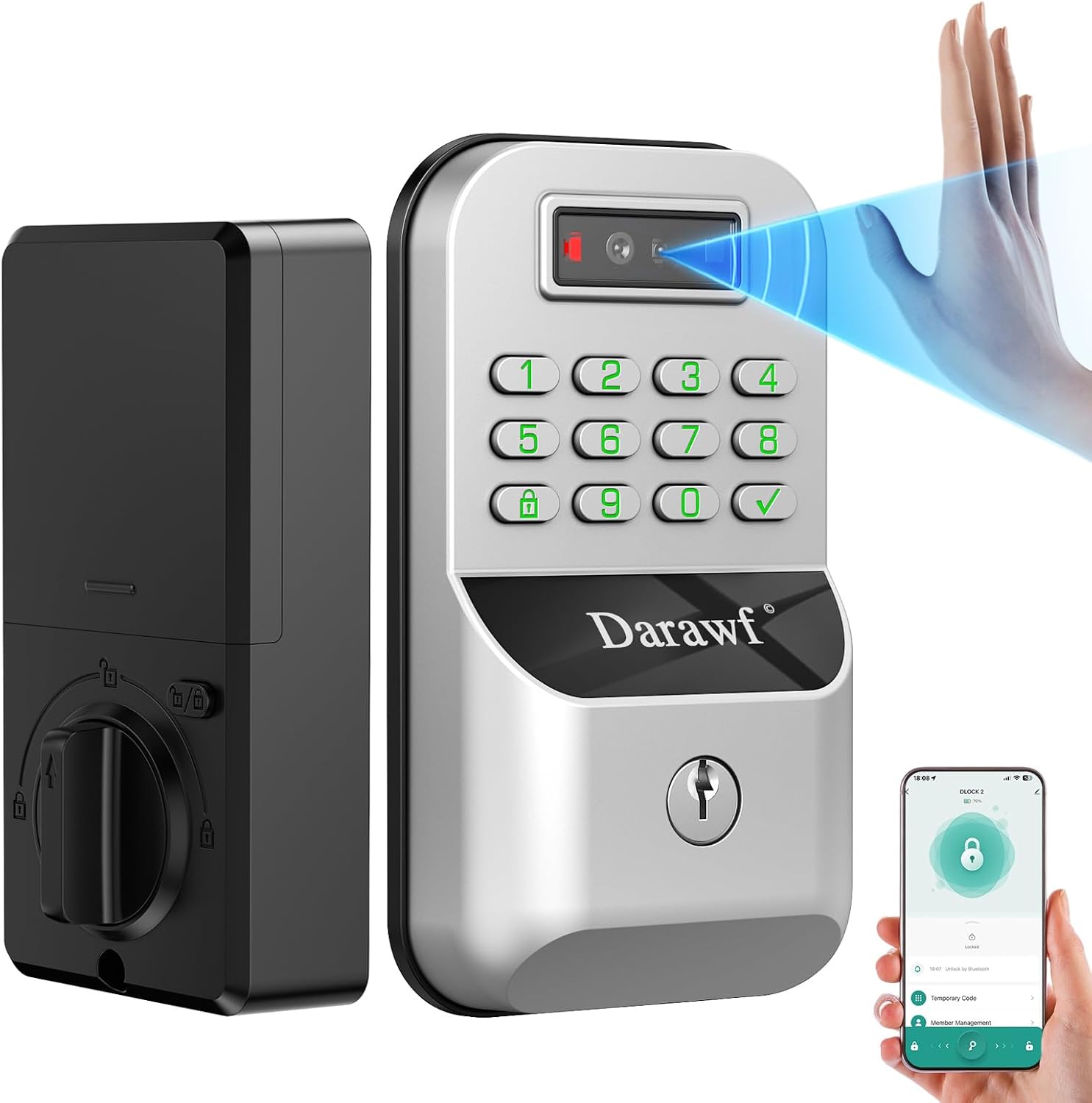
Image 1.1: Darawf K10 Smart Deadbolt. This image displays the exterior keypad unit with a hand being scanned for palm vein recognition, the interior unit with a manual turn knob, and a smartphone screen showing the lock's app interface.
Key Features:
- Palm Vein Recognition: Utilizes advanced technology to identify unique vein patterns for secure and contactless unlocking.
- Multiple Unlocking Methods: Access via palm vein scan, numeric keypad code, Bluetooth app, or traditional physical key.
- App Control & Management: Monitor door lock activities and receive real-time notifications through a dedicated smartphone application.
- Automatic Locking: Features an auto-lock function for added security and peace of mind.
- Durable Construction: Made from zinc material, designed for reliability.
2. Package Contents
Verify that all components are present before beginning installation.
- Deadbolt door lock assembly (exterior and interior units)
- 2 Standard Keys
- Latch mechanism
- Strike Plate
- Installation Instructions (this manual)
- Programming Instructions (integrated within this manual)
3. Setup and Installation
Carefully follow these steps for proper installation. A standard Phillips head screwdriver is typically required.
3.1 Door Preparation and Dimensions
Ensure your door meets the following specifications for compatibility. The lock is designed for door thicknesses between 1-3/8" to 1-3/4" (35mm to 51mm). The backset (distance from door edge to center of bore hole) should be 2-3/8" or 2-3/4" (60mm or 70mm). The bore hole diameter should be 2-1/8" (54mm).

Image 3.1: Installation Dimensions and Requirements. This diagram illustrates the necessary door measurements for installation, including door thickness, backset, and bore hole sizes. It also shows the dimensions of the lock units and clarifies that the lock is compatible with single-hole lock bodies, not double-hole lock bodies.
3.2 Installation Steps
- Prepare the Door: If replacing an existing deadbolt, remove it. Ensure the door bore holes and backset match the requirements shown in Image 3.1. If installing on a new door, drill holes according to the provided template (if included, otherwise use standard deadbolt drilling guides).
- Install the Latch: Insert the latch into the door edge and secure it with screws. Ensure the latch bolt faces the correct direction (slanted side towards the door frame).
- Install the Exterior Assembly: Route the cable from the exterior keypad unit through the bore hole. Align the exterior unit with the latch and secure it to the door.
- Install the Interior Assembly: Connect the cable from the exterior unit to the interior unit. Align the interior unit with the mounting plate and secure it with screws. Ensure the thumb turn operates smoothly.
- Install Batteries: The lock requires 4 AA batteries (not included). Open the battery cover on the interior unit and insert the batteries, observing polarity.
- Install the Strike Plate: Attach the strike plate to the door frame, aligning it with the latch bolt. Ensure the deadbolt extends and retracts smoothly into the strike plate without obstruction.
- Test Operation: Manually test the deadbolt by extending and retracting it with the thumb turn. Ensure there is no resistance.

Image 3.2: Simple Installation. This image shows a person installing the interior unit of the Darawf K10 Smart Deadbolt, highlighting the straightforward installation process.
4. Operating Instructions
4.1 Unlocking Methods
The Darawf K10 Smart Deadbolt offers multiple ways to unlock your door.

Image 4.1: Multiple Unlocking Methods. This image illustrates the four primary ways to unlock the Darawf K10 Smart Deadbolt: using a smartphone app for remote access, entering a code on the keypad, using a traditional physical key, and scanning a palm for vein recognition.
- Palm Vein Recognition:
- To register your palm, refer to the app's instructions for adding new users and biometric data.
- To unlock, wave your palm in front of the sensor on the exterior unit at a distance of approximately 120mm-250mm (4.7-9.8 inches). The lock will recognize your unique vein pattern and unlock.
- This method is designed for high accuracy and works even with wet or dusty hands, or minor skin damage.

Image 4.2: 360-degree Palm Wave. This image demonstrates the contactless palm vein recognition, showing a hand waving in front of the lock sensor at a specified distance for unlocking.
- Keypad Code:
- To set up user codes, follow the programming instructions in the app.
- Enter your programmed 6-8 digit code on the keypad, then press the checkmark (✓) button. The lock will unlock.
- Bluetooth App Control:
- Download the dedicated smartphone application (e.g., Tuya App, as mentioned in reviews).
- Pair your smartphone with the lock via Bluetooth according to the app's instructions.
- Use the app interface to remotely lock or unlock the deadbolt, manage user access, and view activity logs.
- Physical Key:
- Insert one of the provided standard keys into the keyhole on the exterior unit.
- Turn the key to unlock the deadbolt.
4.2 Automatic Locking
The Darawf K10 Smart Deadbolt features an auto-lock function. After unlocking, the deadbolt will automatically re-lock after a preset period. This duration can typically be configured within the smartphone application settings. Refer to the app's guide for adjusting auto-lock timing.
5. Maintenance
Regular maintenance ensures optimal performance and longevity of your smart deadbolt.
- Battery Replacement: The lock requires 4 AA batteries. When battery levels are low, the lock may provide an audible or visual alert. Replace all four batteries simultaneously with new, high-quality alkaline batteries. Do not mix old and new batteries or different battery types.
- Cleaning: Wipe the exterior keypad and palm sensor with a soft, dry cloth. Avoid using abrasive cleaners, solvents, or harsh chemicals, as these can damage the finish or electronic components.
- Mechanical Check: Periodically check that the deadbolt latch operates smoothly. Ensure screws are tight and there is no excessive play in the lock components.
6. Troubleshooting
If you encounter issues with your Darawf K10 Smart Deadbolt, refer to the following common problems and solutions.
- Lock does not respond or power on:
- Check if the batteries are correctly installed with proper polarity.
- Replace all batteries with new, high-quality AA alkaline batteries.
- Palm vein recognition fails or is inconsistent:
- Ensure your palm is positioned correctly in front of the sensor, within the recommended distance (120mm-250mm).
- Verify that your palm vein data is properly registered in the app. Try re-registering if necessary.
- Extreme cold temperatures may affect sensor performance. If operating in very cold environments, consider using alternative unlocking methods.
- Keypad code does not unlock the door:
- Ensure you are entering the correct code and pressing the checkmark (✓) button afterward.
- Check battery levels; low batteries can affect keypad responsiveness.
- Verify the code is active and not expired through the smartphone app.
- Deadbolt does not extend or retract smoothly:
- Inspect the door frame's strike plate. Ensure the hole is deep and wide enough for the deadbolt to fully extend without obstruction. Adjust if necessary.
- Check for any misalignment between the lock and the door frame.
- Ensure all installation screws are tightened appropriately.
- Bluetooth connection issues:
- Ensure Bluetooth is enabled on your smartphone.
- Make sure you are within close proximity to the lock.
- Restart the smartphone app and try reconnecting.
- Check battery levels of the lock.
7. Specifications
| Feature | Detail |
|---|---|
| Brand | Darawf |
| Model Name | K10 |
| Lock Type | Biometric (Palm Vein) |
| Special Feature | Auto-Lock |
| Material | Zinc |
| Color | Silver |
| Item Dimensions (L x W x H) | 10 x 2 x 2.7 inches (254 x 51 x 68.6 mm) |
| Item Weight | 10.4 ounces (295 grams) |
| Recommended Uses | Front Door |
| Control Method | App, Keypad, Palm Vein, Key |
| Power Source | 4 AA Batteries (not included) |
| Door Thickness Compatibility | 1-3/8" to 1-3/4" (35mm to 51mm) |
| Backset Compatibility | 2-3/8" or 2-3/4" (60mm or 70mm) |
8. Warranty and Support
For information regarding the product warranty, please refer to the documentation included with your purchase or contact the seller directly.
If you require technical assistance or have questions not covered in this manual, please contact Darawf customer support or the retailer from whom you purchased the product.