
Introduction
This user manual provides comprehensive instructions for the operation, maintenance, and troubleshooting of your new WANLIPO A13 Dual Dash Cam. Please read this manual thoroughly before using the device to ensure proper functionality and safety.
What's in the Box
- 1 *A13 Front Dash Camera
- 1 *Rear Camera(Optional rear /inside recording)
- 1 *Crowbar/4*xCable Clamp/Reset Pin
- 1 * Suction Cup Mount
- Car Charger Adapter*1
- 1 *64GB Memory Card (in the dashcam)
- 1 *User Manual & User Card
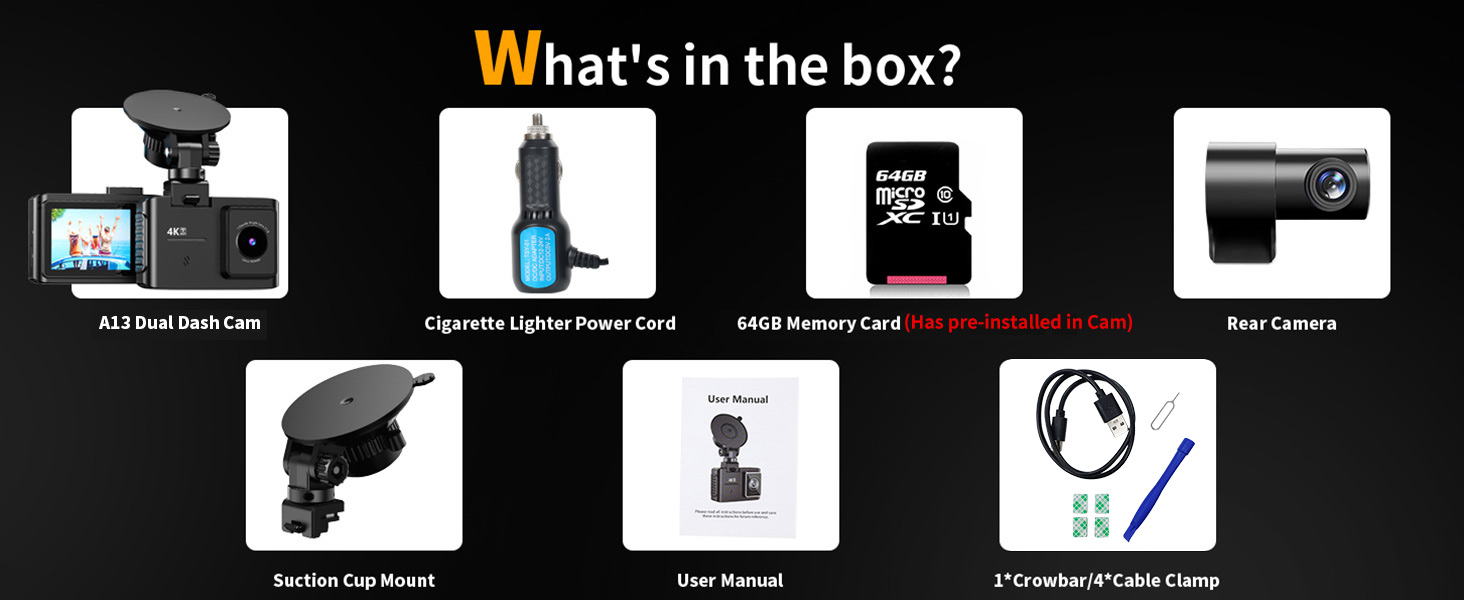
Image: All components included in the WANLIPO A13 Dual Dash Cam package.
Product Overview
The WANLIPO A13 Dual Dash Cam is a high-performance dual-channel dash camera designed to capture crystal-clear footage of your journeys. It features 4K front recording, 1080P rear recording, 5GHz WiFi connectivity, app control, G-sensor, loop recording, night vision, and parking mode.

Image: Front and rear view of the WANLIPO A13 Dual Dash Cam with included accessories.
Key Features
- 4K + 1080P Dual Recording: Captures Ultra HD 4K (3840*2160P) for the front and Full HD 1080P for the rear, ensuring clear details.
- Wide-Angle Lenses: 170° front and 120° rear lenses minimize blind spots for comprehensive coverage.
- 5GHz WiFi & Smart App Control: Connects to your smartphone via the "Viidure" app for seamless viewing, playback, and downloading with fast video transfers.
- Loop Recording & 64GB SD Card: Automatically overwrites oldest files when storage is full, ensuring continuous recording. Includes a 64GB SD card.
- Built-In G-Sensor: Detects collisions or abrupt events, automatically locking relevant footage to prevent overwriting.
- 24-Hour Parking Monitor Mode: Maintains continuous low frame rate recording when the vehicle is off, triggering emergency video on impact (requires hardwiring kit).
- Super Night Vision: Premium F1.8 aperture, 6-layer optical lens, and WDR technology enhance clarity in low-light conditions.
- Compact & Easy to Install: Sleek design allows for discreet mounting and an unobstructed view. Features a 2.0" IPS screen for easy navigation.

Image: Visual representation of key features including seamless loop recording, 4K Ultra HD video, G-sensor, wide-angle lenses, WDR, 5GHz WiFi & App Control, Super Night Vision, and Parking Monitoring.
Setup Guide
1. Installation
The WANLIPO A13 Dash Cam offers two primary installation types: front window and rear window. Choose the location that best suits your vehicle and recording needs.

Image: Diagram showing two installation options: on the front windshield near the rearview mirror, and on the rear window.
Front Dash Camera Installation
- Clean the windshield area where the suction cup mount will be placed.
- Attach the suction cup mount to the dash camera.
- Press the suction cup firmly against the windshield and lock it in place.
- Adjust the camera angle to ensure a clear view of the road ahead.
Rear Camera Installation
For optimal rear recording, follow these steps:
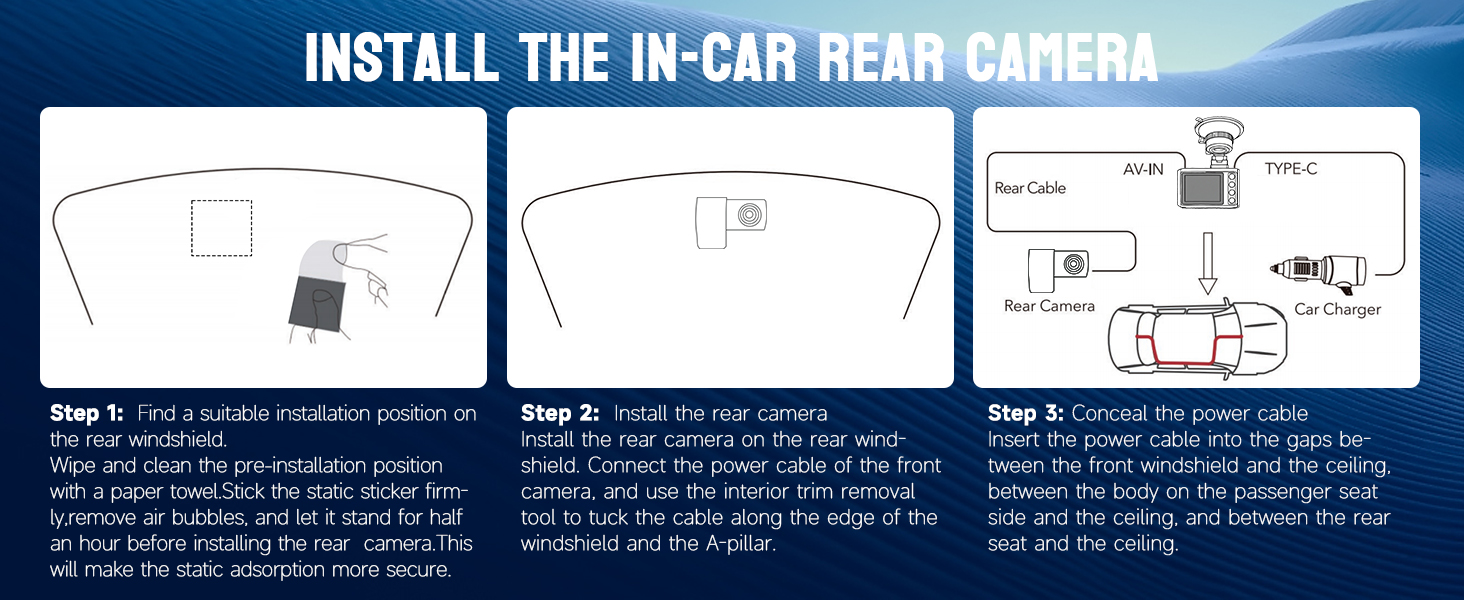
Image: Step-by-step guide for installing the in-car rear camera, including cleaning the windshield, attaching the camera, and concealing the power cable.
- Step 1: Find a suitable installation position on the rear windshield. Wipe and clean the pre-installation position with a paper towel. Stick the static sticker firmly, remove air bubbles, and let it stand for half an hour before installing the rear camera. This will make the static adsorption more secure.
- Step 2: Install the rear camera. Install the rear camera on the rear windshield. Connect the power cable of the front camera, and use the interior trim removal tool to tuck the cable along the edge of the windshield and the A-pillar.
- Step 3: Conceal the power cable. Insert the power cable into the gaps between the front windshield and the ceiling, between the body on the passenger seat side and the ceiling, and between the rear seat and the ceiling.
Note: The rear camera is not waterproof. Do not install the rear camera outside the car window.
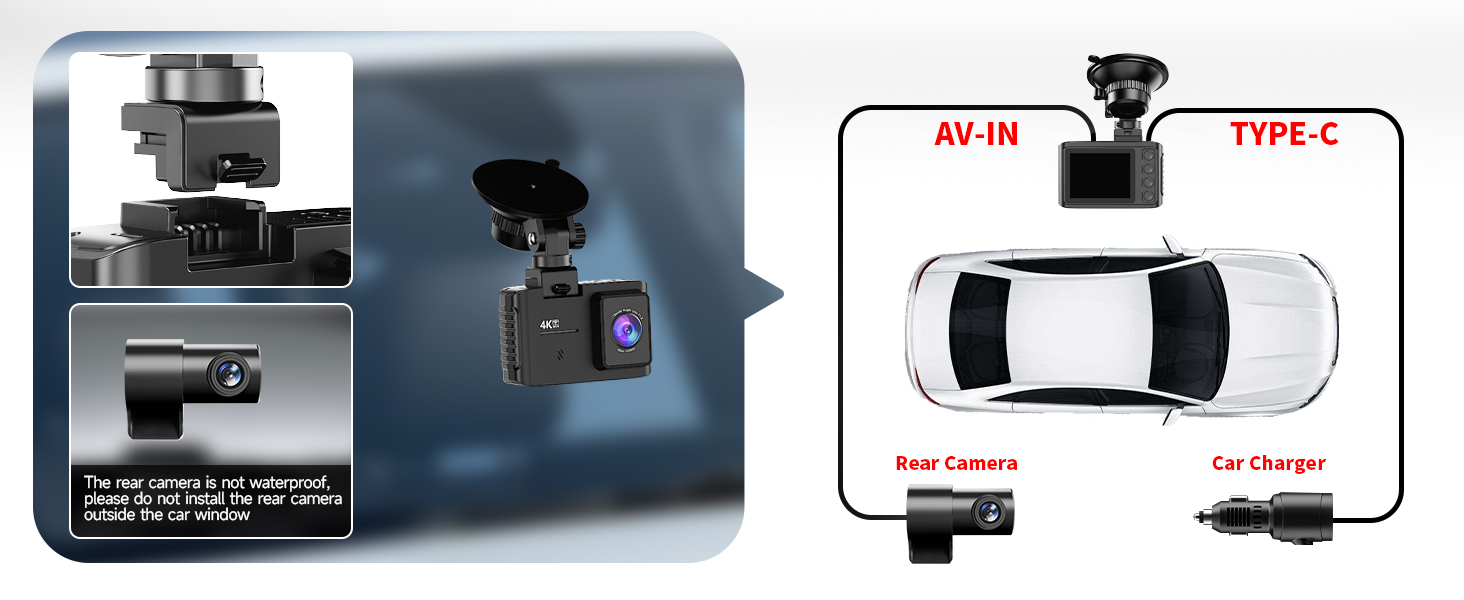
Image: Diagram illustrating the connection of the front dash cam, rear camera (AV-IN), and car charger (Type-C).
2. Powering On and Initial Setup
- Insert the provided 64GB SD card into the dash cam's SD card slot. The card is pre-installed in some units.
- Connect the car charger adapter to your vehicle's cigarette lighter socket and the dash cam's power input.
- The dash cam will automatically power on and begin recording when your vehicle starts.
- Adjust basic settings such as date, time, and video resolution via the 2.0" IPS screen and control buttons.
Operating Instructions
App Control (5GHz WiFi)
The WANLIPO A13 features 5GHz WiFi for fast and seamless connection to your smartphone via the "Viidure" app. This allows for easy viewing, playback, and downloading of recordings.

Image: Illustration of the dash cam's 5GHz WiFi capability and smartphone app control, showing faster download speeds compared to 2.4GHz WiFi.
- Press the power button to turn on the dash cam. Long press the UP button to turn on the WiFi.
- Open the "Viidure" app on your smartphone. Ensure the app has necessary permissions.
- In the app, click "connect device" and find the dash cam's WiFi network (DC-XXX).
- Enter the password (12345678) when prompted.
- Once successfully connected, open the app to use it normally.
Note: The built-in WiFi is used to connect the camera and app, not for internet access. The WiFi range of A13 is 3-5 meters from the dash cam.
The "Viidure" APP does not require VIP for basic footage management (online video viewing, front/rear view switching, playback viewing, video downloading, social media sharing, camera setup). Some advanced features like video speed adjustment, timeline viewing, and cloud disk uploads may require membership.
Loop Recording
The dash cam utilizes intelligent loop recording. When the storage card is full, the oldest files are automatically overwritten to ensure continuous recording without interruption.

Image: Visualizing seamless loop recording, showing older files being overwritten as new footage is captured, with a 64GB SD card.
G-Sensor (Automatic Incident Detection)
The built-in G-sensor detects sudden movements, collisions, or abrupt braking. Upon detection, it automatically locks the current video segment, preventing it from being overwritten by loop recording. This ensures critical evidence is preserved.

Image: Depiction of the G-sensor locking footage during an impact, with a padlock icon indicating video protection.
24-Hour Parking Monitor Mode
When your vehicle is turned off, the dash cam can switch to parking mode, maintaining continuous low frame rate recording. If strong vibration or shock is detected by the G-sensor, it will trigger a 15-second emergency video recording and lock it. This feature provides protection against potential accidents or vandalism while parked.
Note: This function requires a hardwiring kit (sold separately, ASIN: B0F1JZR1M5).

Image: Visual explanation of the 24-hour parking monitor mode, showing scenarios like theft attempts and impacts, with a note about the required hardwiring kit.
Night Vision (WDR Technology)
Equipped with a premium F1.8 aperture and a 6-layer optical lens, the dash cam's WDR (Wide Dynamic Range) technology enhances clarity in low-light conditions, ensuring clear footage even at night.
Maintenance
- SD Card Management: Regularly format the SD card (at least once a month) to ensure optimal performance and prevent data corruption. Use a high-quality Class 10 or U3 speed SD card.
- Cleaning: Use a soft, dry cloth to clean the camera lens and screen. Avoid using abrasive cleaners or solvents.
- Temperature: Avoid exposing the dash cam to extreme temperatures for prolonged periods, as this can affect battery life and performance.
- Firmware Updates: Check the manufacturer's website or the "Viidure" app periodically for firmware updates to ensure your dash cam has the latest features and bug fixes.
Troubleshooting
| Problem | Possible Cause / Solution |
|---|---|
| Dash cam not powering on. |
|
| Video footage is blurry or unclear. |
|
| SD card error / Cannot record. |
|
| WiFi connection issues. |
|
| G-sensor not locking footage. |
|
| Parking monitor not working. |
|
Specifications
| Feature | Detail |
|---|---|
| Product Dimensions | 19.5 x 6.5 x 10.5 inches |
| Item Weight | 15.1 ounces |
| ASIN | B0DHZDBJKY |
| Item model number | A13 Dual Dash Cam |
| Batteries | 1 Lithium Polymer batteries required. |
| Connectivity technologies | Wi-Fi |
| Other display features | Wireless |
| Color | Black |
| Manufacturer | Wanlipo |
| Date First Available | October 10, 2024 |
| Brand | WANLIPO |
| Model Name | A13 Dual Dash Cam |
| Orientation | Front & Rear |
| Vehicle Service Type | Bus, Car, Minivan, RV, Truck |
| Connectivity Technology | Wi-Fi |
| Video Capture Resolution | 4K(30fps) Single Front Camera Mode, 4K Front + Rear1080P(25fps) Dual Recording Mode |
| Mounting Type | Windshield Mount |
Warranty and Support
The WANLIPO A13 dash cam is backed by a dedicated customer support team and includes a hassle-free 1-Year Warranty. For any issues or inquiries, please contact WANLIPO customer support.
Email: Wanlipo@hotmail.com
We are committed to promptly resolving any issues you may encounter.