
1. Introduction
Thank you for choosing the Phomemo A30 Mini Bluetooth Portable Rechargeable Label Maker. This manual provides essential information for the safe and efficient operation of your device. Please read it thoroughly before use and keep it for future reference.

Figure 1: Phomemo A30 Label Maker and accessories. This image shows the compact white label maker, several rolls of colorful label tape, and a clear label cartridge, illustrating the product and its consumables.
2. Safety Information
- Do not disassemble, repair, or modify the device.
- Keep the device away from water, high temperatures, and direct sunlight.
- Use only Phomemo-approved label tapes and accessories.
- Ensure proper ventilation during charging.
- Keep out of reach of children.
3. Package Contents
Verify that all items are present in your package:
- Phomemo A30 Label Maker
- USB Charging Cable
- User Manual (this document)
- One roll of label tape (pre-installed or separate)
4. Product Overview
Familiarize yourself with the components of your A30 Label Maker:

Figure 2: Key features of the A30 Label Maker. This image highlights the 1200mAh rechargeable battery, 203DPI high-definition printing, and the push-down cutter mechanism for easy label separation.
- Power Button: On/Off and status indicator.
- Label Exit Slot: Where printed labels emerge.
- Cutter: For cleanly cutting labels after printing.
- USB Charging Port: For recharging the internal battery.
- Label Compartment: Houses the label roll.
5. Setup
5.1. Charging the Device
Before first use, fully charge the label maker. Connect the provided USB cable to the charging port on the device and a compatible USB power adapter (not included) or computer USB port. The indicator light will show charging status.
- Charging Indicator: Typically red while charging, turns green when fully charged.
- The device features a 1200mAh rechargeable battery.
5.2. Installing Label Rolls
- Open the label compartment cover.
- Insert the label roll with the printing surface facing up, ensuring the label tape feeds smoothly into the print head mechanism.
- Pull a small portion of the label tape out through the label exit slot.
- Close the compartment cover securely.
5.3. App Download and Installation
The Phomemo A30 operates via a dedicated mobile application. Search for "Print Master" in your device's app store (Apple App Store for iOS, Google Play Store for Android) or scan the QR code provided in the quick start guide (if applicable).
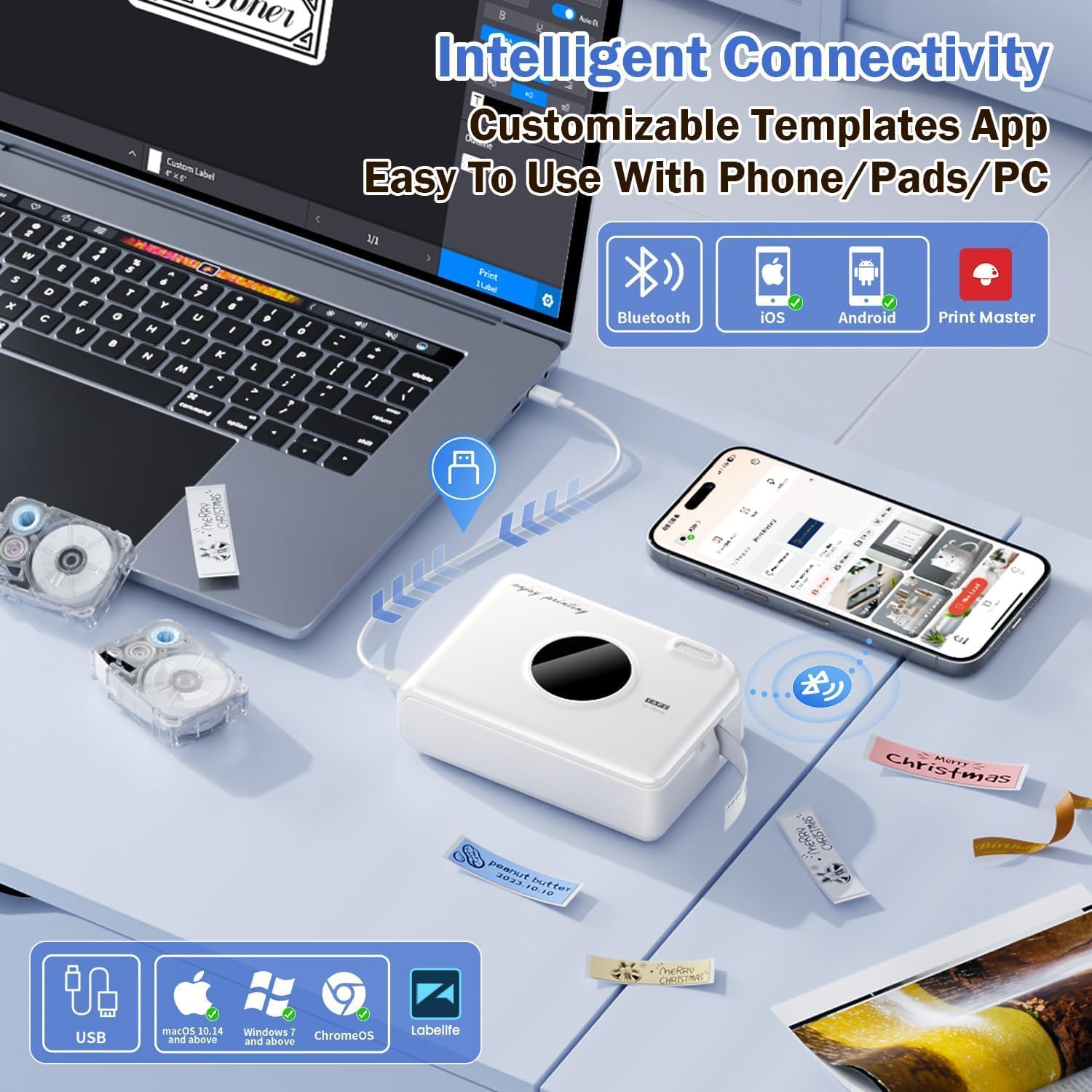
Figure 3: Connectivity options for the A30 Label Maker. This image illustrates the label maker connecting via Bluetooth to a smartphone and via USB to a laptop, highlighting compatibility with iOS, Android, and PC (Windows/Mac/ChromeOS) through the Print Master app.
The device also supports PC connectivity via USB for Windows, macOS 10.14+, and ChromeOS using the "Labellife" software.
5.4. Bluetooth Pairing
- Turn on the Phomemo A30 Label Maker by pressing and holding the power button.
- Enable Bluetooth on your smartphone or tablet.
- Open the "Print Master" app. The app will automatically search for nearby Phomemo devices.
- Select "A30" from the list of available devices to connect. The indicator light on the label maker will confirm a successful connection.
6. Operating Instructions
6.1. Basic Printing Steps
- Ensure the label maker is charged and connected via Bluetooth to your device.
- Open the "Print Master" app.
- Select a template or create a new label design.
- Enter your desired text, add images, symbols, or barcodes.
- Preview the label to ensure accuracy.
- Tap the "Print" button in the app.
- Once printed, use the integrated cutter to separate the label from the roll.
6.2. Using App Features and Templates
The "Print Master" app offers extensive customization options:

Figure 4: Creative features and templates available in the Print Master app. This image displays the app's interface with options for text, QR codes, barcodes, images, timestamps, and a wide selection of fonts, symbols, and border templates for personalized label creation.
- Text Editing: Customize fonts (200+ built-in), sizes, styles (bold, italic), and alignment.
- Symbols & Icons: Access a library of 600+ symbols for various categories.
- Borders & Frames: Choose from 200+ border templates.
- QR Codes & Barcodes: Generate and print scannable codes.
- Images: Insert images from your device or use image recognition features.
- Templates: Utilize pre-designed templates for common uses (e.g., home organization, office, school).
- Automatic Label Recognition: The A30 automatically recognizes compatible label consumables within the supported size of 12mm (0.47 inch) width.
6.3. Diverse Label Types and Applications
The A30 supports a wide range of Phomemo label types, allowing for versatile applications:
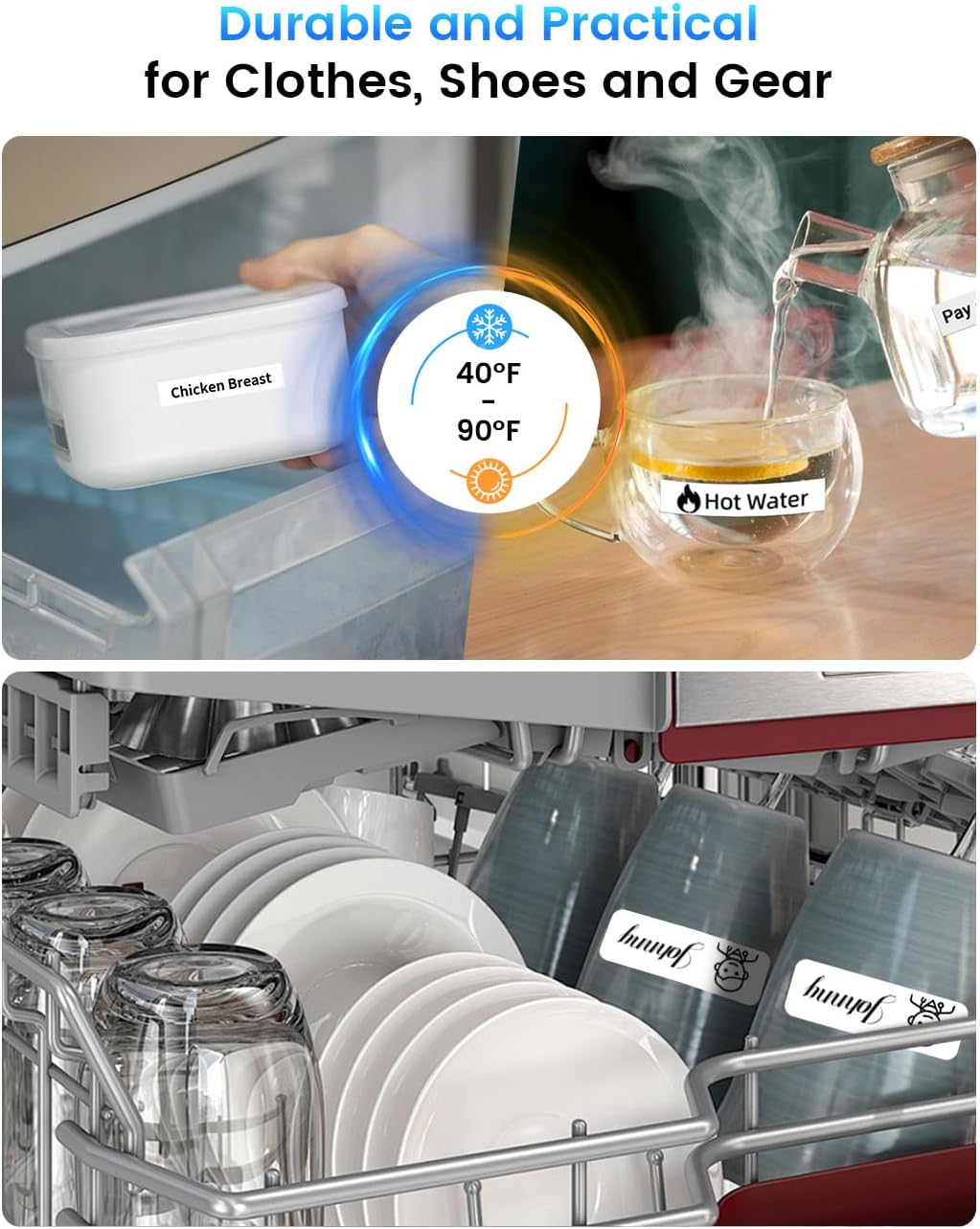
Figure 5: Examples of durable and practical label applications. This image shows labels applied to food containers in a refrigerator and items in a dishwasher, demonstrating the labels' resistance to temperature changes and water.
- Pre-cut/Continuous Labels: Standard labels for general use.
- Patterned Labels: Labels with decorative designs.
- Refrigerator Magnetic Labels: For organizing items in cold environments.
- Fabric Iron-on Labels: For clothing and textiles.
- Glitter Labels: For decorative purposes.
- Luminous Labels: Labels that glow in the dark.
The labels are designed for durability, offering water and oil resistance, and can withstand temperatures from -10°C to 60°C, making them suitable for outdoor use and dishwashers.
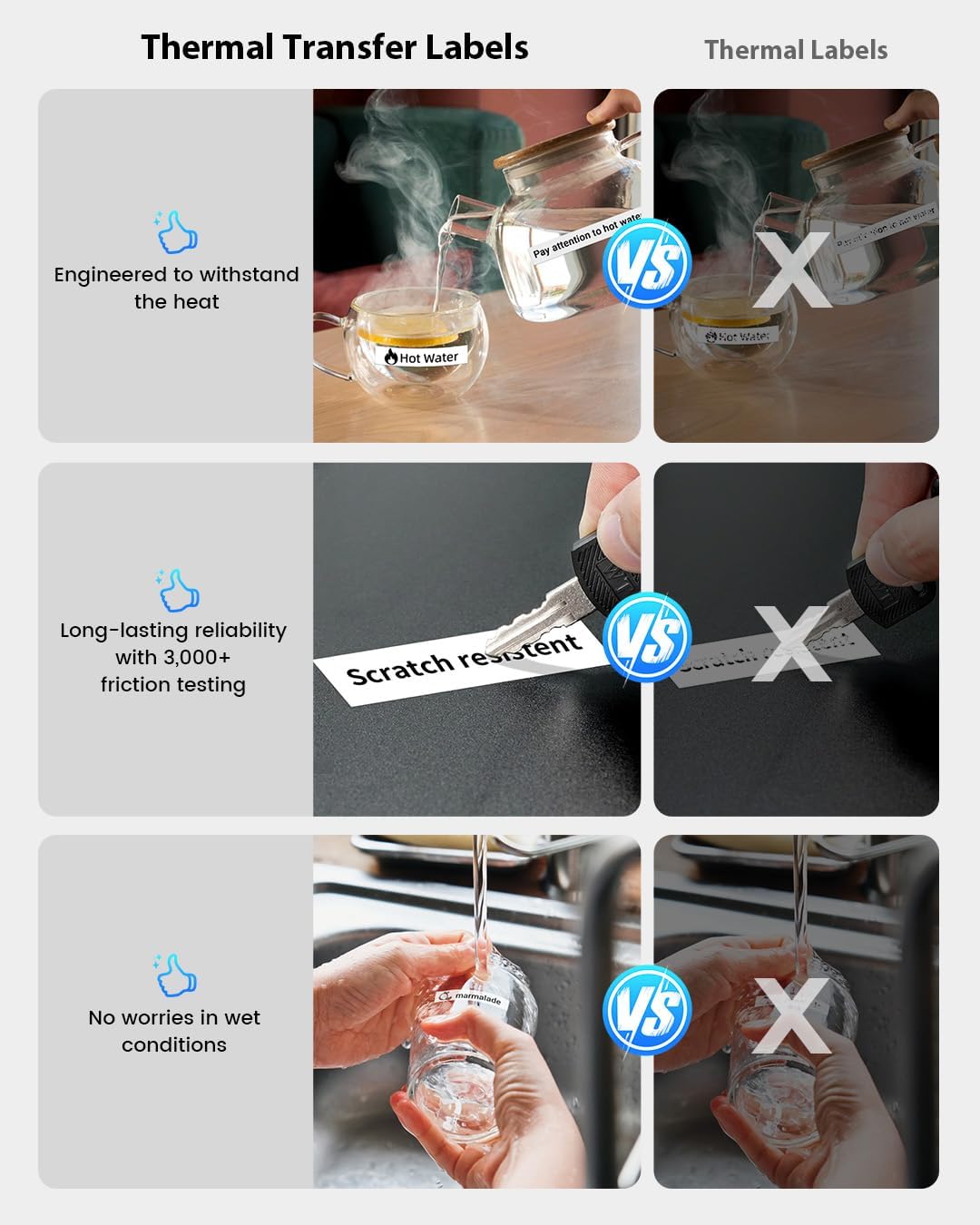
Figure 6: Durability comparison of thermal transfer labels. This image illustrates the superior resistance of thermal transfer labels to heat, scratches (3,000+ friction tests), and wet conditions compared to standard thermal labels, ensuring long-lasting reliability.
7. Maintenance
7.1. Cleaning the Print Head
If print quality degrades or lines appear, the print head may need cleaning. Use a cotton swab lightly dampened with isopropyl alcohol to gently wipe the print head. Allow it to dry completely before use.
7.2. Storage
Store the label maker in a cool, dry place away from direct sunlight and extreme temperatures. Remove the label roll if storing for an extended period.
8. Troubleshooting
| Problem | Possible Cause | Solution |
|---|---|---|
| Device does not turn on. | Low battery. | Charge the device for at least 30 minutes. |
| Cannot connect via Bluetooth. | Bluetooth is off; device is out of range; app issue. | Ensure Bluetooth is on; move device closer; restart app and label maker. |
| Poor print quality / Faded print. | Print head dirty; incorrect label roll insertion; low battery. | Clean print head; re-insert label roll correctly; charge device. |
| Labels not feeding correctly. | Label roll jammed or incorrectly installed. | Open compartment, clear any jam, re-install label roll. |
| App crashes or freezes. | Software bug; insufficient device memory. | Restart the app; update to the latest app version; clear app cache. |
9. Specifications

Figure 7: Phomemo A30 Label Maker key features and dimensions. This image highlights features such as colored ribbon printing, auto paper detection, extreme environment testing, 8+ years lifespan, 1200mAh rechargeable battery, and portable wireless design, along with its compact dimensions (5.16 x 3.74 x 1.52 inches).
| Feature | Detail |
|---|---|
| Model Name | A30 (7W31-WuAiTing-US-A30-WH-1) |
| Brand | Phomemo |
| Connectivity Technology | Bluetooth |
| Printing Technology | Thermal |
| Printer Output | Monochrome |
| Max Print Speed | 20 ppm (Monochrome) |
| Item Weight | 160 Grams |
| Battery | 1200mAh Rechargeable |
| Supported Label Width | 12mm (0.47 inch) |
| Operating Temperature Range | -10°C to 60°C |
| Special Features | Creative Print Functions (Barcode, Text, Picture, QR 2D Code, Table, Date, Border, Icon, Shape, Pattern, Template, Save as, Line, Image Recognition, Voice Recognition, Automated Text Extraction, Automated Image Resizing, Automated Image Cropping, Automated Image Rotation, Automated Image Filtering, Automated Image Compression), Portable, Inkless, Wireless, Rechargeable, Print Continuous & Pre-cut Label Tapes, Rich Font Icon Pattern. |
10. Warranty and Support
Phomemo products come with a standard warranty. For detailed warranty information, technical support, or customer service, please refer to the warranty card included with your product or visit the official Phomemo website. You can also contact Phomemo customer support through the "Print Master" app or their official channels.
For further assistance, please visit the Phomemo Store on Amazon.


