
Phomemo A30
Phomemo A30 Label Maker User Manual
Model: A30
Introduction
The Phomemo A30 Label Maker is a compact and portable thermal transfer printer designed for creating various labels and ribbons. It utilizes inkless thermal technology and connects wirelessly via Bluetooth to your smartphone, tablet, or PC. This manual provides comprehensive instructions to help you set up, operate, and maintain your A30 label maker, ensuring optimal performance and longevity.
What's in the Box
- One Phomemo A30 Label Maker
- A charging cable
- A user manual (this document)
- One roll of white label tape

Image: The Phomemo A30 Label Maker in green, accompanied by a roll of label tape and a charging cable, illustrating the contents of the product package.
Specifications
| Feature | Detail |
|---|---|
| Product Dimensions | 4.07"D x 1.83"W x 6.45"H |
| Item Weight | 5.6 ounces (160 Grams) |
| Connectivity Technology | Bluetooth |
| Printing Technology | Thermal Transfer |
| Maximum Media Size | 0.59 inch (15mm) |
| Maximum Black and White Print Resolution | 203 Dots Per Inch (DPI) |
| Compatible Devices | Smartphones, Tablet (Android, iOS), PC (Windows & Mac) |
| Control Method | App |
| Battery | 1 Lithium Polymer battery (included), 1200mAh |
| Special Features | Portable, Inkless, Wireless, Rechargeable, Creative Print Functions (Barcode, Text, Picture, QR 2D Code, Table, Date, Border, Icon, Shape, Pattern, Template, Image Recognition, Voice Recognition, Automated Text Extraction, Automated Image Resizing, Cropping, Rotation, Filtering, Compression) |
Setup Guide
1. Charging the Device
Before first use, fully charge your Phomemo A30 Label Maker. Connect the provided charging cable to the device's USB port and plug the other end into a standard USB power adapter (not included) or a computer's USB port. The indicator light will show charging status and turn off when fully charged.
2. Installing the Phomemo App
The Phomemo A30 operates via the dedicated Phomemo app. Download the app from your device's app store:
- For iOS devices: Search "Phomemo" in the Apple App Store.
- For Android devices: Search "Phomemo" in the Google Play Store.
- Alternatively, scan the QR code provided in the quick start guide included with your device.
3. Loading Label Tape
- Open the label compartment cover on the side of the A30 label maker.
- Insert the label tape cassette into the compartment, ensuring the tape feeds out correctly through the slot. The A30 features automatic paper size and type recognition.
- Close the compartment cover securely.

Image: A detailed view of the Phomemo A30 Label Maker, highlighting its compact dimensions and key features such as colored ribbon printing, auto paper detection, 1200mAh battery, and wireless connectivity.
Operating Instructions
1. Connecting via Bluetooth
- Ensure Bluetooth is enabled on your smartphone or tablet.
- Turn on the Phomemo A30 Label Maker by pressing and holding the power button. The indicator light will illuminate.
- Open the Phomemo app. The app will automatically search for nearby devices.
- Select "A30" from the list of available devices to establish a connection. The indicator light on the printer may change to confirm connection.
2. Creating and Printing Labels
The Phomemo app offers a wide range of customization options for your labels.
- Select Template or Create New: Choose from over 1000 pre-designed templates for various uses (e.g., home organization, gift tags, school supplies) or start a new blank label.
- Customize Content:
- Text: Add text, adjust font (200+ options), size, style (bold, italic), and alignment.
- Icons & Symbols: Choose from over 600 symbols and icons.
- Borders: Apply from over 200 border templates.
- Images: Insert images from your device or use the image recognition feature.
- Barcodes/QR Codes: Generate and print various types of barcodes and QR codes.
- Other Functions: Utilize features like date, table, line, voice recognition, and automated text extraction.
- Preview: Review your label design on the app screen to ensure it meets your requirements.
- Print: Tap the print button in the app. The A30 will print the label. The built-in hidden cutter allows for easy and clean cutting of the label after printing.
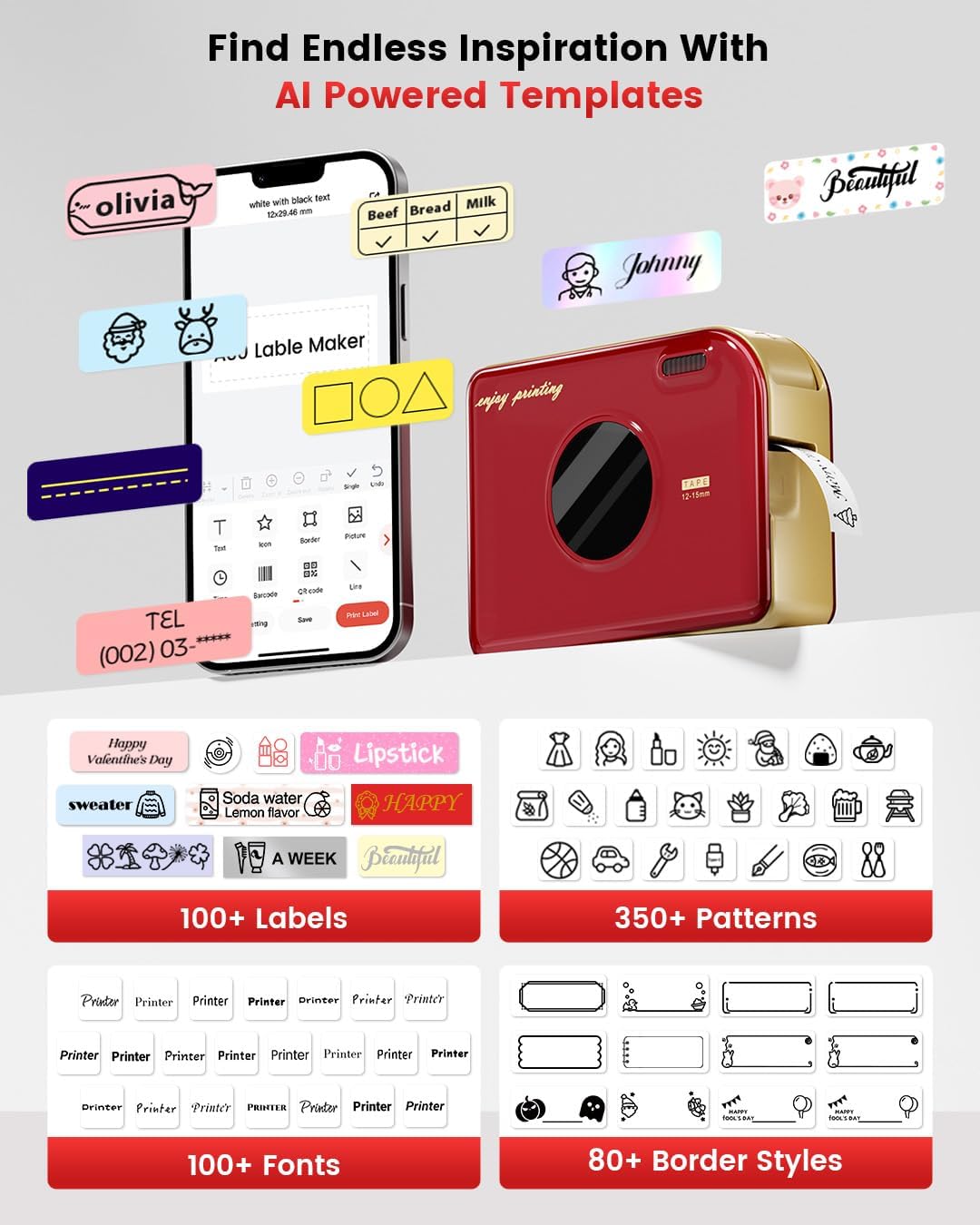
Image: A visual representation of the Phomemo app interface on a smartphone, displaying a wide array of AI-powered templates, fonts, patterns, and border styles available for label customization.
3. Types of Labels and Applications
The A30 supports various label types for diverse applications:
- Pre-cut or Continuous Labels: For standard labeling needs.
- Patterned Labels: For decorative purposes.
- Refrigerator Magnetic Labels: For organizing items on magnetic surfaces.
- Colored Font Labels: For enhanced visual appeal.
- Ribbons: For gift decoration and personalized messages.
- Fabric Iron-on Labels: For clothing and textile identification.
- Premium Glitter Labels: For special occasions.
- Hot Stamping Labels: For a premium, embossed look.
- Luminous Labels: For visibility in low light conditions.

Image: Examples of custom ribbon printing for gifts, iron-on labels for fabric, and personalized labels for various items.
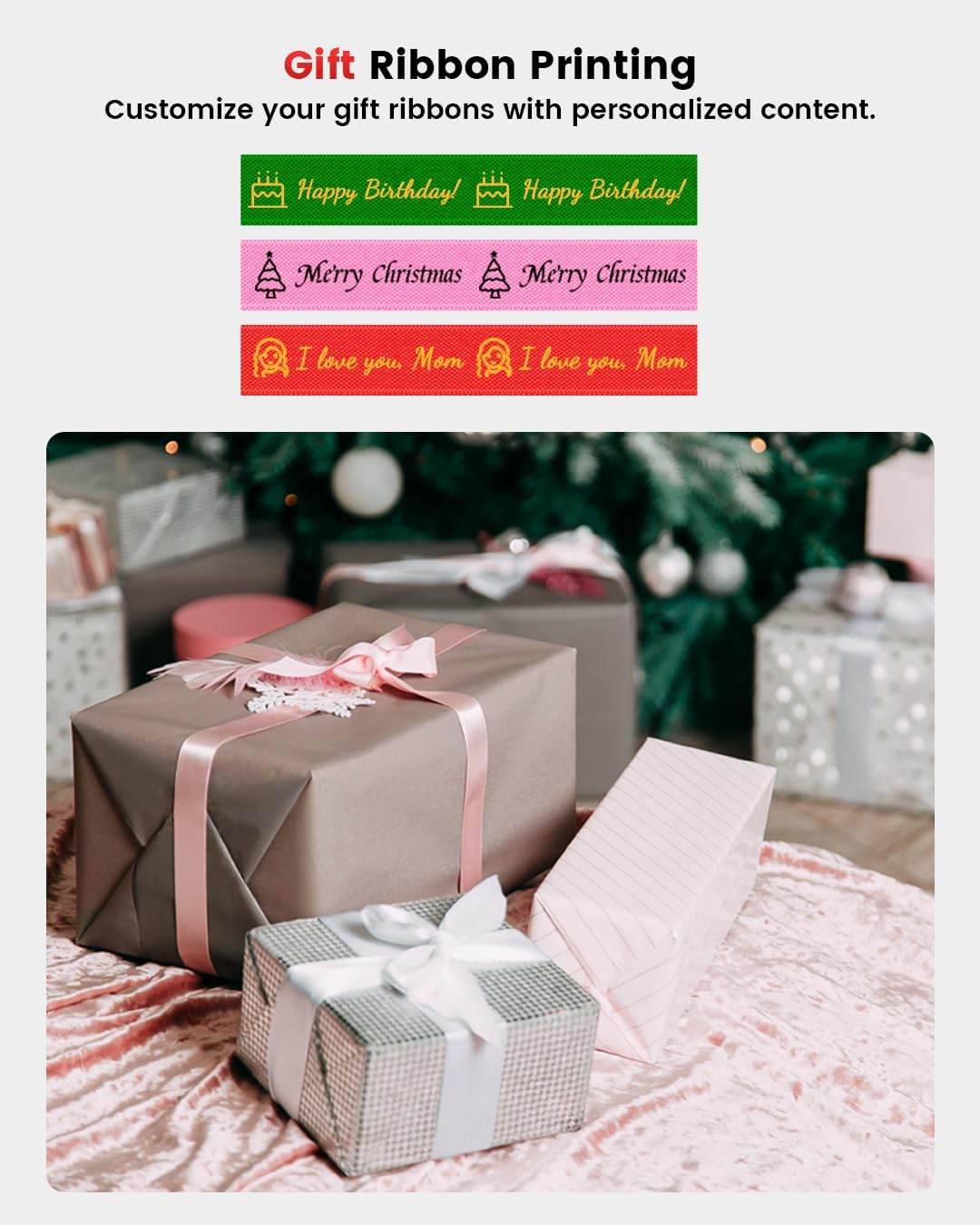
Image: Customized gift ribbons with messages like "Happy Birthday!" and "Merry Christmas" shown alongside wrapped presents.

Image: Magnetic labels with various food names and icons applied to a refrigerator door.
Maintenance
1. Cleaning the Print Head
To ensure clear and consistent print quality, regularly clean the print head. Use a soft, lint-free cloth lightly dampened with isopropyl alcohol. Gently wipe the print head surface. Do not use abrasive materials or harsh chemicals.
2. Battery Care
To prolong battery life, avoid fully discharging the device frequently. Charge the device regularly, even if not in constant use. Store the device in a cool, dry place when not in use for extended periods.
3. Label Storage
Store label tapes in a cool, dry place away from direct sunlight and extreme temperatures to prevent degradation of the thermal material.

Image: Labels applied to dishes in a dishwasher and plant pots, illustrating the durability and weather resistance of the labels in various environments (40°F-90°F).
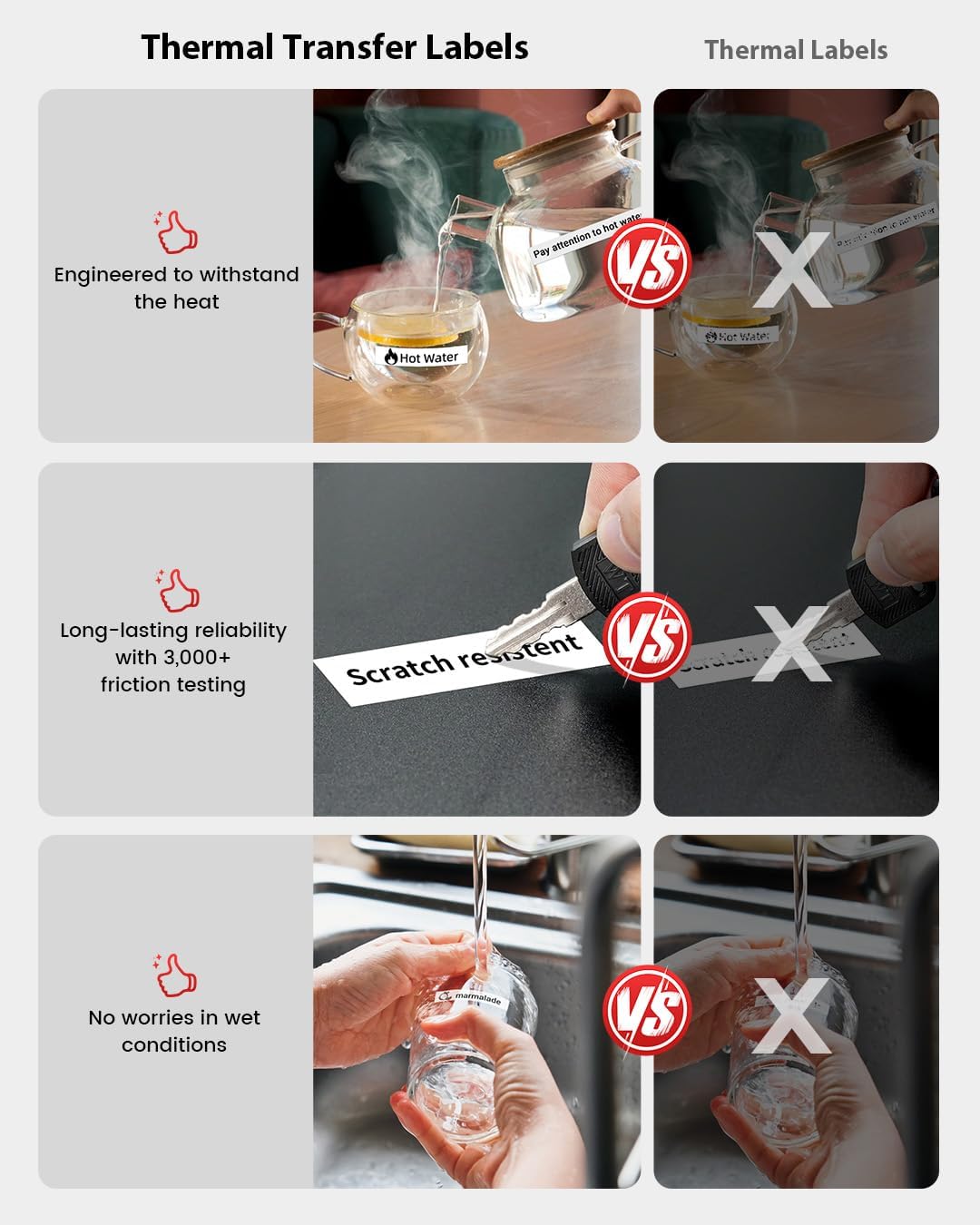
Image: Visual demonstrations of the labels' resistance to water, oil, tearing, and scratching, highlighting their robust and long-lasting properties.

Image: A comparison showing the superior durability of thermal transfer labels over standard thermal labels, demonstrating resistance to heat, scratches, and wet conditions.
Troubleshooting
| Problem | Possible Cause | Solution |
|---|---|---|
| Device not turning on | Low battery; Power button not pressed long enough | Charge the device fully; Press and hold the power button for 3-5 seconds. |
| Cannot connect via Bluetooth | Bluetooth off on phone/tablet; Device too far; App not open; Printer not discoverable | Ensure Bluetooth is on; Move device closer; Open Phomemo app; Restart printer and app. |
| Poor print quality / Faded prints | Print head dirty; Incorrect label type; Low battery; Old/damaged label tape | Clean the print head; Ensure you are using genuine Phomemo thermal transfer labels; Charge the device; Replace label tape. |
| Label jam | Improperly loaded tape; Foreign object in paper path | Open compartment, remove tape, clear any obstructions, re-load tape correctly. |
| App crashes or freezes | Outdated app version; Software conflict | Update the Phomemo app to the latest version; Restart your phone/tablet. |
Warranty and Support
The Phomemo A30 Label Maker comes with a limited warranty. Please refer to the warranty card included in your package for specific terms and conditions. For technical support, troubleshooting assistance, or warranty claims, please contact Phomemo customer service through their official website or the contact information provided in the warranty documentation.
Phomemo Official Website: www.phomemo.com
For additional resources and FAQs, visit the Phomemo support page.
Related documentsA30


Ask a question about this manual
Ask about setup, troubleshooting, compatibility, parts, safety, or missing instructions. Manuals+ will review the question and use this page’s manual context to help answer it.