
Introduction
This manual provides essential information for setting up, operating, maintaining, and troubleshooting your ASUS VivoBook 15 F1504VA-GH71 notebook. Please read this guide thoroughly to ensure proper use and to maximize the performance and longevity of your device.
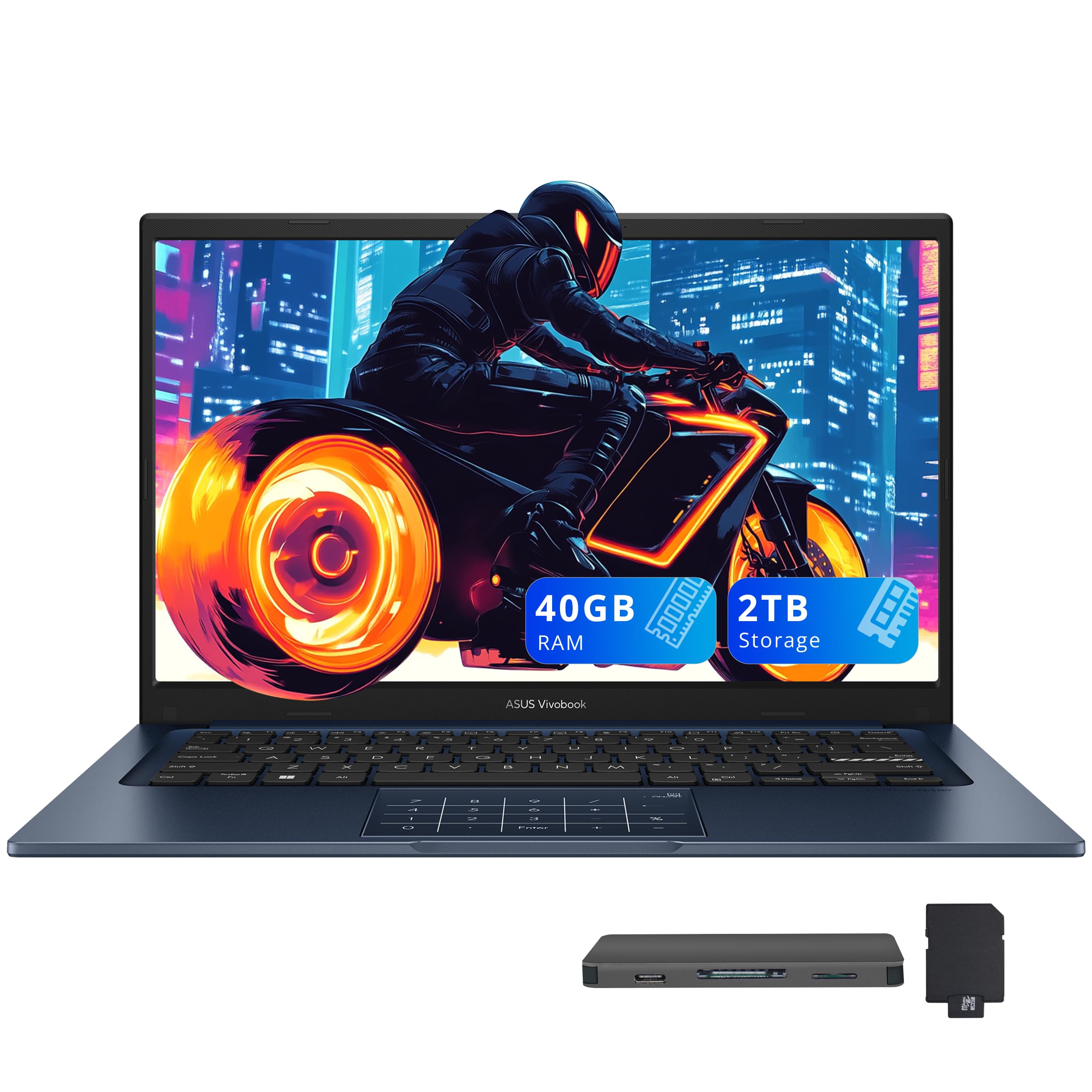
Image: The ASUS VivoBook 15 F1504VA-GH71 notebook, showcasing its sleek design.
Product Overview
Package Contents
Verify that all items are present in your package:
- ASUS VivoBook 15 F1504VA-GH71 Notebook
- Lithium Ion Battery (integrated)
- AC Adapter
External Components and Ports
Familiarize yourself with the various ports and components of your notebook.

Image: Diagram illustrating the various ports on the ASUS VivoBook 15, including USB Type-C, USB Type-A, HDMI, and an audio combo jack.
- USB Type-C Port: For data transfer and power delivery (PD Charging up to 100W).
- USB Type-A Ports: Multiple ports for connecting peripherals (USB 2.0 and USB 3.0).
- HDMI Port: For connecting to external displays or projectors.
- Audio Combo Jack: For connecting headphones or a headset with a microphone.
- Power Input: For connecting the AC adapter.
- Webcam: Integrated 720p camera with a physical privacy shield.
- Microphone: Integrated for audio input.
- Speakers: Integrated for audio output.

Image: Close-up view of the ASUS VivoBook 15 webcam, highlighting the physical privacy shield for enhanced security.
Setup
1. Connecting the AC Adapter
- Plug the AC adapter into the power input port on your notebook.
- Connect the other end of the AC adapter to a power outlet.
- Allow the battery to charge for at least 30 minutes before initial use, or until the battery indicator shows a sufficient charge.
2. Initial Power On
- Open the notebook lid.
- Press the power button, typically located on the keyboard deck.
- Follow the on-screen instructions to complete the Windows 11 Home setup process, including language selection, network connection, and user account creation.
Operating Instructions
Power Management
- Power On: Press the power button.
- Sleep Mode: Close the lid or press the power button briefly.
- Shut Down: Click the Start button, then Power, and select "Shut down".
- Restart: Click the Start button, then Power, and select "Restart".
Using the Keyboard and Touchpad
- The notebook features a standard keyboard for typing.
- The touchpad supports multi-touch gestures for navigation and control. Refer to Windows settings for customizing touchpad gestures.
Connecting to Networks
- Wi-Fi: Click the network icon in the taskbar, select your desired Wi-Fi network, and enter the password if prompted. The notebook supports Wi-Fi 5 (802.11ac).
- Bluetooth: Enable Bluetooth in Windows settings to pair with compatible devices such as headphones, mice, or keyboards.

Image: The ASUS VivoBook 15 in use, demonstrating its capability for handling everyday tasks efficiently.
External Display Connection
Connect an external monitor or projector using the HDMI port. Press Windows key + P to select display modes (Duplicate, Extend, Second screen only).

Image: The vibrant display of the ASUS VivoBook 15, showcasing clear and superior visuals with its NanoEdge design.
Using the 180° Lay-Flat Hinge
The notebook features a 180° lay-flat hinge, allowing the screen to be opened completely flat. This is useful for sharing content with others during meetings or collaborative work.

Image: The ASUS VivoBook 15 with its screen laid flat at 180 degrees, illustrating its utility for easy content sharing.
Maintenance
Cleaning Your Notebook
- Screen: Use a soft, lint-free cloth lightly dampened with water or a screen cleaner. Do not spray liquid directly onto the screen.
- Chassis and Keyboard: Use a soft, dry cloth. For stubborn dirt, a slightly damp cloth can be used. Avoid harsh chemicals.
- The notebook features ASUS Antimicrobial Guard Plus on frequently-touched surfaces to inhibit bacterial growth.
Battery Care
- Avoid fully discharging the battery frequently.
- Store the notebook in a cool, dry place if not used for extended periods.
- Use only the original ASUS AC adapter.
Software Updates
Regularly check for and install Windows updates and ASUS driver updates to ensure optimal performance and security. You can find driver updates on the official ASUS support website.
Troubleshooting
No Power / Does Not Turn On
- Ensure the AC adapter is securely connected to both the notebook and a working power outlet.
- Check if the power outlet is functional by plugging in another device.
- If the battery is completely drained, allow it to charge for a few minutes before attempting to power on.
Display Issues
- Blank Screen: Ensure the notebook is powered on. Try adjusting the screen brightness using the function keys.
- External Monitor Not Detected: Verify the HDMI cable connection. Press Windows key + P to cycle through display modes.
Network Connectivity Problems
- Wi-Fi: Check if Wi-Fi is enabled in Windows settings. Restart your router and modem. Ensure you are entering the correct Wi-Fi password.
- Bluetooth: Ensure Bluetooth is enabled and the device you are trying to connect to is in pairing mode.
System Slowdown or Freezing
- Close unnecessary applications.
- Restart the notebook.
- Check for and install any pending Windows updates.
Specifications
| Feature | Detail |
|---|---|
| Model Name | F1504VA-GH71 |
| Processor | Intel Core i7-1355U (13th Gen), Deca-core (10 Core), 1.70 GHz (up to 5 GHz Turbo) |
| Graphics | Intel Iris Xe Graphics (Shared DDR4 SDRAM) |
| Display | 15.6-inch Full HD (1920 x 1080) LED, 60 Hz Refresh Rate, 250 Nit Brightness, 45% NTSC Color Gamut, Tru2Life, NanoEdge Display |
| RAM | 16 GB DDR4 SDRAM (3200 MHz), Max 16 GB (8 GB On-board + 1 x 8 GB SODIMM) |
| Storage | 1 TB SSD (M.2 Form Factor) |
| Operating System | Windows 11 Home |
| Ports | 1x HDMI, 1x USB Type-C, 3x USB Type-A (Total 4 USB ports), 1x Audio Combo Jack |
| Wireless Connectivity | Wi-Fi 5 (802.11ac), Bluetooth |
| Webcam | 720p HD Camera with Physical Privacy Shield |
| Special Features | 180° Lay-Flat Hinge, Anti Glare Coating, ASUS Antimicrobial Guard Plus |
| Dimensions (Approx.) | 12.79" L x 8.42" W x 0.7" Th (32.5 cm L x 21.4 cm W x 1.78 cm Th) |
| Weight | Approximately 4 Pounds (1.81 kg) |

Image: Diagram showing the approximate dimensions of the ASUS VivoBook 15 notebook.
Warranty and Support
Limited Warranty
Your ASUS VivoBook 15 F1504VA-GH71 notebook comes with a limited warranty. Please refer to the warranty card included with your product or visit the official ASUS website for detailed terms and conditions.
Customer Support
For technical assistance, driver downloads, or further information, please visit the official ASUS support website:
You may also find helpful resources and FAQs on the ASUS Store on Amazon.