
CNBRO US-X-W5VP
CNBRO Fitness Tracker US-X-W5VP User Manual
Model: US-X-W5VP
Introduction
This manual provides comprehensive instructions for the CNBRO US-X-W5VP Fitness Tracker. Please read this manual carefully before using your device to ensure proper operation and to maximize its features. This fitness tracker is designed to monitor various health and activity metrics.
What's in the Box
- 1 x CNBRO US-X-W5VP Fitness Tracker
- 1 x User Manual
Please inspect the contents upon unboxing. If any items are missing or damaged, contact customer support.
Setup
1. Initial Charging
Before first use, fully charge your fitness tracker. The device features USB direct charging.
- Locate the USB charging port on the fitness tracker. This is typically integrated into one end of the strap.
- Plug the tracker directly into a standard USB port (e.g., computer, USB wall adapter).
- The screen will indicate charging status. A full charge takes approximately 0.5 hours.
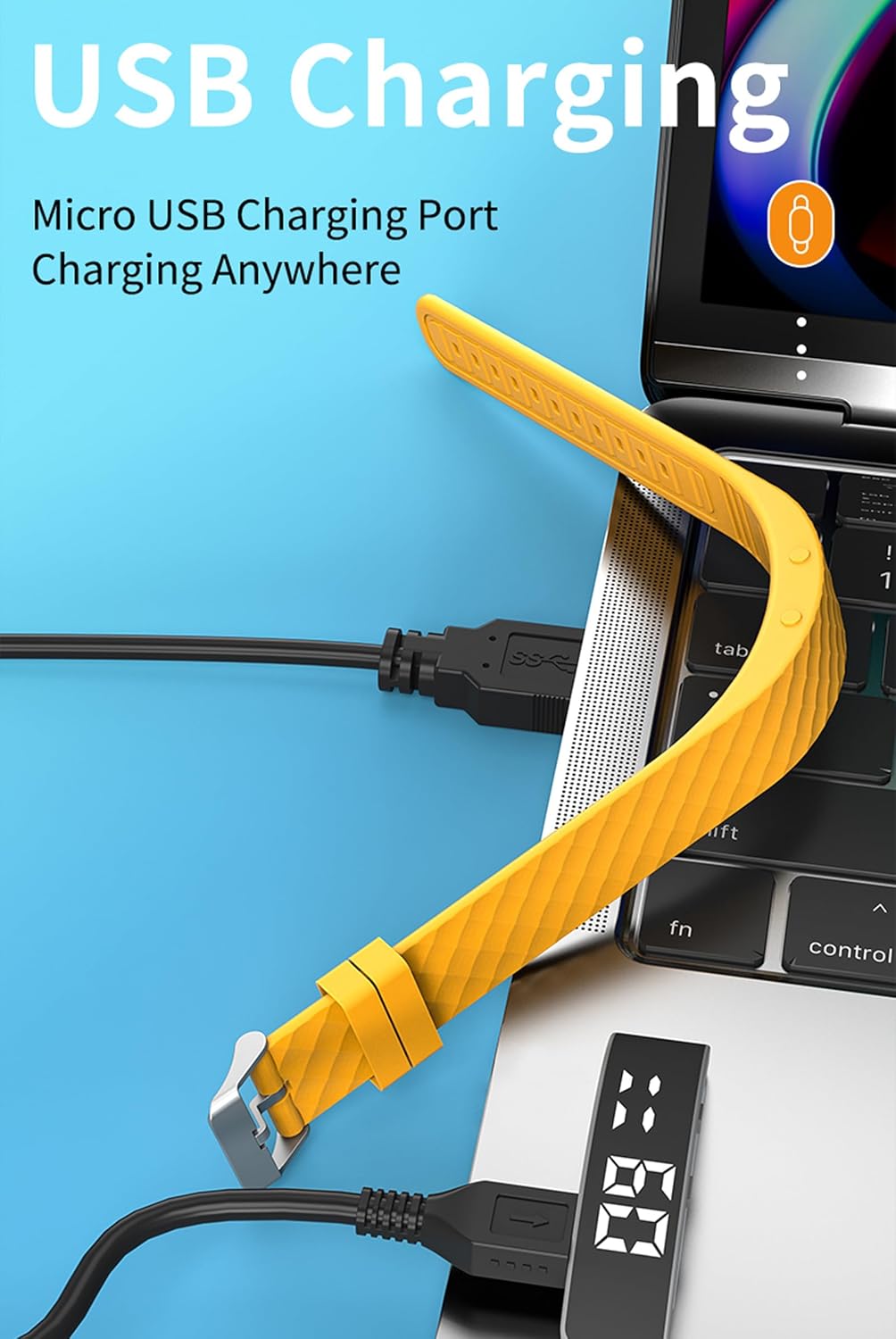
Image: The fitness tracker being charged via a USB port on a laptop. The tracker's display shows the time.
A full charge provides approximately 3-5 days of use and up to 7 days of standby time.
2. Power On/Off
- Power On: The device typically powers on automatically when charged or when a button is pressed.
- Power Off: Refer to the device's on-screen menu for a power-off option, or hold the function button for several seconds if available.
Operating Instructions
The CNBRO Fitness Tracker operates primarily through a single function button and wrist gestures.
1. Basic Navigation
- Short Press: Tap the function button to cycle through different display modes (Time, Steps, Calories, Distance, Sleep, etc.).
- Long Press: Hold the function button to activate specific functions or enter sub-menus, as indicated on the screen.

Image: A pink fitness tracker showing the time 07:29 on its digital display.
2. Time and Date Display
- The default display shows the current time.
- The device supports both 12-hour and 24-hour display formats. This setting can usually be adjusted within the device's menu by long-pressing the function button on the time display.
3. Activity Tracking (Steps, Calories, Distance)
The tracker automatically records your daily steps, estimated calories burned, and distance traveled.
- Short press the function button until the step count display appears.
- Continue short pressing to view calories burned and distance covered.
- To view historical data (up to 30 days), press the function button 3 times to reach the steps display, then press and hold the button. This allows you to cycle through previous days' step counts.
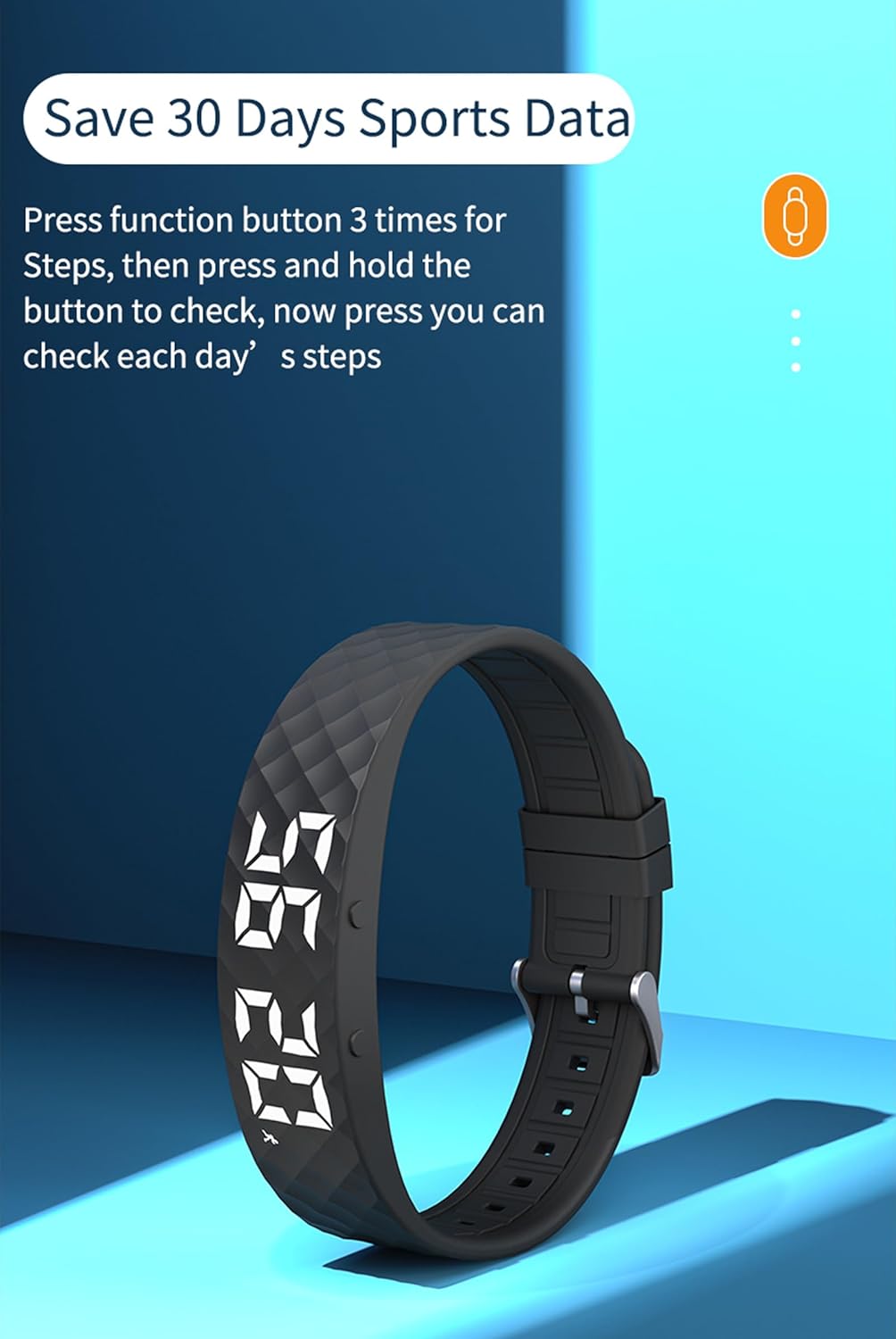
Image: A black fitness tracker showing the time 07:29. Text indicates the ability to save 30 days of sports data and how to access it.
4. Sleep Monitoring
Wear the fitness tracker while sleeping for automatic sleep pattern analysis.
- The tracker monitors sleep from approximately 23:00 PM to 7:00 AM.
- To view sleep data, short press the function button until the sleep display appears.
- Press the display button 6 times to cycle through sleep data:
- H1: Good Sleep
- C2: General Sleep
- L3: Bad Sleep

Image: A yellow fitness tracker with text indicating "Sleep Monitor 23:00PM - 7:00AM" and instructions on how to view sleep quality data (H1, C2, L3).
5. Alarms and Reminders
Set up to 3 vibration alarms directly on the device.
- Navigate to the alarm setting mode using the function button.
- Use short presses to adjust hours/minutes and long presses to confirm or move to the next setting.
- The tracker will vibrate at the set alarm time.

Image: Two fitness trackers, one grey and one purple, displaying the time. Text above them indicates the ability to set up to 3 alarms.
6. Raise Wrist to Light Up Screen
This feature allows the screen to illuminate automatically when you raise your wrist to view the time.
- Ensure this feature is enabled in the device settings if it does not work automatically.
- Raise your wrist as if checking a traditional watch; the screen should light up.
7. Other Features
- Stopwatch: Access through the menu to time activities.
- Countdown: Set a timer for specific durations.
- Calendar Display: View the current date.
Maintenance
1. Cleaning Your Tracker
- Wipe the tracker regularly with a soft, damp cloth.
- Avoid using harsh chemicals or abrasive cleaners, as these can damage the device.
- Ensure the charging contacts are clean and dry before charging.

Image: A purple fitness tracker highlighting its soft and durable silicone material, which is easy to clean.
2. Water Resistance
The CNBRO Fitness Tracker is designed to be water-resistant, suitable for daily use like washing hands or light rain. It is not recommended for swimming, showering, or prolonged submersion.
- Do not operate the buttons underwater.
- Avoid exposure to hot water or steam.
- Dry the tracker thoroughly if it gets wet.
Troubleshooting
| Problem | Solution |
|---|---|
| Tracker does not power on. | Ensure the device is fully charged. Connect it to a USB power source for at least 30 minutes. |
| Screen is unresponsive or frozen. | Try restarting the device by holding the function button for an extended period (e.g., 10-15 seconds). If unsuccessful, allow the battery to drain completely and then recharge. |
| Inaccurate step count. | Ensure the tracker is worn securely on your wrist. Arm movements not associated with walking may be counted. Calibrate if a calibration option is available in settings. |
| Sleep data not recording. | Ensure you are wearing the tracker while sleeping. Check that the sleep monitoring feature is enabled in the device settings. |
| Cannot set alarms. | Follow the operating instructions for alarm setting carefully. Ensure you are using short and long presses correctly to navigate and confirm. |
Specifications
| Feature | Detail |
|---|---|
| Model Number | US-X-W5VP |
| Brand | CNBRO |
| Display Size | 1 Inch |
| Battery Capacity | 50mAh |
| Charging Time | Approximately 0.5 hours |
| Usage Time | 3-5 days |
| Standby Time | Up to 7 days |
| Connectivity | Bluetooth 5.2 (for optional app sync, though product states no smartphone connection needed) |
| System Requirements | Android 6.0 and above, iOS 12.0 and above (for optional app sync) |
| Water Resistance | Daily water resistant (not for swimming/showering) |
| Product Dimensions | 0.28 x 0.59 x 0.14 inches |
| Item Weight | 4.9 ounces |
Note: The product description states "This product does not need to be connected to SmartPhone Bluetooth." However, system requirements for Android/iOS and Bluetooth 5.2 are listed in specifications. This manual focuses on standalone operation as indicated by the primary product description.
Warranty and Support
For any questions, concerns, or support needs regarding your CNBRO Fitness Tracker, please contact the seller directly through the platform where you purchased the product.
Contact Instructions:
- Go to your order history on the purchase platform.
- Locate your order for the CNBRO Fitness Tracker.
- Click on the seller's name (e.g., "Sold by Fusong US").
- Select the option to "Ask a question" or "Contact Seller".
- Describe your issue or question. The seller aims to respond within 24 hours.
Please retain your proof of purchase for warranty purposes.
Ask a question about this manual
Ask about setup, troubleshooting, compatibility, parts, safety, or missing instructions. Manuals+ will review the question and use this page’s manual context to help answer it.