
Ourlife AF-E88-BK
Ourlife Mini Drone User Manual
Model: AF-E88-BK
Introduction
Thank you for choosing the Ourlife Mini Drone. This drone is equipped with dual 4K cameras, offering high-quality photo and video capture, and can be controlled via a smartphone app for real-time viewing. Designed for ease of use, it features one-button takeoff/landing, altitude hold, headless mode, and gesture control, making it suitable for beginners and enthusiasts alike. Its compact, foldable design ensures portability for all your adventures. Please read this manual carefully before operation to ensure safe and optimal performance.
Safety Guidelines
Always prioritize safety when operating your drone. Failure to follow these guidelines may result in injury, damage to property, or legal issues.
- Read the Manual: Fully understand all instructions and warnings before first flight.
- Open Space: Always fly in open, unobstructed areas, away from people, animals, buildings, and power lines. Avoid flying in strong winds.
- Line of Sight: Maintain visual line of sight with the drone at all times.
- Battery Safety: Use only original batteries and charging cables. Do not overcharge or short-circuit batteries. Discontinue use if batteries are damaged or swollen.
- Propeller Safety: Keep fingers, hair, and loose clothing away from rotating propellers. Always turn off the drone before handling propellers.
- Age Restriction: This product is recommended for users aged 14 and above.
- Legal Compliance: Be aware of and comply with local laws and regulations regarding drone operation.
Package Contents
Verify that all items are present in your package:

Image: Contents of the Ourlife Mini Drone package, showing the drone, remote control, two rechargeable batteries, a screwdriver, four protective frames, four main propellers, a USB charging cable, and an instruction manual.
- Ourlife Mini Drone x 1
- Remote Control x 1
- Rechargeable Drone Battery x 2
- Screwdriver x 1
- Protective Frame x 4
- Main Propeller x 4 (spare)
- USB Charging Cable x 1
- Instruction Manual x 1
Note: The remote control requires 3 AAA batteries, which are not included.
Product Overview
Familiarize yourself with the drone and remote control components.

Image: The Ourlife Mini Drone in its unfolded state, alongside its remote control, two drone batteries, and the drone in its folded, compact form.
Drone Components
- Foldable Arms: For compact storage and portability.
- Propellers: Four main propellers for flight.
- Dual Cameras: Front 4K camera (120° adjustable) and bottom optical flow lens for stable flight and diverse shooting angles.
- Battery Compartment: Located at the rear of the drone.
- LED Lights: Indicate drone status and orientation.

Image: Close-up view of the Ourlife Mini Drone's dual camera system, highlighting the adjustable front camera and the lower lens for stable flight. The front camera can be adjusted by 120 degrees.
Remote Control Layout
- Left Joystick: Controls altitude (up/down) and rotation (left/right).
- Right Joystick: Controls forward/backward and left/right movement.
- One-Key Takeoff/Landing Button: Initiates automatic takeoff or landing.
- Headless Mode Button: Activates/deactivates headless mode.
- Speed Switch Button: Toggles between different flight speeds (low, medium, high).
- 360° Flip Button: Executes a 360-degree flip.
- Phone Holder: For mounting your smartphone to view FPV feed.
Setup
1. Charging the Drone Battery
- Connect the USB charging cable to the drone battery.
- Plug the USB end into a 5V/1A USB adapter (not included) or a computer USB port.
- The indicator light on the cable will show charging status. It will turn off or change color when fully charged.
2. Installing Drone Battery
- Ensure the drone is powered off.
- Insert the charged battery into the battery compartment at the rear of the drone until it clicks into place.
3. Installing Remote Control Batteries
- Open the battery compartment on the back of the remote control.
- Insert 3 AAA batteries (not included) according to the polarity markings.
- Close the battery compartment cover securely.
4. Attaching Propeller Guards
- Carefully attach the four protective frames to each motor arm of the drone.
- Ensure they are securely fastened to prevent detachment during flight.
5. App Installation (KY UFO)
- Scan the QR code provided in the manual or search for "KY UFO" in your smartphone's app store (App Store for iOS, Google Play for Android).
- Download and install the application.
- Turn on the drone, then go to your phone's Wi-Fi settings and connect to the drone's Wi-Fi network (usually named "KY-UFO-XXXXXX").
- Open the KY UFO app to access the real-time FPV feed and advanced controls.
Operating Instructions
1. Pairing the Drone and Remote Control
- Place the drone on a flat, level surface.
- Turn on the drone's power switch. The drone's indicator lights will flash.
- Turn on the remote control.
- Push the left joystick all the way up, then pull it all the way down. The drone's lights will stop flashing and remain solid, indicating successful pairing.
2. Basic Flight Controls
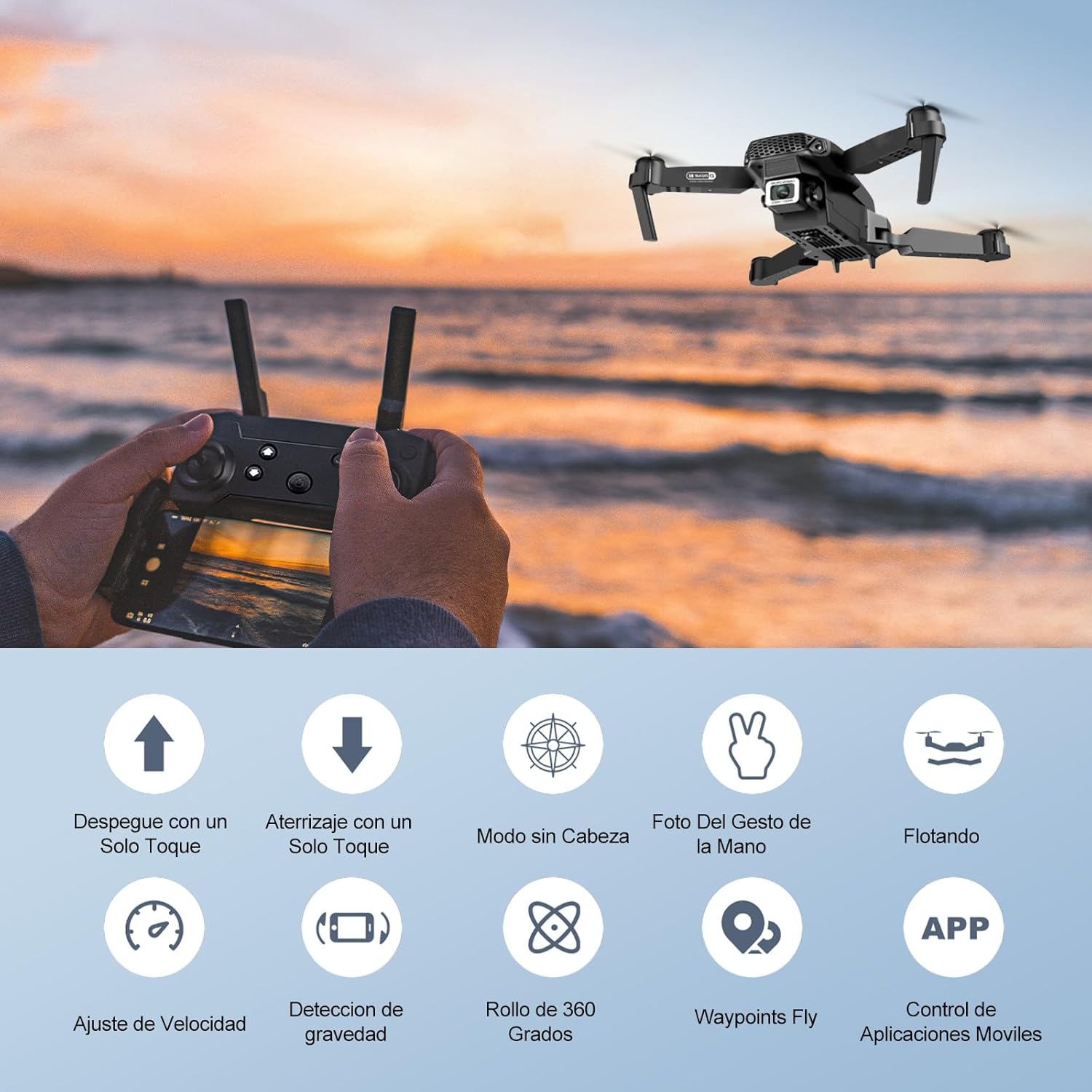
Image: Icons representing various flight features: One-touch takeoff, One-touch landing, Headless Mode, Hand Gesture Photo, Floating (Altitude Hold), Speed Adjustment, Gravity Detection, 360 Degree Roll, Waypoints Fly, and APP Control.
- One-Key Takeoff: Press the One-Key Takeoff/Landing button. The drone will automatically ascend and hover at a certain altitude.
- One-Key Landing: Press the One-Key Takeoff/Landing button again. The drone will automatically descend and land.
- Altitude Hold: The drone maintains its current altitude automatically, allowing for stable hovering.
- Left Joystick (Throttle/Yaw):
- Push up/down: Increase/decrease altitude.
- Push left/right: Rotate drone left/right.
- Right Joystick (Forward/Backward/Sideways):
- Push up/down: Fly forward/backward.
- Push left/right: Fly left/right (strafe).

Image: The Ourlife Mini Drone taking off or landing with a single button press, illustrating the ease of use for beginners.
3. Advanced Flight Features
- Headless Mode: Press the Headless Mode button. In this mode, the drone's orientation is relative to the pilot, regardless of the drone's actual front. This simplifies control, especially for beginners.
- 360° Flip: Fly the drone to a height of at least 2 meters. Press the 360° Flip button, then push the right joystick in any direction to perform a flip in that direction.
- Gesture Control (Photos/Videos): With the KY UFO app open, make specific hand gestures in front of the drone's camera to trigger photo or video recording.
- "V" Gesture: Triggers photo capture.
- Palm Gesture: Triggers video recording.
- Waypoint Flight: In the KY UFO app, draw a desired flight path on your smartphone screen. The drone will automatically follow this path.
- Speed Adjustment: Press the Speed Switch button to cycle through low, medium, and high-speed modes. Adjust according to your skill level and environmental conditions.
- FPV Real-Time Transmission: Connect your smartphone to the drone's Wi-Fi. Open the KY UFO app to view live video feed from the drone's camera on your phone screen.
- Gravity Induction: In the KY UFO app, activate gravity induction mode. You can then control the drone's movement by tilting your smartphone.

Image: The Ourlife Mini Drone performing a 360-degree flip in the air and demonstrating the Waypoints Fly feature, where the drone follows a pre-drawn path.

Image: Demonstrates 1080P FPV Real-Time Transmission, showing a live view from the drone. Also illustrates gesture control for taking photos (V-sign) and recording videos (palm gesture), and the 120-degree adjustable camera angle.
Maintenance
- Cleaning: Use a soft, dry cloth to clean the drone and remote control. Do not use harsh chemicals or solvents.
- Propeller Replacement: If propellers are damaged, replace them with spare ones provided. Ensure correct propeller (A or B) is installed on the corresponding motor.
- Battery Care: Store batteries in a cool, dry place. Do not store fully charged or completely depleted batteries for extended periods. Charge them to about 50% for long-term storage.
- Storage: When not in use, store the drone and its accessories in a safe, dry place, away from direct sunlight and extreme temperatures.
Troubleshooting
| Problem | Possible Cause | Solution |
|---|---|---|
| Drone does not respond to remote. | Not paired; low battery (drone/remote); interference. | Re-pair drone and remote. Charge batteries. Move to an area with less interference. |
| Drone drifts during flight. | Not calibrated; uneven surface at takeoff; wind. | Calibrate the gyroscope (refer to app instructions). Take off from a flat surface. Avoid flying in windy conditions. |
| Camera feed is not showing in app. | Not connected to drone Wi-Fi; app issue. | Ensure phone is connected to the drone's Wi-Fi network. Restart the app and drone. |
| Short flight time. | Battery not fully charged; old battery. | Ensure battery is fully charged before flight. Consider replacing old batteries. |
| Drone crashes easily. | Lack of experience; strong wind; damaged propellers. | Practice in open areas. Avoid strong winds. Replace damaged propellers. |
Specifications

Image: Diagram showing the dimensions of the Ourlife Mini Drone (unfolded and folded) and its remote control in inches.
| Feature | Detail |
|---|---|
| Brand | Ourlife |
| Model Number | AF-E88-BK |
| Product Weight | 430 g (approx. 0.95 lbs) |
| Product Dimensions (Expanded) | 28 x 22 x 5 cm (approx. 11 x 8.7 x 2 inches) |
| Product Dimensions (Folded) | 12.5 x 8.1 x 5.3 cm (approx. 4.9 x 3.2 x 2.1 inches) |
| Battery Type | Lithium Ion (2 included) |
| Video Capture Resolution | 4K (Dual Cameras) |
| Connectivity Technology | Wi-Fi |
| Control Method | Remote Control, Smartphone App |
| Color | Black |
Warranty and Support
Ourlife provides post-sale warranty support for this product. If you encounter any issues with the drone, remote control, or the KY UFO application during flight or operation, please do not hesitate to contact the seller directly for assistance.
For optimal performance and to minimize potential issues, it is recommended to conduct initial flight tests in an open space, especially when using the propeller protectors. Please note that wind interference may occur when operating outdoors.
Ask a question about this manual
Ask about setup, troubleshooting, compatibility, parts, safety, or missing instructions. Manuals+ will review the question and use this page’s manual context to help answer it.