
FUNLAB FF01
FUNLAB Switch Pro Controller with Charging Dock
User Manual
Brand: FUNLAB | Model: FF01
1. Introduction
Thank you for choosing the FUNLAB Switch Pro Controller with Charging Dock. This comprehensive user manual provides detailed instructions for setting up, operating, maintaining, and troubleshooting your new controller. Designed for enhanced gaming, this controller is compatible with Switch 2/OLED, Steam Deck, and PC, offering advanced features like Hall Effect Joysticks, customizable LED lighting, and programmable buttons.

Image 1: The FUNLAB Switch Pro Controller with its dedicated charging dock, showcasing its sleek design and integrated lighting.
2. Product Overview
The FUNLAB Switch Pro Controller is engineered for precision and immersive gaming. It features a unique Luminex Control Gamepad with 7 LED colors and a multi-functional charging dock that complements the controller's aesthetic and functionality.
Key Features:
- Concealed Lighting and Multi-functional Dock: Both the controller and charging dock feature a hidden lighting design with 60 LED lights, offering 7 colors and 3 lighting modes for a personalized gaming atmosphere. The dock also charges the controller when placed.
- Hall Effect Joystick: Equipped with Hall effect sensors, the joysticks provide precise and sensitive control, ensuring accurate and smooth gameplay. This technology also offers a longer lifespan and stable performance by eliminating mechanical wear.
- Versatile Features: The controller includes vibration adjustment, macro settings, and a Turbo function, allowing users to customize complex in-game actions and enhance gameplay efficiency.
- Convenient App-link: Connect the wireless controller via a dedicated app to perform various operations such as remapping functions, joystick adjustment, motor control, customizing lighting effects, and adjusting the controller's auto-shutdown time.

Image 2: The controller and dock illuminated, highlighting the hidden-til-lit display feature for an enhanced gaming experience.

Image 3: A detailed view of the Hall Effect Joystick mechanism, illustrating its magnetic sensing technology that prevents stick drift.
3. Setup
3.1 Charging the Controller
To charge the controller, simply place it onto the charging dock. The dock's lighting will synchronize with the controller, indicating the charging status. The controller will automatically shut down when docked and begin charging.

Image 4: The controller securely placed on its intelligent charging dock, illustrating the charging process and linked lighting feature.
A full charge takes approximately 6.3 hours and provides up to 12 hours of playing time with its 950mAh battery.

Image 5: Visual representation of the controller charging on its dock, emphasizing fast charging and protection features.
3.2 Pairing with Devices
The FUNLAB Pro Controller supports wireless Bluetooth connectivity with various platforms.
- Nintendo Switch/Switch OLED:
- From the HOME Menu, select Controllers, then Change Grip/Order.
- While the screen is displayed, press and hold the SYNC Button on the top of the Pro Controller for at least one second.
- The player LEDs on the bottom of the controller will flash and then remain lit once pairing is complete.
- Steam Deck / PC:
- Ensure your Steam Deck or PC's Bluetooth is enabled.
- On the controller, press and hold the SYNC Button until the LEDs begin to flash rapidly.
- On your device, search for new Bluetooth devices and select "FUNLAB Controller" from the list.
- The controller's LEDs will become solid once connected.
Video 1: A demonstration of how to pair the FUNLAB Switch Pro Controller with a Nintendo Switch console, showing the steps for successful wireless connection.

Image 6: An overhead view displaying the FUNLAB controller's compatibility with various devices including Nintendo Switch, Steam Deck, and PC.
4. Operating Instructions
4.1 Basic Controls
The controller features standard gaming buttons and joysticks for intuitive control:
- Left Joystick: Movement and camera control.
- Right Joystick: Camera control and aiming.
- A/B/X/Y Buttons: Action buttons, typically for confirmation, cancellation, or specific in-game actions.
- D-Pad: Directional input for menu navigation or specific game commands.
- L/R Buttons: Shoulder buttons for various in-game functions.
- ZL/ZR Buttons: Trigger buttons, often used for shooting or special abilities.
- +/- Buttons: System menu navigation or in-game options.
- Home Button: Returns to the console's home screen.
- Screenshot Button: Captures screenshots.
4.2 Advanced Features
- Customizable LED Lighting:
The controller and dock feature 60 individually addressable LEDs. To cycle through the 7 available colors and 3 lighting modes (solid, breathing, flashing), use the dedicated lighting button on the controller. Refer to the app for more advanced customization.
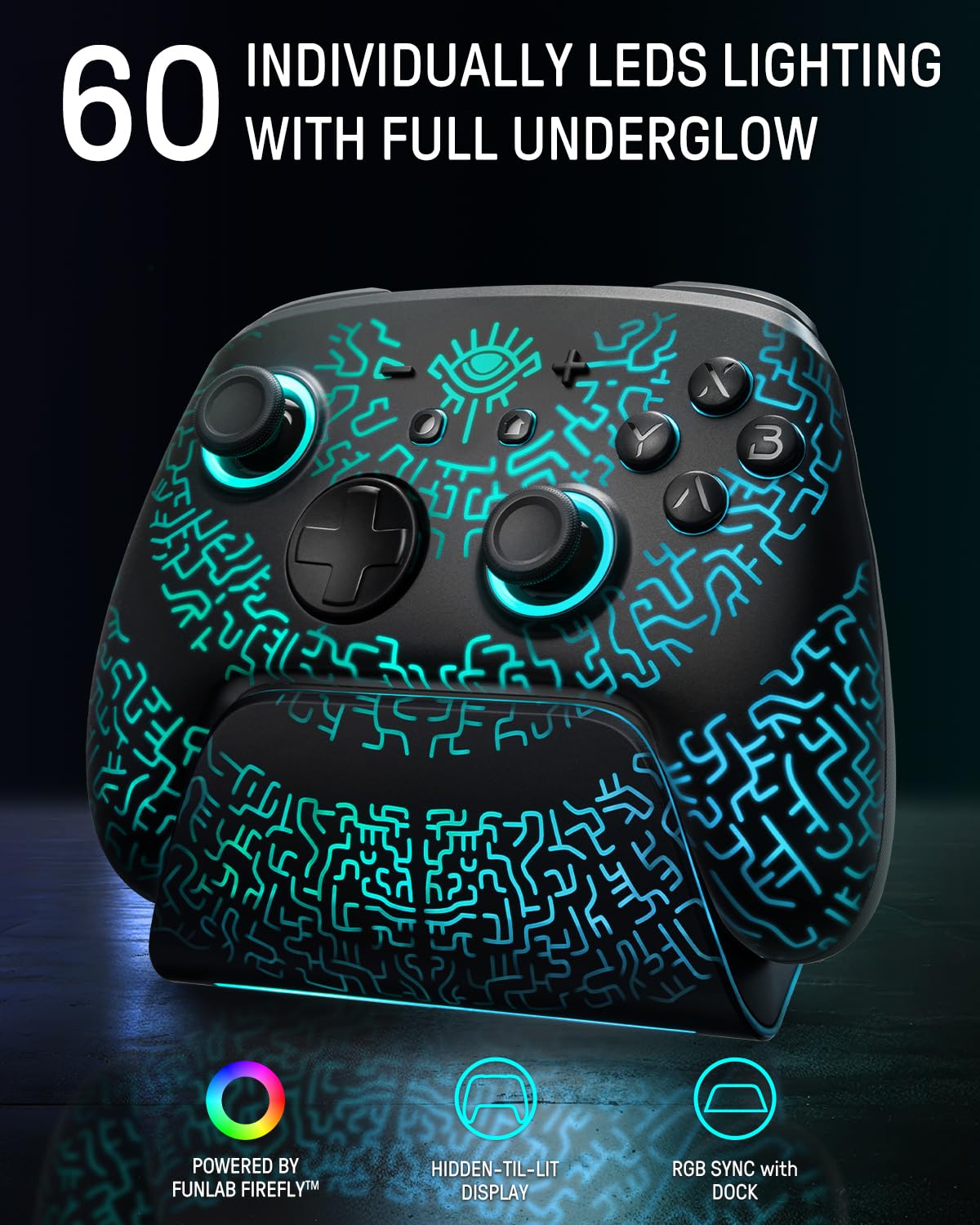
Image 7: The controller showcasing its 60 individually lit LEDs, demonstrating the vibrant and customizable lighting options.
- Pro-Level Mappable Back Buttons (Paddles):
The controller includes mappable back buttons (paddles) that can be assigned to various functions or complex macros. This allows for quick execution of commands without lifting your thumbs from the joysticks. Use the companion app for detailed mapping instructions.

Image 8: A close-up view of the controller's underside, highlighting the two mappable back buttons for advanced gameplay.
- Turbo Function:
Activate the Turbo function for rapid, continuous input of a button press. This is ideal for games requiring fast button mashing. The Turbo speed can be adjusted via the controller or the companion app.

Image 9: An illustration demonstrating the Turbo function, showing adjustable shot speeds for rapid input in games.
- Vibration Adjustment:
Customize the intensity of the controller's vibration feedback to your preference. This enhances immersion and interactivity. Adjustments can be made directly on the controller or through the app.

Image 10: Visual representation of the controller's vibration function, indicating haptic feedback during gameplay.
- 6-Axis Gyro Motion Control:
The integrated 6-axis gyro sensors detect every detail of your movement, providing precise motion control for compatible games, enhancing aiming and in-game navigation.
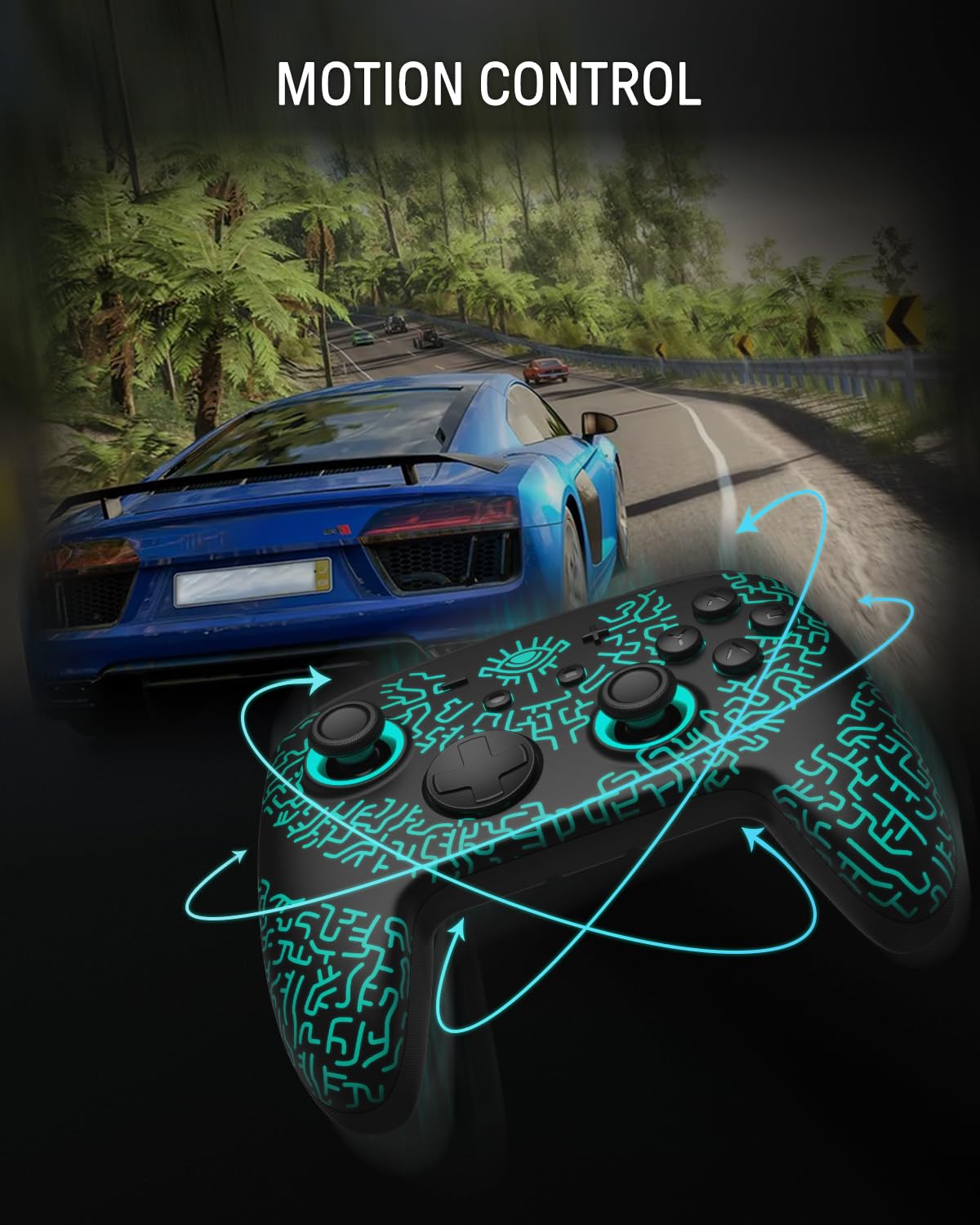
Image 11: An illustration depicting the controller's motion control capabilities, showing how it tracks movement for in-game actions.
5. Maintenance
- Cleaning: Use a soft, dry cloth to clean the controller and charging dock. Avoid using harsh chemicals or abrasive materials.
- Storage: Store the controller and dock in a cool, dry place away from direct sunlight and extreme temperatures.
- Battery Care: To prolong the life of the built-in Lithium Ion battery, avoid fully discharging it frequently. Charge the controller regularly, even if not in use for extended periods.
6. Troubleshooting
| Problem | Possible Cause | Solution |
|---|---|---|
| Controller does not connect. | Low battery; out of range; pairing issue; interference. | Ensure controller is charged. Move closer to the device. Re-attempt pairing (see Section 3.2). Reduce wireless interference. |
| Controller not charging. | Improper placement on dock; dock not powered; faulty cable/dock. | Ensure controller is correctly seated. Check power connection to the dock. Try a different USB cable or power source. |
| Buttons/Joysticks unresponsive or drifting. | Software glitch; calibration needed; physical damage. | Restart the controller and device. Use the companion app for joystick calibration. If issues persist, contact customer support. |
| LED lights not working. | Lighting mode off; software issue. | Press the lighting button to cycle modes. Check app settings for lighting control. |
7. Specifications
- Model Number: FF01
- Dimensions: 5.9 x 2.87 x 4.35 inches
- Weight: 1.32 Pounds
- Battery: 1 Lithium Ion battery (included)
- Connectivity: Wireless Bluetooth
- Compatibility: Nintendo Switch 2/OLED, Steam Deck, PC
- Special Features: Hall Effect Joysticks, Luminex Control Gamepad with 7 LED Colors, Programmable Paddle Buttons, Turbo Function, Motion Control, Vibration Adjustment, App-link Customization.
8. Warranty and Support
For warranty information, technical support, or any inquiries regarding your FUNLAB Switch Pro Controller, please visit the official FUNLAB website or contact their customer service directly. Keep your purchase receipt for warranty claims.
Manufacturer: FUNLAB
Official Website: FUNLAB Store on Amazon
Related documentsFF01


Ask a question about this manual
Ask about setup, troubleshooting, compatibility, parts, safety, or missing instructions. Manuals+ will review the question and use this page’s manual context to help answer it.