Introduction
The iPepul Graphing Calculator TX is a versatile scientific calculator designed for a wide range of mathematical and scientific calculations. It features 10 built-in function modes, advanced graphing capabilities, and a user-friendly interface, making it suitable for students, engineers, and financial analysts. This manual provides essential information for setting up, operating, maintaining, and troubleshooting your calculator.

Figure 1: Front view of the iPepul Graphing Calculator TX.
Setup
Battery Installation
The calculator requires 4 AAA batteries for operation. The battery compartment is located on the back of the unit. To install or replace batteries:
- Ensure the calculator is turned OFF.
- Locate the battery compartment cover on the back of the calculator.
- Slide the cover off. No tools are required for this process.
- Insert 4 AAA batteries, ensuring correct polarity (+/-) as indicated inside the compartment.
- Replace the battery compartment cover securely.
Note: Always use new batteries and dispose of old batteries responsibly.
Initial Power On and Settings
After installing batteries, press the ON button to power on the calculator. You may need to adjust initial settings:
- Accessing Settings: Press [SHIFT] + [MODE] to enter the settings menu.
- Contrast Adjustment: Navigate to the contrast setting to adjust screen visibility.
- Auto Power-Off Time: Configure the time after which the calculator automatically shuts down due to inactivity (default is 6 minutes to conserve energy).
- Multi-line Display Font: Adjust font settings for multi-line displays as needed.
Operating Instructions
Function Modes Overview
The iPepul Graphing Calculator TX features 10 distinct function modes to handle various mathematical and scientific tasks. To select a mode, press the MODE button and choose from the following options:
- Calculate: Standard arithmetic and scientific calculations.
- Complex: Operations involving complex numbers.
- Statistics: Statistical analysis, including mean, standard deviation, and regression.
- Base-N: Calculations in different number bases (binary, octal, decimal, hexadecimal).
- Equation: Solving linear, quadratic, and other types of equations.
- Table: Generating numerical tables for functions.
- Matrix: Matrix operations and calculations.
- Vector: Vector operations and calculations.
- Graphic: Graphing functions and equations.
- G-Solve: Graphical solving features, such as finding roots, intersections, and extrema.
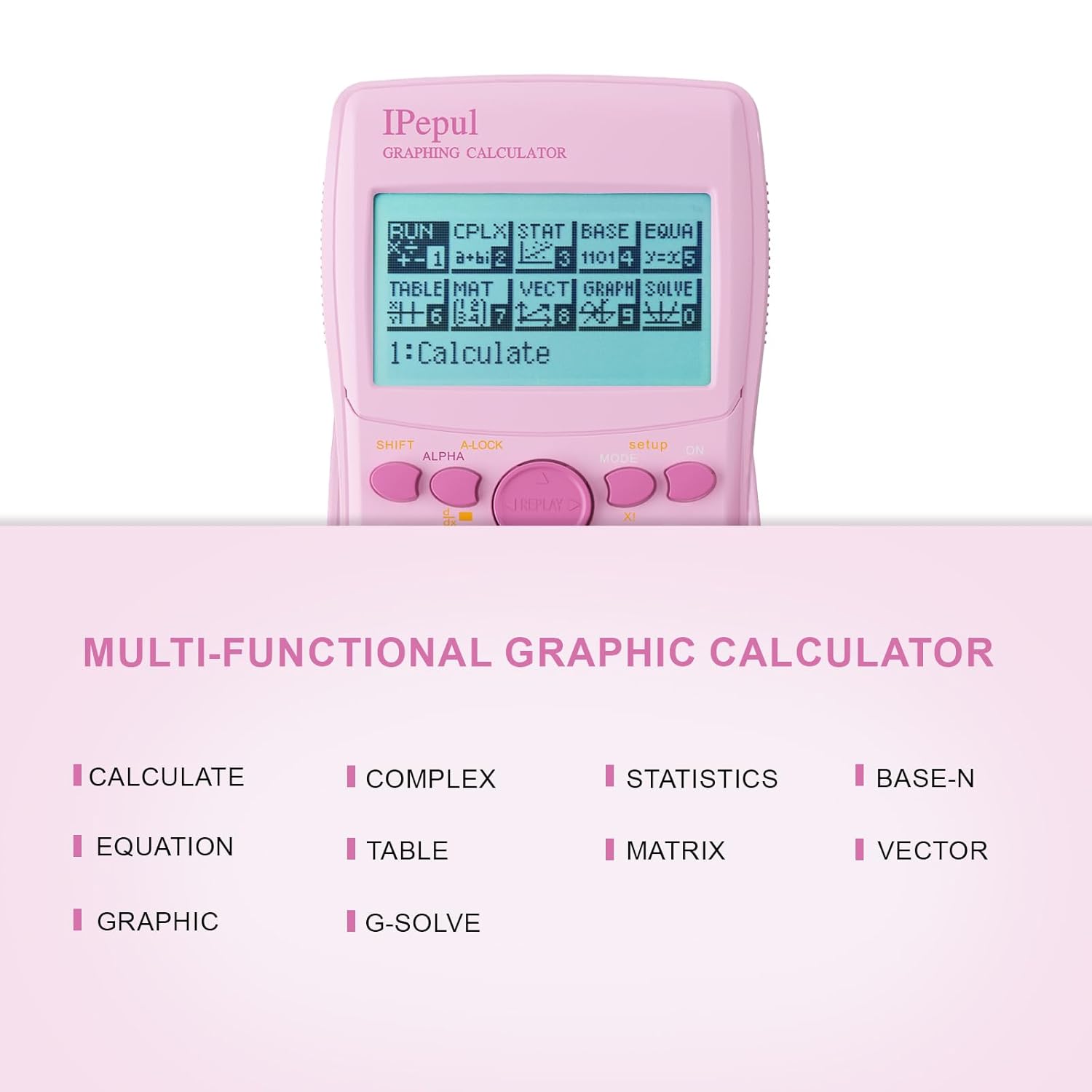
Figure 2: Display showing the 10 multi-functional graphic calculator modes.
Advanced Graphing Capabilities
The calculator supports various graphing functions, accessible primarily through the Graphic and G-Solve modes:
- Drawing Cartesian Coordinate Equations: Input equations in the form Y=f(X) to visualize their graphs.
- Drawing Conic Curves: Graph conic sections such as circles, ellipses, parabolas, and hyperbolas.
- Drawing Polar Coordinate Functions: Plot functions defined by r=f(θ).
- Drawing Parametric Equations: Graph curves defined by x=f(t) and y=g(t).
- Set of 8 Commonly Used Function Drawings: Access pre-defined functions for quick graphing.
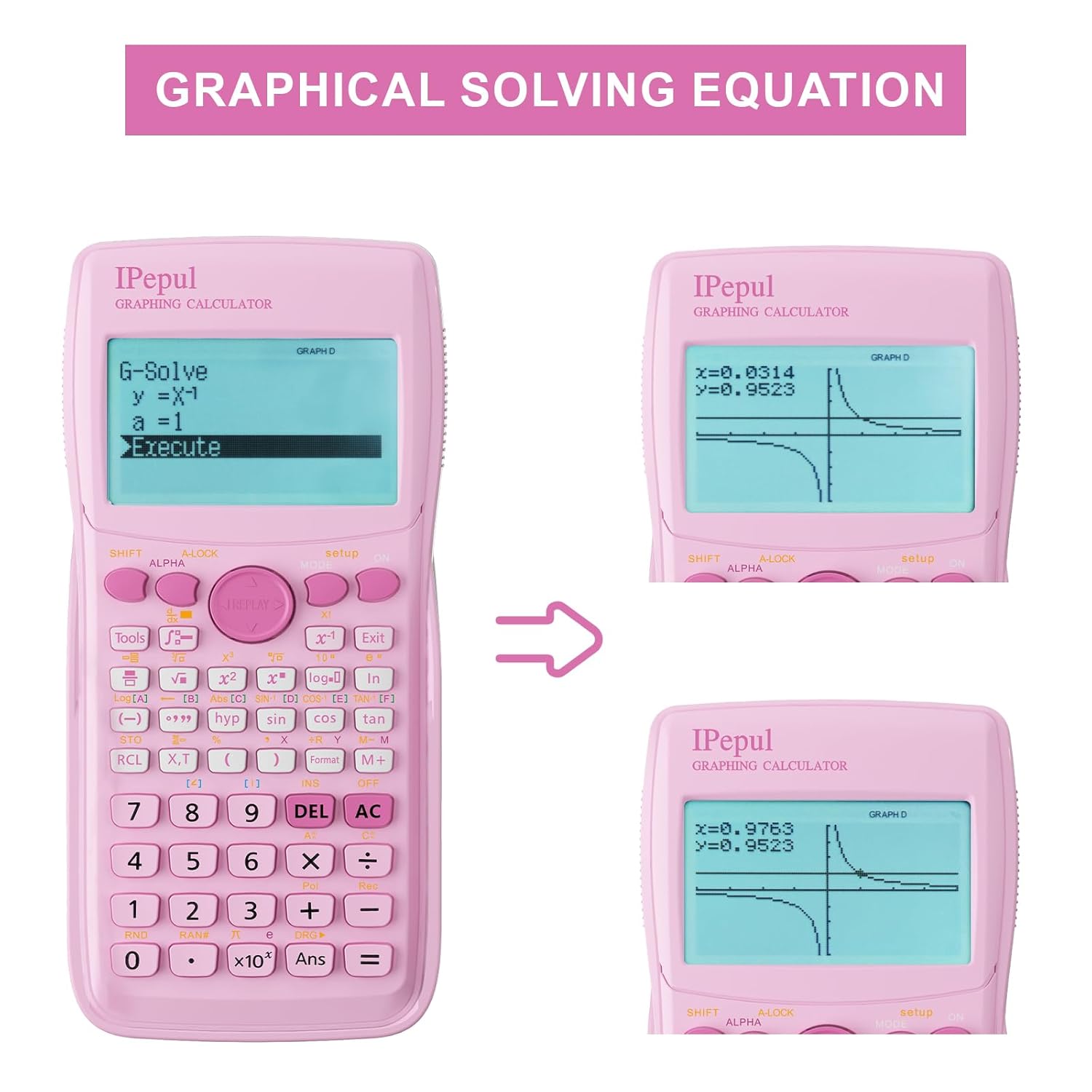
Figure 3: Example of graphical solving equation display.
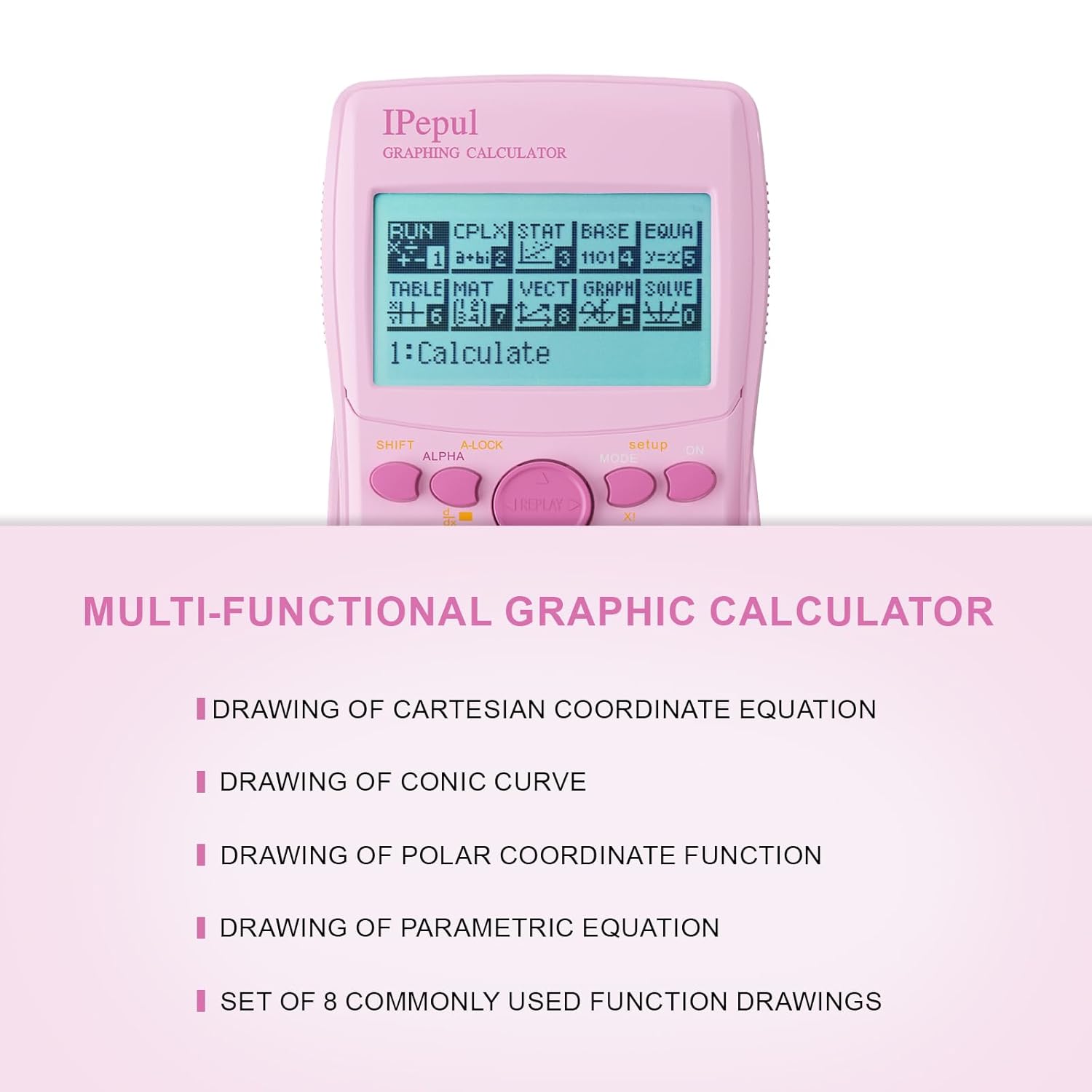
Figure 4: Display illustrating various types of function drawings supported.
Basic Operations
- Power ON/OFF: Press ON to turn on. Press [SHIFT] then OFF (usually above AC) to turn off.
- Clear Entry/All Clear: Use DEL to delete the last character. Press AC to clear the current entry or calculation.
- Shift Function: Press SHIFT to access the secondary functions printed above the keys (usually in yellow or orange).
- Alpha Function: Press ALPHA to access the alpha characters printed above the keys (usually in red).
- Replay Function: Use the replay buttons (directional arrows) to navigate through previous calculations or edit current entries.
Maintenance
Cleaning
To maintain the calculator's appearance and functionality:
- Wipe the exterior with a soft, dry cloth.
- For stubborn dirt, slightly dampen the cloth with water and a mild detergent, then wipe dry immediately.
- Do not use abrasive cleaners, solvents, or alcohol, as these can damage the casing and screen.
Battery Replacement
Refer to the "Battery Installation" section under Setup for detailed instructions on replacing the 4 AAA batteries. Replace batteries promptly when the display becomes dim or the calculator malfunctions.
Storage
When storing the calculator for extended periods, remove the batteries to prevent leakage and potential damage to the device.
Troubleshooting
- Calculator does not turn on:
- Check if the batteries are correctly installed with the proper polarity.
- Replace old or depleted batteries with new AAA batteries.
- Display is dim or unreadable:
- Adjust the display contrast in the settings menu ([SHIFT] + [MODE]).
- Replace the batteries if they are low.
- Calculator freezes or behaves erratically:
- Perform a soft reset by pressing the ON button.
- If the issue persists, perform a full reset via the settings menu ([SHIFT] + [MODE] and select reset option). Note that a full reset will clear all memory and settings.
- Incorrect calculation results:
- Ensure the calculator is in the correct mode for your calculation (e.g., Degree/Radian, Calculate mode).
- Check your input for errors.
- Perform a reset if necessary.
Specifications

Figure 5: Product dimensions diagram for the iPepul Graphing Calculator TX.
| Feature | Detail |
|---|---|
| Model Number | TX |
| Brand | iPepul |
| Display Type | LCD |
| Display Resolution | 128x64 pixels |
| Screen Size | 66.5 x 43.8 mm (2.62" x 1.72") / 2.86 Inches (diagonal) |
| Dimensions (LxWxH) | 18.19 x 9.88 x 0.1 cm (7.16 x 3.89 x 0.04 inches) |
| Weight | 259 g (0.57 lbs) |
| Power Source | Battery Powered |
| Battery Type | 4 x AAA Alkaline batteries (included) |
| Material | Plastic |
| Auto Power-Off | After 6 minutes of inactivity |
| Country of Origin | China |
Warranty Information
Specific warranty details for the iPepul Graphing Calculator TX are typically provided at the point of purchase or within separate documentation included with the product. Please refer to your purchase receipt or contact the retailer for information regarding warranty coverage and terms.
Support
For technical assistance, product inquiries, or further support regarding your iPepul Graphing Calculator TX, please contact the seller or manufacturer directly. Contact information can usually be found on the product packaging or the retailer's website.


