
1. Introduction
Thank you for choosing the ACASIS 14-in-1 USB C Docking Station. This versatile docking station is designed to expand the connectivity of your USB-C or Thunderbolt 3/4 enabled laptop, transforming it into a powerful workstation. With a comprehensive array of ports, it allows for multi-monitor setups, high-speed data transfer, network connectivity, and power delivery, all through a single USB-C connection.

Figure 1: ACASIS 14-in-1 USB C Docking Station and included cables.
2. Features
The ACASIS 14-in-1 USB C Docking Station offers extensive connectivity options:
- Display Outputs: 2 x HDMI (4K@60Hz), 1 x DisplayPort (4K@60Hz) for single 4K@60Hz or triple 4K@30Hz displays.
- High-Speed USB Data Ports: 3 x USB-C 3.1 (10Gbps), 2 x USB-A 3.1 (10Gbps).
- Standard USB Port: 1 x USB 2.0 (480Mbps).
- Power Delivery: 1 x USB-C PD 3.0 (Max 100W) for laptop charging.
- Network Connectivity: 1 x Gigabit Ethernet (1000Mbps RJ45).
- Card Readers: SD/TF 3.0 card reader.
- Audio: 3.5mm audio and microphone jack.

Figure 2: Detailed view of the 14-in-1 port configuration.
3. Setup
3.1 System Requirements
Ensure your laptop has a full-featured USB-C port that supports Power Delivery, DisplayPort Alt Mode, and Data Transfer. This is crucial for the docking station's full functionality.

Figure 3: USB-C Port Compatibility Check.
3.2 Connecting the Docking Station
- Connect the integrated USB-C cable from the docking station to your laptop's compatible USB-C or Thunderbolt 3/4 port.
- Connect your external monitors to the HDMI and/or DisplayPort outputs on the docking station.
- For power delivery to your laptop, connect your laptop's power adapter (or a compatible USB-C PD charger, not included) to the PD 100W USB-C port on the docking station.
- Connect any other peripherals (USB devices, Ethernet cable, SD/TF cards, audio devices) to their respective ports on the docking station.
3.3 Display Configuration
The docking station supports various display modes depending on your operating system.
Windows System (DP 1.4)
Windows systems support both Mirror (SST) and Extend (MST) modes for single, dual, or triple displays.
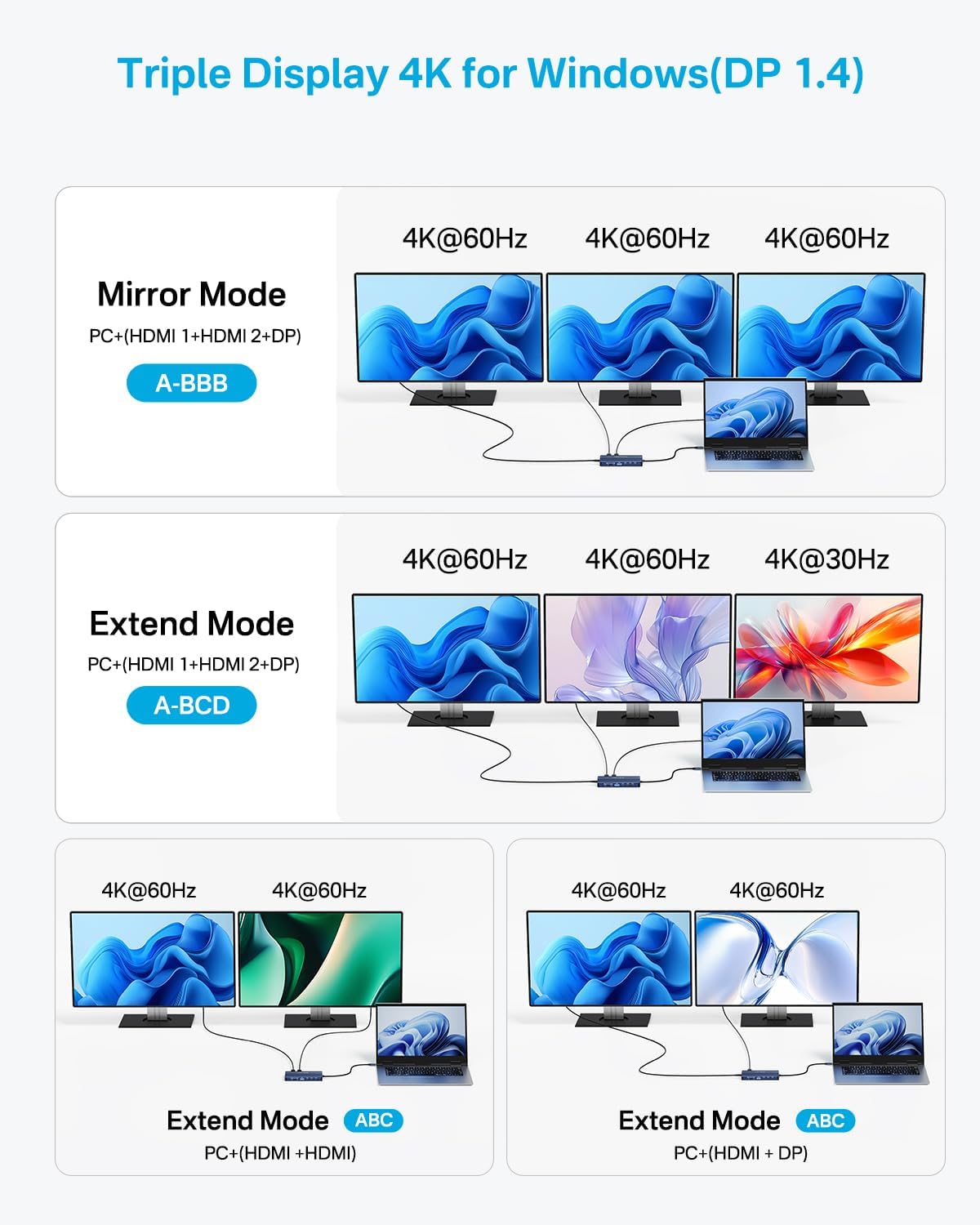
Figure 4: Triple Display 4K for Windows (DP 1.4).
macOS System
macOS systems support Mirror Mode (A-AAA) and Extend Mode (A-BBB) across multiple displays. Please note that macOS does NOT support Multi-Stream Transport (MST), meaning extended displays will mirror each other, or provide a single extended desktop across all displays, not independent extended displays.

Figure 5: Triple Display 4K for macOS.
4. Operating
4.1 Data Transfer
The docking station features 3 USB-C 3.1 ports and 2 USB-A 3.1 ports, all supporting ultra-fast 10Gbps data transfer speeds. This allows for rapid transfer of large files, ideal for video editing, financial analysis, and gaming.

Figure 6: High-Speed 10Gbps Data Transfer.
4.2 Power Delivery
The dedicated 100W Power Delivery (PD) USB-C port allows you to charge your laptop, tablet, or phone quickly while using other ports on the docking station. Note that the charger itself is not included.

Figure 7: 100W PD Fast Charging in action.
4.3 Ethernet Connectivity
The integrated 1Gbps Ethernet port provides a stable and fast wired network connection, supporting 1000 BASE-T LAN networks. This is ideal for reliable internet access, especially in environments with unstable Wi-Fi.
4.4 SD/TF Card Readers
The docking station includes SD and TF (microSD) card readers, supporting the 3.0 standard for quick access to your memory card data, perfect for photographers and content creators.

Figure 8: SD/TF Card Readers in use.
4.5 Audio Output
A 3.5mm audio and microphone port is available for connecting wired headsets, speakers, or microphones, providing convenient audio connectivity.
5. Maintenance
To ensure the longevity and optimal performance of your ACASIS docking station, follow these maintenance guidelines:
- Cleaning: Use a soft, dry cloth to clean the exterior of the docking station. Avoid using liquid cleaners or aerosols.
- Storage: Store the device in a cool, dry place away from direct sunlight and extreme temperatures.
- Handling: Handle the docking station with care. Avoid dropping it or subjecting it to strong impacts. Do not put excessive bend on the integrated USB-C cable where it connects to the device.
- Ventilation: Ensure proper airflow around the device to prevent overheating, especially during prolonged use with multiple connected peripherals.
6. Troubleshooting
6.1 Display Issues
If your external monitor is not displaying or experiencing issues:
- Check Cables: Ensure all HDMI/DisplayPort cables connecting the monitors to the docking station are securely plugged in and are of good quality (e.g., HDMI 2.0 for 4K@60Hz).
- Input Source: Verify that your monitor's input source is correctly set to the corresponding HDMI or DisplayPort input you are using.
- Laptop Compatibility: Confirm your laptop's USB-C port supports DisplayPort Alt Mode. Refer to your laptop's manual or manufacturer's website.
- Resolution Settings: Adjust display resolution and refresh rate settings in your operating system. For optimal 4K display, ensure your laptop and monitors support 4K and use appropriate cables.

Figure 9: HDMI Interface Display Troubleshooting.
6.2 Power Delivery (PD) Issues
If your laptop is not charging or charging slowly via the docking station:
- Charger Wattage: The docking station itself requires 5-10W of power to operate. To ensure sufficient power for your laptop, it is recommended to use a PD charger of 65W or above. A 100W charger will provide approximately 85W output to your laptop, while a 65W charger will provide about 55W.
- Cable Quality: Ensure you are using a high-quality USB-C cable that supports 100W PD.
- Docking Station Power: The hub does not come with power. It is best to access the PD power supply for the docking station to replenish its power to prevent the computer port from breaking the chain.
6.3 Overheating
While designed for efficient heat dissipation, prolonged heavy use with multiple high-power devices may cause the docking station to become warm. Ensure adequate ventilation around the device. If overheating persists and affects performance, disconnect some peripherals or reduce usage time.
6.4 Compatibility Notes
Not all laptops or USB-C ports are fully compatible with all features of the docking station. Please refer to the detailed compatibility list provided by ACASIS or contact ACASIS support if you are unsure about your laptop's compatibility.

Figure 10: Compatibility List (Part 1).

Figure 11: Compatibility List (Part 2).
7. Specifications
| Attribute | Value |
|---|---|
| Product Dimensions | 5.12 x 2.4 x 0.61 inches |
| Item Weight | 3.53 ounces |
| Item Model Number | DS0202 |
| Brand | ACASIS |
| Color | Grey |
| Hardware Interface | USB 3.1 Type C |
| Special Feature | High Speed Data Transfer |
| Compatible Devices | Laptops |
| Manufacturer | ACASIS |
| Country of Origin | China |
8. Warranty and Support
ACASIS provides a two-year quality guarantee for this docking station, ensuring trustworthiness and peace of mind with your purchase.
Customer Support
For any inquiries, technical assistance, or warranty claims, please contact ACASIS customer support:
- Email: support@acasis.com
- Service Hours: 7x24 hours online service anytime.

Figure 12: ACASIS After-Sales Service.


