
1. Product Overview
The Linkind Smart Solar Spot Lights Outdoor SL5C are designed to provide versatile and intelligent outdoor lighting. Featuring advanced MPPT solar charging technology, these lights offer color-changing capabilities, app and voice control, and various lighting effects to enhance your outdoor spaces.
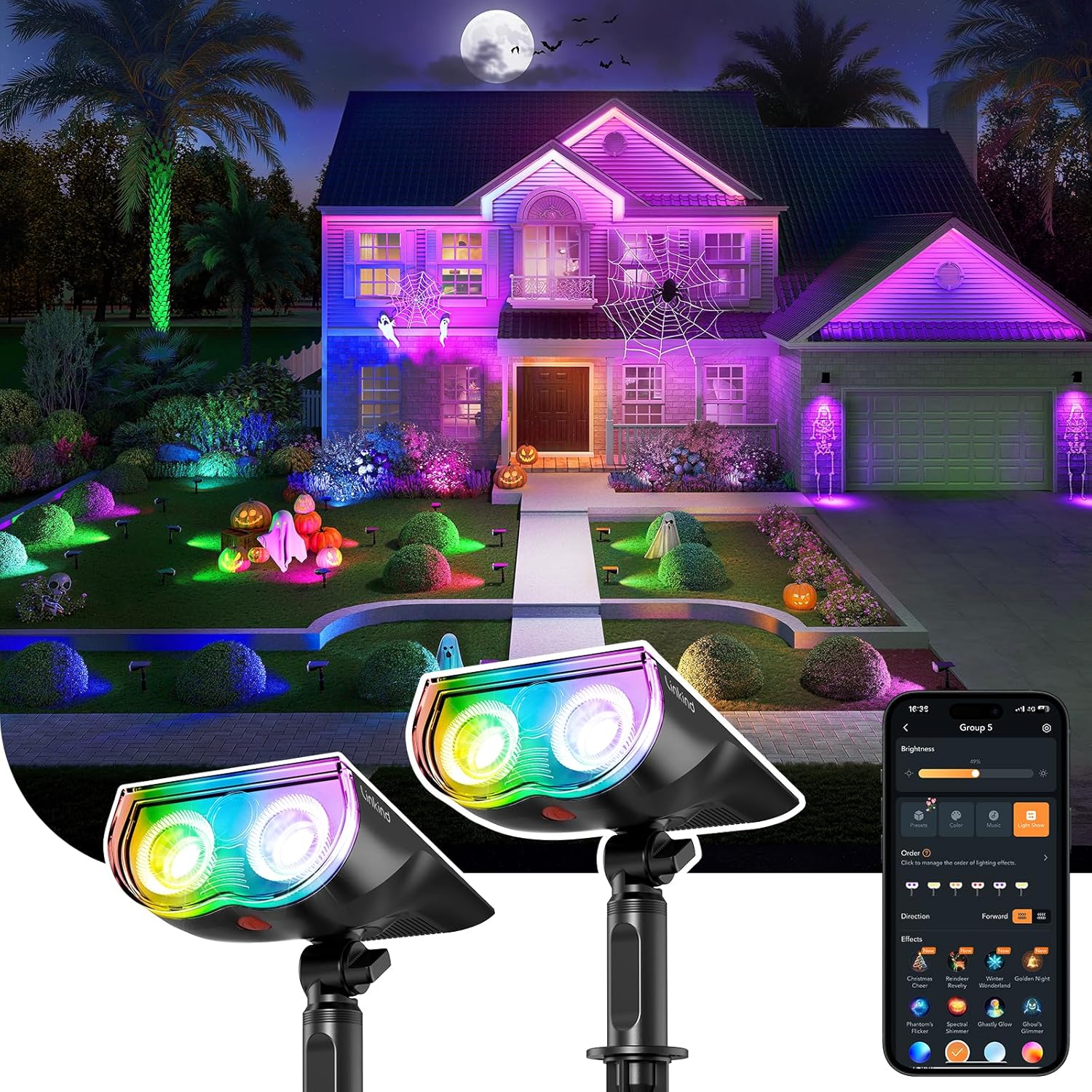
Image: Linkind Smart Solar Spot Lights Outdoor SL5C in an outdoor setting, demonstrating color-changing capabilities and app control.
2. What's in the Box
Verify that all components are present in the package:
- 2 x Linkind Smart Solar Spotlight SL5C
- 2 x Mounting Rod
- 2 x Ground Stake
- 2 x Locking Bolt
- 6 x Wall Anchor
- 6 x Screw
- 1 x User Manual

Image: Contents of the Linkind Smart Solar Spot Light package, including spotlights, mounting accessories, and manual.
3. Setup and Installation
3.1 Choosing an Installation Location
For optimal performance, select a location where the solar panel can receive direct sunlight for at least 6-8 hours daily. Avoid areas shaded by trees, buildings, or other obstructions.

Image: Installation recommendations, illustrating optimal placement for solar charging.
3.2 Mounting Options
The Linkind SL5C spotlights offer two primary mounting methods:
- Ground Insert: Attach the mounting rod and ground stake to the spotlight. Insert the stake firmly into the ground in your desired location.
- Wall Mount: Use the provided wall anchors and screws to secure the spotlight to a vertical surface.
The light head can be adjusted 360° horizontally and 180° vertically to direct illumination precisely where needed.
3.3 Optimal Placement for Lighting
Consider the following for effective lighting:
- Distance from Objects: For accentuating features like trees or walls, place the light 5-7 feet away from the object.
- Pathway Lighting: For even pathway illumination, space lights approximately 7 feet apart.

Image: Optimal installation distance for landscape lighting.

Image: Optimal path-lighting pattern with recommended spacing.
4. Operating Instructions
4.1 Initial Power On and App Connection
To connect your Linkind Smart Solar Spot Lights to the AiDot app:
- Download the AiDot App: Search for "AiDot" in the App Store (iOS) or Google Play Store (Android) and install it.
- Sign In or Create Account: Open the app and follow the prompts to sign in or create a new user account.
- Enable Bluetooth: Ensure your phone's Bluetooth is enabled.
- Activate Light: Long-press the red button on the light for 5 seconds until the light enters a cool/warm light cycle. This indicates it's ready for pairing.
- Add Device in App: In the AiDot app, tap the "+" button, select "Add Device," then choose "Nearby" to discover your lights.
- Confirm Connection: Once detected, follow the in-app instructions to add the device. You can assign it to a room or group.
Note: For direct Bluetooth control, keep your phone within 98 feet (in an open area) of the light.

Image: Step-by-step guide for downloading the AiDot app and connecting the lights.

Image: Device connection steps for the Linkind SL5C.
4.2 Advanced Control with a Bluetooth Mesh Hub (Sold Separately)
To enable voice control and extend the control range, a Linkind Bluetooth Mesh Hub is required:
- Voice Control: Once connected to the hub, you can use Amazon Alexa or Google Home for voice commands.
- Extended Range: The hub expands the control range up to 131 feet. Each light must be within 131 feet of the hub or another connected light within the mesh network.

Image: Benefits of using a Bluetooth Mesh Hub for extended control and voice commands.
4.3 App Features and Functions
- Color Changing: Customize your spotlights with 16 million color choices and adjustable white lighting (2,700K-6,500K). Adjust brightness from 1% to 100%.
- Preset Scenes: Choose from over 43 preset scenes to instantly change the ambiance.
- Light Shows & Music Sync: Create dynamic light shows or synchronize lights to music for special events.
- Timer and Schedule: Program automatic dusk-to-dawn lighting using Luminance Detection or create fully personalized schedules for specific on/off times.
- Group Control: Combine up to 32 lights into as many as 8 groups for simultaneous control.

Image: Demonstrating color, brightness, and scene customization options.

Image: Lights synchronizing with music.

Image: Automatic dusk-to-dawn lighting and scheduled light modes.

Image: Setting custom operating schedules within the AiDot app.

Image: One-tap group control for multiple spotlights.
4.4 Starting a Dynamic Light Show
To initiate a dynamic light show:
- Create an Outdoor Group: In the AiDot app, create an outdoor group for your lights.
- Select "Auto-Play": Within the group settings, choose the "Auto-Play" option.
- Set Play Settings: Select "Play Settings" to configure the order and direction of effects.
- Choose Preset Effect: Select a desired preset light show effect (e.g., Running Water, Rainbow, Strobe).
- Set Play Time: Define the duration for the light show, up to 2 hours.

Image: Steps to start a dynamic light show using the AiDot app.
5. Maintenance
5.1 Solar Panel Care
To ensure efficient charging, regularly clean the solar panel with a soft, damp cloth to remove dust, dirt, and debris. Avoid abrasive cleaners or tools that could scratch the panel surface.
5.2 Battery Information
The spotlights include 2 C batteries. These are automotive-grade 5C energy solutions designed for up to 14 hours of continuous lighting on a full charge. The MPPT (Maximum Power Point Tracking) chip optimizes charging efficiency by up to 23.5% even in varying weather conditions.

Image: MPPT chip technology for enhanced charging efficiency in various weather conditions.
5.3 Environmental Considerations
The lights are IP67 water-resistant and designed to operate in temperatures ranging from approximately -4°F to 104°F (-20°C to 40°C).
6. Troubleshooting
Refer to the following tips for common issues:
6.1 App Connection Issues
- Keep your phone and light within 98 feet (in an open area) during connection.
- Ensure your phone's Bluetooth is enabled.
- Long-press the red button on the light for 5 seconds until the light enters the cool/warm light cycle, then add the light to the app.
6.2 Light Turns Off After a Few Seconds
- This may indicate a low battery state.
- The default setting is to turn off after 30 seconds. Adjust this in the AiDot app under "Settings" > "Lighting Duration."
6.3 Lights Do Not Turn On
- Check for any external light sources interfering with the solar panel's light sensor.
- Charge the light for a while, then cover the solar panel to test if it turns on.
- Ensure you hear a clear "click" sound when pressing the power button, indicating proper engagement.
6.4 Shutting Down the Light
Press the red button repeatedly to cycle through colors until the light turns off. The light will remain off until the button is pressed again to wake it up.

Image: Warm tips for common issues and solutions.
7. Specifications
| Feature | Specification |
|---|---|
| Brand | Linkind |
| Model Name | SL5C (LS6300164) |
| Color | Multicolor |
| Material | High-impact ABS Plastic & 1.55W Monocrystalline Silicon PET Laminated Panel |
| Product Dimensions | 8.35"L x 6.5"W x 2.5"H |
| Item Weight | 1.28 pounds |
| Power Source | Solar Powered |
| Light Source Type | LED |
| Number of Light Sources | 16 |
| Voltage | 3.7 Volts |
| Wattage | 1.55 watts |
| Brightness | 150 lumen |
| Color Temperature | 6500 Kelvin (Tunable White: 2,700K-6,500K) |
| Controller Type | AiDot App Control, Push Button |
| Connectivity Protocol | Bluetooth |
| Water Resistance Level | IP67 (Waterproof) |
| Installation Type | Wall Mount/Ground Insert |
| Batteries | 2 C batteries required (included) |
8. Warranty and Support
Linkind provides the following support for your product:
- 45-Day Full Refund Policy: For initial purchase satisfaction.
- 12-Month After-Sale Warranty: Covers manufacturing defects and performance issues.
- Lifetime Coverage: Includes lifetime service and technical support.
- Customer Support: Available 24/7 for inquiries.
For further assistance, please contact Linkind customer service.

Image: Linkind's warranty and customer support information.


