1. Introduction
The Reborn USB to HDMI Adapter is designed to convert a USB signal to an HDMI output, enabling connection to HDMI-compatible displays such as monitors, televisions, or projectors. This device is essential for extending or mirroring your computer's display, enhancing productivity and multimedia experiences. Its compact design ensures portability and ease of use. Please note that this adapter requires driver installation and cannot be used in BIOS mode.
2. Product Overview
The Reborn USB to HDMI Adapter features a USB 3.0 Male connector on one end and an HDMI Female port on the other. It is constructed with high-quality materials for durability and stable performance.

Image 2.1: The Reborn USB to HDMI Adapter, featuring a USB-A 3.0 male connector and an HDMI female port, designed for connecting a computer to an external display.
Key Features:
- USB 3.0 Connectivity: Ensures high-speed data transfer for optimal display performance.
- 1080P@60Hz Resolution: Supports Full HD video output for clear and crisp visuals.
- Durable Construction: Features gold-plated connectors, an aluminum shell, and a nylon braided cable for enhanced longevity and reliability.
- Compact Design: Easy to carry and connect on the go.

Image 2.2: The compact Reborn USB to HDMI Adapter shown being carried in a bag, highlighting its portability.
3. Setup and Installation
Before using the Reborn USB to HDMI Adapter, driver installation is required. Follow these steps carefully:
3.1 Driver Installation
- Prepare for Installation: Temporarily close any antivirus software running on your computer to prevent conflicts during installation. If you have previously installed drivers for other USB-to-VGA or similar display adapters, uninstall them first to avoid potential conflicts.
- Connect the Adapter: Insert the USB 3.0 male connector of the Reborn USB to HDMI Adapter into an available USB 3.0 port on your computer (laptop or desktop).
- Access the Driver: Your computer should recognize the adapter as a removable storage device, typically named "USBDISPLAY". Open this drive.
- Select and Install Driver: Inside the "USBDISPLAY" drive, locate the appropriate driver for your operating system (e.g., WinUSBDisplay_Windows_V3.1.5.72 for Windows, UsbDisplay_macOS_V3.0.4.26_20230922_1953 for macOS). Double-click the driver file and follow the on-screen prompts to complete the installation.
- Restart Your Computer: After the driver installation is complete, it is mandatory to restart your computer for the adapter to function correctly.

Image 3.1: Visual guide for driver installation, showing steps from connecting the adapter to selecting and installing the correct driver for Windows or macOS.
3.2 Connecting to a Display
- Ensure the driver is installed and your computer has been restarted.
- Connect the HDMI female port of the Reborn USB to HDMI Adapter to an HDMI cable.
- Connect the other end of the HDMI cable to the HDMI input of your desired display (monitor, TV, or projector).
- Your computer should automatically detect the external display.

Image 3.2: Diagram illustrating the connection flow from a laptop's USB-A 3.0 port, through the Reborn USB to HDMI Adapter, to an external HDMI display.
4. Operating Instructions
4.1 Display Modes
The adapter supports both Mirror and Extend display modes, allowing you to customize your viewing experience:
- Mirror Mode: Duplicates your computer's screen onto the external display. Ideal for presentations or sharing content.
- Extend Mode: Expands your desktop across multiple screens, providing more workspace. This mode is beneficial for multitasking and increasing work efficiency.
You can configure these modes through your operating system's display settings (e.g., Display Settings on Windows, System Preferences > Displays on macOS).

Image 4.1: A visual representation of a laptop connected to an external monitor via the adapter, demonstrating both mirror and extended display modes for enhanced productivity.
4.2 Resolution and Performance
The Reborn USB to HDMI Adapter supports a maximum resolution of 1920x1080 at 60Hz (1080P@60Hz) when connected to a USB 3.0 port. For optimal performance, ensure your computer's display resolution is set to 1920x1080 or lower.
Important Considerations:
- If connected to a USB 2.0 port, the output resolution will be limited to 800x600.
- The adapter is not compatible with unsupported receiving devices.
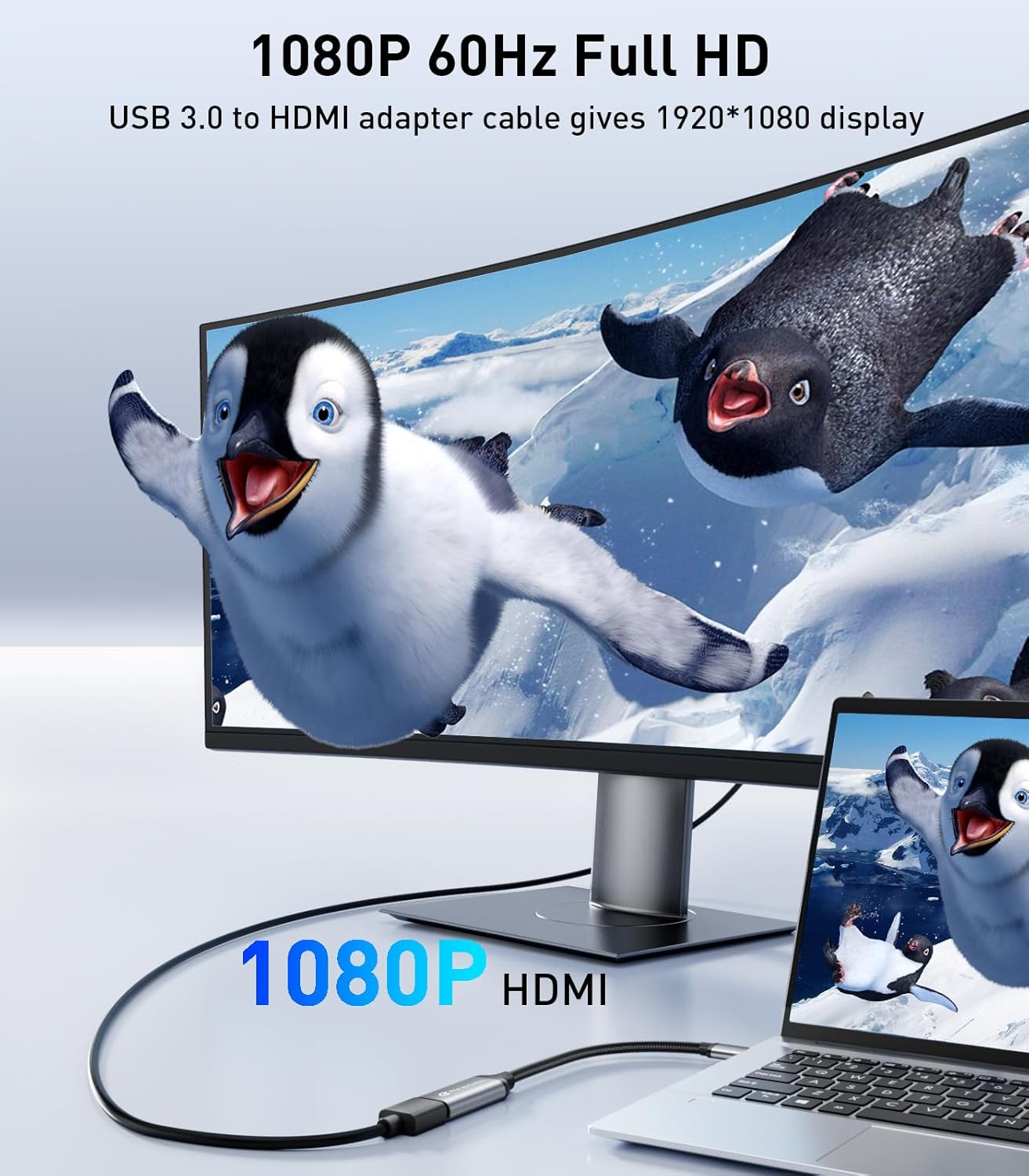
Image 4.2: An external monitor displaying a vibrant 1080P Full HD image, connected to a laptop via the Reborn USB to HDMI Adapter.
5. Compatibility
The Reborn USB to HDMI Adapter is compatible with a wide range of operating systems and devices:
- Operating Systems: Windows 7/8/10/11, macOS.
- Source Devices: Laptops, Desktop Computers with USB-A 3.0 ports.
- Target Devices: TVs/HDTVs, Monitors, Projectors with HDMI input.
Important Limitation: This adapter cannot be used in BIOS mode.

Image 5.1: A diagram illustrating the wide compatibility of the Reborn USB to HDMI Adapter, connecting USB-A 3.0 source devices (laptops, computers) to HDMI target devices (TVs, monitors, projectors).
6. Troubleshooting
If you encounter issues while using the Reborn USB to HDMI Adapter, please refer to the following common solutions:
- No Display After Connection:
- Ensure the driver is correctly installed and your computer has been restarted after installation.
- Verify that your antivirus software was temporarily disabled during driver installation.
- Check if any other display adapter drivers (e.g., USB-to-VGA) are installed and uninstall them to prevent conflicts.
- Confirm that the HDMI cable and external display are functioning correctly.
- Low Resolution (800x600):
- This typically occurs when the adapter is connected to a USB 2.0 port. For 1080P@60Hz output, ensure you are using a USB 3.0 port.
- Adapter Not Recognized:
- Try connecting the adapter to a different USB 3.0 port on your computer.
- Re-install the driver following the steps in Section 3.1.
- Cannot Access BIOS:
- The adapter is not designed to function in BIOS mode. Disconnect the adapter if you need to access your computer's BIOS settings.
If these steps do not resolve your issue, please contact Reborn customer support for further assistance.
7. Specifications
| Feature | Detail |
|---|---|
| Model Number | USB TO HDMI 1080 |
| Connector Type | USB Type A (Male), HDMI (Female) |
| Max Resolution | 1920x1080 @ 60Hz (1080P@60Hz) |
| USB Standard | USB 3.0 (backward compatible with USB 2.0 at reduced resolution) |
| Compatible OS | Windows 7/8/10/11, macOS |
| Compatible Devices | Desktop, Laptop (Source); TV/HDTV, Monitor, Projector (Target) |
| Item Weight | 2.39 ounces (0.07 Kilograms) |
| Package Dimensions | 5.71 x 3.98 x 0.75 inches |
| Manufacturer | Reborn |
8. Maintenance
To ensure the longevity and optimal performance of your Reborn USB to HDMI Adapter, follow these maintenance guidelines:
- Keep the adapter clean and free from dust. Use a soft, dry cloth for cleaning.
- Avoid exposing the adapter to extreme temperatures, direct sunlight, or moisture.
- Do not bend or twist the cable excessively, as this can damage internal wires.
- Store the adapter in a safe place when not in use to prevent physical damage.
9. Warranty and Support
Reborn is committed to providing high-quality products and customer satisfaction. If you have any questions, concerns, or require technical assistance with your USB to HDMI Adapter, please do not hesitate to contact our customer support team. We offer 7*24-hour after-sales service to ensure you receive prompt and effective support.
For support, please refer to the contact information provided with your product packaging or visit the official Reborn website.


