Introduction
This manual provides detailed instructions for the Sanpyl X6 Handheld Game Console. Please read this manual thoroughly before using the device to ensure proper operation and to maximize your gaming experience. The Sanpyl X6 features a 3.5-inch color screen, dual 3D rocker design, and supports multiple simulator games.
Package Contents
Verify that all items listed below are included in your package. If any items are missing or damaged, please contact customer support.
- 1 x Sanpyl X6 Handheld Game Console
- 1 x Charging Cable (USB)
- 1 x User Manual (this document)
- 1 x Sound Cable (AV cable for TV output)
- 1 x Storage Bag

Image: The Sanpyl X6 console shown with its charging cable and AV sound cable.
Product Overview
Familiarize yourself with the various components and controls of your Sanpyl X6 Handheld Game Console.
Front View and Controls

Image: Front view of the console displaying the screen, D-pad, action buttons, and dual 3D rockers.
- 3.5-inch OCA Full Lamination Color Screen: Main display for games and media.
- D-Pad (Directional Pad): For directional input in games and menu navigation.
- Action Buttons (A, B, X, Y): Primary game control buttons.
- Dual 3D Rockers: Analog joysticks for precise control in supported games.
- SELECT Button: Used for various in-game functions or menu selections.
- START Button: Used to start games, pause, or confirm selections.
Side and Rear View

Image: Side view highlighting the volume adjustment keys and the Power On/Reset key.
- Volume Adjustment Keys (+/-): Adjust the audio output level.
- Power On/Reset Key: Press and hold to power on/off. Short press to reset.
- Soundhole Speaker Port: Integrated speaker for audio output.
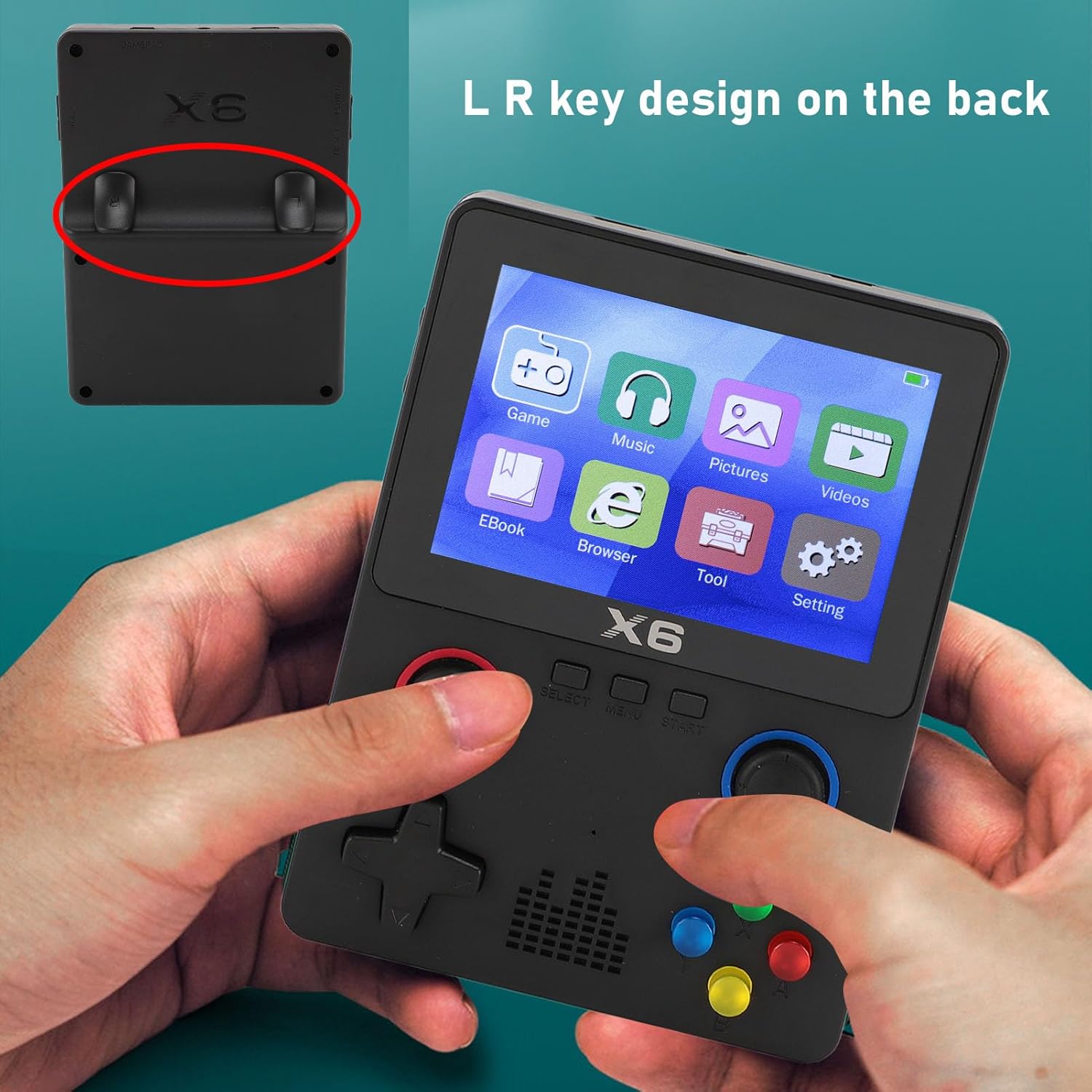
Image: Rear view of the console, showing the L and R shoulder buttons and port labels.
- L/R Shoulder Buttons: Additional control buttons, typically used for in-game actions.
- GAMEPAD Port: For connecting an external controller for two-player games.
- TV Port: For connecting the console to a television using the provided AV cable.
- DC Port: For connecting the charging cable to power the device.
Setup
1. Charging the Console
Before first use, fully charge the console. Connect the provided USB charging cable to the DC port on the console and the other end to a compatible USB power adapter (not included) or a computer's USB port. The charging indicator will illuminate. A full charge takes approximately 1 hour and provides up to 4 hours of play time, with a total battery life of 6 hours.
2. Powering On/Off
- To Power On: Press and hold the Power On/Reset Key on the side of the console for a few seconds until the screen illuminates.
- To Power Off: Press and hold the Power On/Reset Key until the power-off prompt appears, then confirm.
3. Memory Card
The console comes with a 32GB memory card pre-installed. It supports expansion up to 64GB. To insert or remove a memory card, ensure the console is powered off. Locate the memory card slot, gently insert the card until it clicks into place, or press to eject.
Operating Instructions
1. Basic Navigation
Use the D-Pad or Dual 3D Rockers to navigate through the main menu and game lists. Press the A button (or START) to select an option and the B button (or SELECT) to go back.
2. Playing Games
From the main menu, select the 'Game' icon. Browse through the available simulator games. The console supports 11 simulator games, including for MD, for MAME, for CPS, and for SMD. Select a game and press A or START to begin. During gameplay, use the D-pad, action buttons, and L/R shoulder buttons for control.

Image: The Sanpyl X6 console running a game, demonstrating its 60Hz high-frequency picture quality and ability to run 2D or 3D games.
3. Saving and Loading Game Progress
Specific saving and loading methods may vary by game. Many emulated games support in-emulator save states. Consult the in-game menu or emulator options for saving and loading progress.
4. Connecting to a Television (TV Output)
To play games on a larger screen, connect the console to a TV using the provided Sound Cable (AV cable). Plug one end into the TV Port on the console and the other end into the corresponding AV input ports on your television. Switch your TV's input source to AV. The console's display will mirror on the TV.
5. Two-Player Games
The console supports two-player games by connecting an external gamepad. Plug a compatible gamepad into the GAMEPAD Port on the console. Refer to specific game instructions for enabling two-player mode.

Image: The Sanpyl X6 console connected to a television, with an external controller being used for a two-player gaming experience.
6. Media Playback
The console supports playback of videos, songs, and pictures. Select the respective icons ('Music', 'Pictures', 'Videos') from the main menu to access and play your media files stored on the memory card.
Maintenance
1. Cleaning
Use a soft, dry cloth to clean the console's exterior. For the screen, use a microfiber cloth specifically designed for electronics. Avoid using harsh chemicals, abrasive cleaners, or excessive moisture, as these can damage the device.
2. Battery Care
- Avoid fully discharging the battery frequently.
- Do not expose the console to extreme temperatures.
- If storing the console for an extended period, charge it to about 50% and recharge every few months to prevent deep discharge.
3. Storage
Store the console in a cool, dry place, away from direct sunlight and excessive dust. Use the provided storage bag to protect it from scratches and minor impacts.
Troubleshooting
If you encounter any issues with your Sanpyl X6 console, refer to the following common problems and solutions:
| Problem | Possible Cause | Solution |
|---|---|---|
| Console does not power on. | Low battery or device malfunction. | Charge the console for at least 30 minutes. If it still doesn't turn on, try pressing the Reset button (if available) or contact support. |
| Screen is blank or frozen. | Software error or system crash. | Press and hold the Power On/Reset Key to force a restart. |
| Games are not loading or running slowly. | Corrupted game files, incompatible format, or memory card issue. | Ensure game files are in a supported format. Check the memory card for errors or try a different game. |
| No sound from speakers or headphones. | Volume too low, mute enabled, or hardware issue. | Adjust the volume using the Volume Adjustment Keys. Check if headphones are properly connected. |
| TV output not working. | Incorrect cable connection or TV input. | Ensure the AV cable is securely connected to both the console and the TV. Verify the TV's input source is set to the correct AV channel. |
Specifications
| Feature | Detail |
|---|---|
| Model Number | Sanpyl7aw1oegpb2-11 (X6) |
| Screen | 3.5 Inch OCA Full Lamination Color Screen (640 x 480 resolution, 60Hz) |
| Processor | 4 core ATJ2273S 32bit RISC |
| Memory Storage | 32GB (expandable up to 64GB via memory card) |
| Battery | 2000mAh Polymer Lithium Ion (Built-in) |
| Battery Life | Up to 6 hours |
| Charging Time | Approx. 1 hour for 4 hours play |
| Supported Simulators | 11 types, including MD, MAME, CPS, SMD |
| Connectivity | Controller port, TV output port (AV) |
| Material | Acrylonitrile Butadiene Styrene (ABS) |
| Dimensions | 6.3 x 4.72 x 2.36 inches (Package) |
| Weight | 12.3 ounces |
Warranty and Support
For warranty information or technical assistance, please refer to the retailer's return policy or contact Sanpyl customer support through the official channels provided at the point of purchase. Keep your purchase receipt as proof of purchase.


