1. Introduction
Thank you for choosing the Havit PJ215 Pro Smart Projector. This manual provides essential information for setting up, operating, and maintaining your projector. Please read this manual thoroughly before using the device to ensure optimal performance and safety.
2. Product Overview
2.1 Key Features
- Native 720p resolution with 4K support for clear visuals.
- Integrated Android TV 9.0 operating system for direct access to streaming apps.
- 250 ANSI Lumens brightness for vibrant images.
- Long-lasting LED lamp with up to 40,000 hours of life.
- Built-in 4 ohm 5W speaker for immersive audio.
- RGB ambient lighting for enhanced viewing atmosphere.
- Efficient fan cooling system with advanced heat control technology.
- Supports projection screen sizes up to 150 inches.
- Multiple connectivity options including HDMI, USB, and Bluetooth.
2.2 Projector Components

Figure 2.2.1: Front and side view of the Havit PJ215 Pro Smart Projector, showcasing its compact design and lens.

Figure 2.2.2: Rear view of the projector, highlighting the power input, USB-C, USB-A, audio out, AV, and HDMI ports.

Figure 2.2.3: Close-up front view of the projector lens and ventilation grilles.

Figure 2.2.4: Top view of the projector, showing the Havit logo and textured surface.
3. Setup Guide
3.1 Placement
Position the projector on a stable, flat surface. Ensure there is adequate ventilation around the device to prevent overheating. The projection distance will determine the screen size.

Figure 3.1.1: Illustration of recommended projection distances for various screen sizes (e.g., 1.6m for 60", 2.7m for 100", 4.1m for 150").
3.2 Power Connection
- Connect the provided power cable to the projector's power input port.
- Plug the other end of the power cable into a suitable electrical outlet.
- Press the power button on the projector or remote control to turn on the device.
3.3 Initial Setup
Upon first power-on, the projector will guide you through the initial Android TV 9.0 setup, including language selection, Wi-Fi connection, and Google account login. Follow the on-screen prompts.
4. Operating Instructions
4.1 Navigating Android TV 9.0
The Havit PJ215 Pro runs on Android TV 9.0, providing a user-friendly interface. Use the remote control to navigate through menus, select applications, and adjust settings.
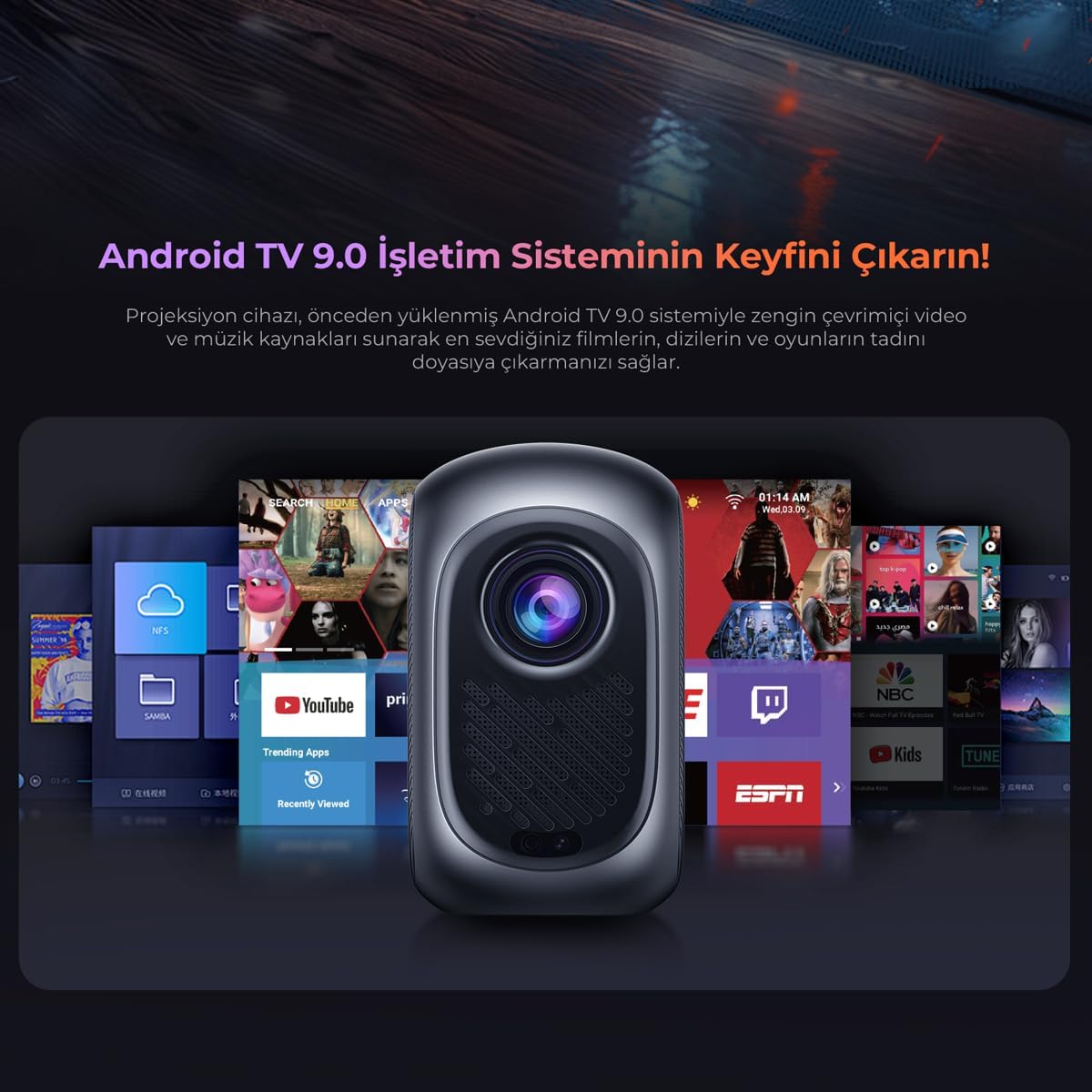
Figure 4.1.1: Screenshot of the Android TV 9.0 user interface, showing various streaming applications and content options.
4.2 Focus and Keystone Correction
Adjust the focus ring near the lens to achieve a sharp image. If the projected image appears trapezoidal, use the keystone correction feature in the settings menu to square the image.
4.3 Media Playback and Streaming
- Streaming Apps: Access pre-installed apps like Netflix, YouTube, and Exxen directly from the Android TV home screen. Ensure a stable internet connection.
- USB Playback: Insert a USB drive into the USB-A port to play local media files (videos, photos, music).
- HDMI Input: Connect external devices such as laptops, gaming consoles, or Blu-ray players via the HDMI port. Select the HDMI input source from the projector's input menu.
4.4 Ambient Lighting
The projector features RGB ambient lighting on its side. This lighting can be adjusted or turned off via the projector's settings to create a desired viewing atmosphere.

Figure 4.4.1: The Havit PJ215 Pro projector in a home theater setting, demonstrating the effect of its RGB ambient lighting.
5. Connectivity
The Havit PJ215 Pro offers versatile connectivity options:
- HDMI: Connect laptops, game consoles, Blu-ray players, and other HDMI-enabled devices.
- USB-A: For connecting USB flash drives, external hard drives, or other USB peripherals.
- USB-C: For power input or data transfer, depending on the specific model's capabilities.
- Audio Out (3.5mm): Connect external speakers or headphones for enhanced audio.
- AV: For connecting older devices using composite video and stereo audio cables.
- Bluetooth: Pair with Bluetooth speakers, headphones, or other compatible audio devices.
- Wi-Fi: Connect to your home network for internet access and streaming.
6. Maintenance
- Cleaning the Lens: Use a soft, lint-free cloth specifically designed for optical lenses. Do not use abrasive cleaners or excessive force.
- Cleaning the Casing: Wipe the projector's exterior with a soft, dry cloth. For stubborn marks, a slightly damp cloth can be used, followed by a dry wipe.
- Ventilation: Ensure the ventilation openings are clear of dust and obstructions. Periodically clean them with a soft brush or compressed air.
- Lamp Life: The LED lamp has an estimated life of up to 40,000 hours, requiring no regular replacement under normal use.
- Storage: When not in use for extended periods, store the projector in a cool, dry place, away from direct sunlight and extreme temperatures.
7. Troubleshooting
| Problem | Possible Cause | Solution |
|---|---|---|
| No image projected | Power issue, incorrect input source, lens cap on. | Check power connection, select correct input source (HDMI, USB), remove lens cap. |
| Image is blurry | Out of focus, incorrect keystone correction. | Adjust the focus ring, perform keystone correction in settings. |
| No sound | Volume too low, external audio device not connected, incorrect audio output. | Increase volume, check external speaker connection, ensure correct audio output is selected in settings. |
| Remote control not working | Dead batteries, obstruction, remote not paired. | Replace batteries, remove obstructions, re-pair remote if necessary. |
| Projector overheats or shuts down | Blocked ventilation, prolonged use in hot environment. | Ensure vents are clear, operate in a well-ventilated area, allow to cool down. |
8. Specifications
| Feature | Detail |
|---|---|
| Brand | Havit |
| Model Name | Pj215 Pro |
| Native Resolution | 1280 x 720 (720p) |
| Supported Resolution | Up to 1920 x 1080 (1080p) and 4K support |
| Brightness | 250 ANSI Lumens |
| Lamp Life | 40,000 hours |
| Operating System | Android TV 9.0 |
| Speaker | 4 ohm 5W |
| Display Type | LCD |
| Aspect Ratio | 4:3 |
| Wattage | 40 watt |
| Connectivity | Bluetooth, HDMI, USB, AV, Wi-Fi |
| Compatible Devices | Smartphone, Laptop, Speaker, Game Console, Tablet |
| Form Factor | Portable |
| Product Dimensions | 31.2 x 24.6 x 11 cm |
| Product Weight | 3.1 Kilogram |
| Recommended Uses | Home Theater, Education, Office, Gaming |
9. Safety Information
- Do not look directly into the projector lens when the lamp is on, as it can cause eye damage.
- Do not block the ventilation openings, as this can lead to overheating and damage to the device.
- Keep the projector away from water, moisture, and flammable materials.
- Use only the power adapter supplied with the projector.
- Do not attempt to disassemble or repair the projector yourself. Refer all servicing to qualified personnel.
- Keep out of reach of children.
10. Warranty and Support
For warranty information and technical support, please refer to the warranty card included with your product or visit the official Havit website. If you encounter any issues not covered in this manual, please contact Havit customer service for assistance.
Havit Official Website: www.havit.com