
Eyoyo EY-034
Eyoyo 2D Barcode Scanner EY-034 User Manual
Model: EY-034 | Brand: Eyoyo
1. Introduction
Thank you for choosing the Eyoyo EY-034 2D Barcode Scanner. This handheld scanner offers versatile 3-in-1 connectivity (Bluetooth, 2.4G Wireless, and USB Wired) and is designed for efficient and accurate scanning of both 1D and 2D barcodes from various surfaces, including paper and digital screens. It is compatible with a wide range of devices and operating systems, making it ideal for use in libraries, warehouses, retail environments, and point-of-sale (POS) systems.
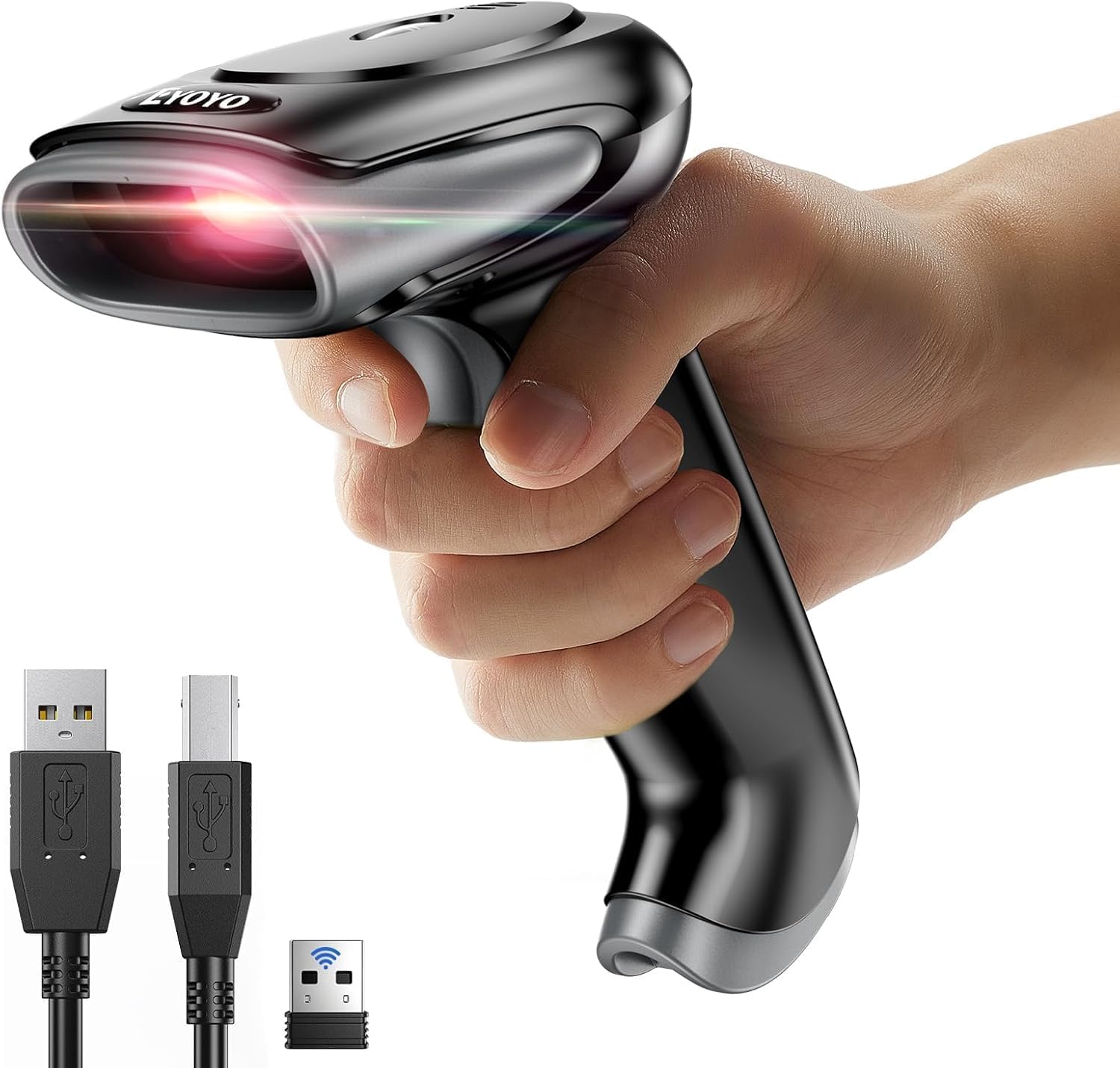
Figure 1: Eyoyo EY-034 Barcode Scanner in use.
The image displays the Eyoyo EY-034 barcode scanner, a sleek, black handheld device, being held by a hand. A red scanning light emanates from the front of the scanner, indicating its operational state. Below the scanner, a USB-A cable, a USB-C cable, and a 2.4G wireless dongle are visible, highlighting the scanner's multiple connectivity options.
2. Package Contents
Please check the package contents upon unboxing to ensure all items are present:
- 1 x Eyoyo EY-034 Barcode Scanner
- 1 x 2.4G Wireless Dongle
- 1 x USB Charging/Data Cable
- 1 x User Manual (this document)

Figure 2: Package Contents.
This image shows all items included in the product package: the Eyoyo barcode scanner, a 2.4G wireless dongle, a USB cable for charging and data transfer, and the user manual. A "1 Year Warranty" badge is also visible, indicating product support.
3. Specifications
| Feature | Detail |
|---|---|
| Model Number | EY-034 |
| Decoding Capability | 1D & 2D Barcodes (CODE128, UPC/EAN Add on 2 or 5, QR Code, etc.) |
| Scanning Speed | Up to 300 scans/second |
| Connectivity | Bluetooth, 2.4G Wireless, USB Wired |
| Compatible OS | Windows XP/7/8/10, Mac OS, Windows Mobile, Android OS, iOS |
| Battery | 2500mAh Lithium Polymer |
| Working Time | Up to 16 hours (approx. 30 working days if 2000 scans/day) |
| Charging Time | Approx. 4 hours |
| Standby Time | > 720 hours |
| Drop Resistance | 2 meters (10 ft) |
| IP Rating | IP54 |
| Dimensions | 7.87 x 3.15 x 4.33 inches |
| Weight | 12 ounces |
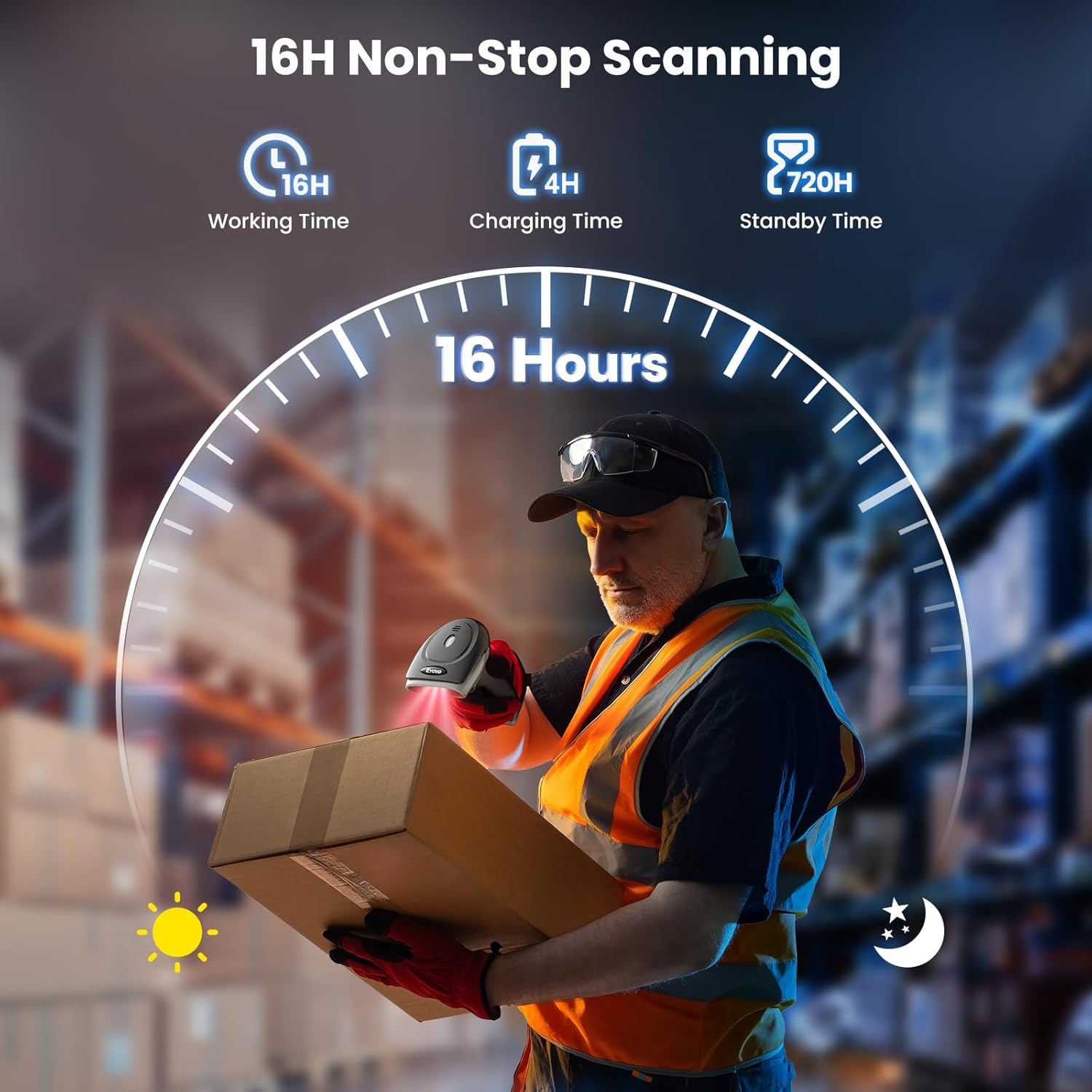
Figure 3: Battery Performance Overview.
This graphic illustrates the impressive battery performance of the Eyoyo barcode scanner, highlighting 16 hours of continuous working time, a quick 4-hour charging time, and an extended standby time of over 720 hours, ensuring long-lasting operation.

Figure 4: Battery Capacity Comparison.
This image compares the scanning capacity per charge of the EY-034 (approximately 57,600 scans) against other typical scanners (approximately 30,000 scans), demonstrating the superior battery life of the Eyoyo model.
4. Setup and Connection
The Eyoyo EY-034 offers three primary connection methods: 2.4G Wireless, Bluetooth, and USB Wired. Choose the method that best suits your device and environment.
4.1. 2.4G Wireless Connection
- Insert the 2.4G wireless dongle into an available USB port on your computer or host device.
- Turn on the barcode scanner. It will automatically attempt to connect to the dongle.
- A successful connection is indicated by a specific sound or LED indicator on the scanner.

Figure 5: 2.4G Dongle Storage and Connection.
This image highlights the convenient storage slot for the 2.4G wireless dongle located at the base of the scanner. It also shows the dongle plugged into a laptop, demonstrating the wireless connection setup.

Figure 6: Useful 2.4G Storage Slot.
This visual comparison emphasizes the practical design of the Eyoyo scanner, featuring a dedicated storage slot for the 2.4G dongle, preventing loss and enhancing portability, unlike models without this feature.
4.2. Bluetooth Connection
- Ensure your device's Bluetooth is enabled.
- Turn on the barcode scanner.
- Scan the "Bluetooth Pairing" barcode (refer to the quick setup guide or a specific barcode in the full manual if provided).
- On your device, search for Bluetooth devices and select "Eyoyo Barcode Scanner" (or similar name) from the list.
- Pair the devices. A successful connection will be confirmed by an audible beep from the scanner.
4.3. USB Wired Connection
- Connect the USB cable to the scanner's port.
- Plug the other end of the USB cable into an available USB port on your computer or host device.
- The scanner will be recognized as a keyboard input device, and no additional drivers are typically required.

Figure 7: 3-in-1 Connection Options.
This image visually explains the three versatile connection options of the Eyoyo scanner: 2.4G Wireless, USB Wired, and Bluetooth. It shows how the scanner connects to various devices like desktops, laptops, iPads, iPhones, and Android phones, emphasizing its broad compatibility.

Figure 8: Super Compatibility.
This graphic highlights the wide compatibility of the scanner, supporting connections to laptops, PCs, POS systems, smartphones, and tablets across various operating systems including Mac OS, Windows (7/8/10/XP), and Linux.
5. Operating Instructions
5.1. Basic Scanning
Once connected, aim the scanner's light at the barcode you wish to scan. Press the trigger button. A successful scan will be indicated by a beep and the data being transmitted to your connected device.

Figure 9: Superior Scanning Capability.
This image demonstrates the scanner's superior decoding capability, showing it actively scanning a QR code displayed on a screen. The red scanning beam is clearly visible, indicating the precise targeting of the barcode.
5.2. Scanning Modes
The EY-034 supports multiple scanning modes to adapt to different operational needs:
- Manual Trigger Mode: Press the trigger button for each scan. (Default mode)
- Continuous Scanning Mode: The scanner continuously emits a scanning beam, reading barcodes as they pass through the beam without needing to press the trigger.
- Auto-Sense Scanning Mode: The scanner automatically detects a barcode in its field of view and scans it without manual trigger press. Ideal for hands-free operation.
To switch between modes, scan the corresponding setup barcodes provided in the full user manual (not included in this summary).

Figure 10: Three Scanning Modes.
This visual guide demonstrates the three distinct scanning modes: Auto-Sense, where the scanner automatically detects and reads barcodes; Continuous Scanning, where the scanner constantly emits a beam; and Manual Trigger Mode, requiring a button press for each scan. Each mode is shown with an example of scanning a barcode on a package and the resulting data appearing on a laptop screen.
5.3. Data Upload Modes
The scanner supports two data upload modes:
- Instant Upload Mode: Barcode data is transmitted to the connected device immediately after each successful scan.
- Storage Mode: Barcode data is stored in the scanner's internal memory. This mode is useful when out of range of the host device. The scanner can store up to 40,000 barcodes. Data can be uploaded later by scanning a specific "Upload Data" barcode.

Figure 11: Two Upload Modes.
This image illustrates the two data upload modes: Instant Upload Mode, where scanned barcodes are immediately sent to the connected device, and Storage Mode, which allows the scanner to save up to 40,000 barcodes internally for later batch upload, particularly useful when out of range.
5.4. Advanced Features
- Prefix/Suffix Addition: Configure the scanner to add custom prefixes or suffixes to scanned data.
- Sound and Vibration Settings: Adjust or turn off the scanner's sound and vibration feedback.
- iOS Keyboard Toggle: For iOS devices, double-click the trigger button to call up or hide the on-screen keyboard. (Note: This feature is only supported on iOS systems, not Android.)

Figure 12: Customization Options.
This image details the customization features of the scanner, including the ability to add prefixes and suffixes to scanned barcode data, and options to adjust or disable sound and vibration feedback for different operational environments.

Figure 13: iOS Keyboard Toggle.
This image demonstrates a specific feature for iOS users: double-clicking the scanner's button can call up or hide the on-screen keyboard on an iPhone or iPad, streamlining data entry. This feature is exclusive to iOS.
6. Maintenance and Care
- Cleaning: Use a soft, dry cloth to clean the scanner's exterior. For the scanning window, use a lens cleaning cloth to avoid scratches. Do not use abrasive cleaners or solvents.
- Battery: Charge the scanner regularly to maintain battery health. Avoid fully discharging the battery for extended periods.
- Storage: Store the scanner in a cool, dry place away from direct sunlight and extreme temperatures.
- Durability: While designed to be shockproof and drop-resistant (up to 2 meters), avoid unnecessary drops or impacts to prolong the scanner's lifespan.

Figure 14: Sturdy and Drop-Resistant Design.
This image visually represents the robust and drop-resistant construction of the Eyoyo barcode scanner, showing it standing firmly on a rugged, rocky surface, with fragments suggesting impact, highlighting its durability against accidental drops.
7. Troubleshooting
| Problem | Possible Cause | Solution |
|---|---|---|
| Scanner not connecting. | Incorrect connection mode, low battery, out of range, dongle/Bluetooth not properly set up. | Ensure correct connection mode (2.4G, Bluetooth, USB). Charge the scanner. Move closer to the host device. Re-pair Bluetooth or re-insert dongle. |
| Cannot scan barcodes. | Barcode damaged/unreadable, scanner not in correct mode, scanning window dirty, insufficient lighting. | Try a different barcode. Check scanning mode (Manual, Continuous, Auto-Sense). Clean scanning window. Ensure adequate lighting. |
| Scanned data is incorrect or incomplete. | Barcode partially scanned, incorrect symbology settings, prefix/suffix issues. | Ensure the entire barcode is within the scanning beam. Reset scanner to factory defaults (refer to full manual). Check prefix/suffix settings. |
| Scanner not charging. | Faulty USB cable/port, scanner not properly connected. | Try a different USB cable or port. Ensure the cable is securely connected to both the scanner and power source. |
8. Warranty and Support
The Eyoyo EY-034 Barcode Scanner comes with a 1-Year Limited Warranty from the date of purchase, covering manufacturing defects. Please retain your proof of purchase for warranty claims.
For technical support, troubleshooting assistance, or warranty inquiries, please contact Eyoyo customer service through the contact information provided on the product packaging or the official Eyoyo website.
Eyoyo Official Website: www.eyoyo.com
Related Documents - EY-034
 |
Eyoyo EY-22000 Barcode Scanner Product Manual Official product manual for the Eyoyo EY-22000 Barcode Scanner, including manufacturer information, compliance details, safety warnings, and operating instructions. |
 |
Eyoyo EY-039 QA: Frequently Asked Questions and Setup Guide This document provides answers to frequently asked questions and setup instructions for the Eyoyo EY-039 2D Bluetooth Barcode Scanner. It covers pairing, compatibility, configuration options, and troubleshooting. |
 |
Eyoyo EY-022P Barcode Scanner FAQ and Support Frequently Asked Questions (FAQ) and support information for the Eyoyo EY-022P 2D QR Bluetooth Barcode Scanner, covering setup, connectivity, and troubleshooting. |
 |
Eyoyo EY-038P QA: Frequently Asked Questions and Setup Guide A comprehensive guide to the Eyoyo EY-038P wearable ring barcode scanner, covering setup, troubleshooting, and feature configurations. Learn how to pair, synchronize time, manage settings, and resolve common issues. |
 |
Eyoyo EY-016P Barcode Scanner: Frequently Asked Questions and Answers Find answers to common questions about the Eyoyo EY-016P barcode scanner, covering setup, connectivity, compatibility, and troubleshooting. Get support and technical information. |
 |
Eyoyo EY-017P 2D Barcode Scanner User Manual This user manual provides comprehensive instructions for the Eyoyo EY-017P 2D Barcode Scanner. It covers setup, quick start guide, features, technical specifications, product introduction, buzzer and indicator light states, FAQs, troubleshooting, battery and charging information, restoring defaults, version number, pairing modes (HID, SPP, BLE), upload modes (Normal, Storage), iOS keyboard functions, keyboard language settings, beep/vibration settings, sleep time, end character settings, case conversion, scanning modes, and detailed barcode parameter configurations for various symbologies. |
Ask a question about this manual
Ask about setup, troubleshooting, compatibility, parts, safety, or missing instructions. Manuals+ will review the question and use this page’s manual context to help answer it.