
1. Introduction
Welcome to the user manual for your ECHO Rainbow Voyager Smartwatch. This guide provides detailed instructions on how to set up, operate, and maintain your device. The ECHO Rainbow Voyager combines elegant design with advanced functionality, featuring a 1.43-inch AMOLED display, Bluetooth calling, comprehensive health monitoring, and various sport modes. It is designed for daily wear with IP67 water resistance and comes with two interchangeable straps for versatility.
Please read this manual carefully to ensure proper use and to fully utilize all the features of your smartwatch.

Image 1.1: The ECHO Rainbow Voyager Smartwatch displayed with both the black silicone strap and the brown leather strap. This image highlights the watch's circular AMOLED display and its two distinct strap options.
2. Setup
2.1. Package Contents
Before you begin, please check the package contents to ensure all items are present:
- ECHO Rainbow Voyager Smartwatch
- Microfiber Leather Strap (Brown)
- Silicone Strap (Black)
- Magnetic USB Charging Cable
- User Manual (this document)

Image 2.1: The complete package contents, including the ECHO Rainbow Voyager Smartwatch, both the brown leather and black silicone straps, and the magnetic USB charging cable.
2.2. Charging the Smartwatch
For first-time use, fully charge your smartwatch.
- Connect the magnetic end of the USB charging cable to the charging contacts on the back of the smartwatch.
- Ensure the pins align correctly and the cable snaps securely into place.
- Plug the USB-A end of the cable into a standard USB power adapter (DC 5V/1A recommended) or a computer's USB port.
- The watch display will show a charging indicator.
- A full charge takes approximately 2.5 hours. The battery provides up to 7 days of typical usage.
2.3. Installing the Da Fit Application
The ECHO Rainbow Voyager Smartwatch requires the Da Fit application for full functionality and data synchronization.
- Scan the QR code provided in the quick start guide or search for "Da Fit" in your smartphone's app store (App Store for iOS, Google Play Store for Android).
- Download and install the Da Fit application.
- Open the Da Fit app and follow the on-screen instructions to create an account or log in.
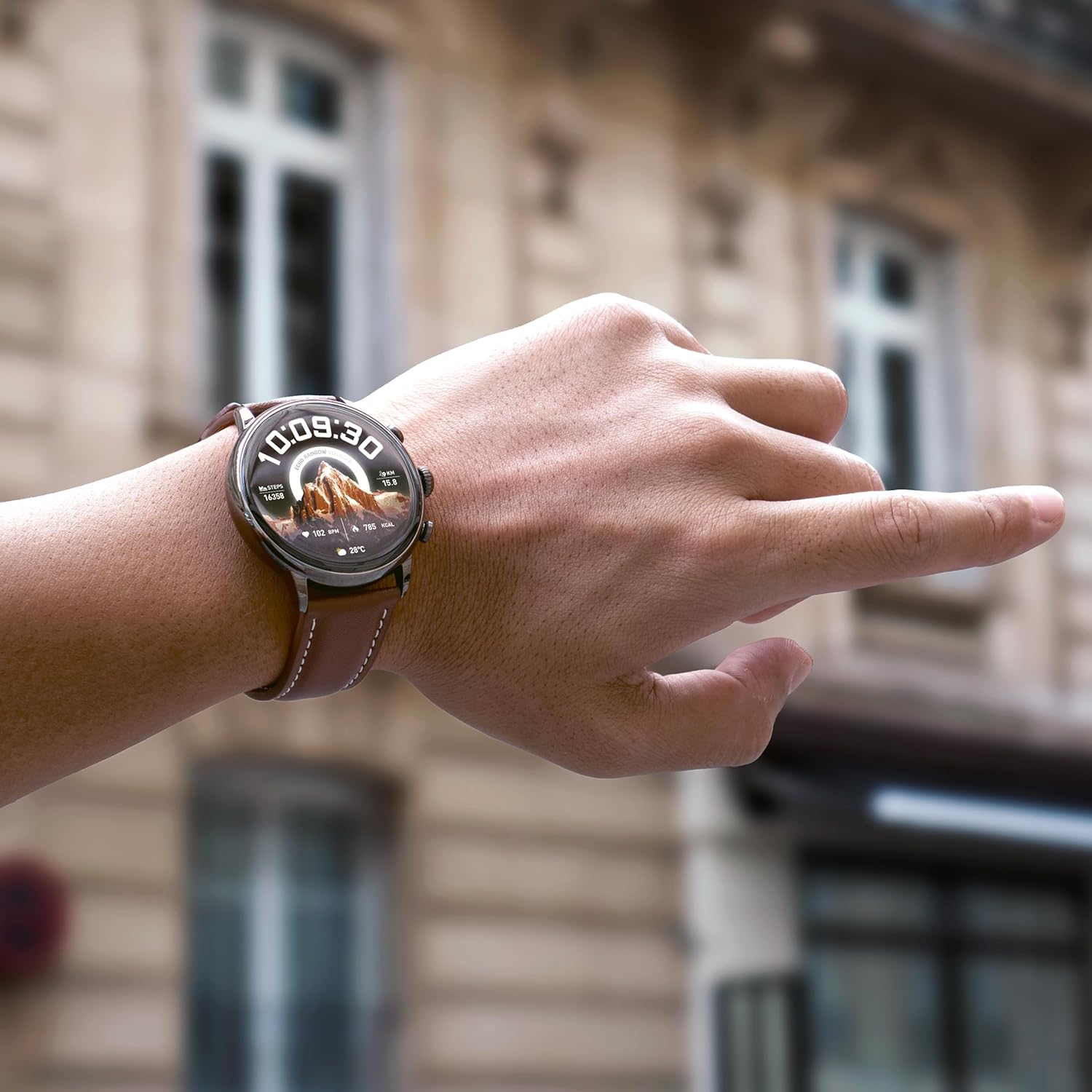
Image 2.2: A smartphone screen displaying the Da Fit application interface, showing various health and activity tracking features.
2.4. Pairing with Your Smartphone
To connect your smartwatch to your smartphone:
- Ensure Bluetooth is enabled on your smartphone.
- Open the Da Fit app.
- Navigate to the "Device" tab (usually represented by a watch icon).
- Tap "Add Device" or "Bind Device".
- The app will scan for available devices. Select "ECHO Rainbow Voyager" from the list.
- Confirm the pairing request on both your smartphone and the smartwatch if prompted.
- Once paired, the app will display "Connected," and the watch's time and date will synchronize with your phone.
3. Operating Instructions
3.1. Basic Navigation
The ECHO Rainbow Voyager features a full-touch AMOLED display and two physical buttons for navigation.
- Touchscreen Gestures:
- Swipe Down: Access quick settings (brightness, DND, battery saver, etc.).
- Swipe Up: View notifications.
- Swipe Left/Right: Cycle through widgets (activity, heart rate, weather, music control, etc.).
- Tap: Select an item or enter a menu.
- Tap and Hold: Change watch faces on the home screen.
- Physical Buttons:
- Top Button (Crown): Press to wake the screen, return to the home screen, or enter the main menu. Rotate to scroll through lists or adjust settings (if supported by the current interface).
- Bottom Button: Typically acts as a shortcut to sport modes or a customizable function.
3.2. Bluetooth Calling
Once paired with your smartphone, you can make and receive calls directly from your smartwatch.
- Making a Call: Access the dialer or contact list on your watch, then tap to initiate a call.
- Receiving a Call: When a call comes in, the watch will display the caller ID. Tap the green icon to answer or the red icon to reject.
- Ensure your watch is within Bluetooth range of your phone for call functionality.
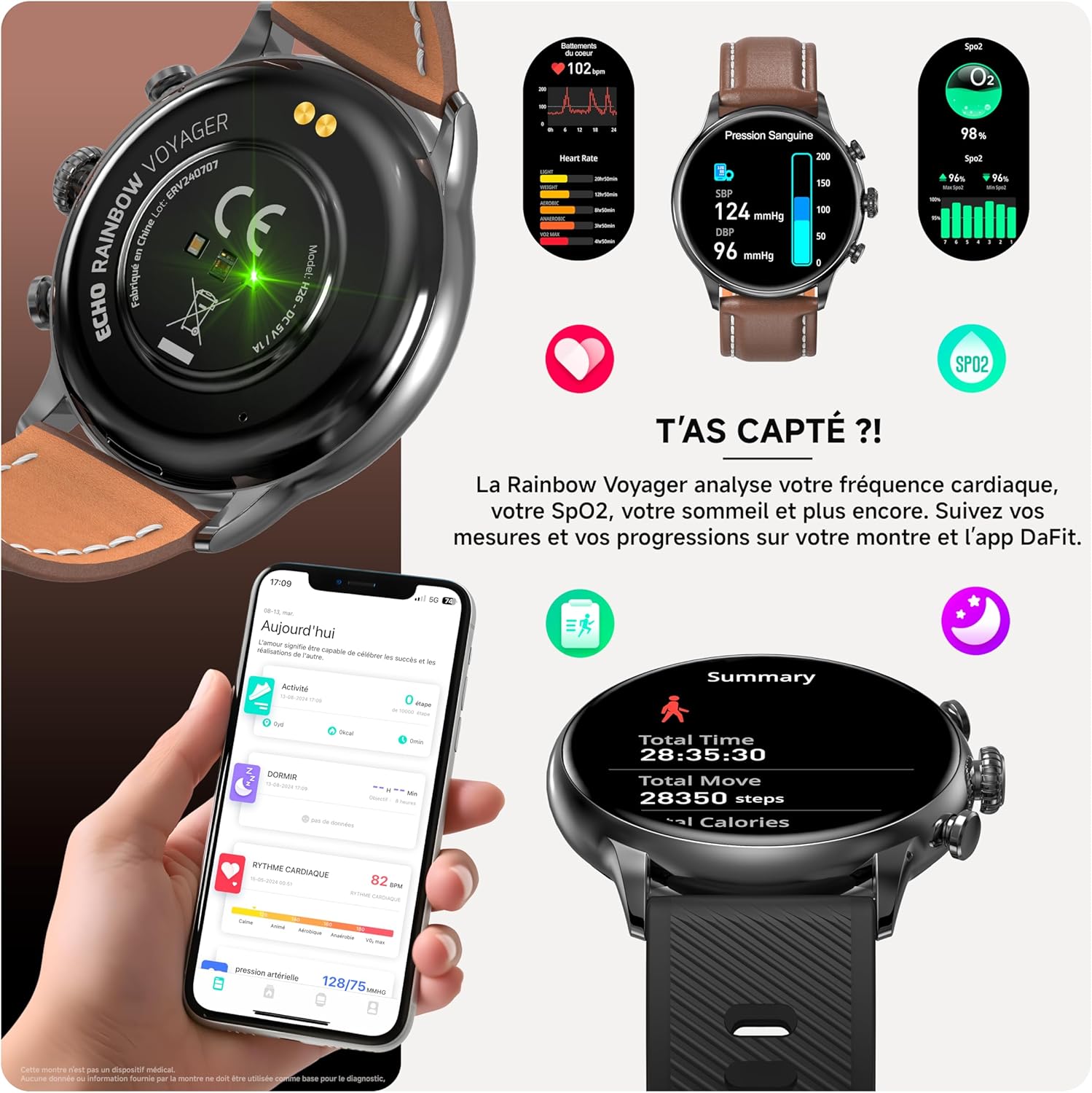
Image 3.1: A visual representation of the smartwatch receiving an incoming call and displaying message notifications, demonstrating its communication features.
3.3. Health Monitoring
The smartwatch is equipped with sensors to monitor various health metrics.
- Heart Rate: Access the heart rate monitor from the main menu or a dedicated widget. The watch will measure your heart rate automatically or on demand.
- Blood Oxygen (SpO2): Initiate an SpO2 measurement from the watch menu. Keep your arm still during the measurement.
- Blood Pressure: The watch provides an indication of blood pressure. For accurate medical readings, consult a professional medical device.
- Sleep Tracking: Wear the watch to bed, and it will automatically track your sleep patterns, including deep sleep, light sleep, and wake times.
- All health data can be viewed in detail within the Da Fit app.
Important Note: This device is not a medical device. The health data provided is for reference only and should not be used for medical diagnosis or treatment.

Image 3.2: A composite image showing the smartwatch displaying heart rate, SpO2, and blood pressure readings, alongside a smartphone screen illustrating the detailed health data available in the Da Fit app.
3.4. Sport Modes and Coaching
The ECHO Rainbow Voyager supports over 100 sport modes to track your physical activities.
- Selecting a Sport Mode: Access the "Sport" menu on your watch, then select your desired activity (e.g., running, cycling, walking).
- Tracking: The watch will record duration, distance, calories burned, and heart rate during your workout.
- GPS Tracking: For outdoor activities, the watch can utilize your phone's GPS via the Da Fit app to map your route.
- Coaching: The Da Fit app offers various training programs and exercises to guide your fitness journey.

Image 3.3: A collage demonstrating the smartwatch's sport modes and the Da Fit app's workout tracking and coaching features, including various exercise types and performance summaries.
3.5. Notifications
Receive notifications from your smartphone directly on your watch.
- Ensure notification permissions are enabled for the Da Fit app in your phone's settings.
- Configure which app notifications you wish to receive through the Da Fit app.
- Swipe up on the watch face to view your notification history.
3.6. Customizing Watch Faces
Personalize your smartwatch with over 100 available watch faces.
- On the Watch: Tap and hold the current watch face, then swipe left or right to browse pre-installed faces. Tap to select.
- Via Da Fit App: Open the Da Fit app, go to the "Device" section, and select "Watch Faces" or "Dial Settings" to explore and download additional watch faces.
3.7. Changing Straps
The ECHO Rainbow Voyager comes with two interchangeable straps (leather and silicone).
- Locate the quick-release pins on the underside of the watch strap where it connects to the watch body.
- Slide the pin inwards to detach the strap from the watch.
- Align the new strap with the watch lugs.
- Insert one end of the quick-release pin into the lug hole, then slide the other end inwards and release it into the opposite lug hole.
- Gently pull on the strap to ensure it is securely attached.
4. Maintenance
4.1. Cleaning Your Smartwatch
- Wipe the watch screen and body with a soft, lint-free cloth. If necessary, slightly dampen the cloth with water.
- For the silicone strap, you can wash it with mild soap and water, then rinse thoroughly and dry.
- For the leather strap, avoid excessive moisture. Wipe with a dry cloth and use a leather cleaner if needed.
- Do not use harsh chemicals, abrasive cleaners, or solvents, as these can damage the watch's finish and seals.
4.2. Water Resistance (IP67)
The ECHO Rainbow Voyager Smartwatch is rated IP67, meaning it is dust-tight and protected against the effects of immersion in fresh water up to 1 meter for 30 minutes.
- It is suitable for daily use, such as hand washing, rain, or accidental splashes.
- Do not use it for swimming, showering with hot water, diving, or exposure to high-pressure water.
- Avoid exposing the watch to saltwater, chemicals, or detergents, as these can compromise the water resistance.
- If the watch gets wet, dry it thoroughly before charging or using the physical buttons.
4.3. Storage
When not in use for extended periods, store the smartwatch in a cool, dry place away from direct sunlight and extreme temperatures.
5. Troubleshooting
5.1. Watch Does Not Turn On
- Ensure the watch is fully charged. Connect it to the charger for at least 30 minutes.
- Press and hold the top physical button (crown) for 10-15 seconds to perform a forced restart.
5.2. Cannot Pair with Smartphone
- Make sure Bluetooth is enabled on your smartphone.
- Ensure the watch is sufficiently charged.
- Restart both your smartphone and the smartwatch.
- Ensure the Da Fit app has location permissions enabled (required for Bluetooth scanning on some Android devices).
- If the watch was previously paired with another device, unpair it from that device first.
- Try resetting the watch to factory settings (if accessible via settings menu).
5.3. Inaccurate Health Data
- Ensure the watch is worn snugly on your wrist, about one finger's width above the wrist bone.
- Avoid excessive movement during measurements.
- Clean the sensor on the back of the watch.
- Remember that this is not a medical device; readings are for reference.
5.4. Notifications Not Appearing
- Check if the watch is properly connected to the Da Fit app.
- Verify that notification permissions are granted to the Da Fit app in your phone's settings.
- Ensure that specific app notifications are enabled within the Da Fit app settings.
- Check if "Do Not Disturb" mode is active on either your phone or watch.
6. Specifications
| Feature | Specification |
|---|---|
| Model Number | 3662515063832 |
| Display | 1.43-inch AMOLED |
| Connectivity | Bluetooth (for calls and data sync) |
| Water Resistance | IP67 (Dust-tight, protected against immersion up to 1m for 30 min in fresh water) |
| Battery Capacity | 280 mAh |
| Charging Time | Approximately 2.5 hours |
| Battery Life | Up to 7 days (typical usage) |
| Input Power | DC 5V/1A |
| Compatibility | Android / iOS (via Da Fit app) |
| Dimensions (Package) | 19.3 x 12.3 x 5.9 cm |
| Weight (Package) | 150 grams |
| Manufacturer | ECHO |
7. Warranty and Support
For information regarding warranty coverage, please refer to the warranty card included with your product or contact your point of purchase.
For technical support or further assistance, please visit the official ECHO website or contact their customer service department. Contact details are typically available on the product packaging or the brand's official online presence.


