1. Introduction
This manual provides essential information for the setup, operation, maintenance, and troubleshooting of your MINISFORUM MS-A1 Workstation Barebone Mini PC. The MS-A1 is designed as a high-performance barebone system, offering flexibility for users to customize components such as the CPU, RAM, SSD, and operating system.

Image: The MINISFORUM MS-A1 Workstation Mini PC, showcasing its compact design and various ports from front and side perspectives.
2. Safety Information
- Always disconnect power before performing any installation or maintenance.
- Handle internal components with care to avoid electrostatic discharge. Use an anti-static wrist strap if available.
- Ensure proper ventilation around the device to prevent overheating.
- Do not expose the device to moisture or extreme temperatures.
- Use only the provided power adapter and cable.
3. Package Contents
Verify that all items are present in your package:
- 1x MS-A1 Mini Workstation
- 1x Power Adapter
- 1x Power Cord
- 1x HDMI Cable
- 1x Manual (this document)
4. Setup & Hardware Installation
As a barebone system, the MS-A1 requires user installation of the CPU, RAM, SSD, and operating system. Follow these steps for initial setup and component installation:
4.1. Component Installation (DIY)
The MS-A1 supports AMD AM5 Socket CPUs. For memory, it features two DDR5-5200 slots, allowing for up to 96GB of RAM. Storage options include one M.2 2280 PCIe4.0 SSD slot (compatible with RAID0 and RAID1) and three additional M.2 NVMe SSD slots for extensive storage capacity.
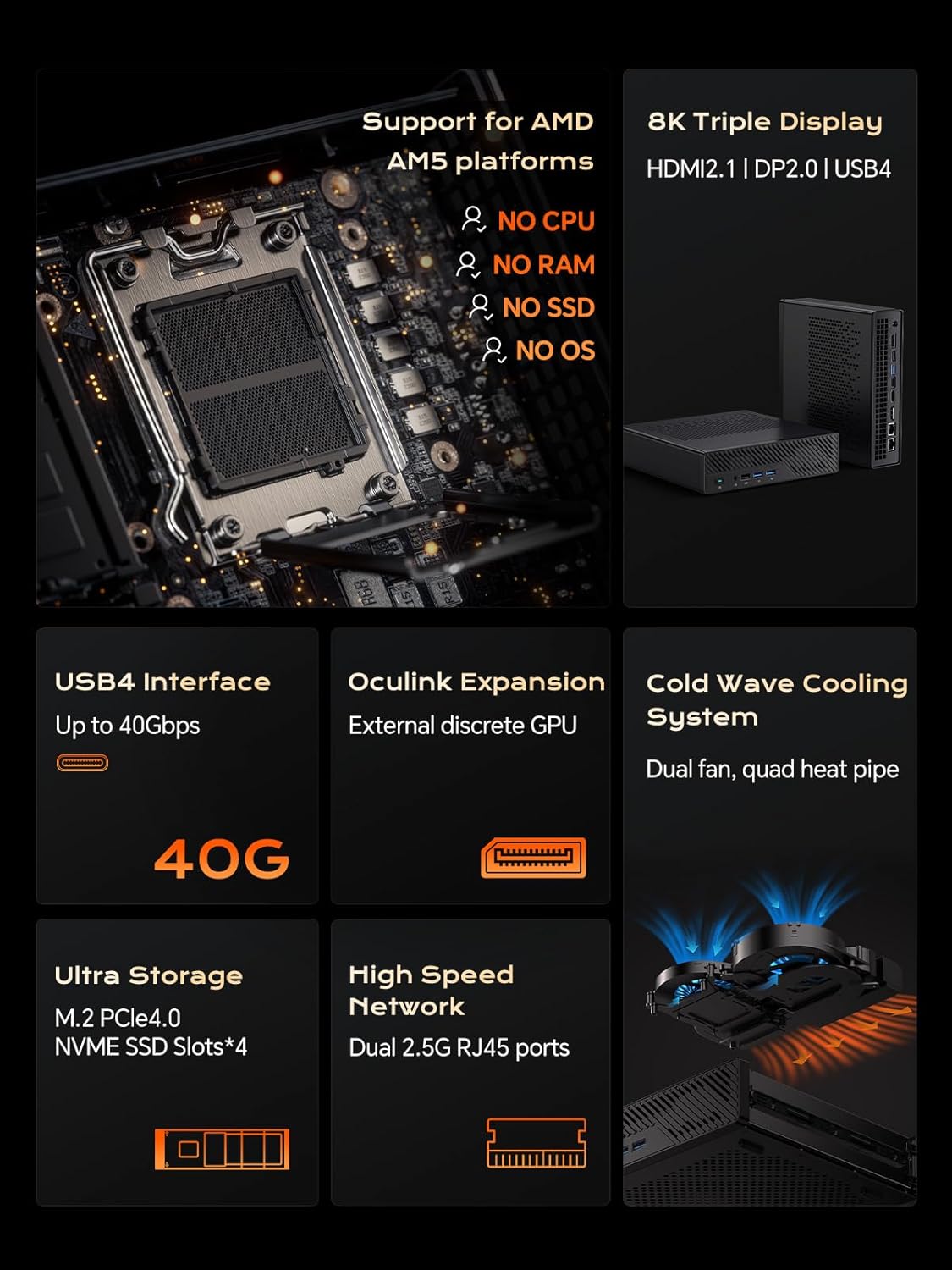
Image: Internal view of the MS-A1, highlighting the AMD AM5 CPU socket, DDR5 RAM slots, and M.2 SSD expansion slots.
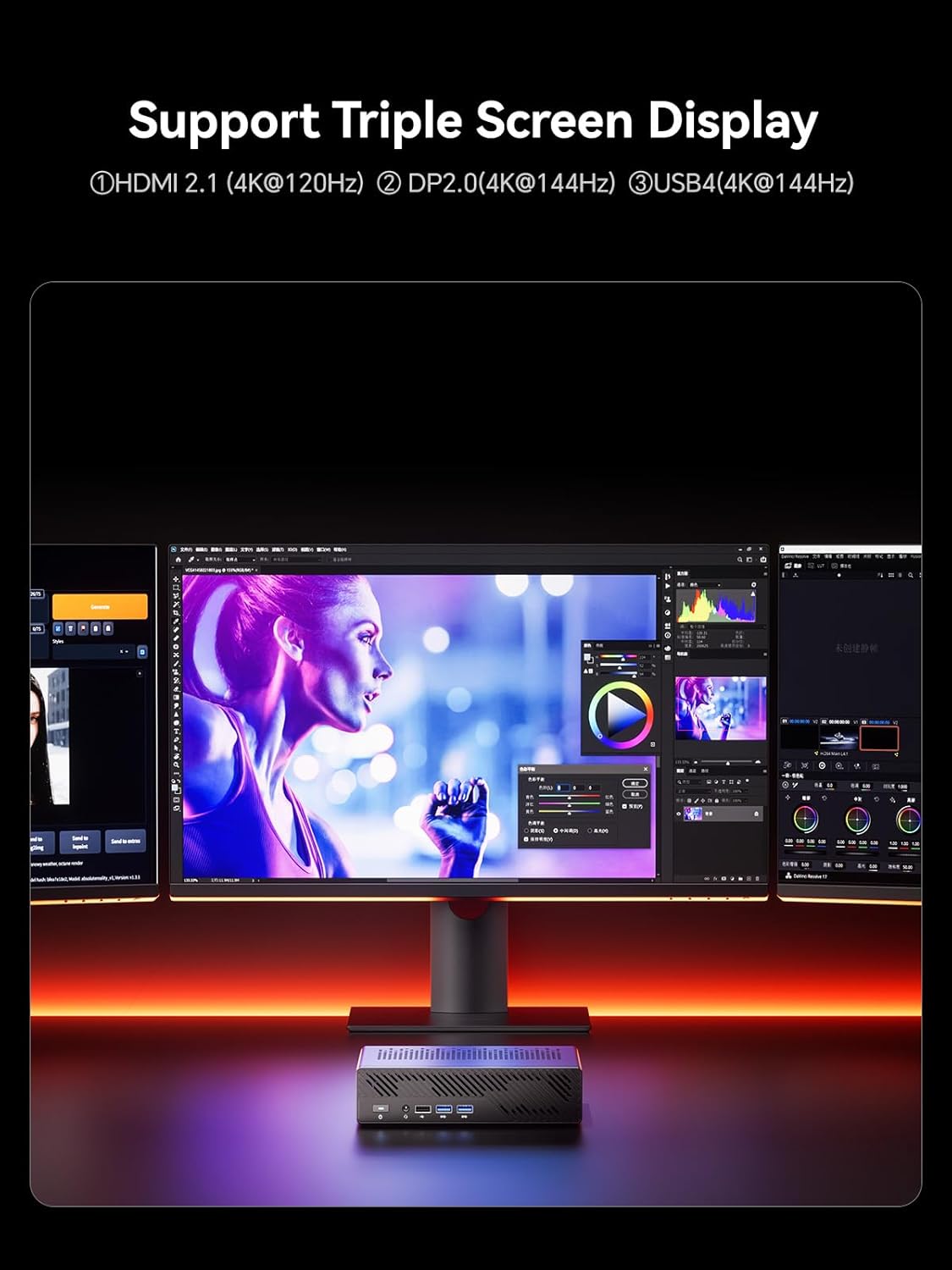
Image: Detailed view of the MS-A1's storage capabilities, showing flexible expansion with multiple M.2 PCIe4.0 NVMe SSD slots.
4.2. External Connections
Connect your peripherals and displays to the available ports:
- Display Outputs: 1x HDMI (4K@60Hz), 1x DP (4K@144Hz), 1x USB-C (Alt DP, 4K@144Hz) for triple display support.
- USB Ports: Multiple USB 2.0 and USB 3.0 ports for connecting keyboards, mice, and other USB devices.
- Network: 2x 2.5G RJ45 LAN ports for high-speed wired network connections.
- Audio: 3.5mm Combo Jack for headphones/microphone.
- Power: Connect the provided power adapter to the DC-in port.
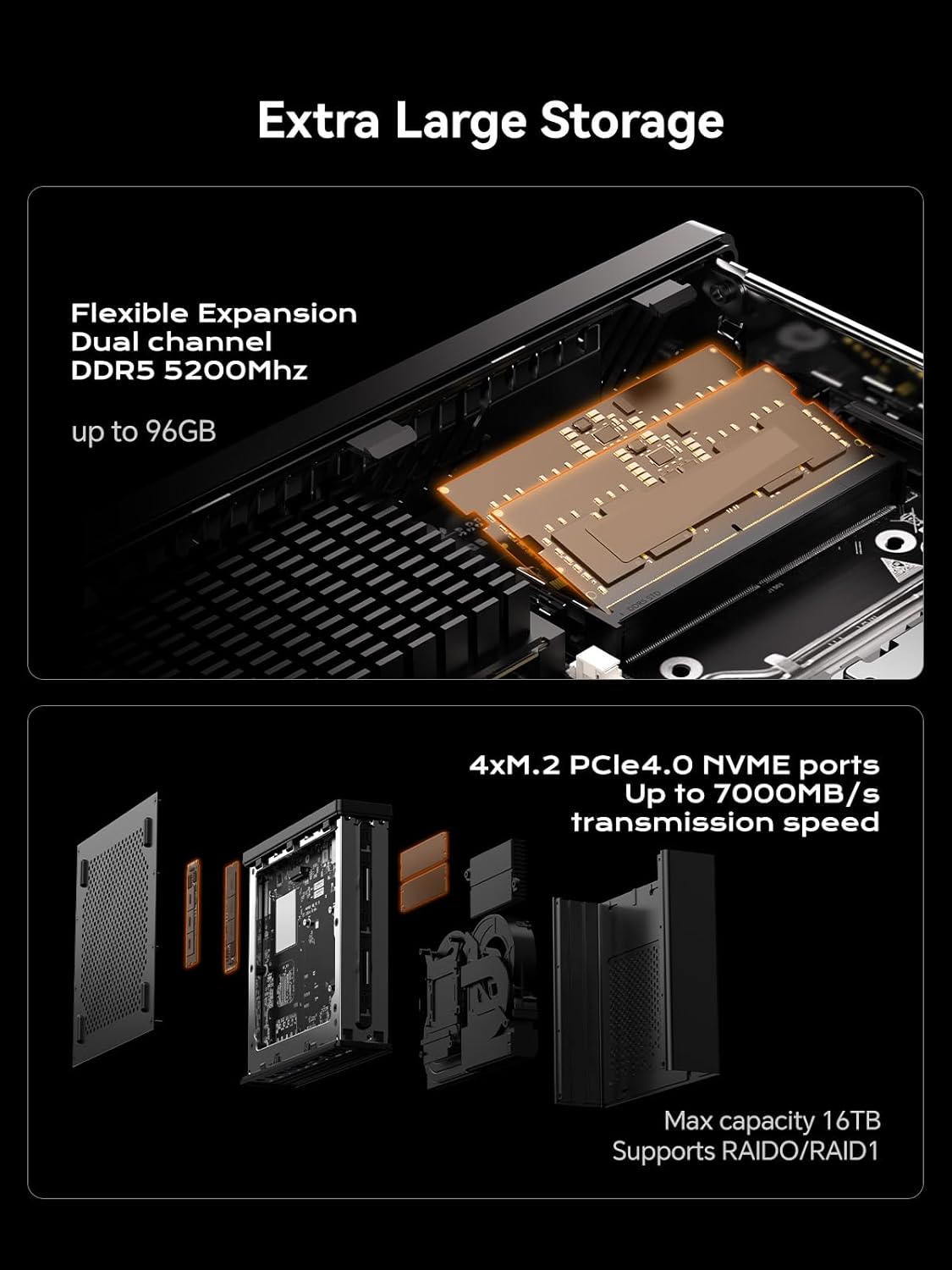
Image: A diagram illustrating the layout of all front and rear ports on the MINISFORUM MS-A1 Workstation.

Image: Close-up of the dual 2.5Gbps RJ45 Ethernet ports and a full-capacity USB4 Speed Port on the MS-A1.
For a visual overview of the workstation, refer to the following video:
Video: A brief overview of the MINISFORUM MS-A1 Workstation, demonstrating its compact size and various connectivity options.
5. Operating Your MS-A1
5.1. Power On/Off
Press the power button located on the front panel to turn the device on or off. A short press will initiate power-on, while a longer press (typically 5 seconds) will force a shutdown.
5.2. Display Configuration
The MS-A1 supports up to three independent displays simultaneously, utilizing its HDMI, DisplayPort, and USB-C (Alt DP) outputs. This allows for an expanded workspace and improved multitasking capabilities.

Image: The MS-A1 connected to three monitors, demonstrating its triple display output capability for an expansive visual experience.
5.3. Network Connectivity
Utilize the dual 2.5G RJ45 LAN ports for robust and high-speed wired network connections. The device also includes Dual Band WiFi and Bluetooth 5.2 for wireless connectivity to networks and peripherals.
6. Maintenance
Regular maintenance ensures the longevity and optimal performance of your MS-A1 Workstation.
- Dust Removal: Periodically clean the ventilation grilles and internal components (if comfortable opening the chassis) to prevent dust buildup, which can hinder cooling performance.
- Cooling System: The workstation features an upgraded dual-fan 4-heat pipe cooling system. Ensure that the fans are not obstructed and are operating correctly.

Image: A diagram illustrating the internal components of the MS-A1's Cold Wave Pro Cooling System, featuring dual fans and four heat pipes.
7. Troubleshooting
If you encounter issues with your MS-A1, consider the following common solutions:
- No Power: Ensure the power adapter is securely connected to both the device and a working power outlet. Verify the power cord is properly seated.
- No Display: Check all display cable connections (HDMI, DP, USB-C). Ensure your monitor is set to the correct input source.
- Driver Issues: After installing an operating system, ensure all necessary drivers are installed. MINISFORUM typically provides drivers on their official website.
- SSD Speed: If experiencing slower-than-expected SSD performance, check the BIOS settings under "Advanced" -> "AMD PBS" to ensure M.2 NVMe SSD slots are configured for Gen4 speed if your SSD supports it. Note that setting Gen4 mode may increase heat.
- Overheating/Noise: Ensure the device has adequate airflow. Consider adjusting fan settings in the BIOS (e.g., "Quiet" or "Balance" mode) or disabling CPU boost if sustained high loads cause excessive heat or noise.
8. Specifications
| Feature | Detail |
|---|---|
| Brand | MINISFORUM |
| Model Name | DeskMini (MS-A1) |
| CPU Socket | AMD AM5 Socket (CPU not included) |
| Memory Type | DDR5 RAM (2x SODIMM slots, up to 96GB, 5200 MHz) |
| Storage | 1x M.2 2280 PCIe4.0 SSD slot (RAID0/RAID1), 3x additional M.2 NVMe SSD slots (Max 16TB) |
| Graphics Output | 1x HDMI (4K@60Hz), 1x DP (4K@144Hz), 1x USB-C (Alt DP, 4K@144Hz) |
| Network | 2x 2.5G RJ45 LAN Ports, Dual Band WiFi, Bluetooth 5.2 |
| USB Ports | 2x USB 2.0, 3x USB 3.0, 1x USB-C (USB4, 40Gbps) |
| Cooling System | Dual-fan 4-heat pipe cooling (noise levels as low as 37 dB) |
| Dimensions | 9.92 x 9.92 x 7.64 inches (Package) |
| Weight | 7.98 pounds (Item) |
| Color | Black |
9. Warranty and Support
For warranty information and technical support, please refer to the official MINISFORUM website or contact their customer service directly. Keep your purchase receipt for warranty claims.
MINISFORUM is committed to providing innovative products and customer satisfaction. For driver downloads or further assistance, visit the official MINISFORUM support page.
Related Documents - MS-A1
 |
MINISFORUM MS-A1 New Gen Mini Workstation Series User Manual User manual and installation guide for the MINISFORUM MS-A1 New Gen Mini Workstation Series. Covers setup, safety, interface, and component installation. |
 |
Minisforum Mini PC User Manual and Installation Guide User manual for Minisforum Mini PCs, detailing setup, port functions (USB4, HDMI, DisplayPort, OCulink), installation of DDR and SSD, and operational guides. Includes FCC compliance information. |
 |
Minisforum UM760 Mini PC User Manual User manual for the Minisforum UM760 Mini PC, detailing package contents, hardware overview, interface specifications, setup guide, DIY installation of RAM and SSD, and mounting instructions. |
 |
Minisforum MGP01 Switch Wireless Controller User Manual and Specifications Comprehensive guide to the Minisforum MGP01 wireless controller, detailing its features, connectivity options for Switch, PC, Android, and iOS, macro programming, Turbo function, vibration settings, and technical specifications. |
 |
MINISFORUM MKB i83 Three-Mode Mechanical Keyboard Quick Start Guide Concise guide for the MINISFORUM MKB i83 mechanical keyboard, covering setup, connectivity (Bluetooth, 2.4G, Wired), function keys, backlighting, and specifications. |
 |
MINISFORUM New Gen Venus Series Mini PC User Manual Comprehensive user manual for the MINISFORUM New Gen Venus Series Mini PC. Get detailed information on package contents, system overview, ports, interfaces, and safety guidelines for your MINISFORUM mini computer. |