
DOOGEE U11
DOOGEE U11 Tablet User Manual
Model: U11
Introduction
This manual provides detailed instructions for the safe and efficient use of your DOOGEE U11 Tablet. Please read this manual thoroughly before using the device to ensure proper operation and to prevent damage.
The DOOGEE U11 Tablet features an 11-inch 90Hz display, runs on Android 15, and is powered by an Octa-Core T606 processor. It comes with 16GB RAM and 128GB ROM, expandable up to 2TB, and an 8580mAh battery. It also includes a 13MP main camera and 5MP front camera, along with support for Widevine L1, Face ID, Bluetooth 5.0, and 5G WiFi.
Package Contents
Upon opening the package, verify that all items are present and in good condition. The standard package for the DOOGEE U11 Tablet includes:
- DOOGEE U11 Tablet
- Business Leather Case
- Bluetooth Keyboard
- Tablet Stylus
- Mouse
- Tempered Glass Film
- Type-C Cable
- Charger
- SIM Card Removal Pin
- User Manual (this document)
- Box

Image: DOOGEE U11 Tablet and its complete set of accessories, including the keyboard, mouse, stylus, protective case, charging cable, and power adapter.
Setup
1. Initial Charging
Before first use, fully charge the tablet using the provided Type-C cable and charger. Connect the Type-C cable to the tablet's charging port and the charger to a power outlet. The charging indicator will show the charging status.
2. Powering On/Off
- To Power On: Press and hold the Power button until the DOOGEE logo appears on the screen.
- To Power Off: Press and hold the Power button until the power options menu appears, then select "Power off".
- To Restart: Press and hold the Power button until the power options menu appears, then select "Restart".
3. Initial Setup Wizard
Upon first power-on, the tablet will guide you through an initial setup wizard. Follow the on-screen prompts to:
- Select your language.
- Connect to a Wi-Fi network.
- Sign in with your Google account or create a new one.
- Set up screen lock (PIN, pattern, password, or Face ID).
- Review and accept terms and conditions.
4. Inserting SIM/MicroSD Card (Optional)
The tablet supports expandable storage via a MicroSD card up to 2TB. Use the provided SIM card removal pin to open the card tray. Carefully insert the MicroSD card into the designated slot, ensuring correct orientation, then close the tray.
Operating the Tablet
1. Android 15 Operating System
The DOOGEE U11 runs on Android 15, offering a smooth and intuitive user experience. Navigate the interface using touch gestures:
- Tap: Select an item or open an application.
- Swipe: Scroll through pages or lists.
- Pinch-to-zoom: Zoom in or out on images or web pages.
- Long press: Access contextual menus or move icons.

Image: The Android 15 operating system interface on the DOOGEE U11 Tablet, highlighting its modern design and app organization.
2. Display and Visuals
The 11-inch 90Hz display provides fluid visuals for gaming, reading, and video playback. The tablet supports Widevine L1 for 1080P HD streaming on platforms like Netflix.

Image: Close-up of the DOOGEE U11 Tablet's 11-inch display, emphasizing the 90Hz refresh rate for smooth visuals.
3. Performance and Storage
Equipped with an Octa-Core T606 processor and 16GB RAM (4GB + 12GB expanded), the tablet ensures efficient performance for various tasks. The 128GB ROM provides ample storage, expandable up to 2TB with a MicroSD card.
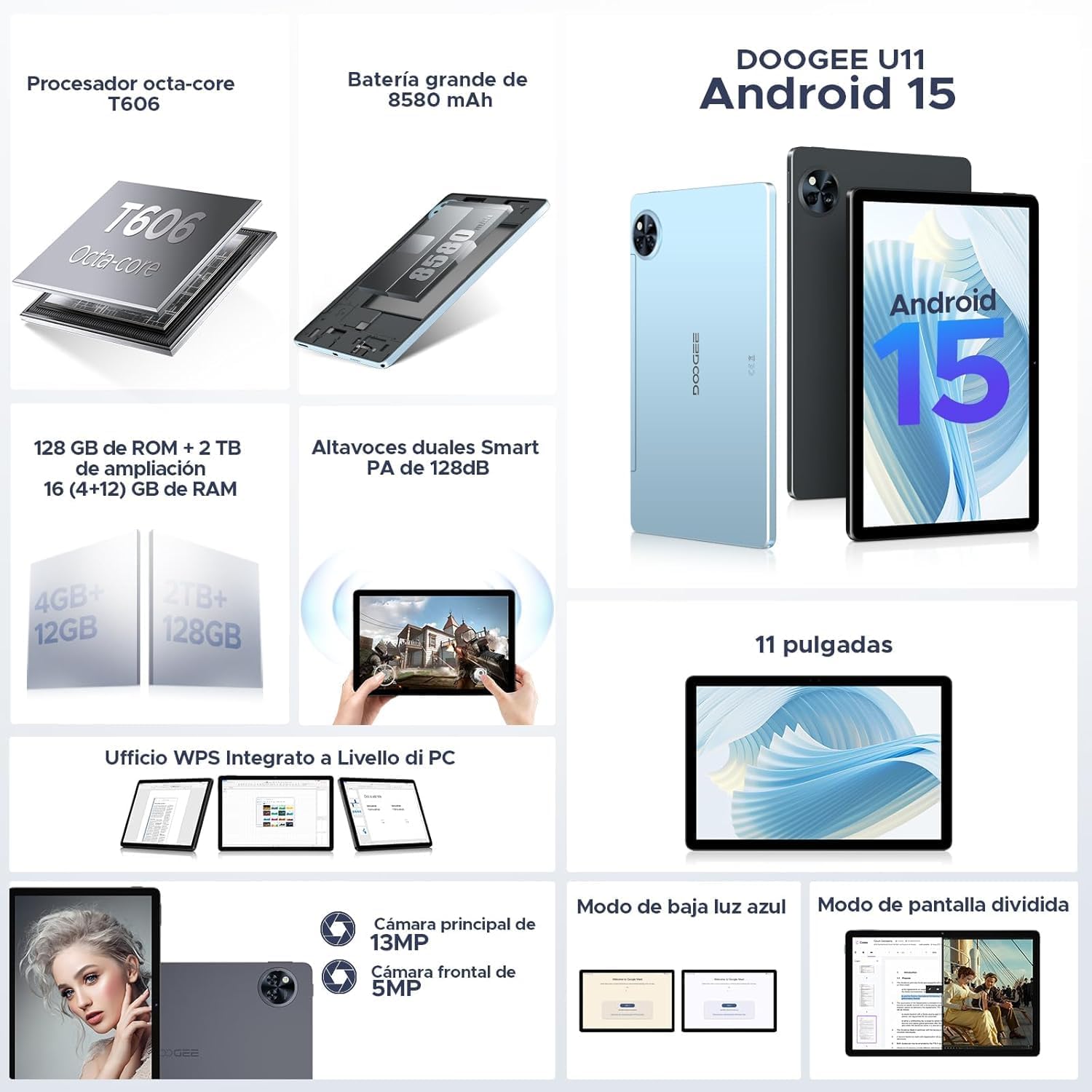
Image: An internal diagram illustrating the key specifications of the DOOGEE U11 Tablet, including its processor, battery, memory, and storage capabilities.

Image: A graphic depicting the massive storage capacity of the DOOGEE U11 Tablet, showing 128GB internal storage and up to 2TB expandable storage.
4. Camera Functions
The tablet features a 13MP main camera for capturing detailed photos and a 5MP front camera for video calls and selfies.

Image: Demonstration of the DOOGEE U11 Tablet's camera capabilities, showcasing the 13MP main camera and 5MP front camera with sample images.
5. Connectivity
- Wi-Fi: Supports 5G Wi-Fi for fast internet access. Go to Settings > Network & internet > Wi-Fi to connect.
- Bluetooth 5.0: For connecting wireless accessories like the included keyboard and mouse. Go to Settings > Connected devices > Bluetooth.
- GPS: For precise navigation and location services.
- FM Radio: Enjoy radio broadcasts without an internet connection.
6. Security Features
The DOOGEE U11 supports Face ID for quick and secure unlocking. Set up Face ID in Settings > Security & privacy > Device unlock.
Battery Management
The tablet is equipped with an 8580mAh high-capacity battery, providing extended usage time. To maximize battery life:
- Adjust screen brightness.
- Disable Wi-Fi or Bluetooth when not in use.
- Close background applications.
- Enable battery saver mode.
The tablet also supports OTG (On-The-Go) functionality, allowing it to act as a power bank to charge other devices in emergency situations.

Image: An illustration of the DOOGEE U11 Tablet's 8580mAh battery, detailing its long-lasting performance for various activities.
Maintenance and Care
- Cleaning: Use a soft, lint-free cloth to clean the screen and body. Avoid abrasive cleaners or solvents.
- Storage: Store the tablet in a cool, dry place away from direct sunlight and extreme temperatures.
- Protection: Use the provided leather case and tempered glass film to protect the tablet from scratches and minor impacts.
- Software Updates: Regularly check for system updates to ensure optimal performance and security. Go to Settings > System > System update.
Troubleshooting
| Problem | Possible Solution |
|---|---|
| Tablet does not power on. | Ensure the battery is charged. Connect the charger and wait a few minutes before attempting to power on again. |
| Screen is unresponsive. | Perform a forced restart by holding the Power button for about 10-15 seconds. |
| Wi-Fi connection issues. | Restart the tablet and your Wi-Fi router. Forget the network in Wi-Fi settings and reconnect. |
| Applications are crashing or slow. | Clear app cache (Settings > Apps > [App Name] > Storage & cache > Clear cache). Close unnecessary background apps. Consider a factory reset if issues persist (backup data first). |
| Battery drains quickly. | Reduce screen brightness, disable unused connectivity features (Bluetooth, GPS), and close background apps. Check battery usage in Settings > Battery. |
Specifications
| Feature | Detail |
|---|---|
| Brand | DOOGEE |
| Model Number | U11 |
| Operating System | Android 15 |
| Display Size | 11 Inches |
| Display Resolution | 1920 x 1080 pixels (4160x2340 max resolution) |
| Refresh Rate | 90 Hz |
| Processor | Octa-Core T606 (Unisoc T606, 1.6GHz, 12nm, Mali-G57) |
| RAM | 16GB (4GB + 12GB Expanded) |
| Internal Storage | 128GB ROM |
| Expandable Storage | Up to 2TB (TF card) |
| Battery Capacity | 8580mAh |
| Main Camera | 13MP |
| Front Camera | 5MP |
| Connectivity | Bluetooth 5.0, 5G WiFi |
| Special Features | Widevine L1, Face ID, GPS, FM Radio, OTG, Includes keyboard |
| Dimensions (L x W x H) | 25.7 x 16.8 x 0.76 cm |
| Weight | 470 Grams |
Warranty and Support
For warranty information and technical support, please refer to the official DOOGEE website or contact their customer service. Keep your purchase receipt as proof of purchase for warranty claims.
For further assistance, visit the official DOOGEE support page or contact their customer service via the contact information provided on their website.
Ask a question about this manual
Ask about setup, troubleshooting, compatibility, parts, safety, or missing instructions. Manuals+ will review the question and use this page’s manual context to help answer it.