
1. Introduction
This manual provides detailed instructions for the setup, operation, and maintenance of your NGTeco MB1 Biometric Time Clock. The MB1 is an advanced attendance system designed for small to medium-sized businesses, offering multiple verification methods including face recognition, fingerprint scanning, RFID cards, and PIN codes. It features automatic hour calculation and seamless integration with a mobile application for efficient employee management.
2. Safety Information
- Ensure the device is installed in a dry, stable environment, away from direct sunlight, extreme temperatures, and high humidity.
- Use only the provided power adapter to prevent damage to the device.
- Do not attempt to disassemble or repair the device yourself. Contact customer support for assistance.
- Keep the fingerprint sensor and face recognition camera clean and free from obstructions.
- Avoid using harsh chemicals or abrasive cleaners on the device. Use a soft, dry cloth for cleaning.
3. Package Contents
Verify that all items are present in the package:
- NGTeco MB1 Time Clock Unit
- Power Adapter
- Mounting Kit (screws, wall plugs)
- RFID Cards (x5)
- USB Drive (x1)
- User Manual (this document)
4. Product Overview
The NGTeco MB1 is a versatile 4-in-1 time clock system designed to simplify attendance tracking. It supports multiple verification methods and offers robust features for efficient workforce management.

Image: NGTeco MB1 Time Clock device with screen and keypad.
Key Features:
- Multiple Verification Methods: Face recognition, fingerprint scanning, RFID card, and PIN code.
- Automatic Time Calculation: Automatically calculates employee work hours.
- Mobile App Integration: Manage employees and view reports via the NGTeco Time app (iOS/Android).
- USB Data Export: Easily export attendance reports via USB.
- No Monthly Fees: All features are ready to use without recurring subscriptions.

Image: Illustration of the digital facial recognition system in action.

Image: Close-up of the fingerprint sensor on the NGTeco MB1.

Image: A hand presenting an RFID card for verification.
5. Setup
5.1 Unboxing and Initial Setup
Follow these steps to unbox and perform the initial setup of your NGTeco MB1 Time Clock.
Video: NGTeco MB1 Time Clock Unboxing and Setup Guide. This video demonstrates the contents of the package and basic setup steps.
5.2 Device Configuration
Access the main menu to configure device settings.
- Enter Main Menu: Long press the M/OK key for 3 seconds.
- Set Attendance Rules: Navigate to System > Attendance Rule. Here you can set maximum work hours, day cutoff time, duplicate punch interval, and enable auto punch mode or view punch records.

Image: NGTeco MB1 screen displaying the main menu interface.

Image: NGTeco MB1 screen displaying attendance rule settings.
5.3 WiFi Setup
Connect your device to a Wi-Fi network for app integration and remote management.
- From the main menu, go to Comm > Wireless Network.
- Select your desired Wi-Fi network from the list.
- Enter the Wi-Fi password using the keypad.
- Confirm to connect.
6. Operating Instructions
6.1 Enrolling Employees
To add new employees and their verification methods:
- From the main menu, go to Users > Add User.
- Enter the employee's name, user ID, and set a password and permission level (e.g., Employee, Admin).
- Register the desired verification methods:
- Face: Follow on-screen prompts to register the employee's face.
- Fingerprint: Place the finger firmly on the sensor multiple times until registered. Ensure fingers are clean and dry.
- RFID Card: Present the RFID card to the device's card reader.
- PIN: Set a unique PIN for the employee.

Image: NGTeco MB1 screen displaying the user enrollment interface.

Image: Visual representation of facial recognition during enrollment.
Image: Detailed view of the fingerprint sensor for enrollment.
Image: Demonstrating RFID card enrollment.

Image: Illustrating PIN entry on the device keypad.
6.2 Punching In/Out
Employees can punch in or out using their registered verification method. The device automatically records the time.
- Face Recognition: Stand in front of the device camera.
- Fingerprint: Place your registered finger on the sensor.
- RFID Card: Present your registered RFID card to the reader.
- PIN: Enter your PIN using the keypad.
Note: If Auto Punch Mode is enabled, there is no need to press 'IN' or 'OUT' keys. The device will automatically determine the punch state.
6.3 Managing Attendance Records
You can query attendance records directly on the device or through the mobile app.
- Query on Device: From the main menu, go to Time Data > History Record to view daily records.
- Add Missing Punch (Device): If an employee missed a punch, go to Time Data > Add Missing Punch, select the user, date, time, and punch state (In/Out).
- Manage via App: Use the NGTeco Time app to view, add, or edit punches.
6.4 Downloading Time Reports
Attendance reports can be downloaded via USB or sent to your email through the mobile app.
- Via USB:
- Insert the provided USB drive into the device's USB port.
- From the main menu, go to Time Report.
- Select the desired pay period or custom date range.
- Choose the report format and initiate the download.
- Via NGTeco Time App:
- Ensure your device is connected to Wi-Fi and the app is connected to the device.
- In the app, navigate to the Report section.
- Select the desired pay period or custom date range.
- Enter the email address(es) to send the report.
- Tap Download & Email Report.

Image: NGTeco MB1 screen displaying options for downloading time reports.
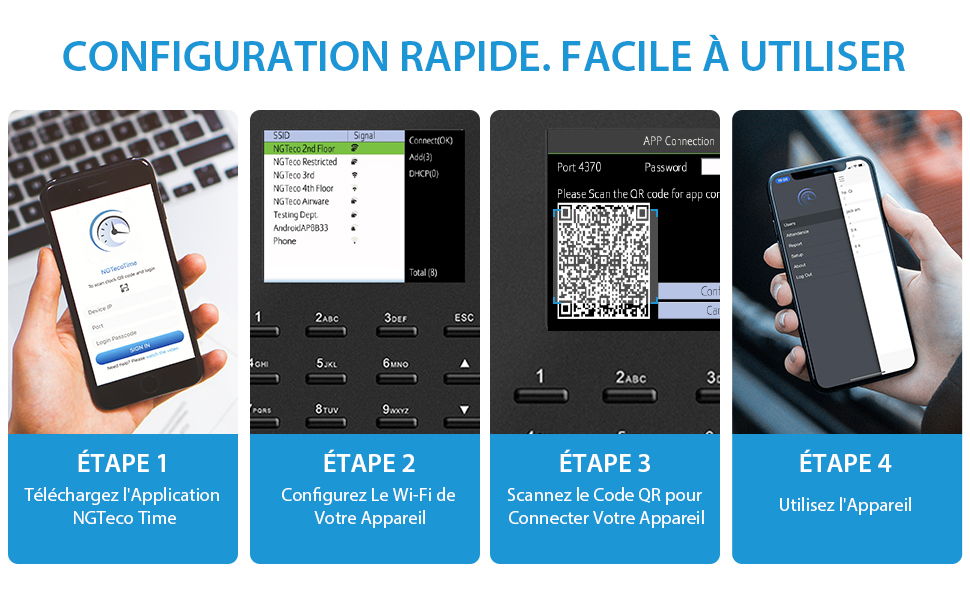
Image: Screenshot of the NGTeco Time mobile application interface.
7. Maintenance
- Cleaning: Regularly clean the device's screen, camera, and fingerprint sensor with a soft, dry, lint-free cloth. Do not use liquid cleaners.
- Software Updates: Check the NGTeco website or app for available firmware updates to ensure optimal performance and security.
- Data Backup: Periodically download attendance reports to a computer or cloud storage as a backup.
8. Troubleshooting
If you encounter issues with your NGTeco MB1, refer to the following common problems and solutions:
| Problem | Possible Cause | Solution |
|---|---|---|
| Device does not power on. | Power adapter not connected or faulty. | Ensure the power adapter is securely connected to the device and a working power outlet. Test with another outlet if possible. |
| Fingerprint not recognized. | Finger is dirty, wet, or improperly placed. Fingerprint not properly enrolled. | Ensure your finger is clean and dry. Place the entire finger pad firmly on the sensor. Re-enroll the fingerprint if issues persist. |
| Face not recognized. | Poor lighting, face too close/far, or face not properly enrolled. | Ensure adequate lighting. Position your face within the camera's frame. Re-enroll your face if necessary. |
| Cannot connect to Wi-Fi. | Incorrect password, out of range, or network issues. | Verify the Wi-Fi password. Ensure the device is within range of the Wi-Fi router. Restart the router and try again. |
| Reports not downloading to USB. | USB drive is full, corrupted, or incompatible. | Ensure the USB drive has sufficient space and is formatted correctly (FAT32 recommended). Try a different USB drive. |
9. Specifications
Detailed technical specifications for the NGTeco MB1 Time Clock:
| Feature | Detail |
|---|---|
| Brand | NGTeco |
| Model Number | MB1 |
| Color | Black |
| Display Type | LED |
| Screen Size | 2.8 Inches |
| Product Dimensions (L x H) | 16.2 x 15 centimeters |
| Power Source | Powered by battery (1 Lithium-ion battery required, not included) |
| Special Feature | Daylight Saving Time support |
10. Warranty and Support
NGTeco products come with a standard manufacturer's warranty. For specific warranty details, please refer to the warranty card included in your package or visit the official NGTeco website.
For technical support, troubleshooting assistance, or any questions regarding your NGTeco MB1 Time Clock, please contact NGTeco customer service through their official website or the contact information provided in your product documentation.
Website: www.ngteco.com


