1. Introduction
This manual provides comprehensive instructions for the installation, operation, and maintenance of your Zomolither Android 13 Car Stereo. This unit is designed specifically for Nissan Sentra models manufactured between 2013 and 2017. Please read this manual thoroughly before installation and use to ensure proper function and to maximize your experience.
The Zomolither Android 13 Car Stereo features an 8-core processor, 4GB RAM, and 64GB ROM, providing a responsive and stable user experience. It includes a 10.1-inch IPS touchscreen with 1280*720 resolution, wireless Apple CarPlay and Android Auto, GPS navigation, Bluetooth 5.0, DSP with 32-band EQ, FM/RDS radio, and supports a backup camera and steering wheel controls.
2. Package Contents
Verify that all items listed below are included in your package:
- Android Car Stereo (with Frame)
- AHD Backup Camera
- External Microphone
- Power Cable
- Installation Tool
- GPS Antenna
- USB Cable (2x: 6Pin and 4Pin)
- RCA Cable
- User Manual
- Rear Camera & CANBUS Box (if applicable)

Image: Contents of the Zomolither Android 13 Car Stereo package, showing the main unit, AHD rear camera, microphone, various cables (power, USB, RCA, GPS antenna), installation tools, and user manual.
3. Installation Guide
3.1 Compatibility Check
Before proceeding with installation, ensure your vehicle's center console is compatible. This unit is designed for Nissan Sentra 2013-2017 models with a horizontal snap fastener for the radio frame. Refer to the image below for clarification.

Image: Diagram illustrating the correct horizontal snap fastener type (B) for the Nissan Sentra 2013-2017 center console, and an incompatible vertical snap fastener type (C). Also shows the dashboard before and after installation.
If your car's center console has vertical snap fasteners, this unit may not be compatible. Contact customer support for assistance.
3.2 Wiring Connections
Connect the provided cables to the corresponding ports on the car stereo and your vehicle's wiring harness. Ensure all connections are secure.
- Power Cable: Connect to the vehicle's power supply.
- GPS Antenna: Mount in a location with a clear view of the sky for optimal signal reception.
- USB Cables: Connect for external USB devices or wired CarPlay/Android Auto.
- RCA Cables: For audio/video input/output connections.
- External Microphone: Connect for improved call quality.
- AHD Backup Camera: Connect the camera to the dedicated input. Ensure the trigger wire (labeled "back" or "reverse") is connected to the vehicle's reversing light positive for automatic display switching.

Image: A diagram illustrating the wiring connections for the AHD backup camera, including the video input to the monitor and the trigger wire connection to the reversing light positive.
3.3 CANBUS Box Configuration
The radio includes a CANBUS BOX to retain original car information display. After installation, you must manually match it in the settings:
- Go to Settings.
- Select Factory Settings (Password: 1234).
- Navigate to Protocol settings.
- Select the brand of the protocol box (usually indicated on the box itself).
- Choose your specific model information to complete the matching process.
3.4 Steering Wheel Control (SWC) Learning
To enable steering wheel controls, perform the learning process:
- Go to Settings.
- Select Steering Learn.
- Follow the on-screen prompts to assign functions to your steering wheel buttons. This typically involves pressing a button on the steering wheel and then selecting its corresponding function on the stereo's screen.

Image: Screenshot of the car stereo's interface for learning steering wheel controls, showing options to assign functions like Mode, Power, Volume, and Navigation.
4. Operating Instructions
4.1 Basic Operation
The unit features a 10.1-inch IPS touchscreen. Navigate through menus and applications by tapping, swiping, and dragging on the screen. Physical buttons on the side of the unit provide quick access to essential functions like volume and home.
4.2 Wireless/Wired Apple CarPlay & Android Auto
Connect your smartphone for seamless integration of navigation, music, and communication apps.
- Wireless Apple CarPlay:
- Pair your iPhone's Bluetooth with the car radio.
- Open the "CPZLink" app on the car stereo.
- Wired Apple CarPlay:
- Connect your iPhone to the car radio using the original USB cable.
- Open the "CPLink" app on the car stereo.
- Wireless Android Auto:
- Install the "Android Auto" app on your Android phone.
- Pair your phone's Bluetooth with the car radio.
- Open the "Android Auto" app on the car stereo.
- Wired Android Auto:
- Install the "Android Auto" app on your Android phone.
- Connect your phone to the car radio using the original USB cable.
- Open the "Android Auto" app on the car stereo.
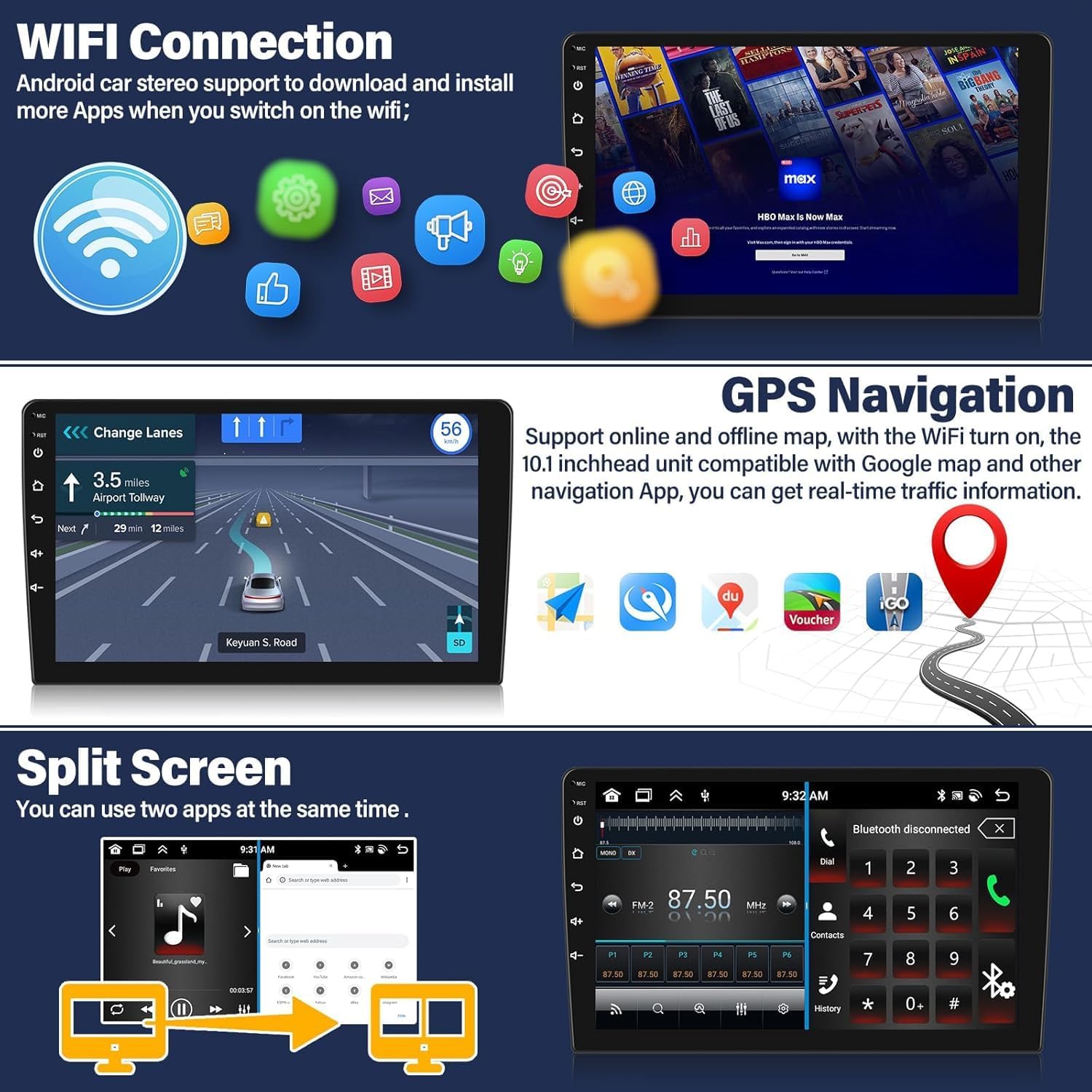
Image: Display of the car stereo showing the Wireless CarPlay and Android Auto interfaces, along with connection methods (USB/Bluetooth) and compatible apps.
4.3 GPS Navigation & WiFi
The unit comes with pre-installed Google Maps. Connect to WiFi to access real-time traffic information and download offline map data for navigation without an internet connection.
With a WiFi connection, you can also download various applications from the app store, such as YouTube and TikTok, to expand your entertainment options.

Image: Screenshots demonstrating GPS navigation with real-time traffic information and the WiFi connection interface for downloading apps.
4.4 Bluetooth 5.0
Bluetooth 5.0 ensures quick and stable connections for hands-free calling and music streaming. Pair your phone to make and receive calls directly from the stereo and stream audio wirelessly.

Image: Display of the Bluetooth 5.0 interface on the car stereo, showing options for dialing, contacts, and music playback.
4.5 DSP & 32-Band EQ
Utilize the built-in Digital Signal Processor (DSP) and 32-band equalizer to customize your audio experience. Adjust frequency, acoustic environment (AE), and sound type to optimize sound quality to your preference.

Image: Screenshots of the car stereo's DSP and 32-band equalizer settings, allowing detailed audio customization.
4.6 FM/RDS Radio
Access FM radio stations with RDS (Radio Data System) functionality. The unit supports 18 preset stations, providing access to news, traffic updates, and weather forecasts.

Image: Display of the FM/RDS radio interface on the car stereo, showing frequency tuning and preset station options.
4.7 Split-Screen Function
The split-screen feature allows you to run two applications simultaneously, such as navigation and music playback, enhancing multitasking capabilities.
Image: Screenshot of the car stereo demonstrating the split-screen function, with a navigation app on one side and the radio interface on the other.
4.8 Voice Control
Access functions hands-free using voice commands. Say "Hey Siri" or "OK Google" to activate your smartphone's voice assistant for tasks like making calls, sending messages, or getting directions.

Image: Display showing the voice control feature, with examples of commands for Siri and Google Assistant for navigation and calls.
4.9 UI Themes Customization
Personalize your driving experience by choosing from 59 different UI desktop themes. You can also rearrange app icons on your home screen to suit your preferences.

Image: A collage of various UI desktop themes available on the car stereo, demonstrating customization options.
4.10 Backup Camera Operation
When the vehicle is shifted into reverse, the screen will automatically display the rear view from the AHD backup camera. The 170-degree wide-angle lens and night vision capabilities provide a clear view, and backup assist lines aid in parking maneuvers.
Image: Screenshot of the car stereo displaying the rear view from the AHD backup camera, complete with parking assist lines and icons indicating 1080p Full HD, waterproof, night vision, and wide-angle features.
5. Maintenance
To ensure the longevity and optimal performance of your Zomolither car stereo, follow these general maintenance guidelines:
- Cleaning: Use a soft, dry cloth to clean the touchscreen and exterior surfaces. Avoid abrasive cleaners or solvents that could damage the screen or finish.
- Software Updates: Periodically check for software updates through the system settings or the manufacturer's website to ensure you have the latest features and bug fixes.
- Environmental Conditions: Avoid exposing the unit to extreme temperatures, direct sunlight for prolonged periods, or excessive moisture.
6. Troubleshooting
If you encounter issues with your car stereo, refer to the following common problems and solutions:
| Problem | Possible Cause | Solution |
|---|---|---|
| Unit does not power on. | Incorrect power wiring, blown fuse, vehicle battery issue. | Check power cable connections. Verify vehicle's fuse box and battery. Consult a professional if unsure. |
| No sound from speakers. | Incorrect speaker wiring, volume too low, mute activated, incorrect audio source. | Check speaker connections. Increase volume. Ensure unit is not muted. Select correct audio source. |
| Bluetooth/WiFi not working. | Module malfunction, incorrect settings, interference. | Ensure Bluetooth/WiFi is enabled in settings. Try restarting the unit. Check for firmware updates. If persistent, contact support. |
| Backup camera not displaying. | Camera not connected, trigger wire not connected to reverse light, camera malfunction. | Verify camera and trigger wire connections. Ensure the camera is receiving power. Check camera settings in the unit. |
| Steering Wheel Controls not responding. | SWC learning not completed, incorrect CANBUS configuration. | Perform SWC learning as described in Section 3.4. Verify CANBUS box settings in Section 3.3. |
| Unit is slow or freezes. | Too many apps running, low memory, software issue. | Close unnecessary applications. Clear cache. Perform a factory reset if issues persist (note: this will erase all data). |
For issues not covered here, please refer to the contact information in the Support section.
7. Specifications
| Feature | Detail |
|---|---|
| Operating System | Android 13 |
| Memory (RAM+ROM) | 4GB RAM + 64GB ROM |
| Processor | 8-Core |
| Screen Size | 10.1 Inches IPS Touchscreen |
| Screen Resolution | 1280*720 |
| Bluetooth Version | 5.0 |
| Radio Band | FM/RDS |
| Power Output | 4*45W |
| Working Temperature | -20℃ to 75℃ (-4°F to 167°F) |
| Connectivity | Bluetooth, USB, Wi-Fi |
| Special Features | Wireless Apple CarPlay, Wireless Android Auto, GPS Navigation, DSP & 32 EQ Settings, 59 UI Themes, AHD Backup Camera Support, External Microphone Support, Split Screen, 1080P Video Output |
| Map Type | North America, Worldwide (offline maps available) |
| Audio Formats | APE/FLAC/WAV/MP3/WMA etc. |
| Video Formats | MKV/RMVB/AVI/MP4/MDV etc. |
| Picture Formats | PNG/JPEG/JPG/GIF/WBMP/BNP etc. |
| Factory Setting Password | 1234 |
8. Warranty and Support
Zomolither offers a 1-year warranty for this product. In addition, you are eligible for a 30-day refund and 12-month replacement policy. Lifetime technical support is also provided.
For any concerns, compatibility questions, or technical assistance, please contact Zomolither customer support at Zomolither@126.com. Please confirm compatibility and wiring harness details before ordering if you have any doubts.

Image: Graphic indicating online support email (Zomolither@126.com) and a reminder to check compatibility for various car models.