
1. Introduction
The SinoTrack G20 GPS Speedometer is a universal heads-up display designed to provide accurate speed and directional information for all vehicle types. It features a dual-mode GPS + BeiDou chipset for high refresh rate and precise readings, an overspeed alarm, automatic light adjustment, and a built-in GPS compass. This manual provides detailed instructions for its setup, operation, and maintenance.
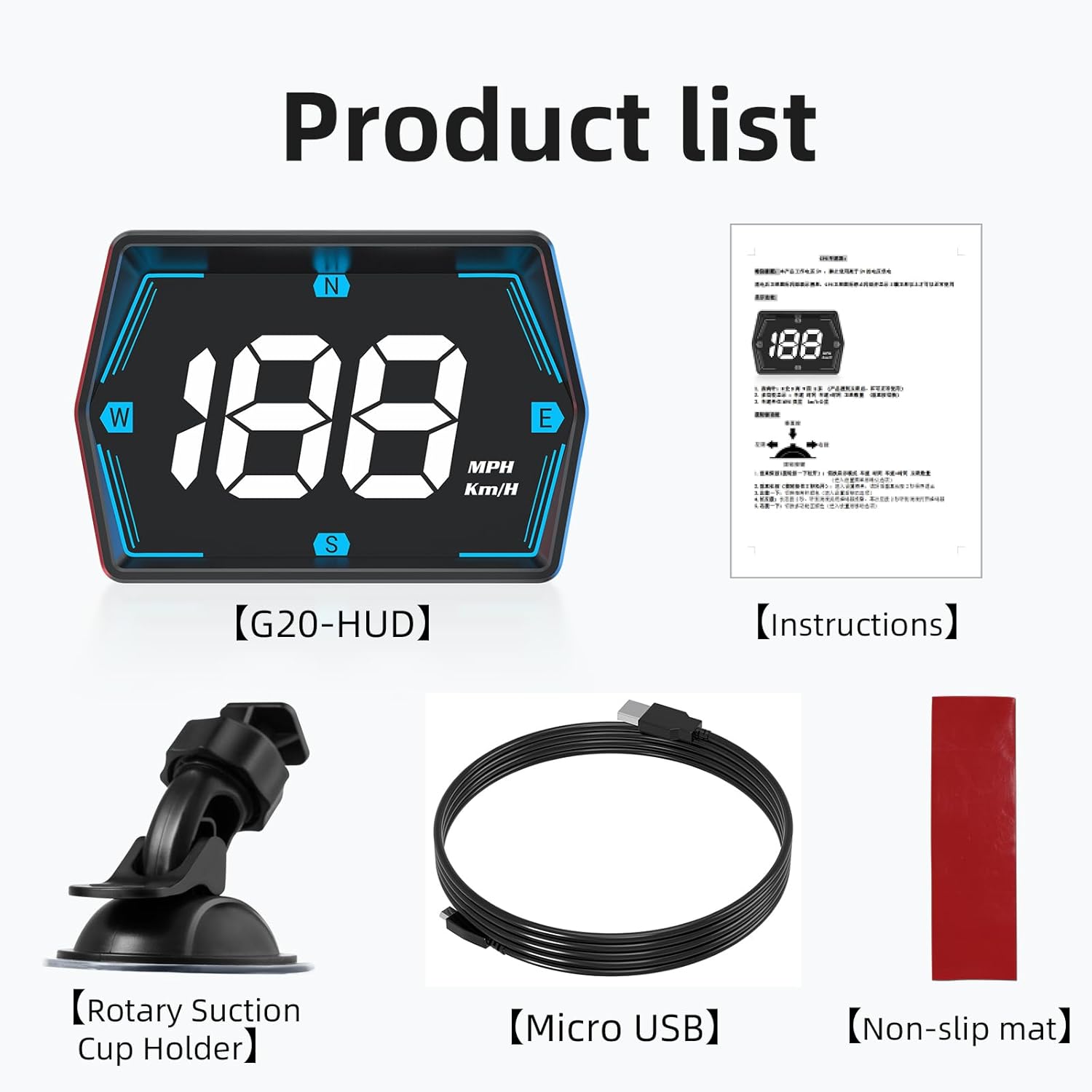
What's in the Box:
- SinoTrack G20 GPS Speedometer Unit
- USB Power Cable
- Instruction Manual
- Non-slip Pad
2. Product Features
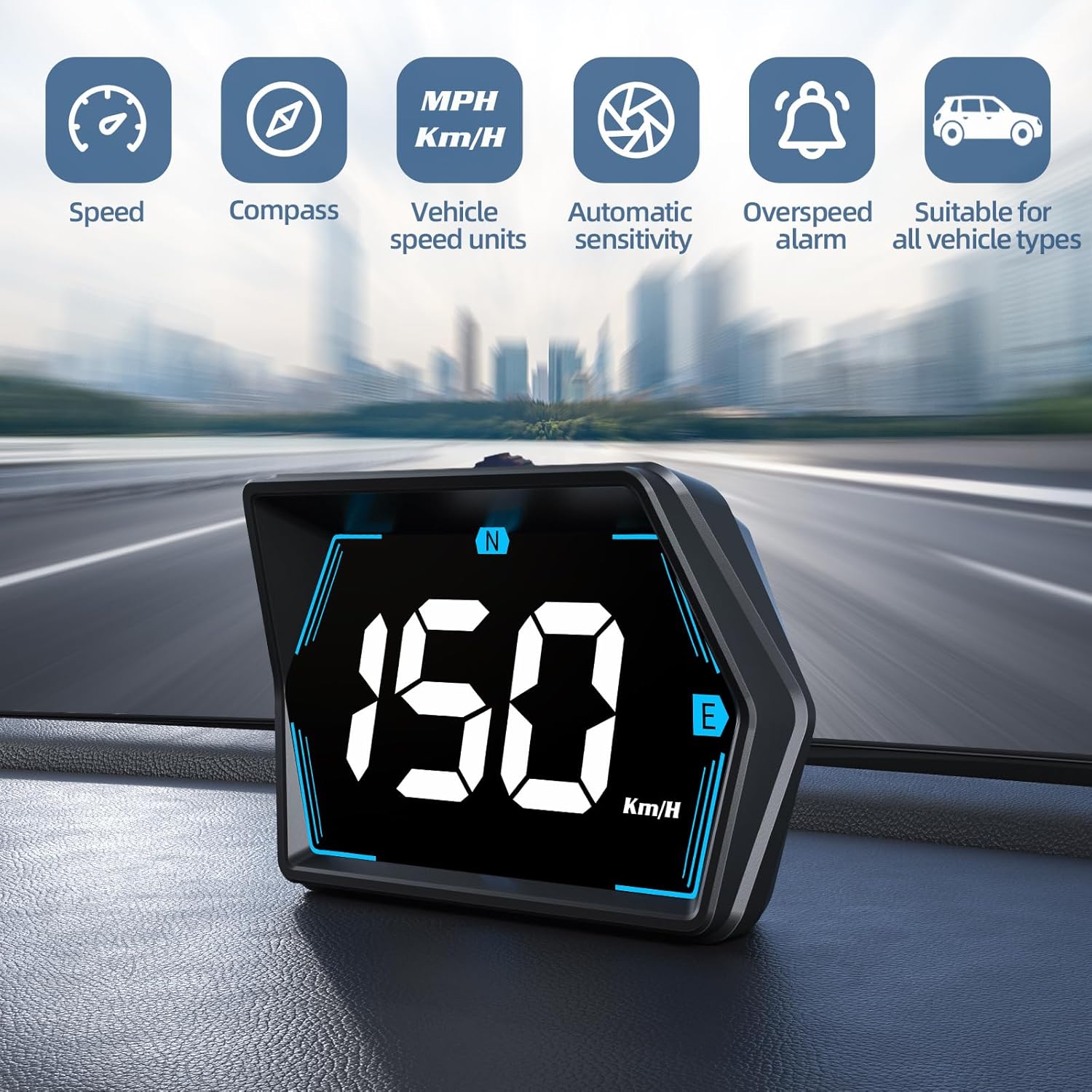
- Universal Compatibility: Works with all vehicles including cars, trucks, and SUVs.
- Overspeed Alarm: Flashes the display in high-definition LED lights if a pre-set speed limit is exceeded.
- Powerful Dual-Mode Chip: Integrates GPS + BeiDou chipset with a 10Hz refresh rate for fast and accurate speed readings.
- Automatic Light Adjustment: An internal light sensor adjusts display brightness for optimal visibility in varying light conditions.
- GPS Compass: Provides real-time directional guidance to help maintain orientation.
- Compact Design: Allows for flexible placement without obstructing the driver's view.
- USB Powered with Zero Standby Consumption: Powers from a car USB (5V) or cigarette lighter, disconnecting completely when the vehicle is off to prevent battery drain.

3. Setup
3.1 Placement
The SinoTrack G20 is designed for flexible placement on your dashboard or attached to the windshield. Ensure the placement does not obstruct your view of the road. The compact design allows for a natural line of sight.


3.2 Power Connection
- Locate the USB interface on the back of the G20 unit.
- Connect the provided USB power cable to the unit.
- Plug the other end of the USB cable into a car USB port (5V) or a cigarette lighter socket using a suitable USB adapter (not included).
- The device will power on automatically when power is supplied.


Video 3.1: SinoTrack G20 GPS Speedometer for Car Plug and Play. This video demonstrates the installation and basic functionality of the device in a vehicle.
4. Operating Instructions
4.1 Power On/Off
The G20 unit powers on automatically when connected to a power source and the vehicle is running. It will power off automatically when the vehicle is switched off, ensuring zero standby power consumption.
4.2 Display Information
The display shows your current speed and directional compass. The speed unit (MPH or Km/H) can be switched via the device's settings (refer to the 'Settings' section for details).

4.3 Overspeed Alarm
To set the overspeed alarm, use the 'Keystroke' button (refer to Figure 3.4 for location) to navigate to the speed alarm setting. Adjust the desired maximum speed. When this speed is exceeded, the display will flash to alert the driver.

4.4 Automatic Light Adjustment
The G20 features an advanced internal light sensor that automatically adjusts the display brightness. This ensures the information is clear and readable whether driving in bright sunlight or at night, without causing glare or distraction.

5. Maintenance
To ensure the longevity and optimal performance of your SinoTrack G20 GPS Speedometer, follow these maintenance guidelines:
- Cleaning: Use a soft, dry cloth to wipe the display and exterior. Avoid abrasive cleaners or solvents that could damage the surface.
- Storage: When not in use for extended periods, store the device in a cool, dry place away from direct sunlight and extreme temperatures.
- Cable Care: Handle the USB cable carefully. Avoid bending or crimping it excessively to prevent internal damage.
6. Troubleshooting
If you encounter issues with your SinoTrack G20, please refer to the following common problems and solutions:
| Problem | Possible Cause | Solution |
|---|---|---|
| Device does not power on. | No power supply; faulty USB cable or port. | Ensure the USB cable is securely connected to both the device and a working 5V USB port or cigarette lighter adapter. Try a different USB port or cable. |
| Speed display shows '0' or is inaccurate. | No GPS signal; device not acquiring satellites. | Ensure the device has a clear view of the sky. Move the vehicle to an open area away from tall buildings or tunnels. Allow a few minutes for the device to acquire GPS signals. |
| Cannot switch between KPH/MPH. | Incorrect button operation; software glitch. | Refer to the detailed operating instructions for changing speed units. If the issue persists, try disconnecting and reconnecting the power to reset the device. |
| Display is too bright or too dim. | Automatic light sensor interference. | Ensure the photosensitive element (refer to Figure 3.4) is not obstructed. The device automatically adjusts brightness; manual adjustment is not typically required. |
7. Specifications
- Model: G20
- Brand: SinoTrack
- Material: Acrylonitrile Butadiene Styrene (ABS)
- Package Dimensions: 4.02 x 3.03 x 2.91 inches
- Item Weight: 5.3 ounces (0.15 Kilograms)
- Power Input: USB 5V
- Chipset: GPS + BeiDou Dual-Mode
- Refresh Rate: 10Hz
8. Warranty and Support
SinoTrack products are manufactured to high-quality standards. This product comes with a standard manufacturer's warranty. For specific warranty details, please refer to the warranty card included with your purchase or contact SinoTrack customer support.
For technical assistance, troubleshooting, or any product-related inquiries, please visit the official SinoTrack website or contact their customer support team through the contact information provided in your product packaging or on their website.
