1. Introduction
This manual provides detailed instructions for the installation, operation, and maintenance of your IO CREST USB 4.0 Type-C 10G Ethernet Adapter. This device is designed to provide high-speed network connectivity for computers equipped with USB Type-C ports, including compatibility with Thunderbolt 3, 4, and 5.
Please read this manual thoroughly before using the product to ensure proper functionality and to prevent damage.
2. Product Overview
The IO CREST USB 4.0 Type-C 10G Ethernet Adapter is a portable, bus-powered, and fanless solution for achieving 10 Gigabit Ethernet connectivity. It supports NBASE-T (IEEE 802.3bz-2016) standards, offering flexible speed options over standard cabling.
Key Features:
- Adds an RJ45 10 Gigabit Ethernet port to your computer via USB Type-C.
- Supports 10Gb/s, 5Gb/s, 2.5Gb/s, 1Gb/s, and 100Mb/s Base-T speeds with auto-negotiation.
- Compatible with Thunderbolt 3, 4, and 5 interfaces.
- Supports IEEE 802.1Q Tagged VLAN and Energy-Efficient Ethernet (IEEE 802.3az).
- Features Jumbo frame (up to 9K) and Wake-on-LAN (WoL) support.
- Durable aluminum enclosure with passive cooling for heat dissipation.
- Bus-powered, requiring no external power adapter.
What's in the Box:
- IO CREST USB 4.0 Type-C 10G Ethernet Adapter
- USB-C Cable
- User Manual
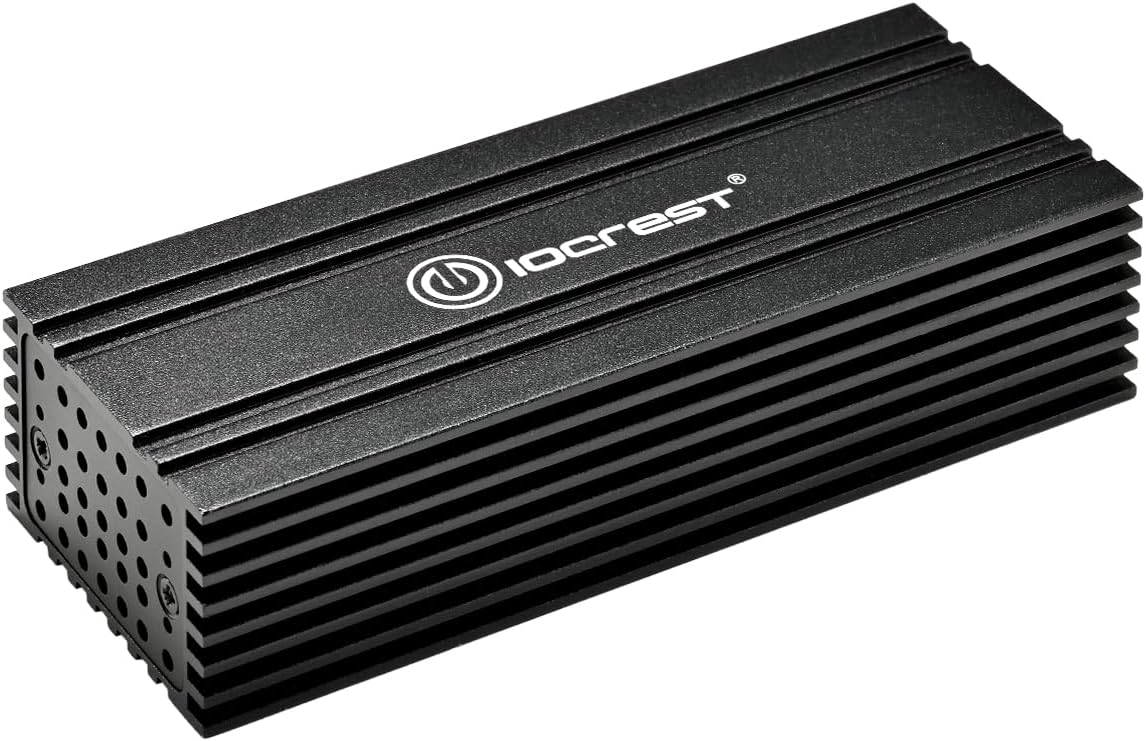
Front view of the IO CREST USB 4.0 Type-C 10G Ethernet Adapter, showcasing its compact, fanless design with a ribbed aluminum casing for heat dissipation.
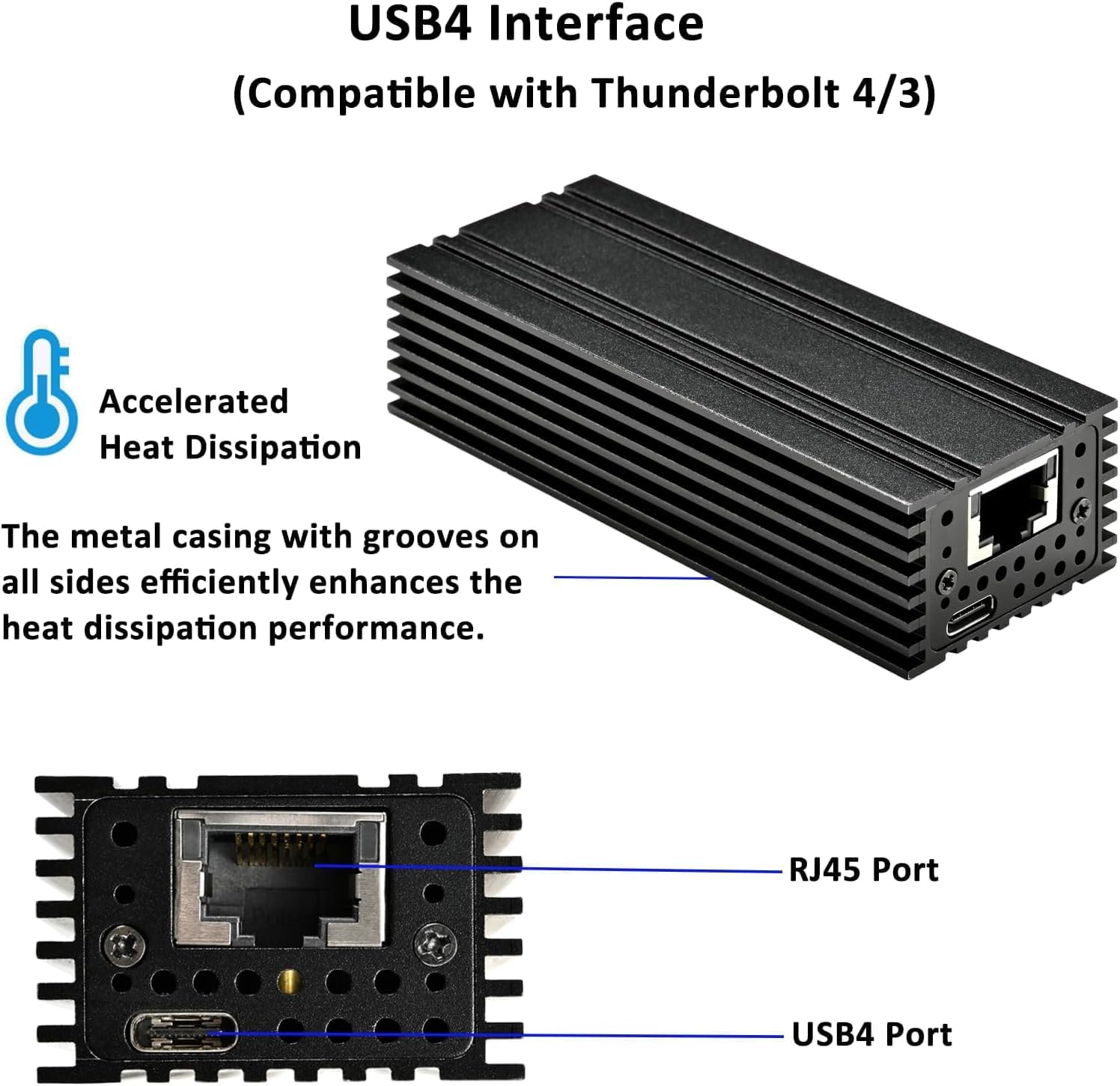
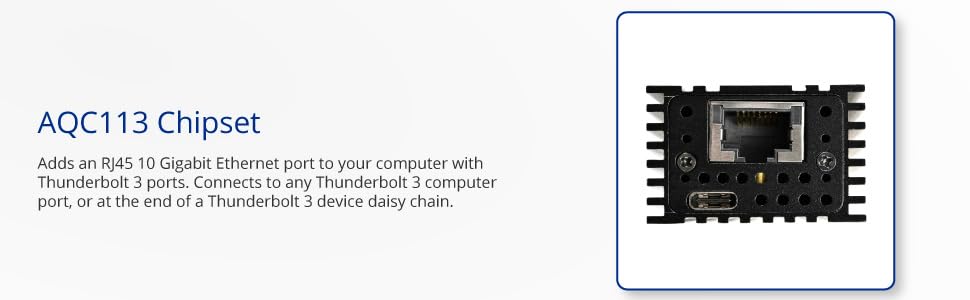
Rear view of the adapter, highlighting the RJ45 Ethernet port and the USB-C input port for connection to your device.
3. Setup
Follow these steps to set up your IO CREST USB 4.0 Type-C 10G Ethernet Adapter:
- Connect to Computer: Plug one end of the provided USB-C cable into the USB-C port on the adapter. Connect the other end of the USB-C cable to an available USB 4.0 or Thunderbolt 3/4/5 port on your computer.
- Connect to Network: Connect a standard RJ45 Ethernet cable (Cat 5e or better for optimal performance) from your network router, switch, or modem to the RJ45 port on the adapter.
- Driver Installation:
- Windows/macOS: The adapter typically operates as plug-and-play on most modern Windows and macOS systems, automatically installing necessary drivers.
- Linux: Driver installation may require manual steps depending on your Linux distribution and kernel version. Refer to the manufacturer's website or community forums for specific instructions for your operating system.
- Verify Connection: Once connected, check your computer's network settings to confirm that the new Ethernet adapter is recognized and has established a network connection.
The adapter connected to a laptop via its USB-C cable, demonstrating its use for high-speed network access.
4. Operating Instructions
The adapter is designed for continuous operation once properly installed. It will automatically negotiate the highest possible speed with your network equipment.
- Speed Negotiation: The Ethernet port supports auto-negotiation for 10Gb/s, 5Gb/s, 2.5Gb/s, 1Gb/s, and 100Mb/s Base-T. The actual speed achieved depends on your network infrastructure (router, switch, and cabling).
- Cabling: For 10Gb/s and 5Gb/s speeds, Cat 6 or Cat 6A cabling is recommended. Cat 5e cabling can support 5Gb/s and 2.5Gb/s over distances up to 100 meters when used with compatible multi-Gigabit network devices.
- Advanced Features: The adapter supports IEEE 802.1Q Tagged VLAN for network segmentation, Energy-Efficient Ethernet (IEEE 802.3az) for reduced power consumption, Jumbo frames (up to 9K) for improved data transfer efficiency, and Wake-on-LAN (WoL) for remote system wake-up.
A table illustrating the maximum cable lengths for various Ethernet cable categories (CAT5, CAT5e, CAT6, CAT6A) and their supported data rates (10 Mb/s, 100 Mb/s, 1 Gb/s, 10 Gb/s).
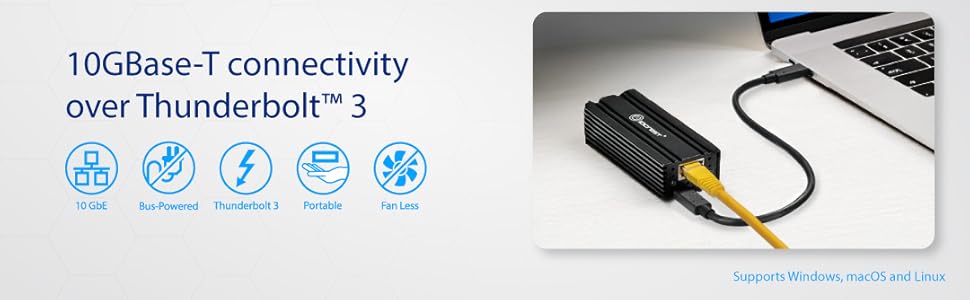
An infographic summarizing the adapter's key features: 10 Gigabit Ethernet capability, bus-powered operation, Thunderbolt 3 compatibility, portable design, and fanless cooling.
5. Maintenance
The IO CREST USB 4.0 Type-C 10G Ethernet Adapter is designed for minimal maintenance.
- Cleaning: Use a soft, dry cloth to clean the exterior of the adapter. Avoid using liquid cleaners or solvents, as they may damage the device.
- Heat Dissipation: The adapter features an aluminum enclosure with large gaps for airflow and a heatsink for passive cooling. Ensure that the adapter is placed in an area with adequate ventilation to allow for efficient heat dissipation. Avoid covering the device or placing it in enclosed spaces.
- Operating Environment: The adapter is designed to operate within a temperature range of 0°C to +108°C and can be stored between -40°C to +110°C. Avoid exposing the device to extreme temperatures or humidity.
6. Troubleshooting
If you encounter issues with your adapter, please refer to the following troubleshooting tips:
- No Network Connection:
- Ensure the USB-C cable is securely connected to both the adapter and your computer's USB 4.0 or Thunderbolt port.
- Verify that the Ethernet cable is properly connected to the adapter and your network device (router/switch).
- Check your computer's network settings to ensure the adapter is recognized and enabled.
- Try connecting the adapter to a different USB 4.0 or Thunderbolt port on your computer.
- Restart your computer and network equipment.
- Slow Network Speeds:
- Ensure you are using Cat 6 or Cat 6A Ethernet cables for optimal 10Gb/s performance.
- Verify that your network router or switch supports 10 Gigabit Ethernet.
- Check for updated drivers for the adapter on the IO CREST website.
- Confirm that your computer's USB 4.0 or Thunderbolt port is operating at its full bandwidth.
- Adapter Gets Hot:
- It is normal for the adapter to generate heat during operation, especially under heavy load, due to its passive cooling design.
- Ensure the adapter is in an open area with good airflow and not covered by other objects.
- Frequent Disconnections:
- Ensure all cables are firmly connected.
- Update your computer's operating system and adapter drivers.
- Test with a different USB-C cable or port.
- Disable any power-saving features for the USB port or network adapter in your computer's settings.
- Linux/BSD Specific Issues:
- Some Linux/FreeBSD distributions may require specific driver installations or kernel patches. Refer to your distribution's documentation or relevant community forums for guidance on Realtek Aquantia chipsets.
7. Specifications
| Feature | Specification |
|---|---|
| Model Number | 850039353376 |
| Hardware Interface | Thunderbolt 3, USB Type-C |
| Compatible Devices | Desktop, Laptop, Tablet |
| Data Link Protocol | Gigabit Ethernet, 10 Gigabit Ethernet |
| Data Transfer Rate | 10 Gigabits Per Second (supports 10/5/2.5/1Gb/s, 100Mb/s) |
| Package Dimensions | 5.79 x 4.29 x 1.42 inches |
| Item Weight | 7.4 ounces |
| Operating Temperature | 0°C to +108°C |
| Storage Temperature | -40°C to +110°C |
8. Warranty and Support
For warranty information, technical support, and additional resources, please visit the official IO CREST website or contact their customer service department. Keep your purchase receipt for warranty claims.
Manufacturer: IO CREST