
SJCODE M9
SJCODE Security Camera M9 User Manual
Model: M9
Brand: SJCODE
1. Introduction
Thank you for choosing the SJCODE M9 Security Camera. This manual provides detailed instructions for setting up, operating, and maintaining your camera to ensure optimal performance and security. Please read this manual thoroughly before using the product and retain it for future reference.
2. Package Contents
Please verify that all items listed below are included in your package:
- SJCODE M9 Security Camera
- Mounting accessories (screws, wall plugs)
- 2 x Lithium Ion Batteries (pre-installed or included separately)
- USB Charging Cable
- User Manual (this document)
3. Product Overview
The SJCODE M9 Security Camera is a versatile and intelligent device designed for both indoor and outdoor surveillance. It features 1080p video resolution, advanced human detection, color night vision, two-way audio, and cloud storage capabilities. Its robust design ensures weather resistance for reliable operation in various conditions.
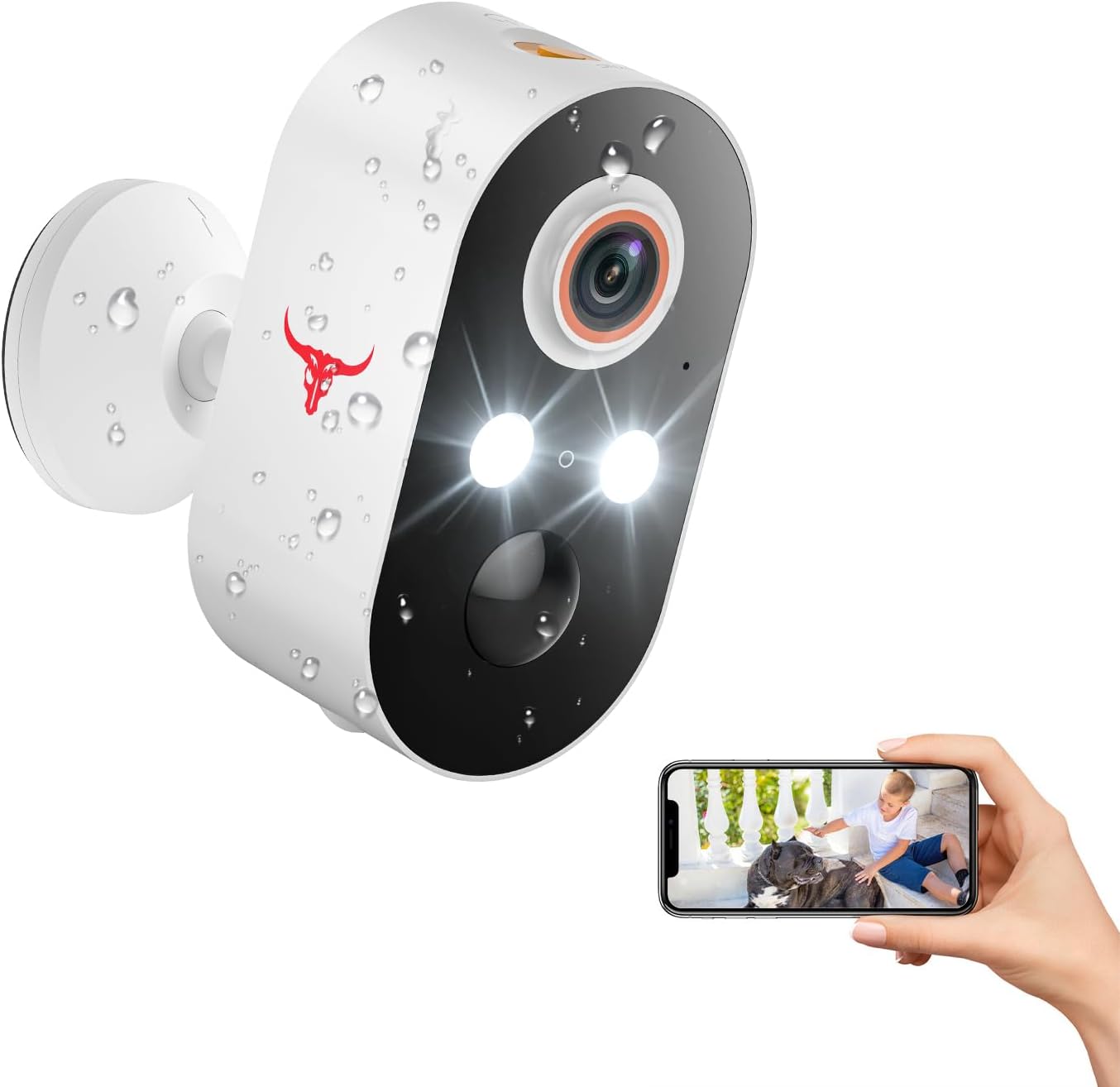
Front view of the SJCODE M9 Security Camera, highlighting its lens, lights, and a smartphone displaying its live feed.
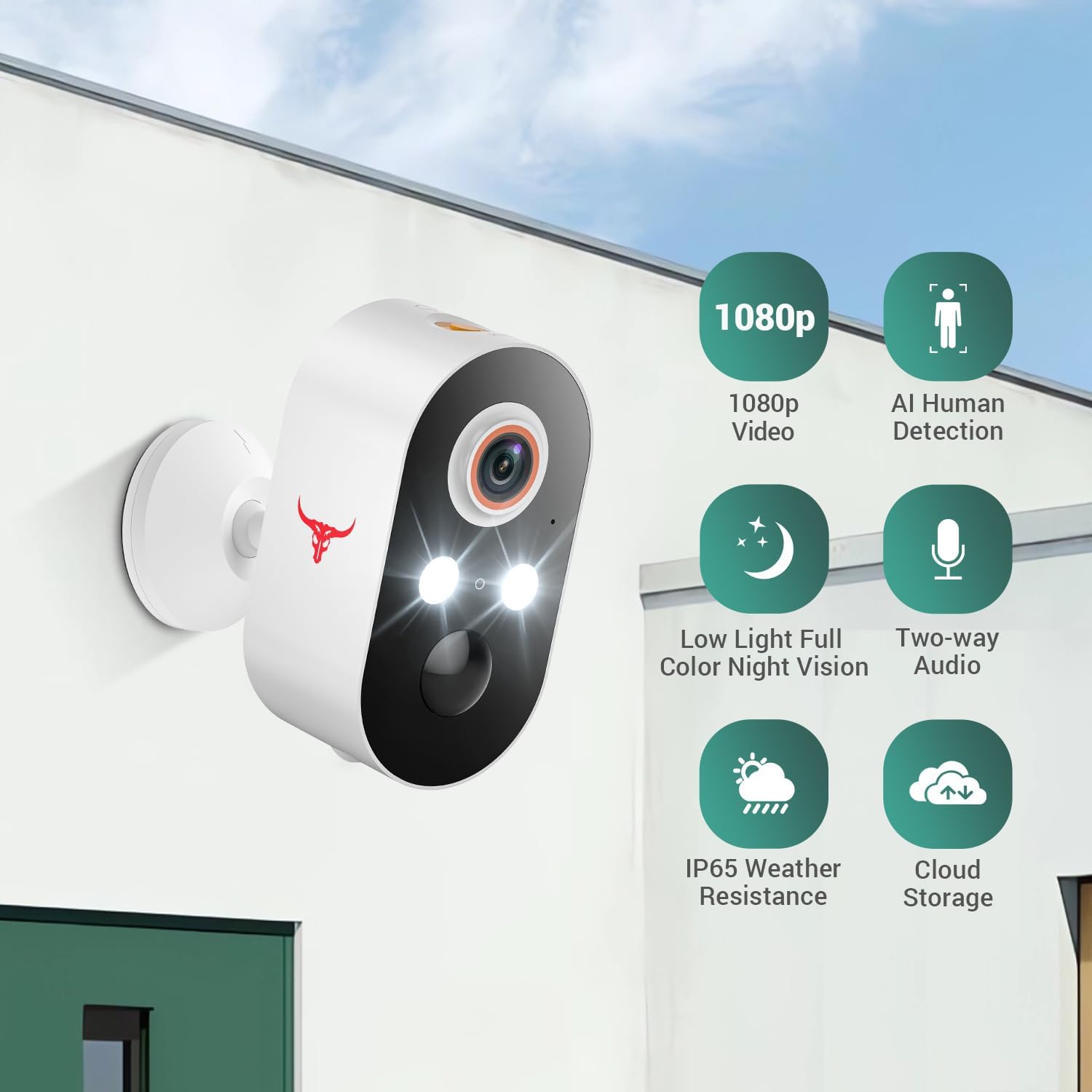
Key features of the camera, including 1080p video, AI human detection, color night vision, two-way audio, IP65 weather resistance, and cloud storage.

Detailed dimensions of the SJCODE M9 Security Camera, showing its compact size.
4. Setup Guide
4.1 Initial Charging
Before first use, ensure the camera's internal Lithium Ion batteries are fully charged. Connect the camera to a standard USB power adapter (not included) using the provided USB charging cable. The charging indicator light will show the charging status.
4.2 App Installation
To control and view your camera, you need to download the dedicated mobile application. Search for the 'SJCODE App' or 'Smart Home App' (refer to packaging for exact app name) on your smartphone's app store (App Store for iOS or Google Play Store for Android). Install the app and create an account if you are a new user.
4.3 Device Pairing
- Open the SJCODE App and log in.
- Tap the '+' icon or 'Add Device' to begin the pairing process.
- Follow the on-screen instructions to select your camera model.
- Ensure your smartphone is connected to a 2.4GHz Wi-Fi network. The camera only supports 2.4GHz Wi-Fi.
- Power on the camera. The camera will enter pairing mode (indicated by a flashing light, refer to app for specific light patterns).
- Scan the QR code displayed on your phone screen with the camera lens, or follow alternative pairing methods provided by the app.
- Once connected, the camera's indicator light will change, and you will receive a confirmation in the app.
4.4 Mounting the Camera
The SJCODE M9 camera is designed for wall mounting and can be used both indoors and outdoors. Use the included mounting accessories for secure installation.
- Choose a suitable location that provides the desired viewing angle and good Wi-Fi signal strength.
- Mark the drilling points on the wall using the mounting bracket as a template.
- Drill holes and insert the wall plugs if mounting on masonry.
- Secure the mounting bracket to the wall using the provided screws.
- Attach the camera to the mounting bracket and adjust its angle as needed.
5. Operating Your Camera
5.1 Live View
To access the live video feed from your camera, open the SJCODE App and select your device from the main screen. You will see real-time 1080p video of the camera's view.
5.2 Two-way Audio
The camera features built-in microphone and speakers, allowing for two-way communication. While in live view, tap the microphone icon in the app to speak through the camera, and listen to audio from the camera's surroundings.

Demonstration of the two-way audio feature, showing communication between a person near the camera and a user on a smartphone.
5.3 Recording and Cloud Storage
The camera automatically records events triggered by motion detection. These recordings are securely stored in the cloud, allowing you to view missed content and share videos from anywhere. Access your recorded footage through the 'Events' or 'Playback' section within the SJCODE App.

Visual representation of cloud storage, showing the camera, a cloud icon, and a smartphone displaying a timeline of recorded events.
5.4 AI Human Detection
The camera's intelligent human detection technology minimizes false alarms by accurately distinguishing human movement from other sources like pets or swaying branches. You will receive notifications only for relevant human activity.

Illustration of AI human detection, showing the camera correctly identifying a person while ignoring a pet.
5.5 Night Vision Modes
The SJCODE M9 offers two night vision modes: full-color night vision and infrared (IR) mode. The camera automatically switches to the appropriate mode based on ambient light conditions to provide clear surveillance around the clock.
- Color Night Vision: Utilizes built-in lights to capture full-color video even in low-light conditions.
- Infrared Mode: Provides clear black-and-white video in complete darkness using infrared technology.

Comparison of color night vision and infrared mode, demonstrating the visual difference in low-light conditions.
6. Maintenance
6.1 Battery Management
The camera is powered by rechargeable Lithium Ion batteries. To maximize battery life:
- Charge the batteries fully before initial use.
- Avoid extreme temperatures, as they can affect battery performance.
- Recharge the camera promptly when the battery level is low, as indicated in the app.
6.2 Cleaning
To maintain clear image quality, periodically clean the camera lens and body. Use a soft, dry cloth. For stubborn dirt, a slightly damp cloth can be used, but ensure no moisture enters the camera's internal components. Do not use harsh chemicals or abrasive cleaners.
6.3 Firmware Updates
Periodically check the SJCODE App for available firmware updates. Keeping your camera's firmware updated ensures you have the latest features, security enhancements, and bug fixes. Follow the in-app instructions for performing updates.
7. Troubleshooting
If you encounter issues with your SJCODE M9 Security Camera, please refer to the following common solutions:
- Camera not connecting to Wi-Fi: Ensure your Wi-Fi network is 2.4GHz. Check Wi-Fi signal strength at the camera's location. Restart your router and the camera.
- Poor video quality: Ensure the camera lens is clean. Check your internet connection speed.
- No motion detection: Verify that motion detection is enabled in the app settings. Adjust sensitivity settings if necessary. Ensure there are no obstructions in the camera's field of view.
- Battery draining quickly: Reduce the frequency of live view access. Adjust motion detection sensitivity to reduce recordings. Ensure the camera is not in an area with constant, unnecessary motion.
- Two-way audio issues: Check volume settings on your phone and in the app. Ensure there are no obstructions blocking the camera's microphone or speaker.
For more complex issues, please consult the FAQ section within the SJCODE App or contact customer support.
8. Specifications
| Feature | Specification |
|---|---|
| Model Name | M9 (1080p Wi-Fi Security Camera) |
| Video Resolution | 1080p |
| Connectivity | 2.4GHz Wi-Fi |
| Power Source | Battery Powered (2 x Lithium Ion batteries included) |
| Indoor/Outdoor Usage | Outdoor, Indoor |
| Mounting Type | Wall Mount (Screw In installation) |
| Special Features | Two-way Audio, Night Vision (Color & Infrared), Built-in Light, Motion Sensor, AI Human Detection, Cloud Storage |
| Color | White |
| Dimensions (L x W x H) | 4.75 x 4.8 x 8.99 cm (47 x 48 x 90 millimetres) |
| Item Weight | 169 g |
| Manufacturer | Eken Innovation (Shenzhen) Co., Ltd |
| Recommended Use | Outdoor Security |
9. Warranty Information
Specific warranty details are typically provided with your product packaging or on the manufacturer's official website. Please refer to those resources for comprehensive warranty terms and conditions.
Please note that this product is subject to a 30-day return policy from the date of purchase.
10. Customer Support
If you require further assistance or have questions not covered in this manual, please contact SJCODE customer support. Contact information can typically be found on the product packaging, the official SJCODE website, or within the 'Help' or 'Support' section of the SJCODE App.
Ask a question about this manual
Ask about setup, troubleshooting, compatibility, parts, safety, or missing instructions. Manuals+ will review the question and use this page’s manual context to help answer it.