
ZIPCIDE 64GB
Contents
ZIPCIDE 64GB Digital Voice Recorder User Manual
Model: 64GB
Introduction
Thank you for choosing the ZIPCIDE 64GB Digital Voice Recorder. This device is designed for high-fidelity audio recording with advanced features such as intelligent noise cancellation and voice activation. Please read this manual carefully to ensure proper use and to maximize the performance of your recorder.

Image: The ZIPCIDE 64GB Digital Voice Recorder, highlighting its main features and compact design.
What's in the Box
Please check the package contents upon unboxing:
- 1x ZIPCIDE Digital Voice Recorder
- 1x Headphone Cable
- 1x USB-C Charging Cable
- 1x C-to-C Cable
- 1x User Manual
Product Overview
The recorder features a compact design with intuitive controls and a 1.44-inch color TFT screen for easy navigation. It includes dual microphones for 360° surround sound pickup and a DSP chip for intelligent noise reduction.

Image: Internal view highlighting the DSP chip and dual microphones for superior sound quality and noise cancellation.
Setup
1. Initial Charging
Before first use, fully charge the device. Connect the recorder to a USB power adapter (not included) or a computer using the provided USB-C charging cable. The device fully recharges in approximately 2 hours.

Image: Recorder screen showing charging status and battery specifications.
2. Power On/Off
- To power on: Press and hold the Power button until the screen lights up.
- To power off: Press and hold the Power button until the screen turns off.
3. Language Settings
Navigate through the menu to 'Settings' and then 'Language' to select your preferred language. The device supports multiple languages.
Operating Instructions
1. One-Touch Recording
To start recording quickly, simply slide the 'REC' button or press the dedicated record button. Press it again to save the recording. This allows for immediate audio capture without missing details.

Image: Demonstrating the one-click recording function.
2. Voice-Activated Recording (VAR)
The device features 7 levels of voice sensitivity. When enabled, the recorder will automatically start recording when sound is detected and pause when silence occurs, saving both space and time.
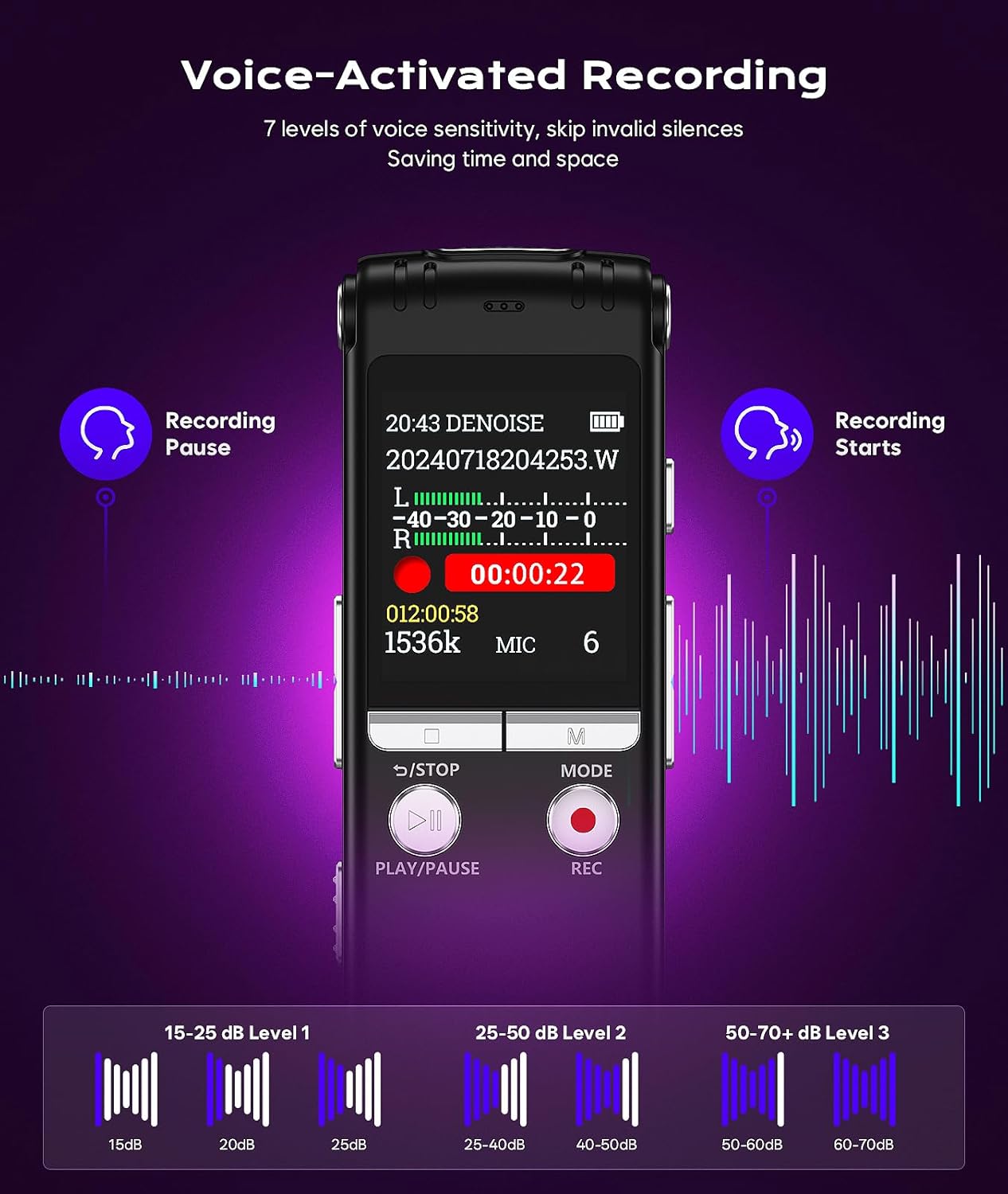
Image: Visual representation of voice-activated recording with sensitivity levels.
3. Playback
To play recordings, navigate to the 'Recordings' folder. Select the desired file and press the 'PLAY/PAUSE' button. You can adjust the volume using the side buttons.
4. File Management & Transfer
Connect the recorder to your computer using the provided USB-C cable. The device will appear as a removable disk. You can then drag and drop files to transfer them to your computer.
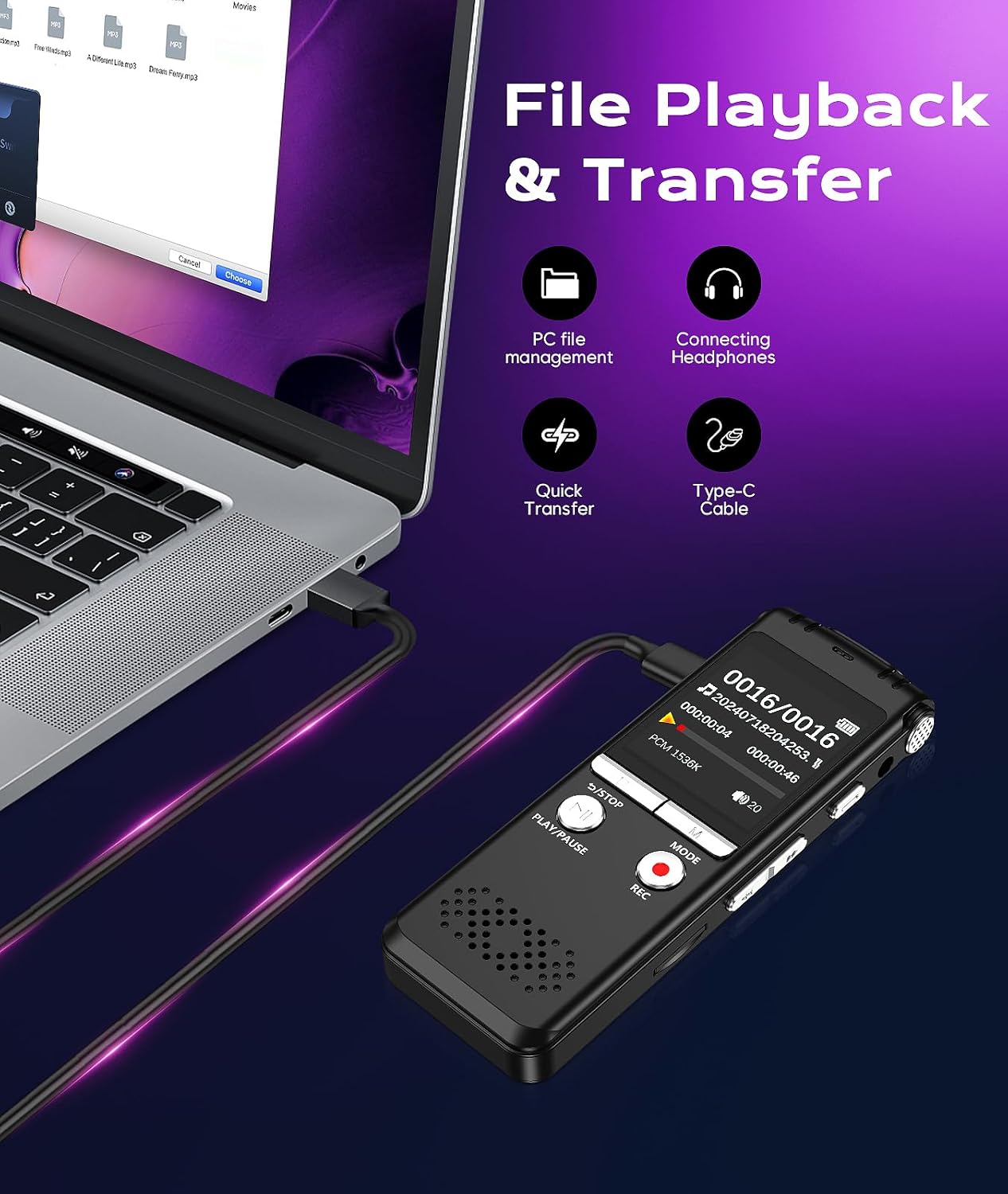
Image: Recorder connected to a laptop for file transfer.
5. Advanced Functions
- A-B Repeat: Allows you to loop a specific segment of an audio file.
- Password Protection: Set a password to prevent unauthorized access to your recordings.
- Timed Recording: Schedule recordings to start and stop at specific times.
- Automatic Shutdown: Configurable auto-power off to save battery.
- Line-in Recording: Connect external audio sources via a 3.5mm audio cable (not included) for direct recording.
- Recording Monitoring: Listen to your sound while recording to make adjustments.
- Variable Speed Playback: Adjust playback speed for easier transcription or review.

Image: A-B Repeat function display.

Image: Password protection feature display.
Maintenance
1. Battery Care
- Avoid fully discharging the battery frequently.
- Charge the device regularly, even if not in use, to maintain battery health.
- Store the device in a cool, dry place when not in use for extended periods.
2. Cleaning
- Use a soft, dry cloth to clean the exterior of the device.
- Do not use liquid cleaners or solvents, as they may damage the device.
- Keep the microphone and speaker grilles free from dust and debris.
3. Data Backup
Regularly back up your important recordings to a computer or cloud storage to prevent data loss.
Troubleshooting
| Problem | Possible Cause | Solution |
|---|---|---|
| Device does not power on. | Low battery; device frozen. | Charge the device for at least 30 minutes. If still unresponsive, perform a reset (refer to manual for reset pinhole location, if any, or hold power button for 10-15 seconds). |
| Cannot record. | Insufficient storage; recording mode not selected; microphone blocked. | Check available memory. Ensure you are in recording mode. Clear any obstructions from the microphone. |
| Poor recording quality. | Distance from source; high background noise; incorrect settings. | Move closer to the sound source. Enable noise cancellation. Adjust microphone sensitivity settings. |
| Files not transferring to PC. | Faulty cable; incorrect USB mode; driver issue. | Try a different USB-C cable. Ensure the recorder is in data transfer mode (if prompted). Try connecting to a different USB port or computer. |
Specifications
| Feature | Detail |
|---|---|
| Brand | ZIPCIDE |
| Model Number | 64GB |
| Storage Capacity | 64 GB (TF card included) |
| Digital Recording Time | Up to 4608 hours |
| Battery Life (Recording) | Up to 40 hours |
| Battery Life (Playback) | Up to 23 hours |
| Charging Time | Approx. 2 hours (USB-C) |
| Microphone Form Factor | Built-in, Dual Microphones |
| Microphone Operating Mode | Stereo, Noise Cancellation |
| Recording Format | MP3-Audio, WAV (1536Kbps) |
| Digital Media Format | MP3-Audio, WAV |
| Screen | 1.44-inch Color TFT |
| Hardware Interface | USB-C |
| Headphone Jack | 3.5 mm |
| Product Dimensions (D x W x H) | 95 x 13 x 34 Millimeters |
| Compatible Devices | Laptop, Personal Computer, Tablet |
Warranty & Support
1. Product Warranty
This product comes with a 1-year manufacturer's warranty from the date of purchase. Please retain your proof of purchase for warranty claims.

Image: ZIPCIDE brand logo.

Image: 1 Year Warranty information.
2. After-Sale Service Support
For any issues, questions, or support needs, please contact our customer service. We offer professional support and a 30-day return and exchange policy.
- 24H Professional Support: Our team is available to assist you.
- 30D Returns and Exchanges: Hassle-free policy for your satisfaction.

Image: After-sale service and support details.
Ask a question about this manual
Ask about setup, troubleshooting, compatibility, parts, safety, or missing instructions. Manuals+ will review the question and use this page’s manual context to help answer it.