
Introduction
Thank you for choosing the Weofly Active Smart Watch. This manual provides essential information for setting up, operating, and maintaining your device. Please read it carefully to ensure proper use and to maximize the features of your smartwatch.
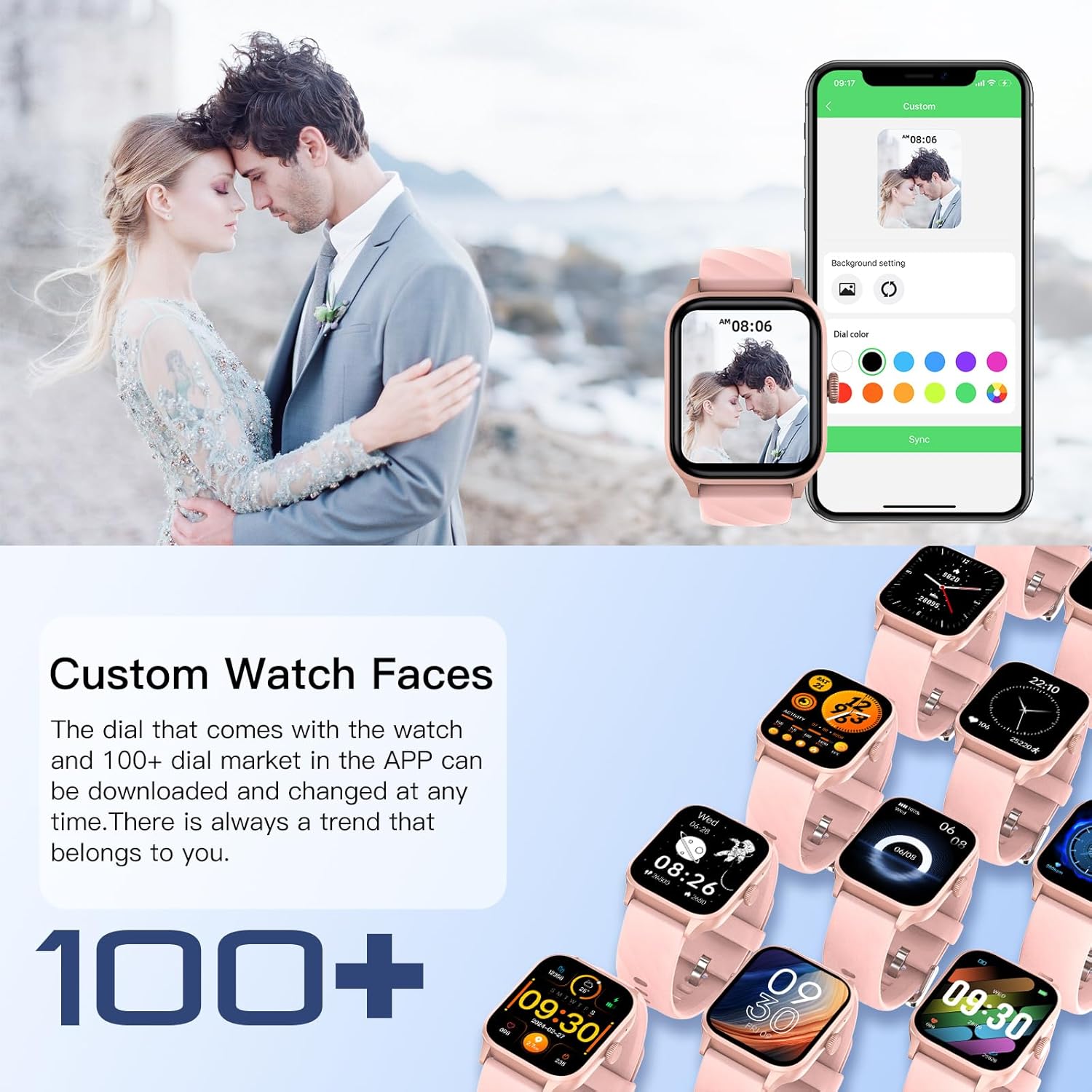
Image: Overview of the Weofly Active Smart Watch's key features, including its 1.85-inch TFT color screen, wireless calling capability, 24-hour health management, over 100 sport modes, and a 7-day battery life.
What's in the Box
Verify that all components are present in the package:
- Weofly Active Smart Watch
- Charging Cable
- User Manual (this document)
Setup
1. Charging the Device
Before first use, fully charge your smartwatch. Connect the magnetic charging cable to the charging contacts on the back of the watch and plug the USB end into a standard USB power adapter (not included).
- A full charge typically takes approximately 2.5 hours.
- The watch will display a charging indicator.
2. App Installation and Pairing
To unlock the full functionality of your Weofly Active Smart Watch, you need to install the companion application on your smartphone and pair the devices.
- Download the App: Scan the QR code provided in the quick start guide or search for the official Weofly app in your smartphone's app store (App Store for iOS, Google Play Store for Android).
- Create an Account: Open the app and follow the on-screen instructions to create a new user account or log in if you already have one.
- Pair the Watch:
- Ensure Bluetooth is enabled on your smartphone.
- Open the app and navigate to the 'Device' or 'Add Device' section.
- The app will search for available devices. Select 'Weofly Active' from the list.
- Confirm the pairing request on both your smartphone and the smartwatch.
- Complete Setup: Follow any remaining prompts in the app to set up your profile, permissions, and initial preferences.
Operating Instructions
1. Basic Navigation
The Weofly Active Smart Watch features a 1.85-inch HD touchscreen for intuitive control.
- Swipe Up/Down: Scroll through menus and notifications.
- Swipe Left/Right: Access quick functions or different data screens.
- Tap: Select an item or confirm an action.
- Side Button: Press to wake the screen, return to the home screen, or access the main menu.
2. Call Function
The smartwatch allows you to make and receive calls directly from your wrist when connected to your smartphone via Bluetooth.
- Answering Calls: When a call comes in, tap the green phone icon on the watch screen.
- Making Calls: Access the 'Phone' or 'Dialer' function on the watch to dial a number or select from recent contacts.
- Volume Adjustment: Adjust call volume directly on the watch during a call.
- Hands-Free: Utilize the watch's built-in speaker and microphone for hands-free communication.

Image: The smartwatch displaying incoming message alerts and options for answering or making calls wirelessly.
3. Sport Modes
The Weofly Active Smart Watch supports over 100 sport modes to track your physical activities.
- Accessing Sport Modes: Navigate to the 'Workout' or 'Sport' section on your watch.
- Selecting a Mode: Choose from activities such as walking, running, cycling, skipping, basketball, and more.
- Tracking Data: The watch automatically records daily exercise data including steps, distance, activity time, and calories burned.

Image: The smartwatch interface showing various sport modes and activity tracking data such as calories, steps, heart rate, SpO2, time, and distance.
4. Health Monitoring
Monitor your health with continuous tracking features.
- Heart Rate Monitoring: The watch provides 24-hour heart rate monitoring. View your current heart rate and historical data in the app.
- Blood Oxygen (SpO2): Measure your blood oxygen levels on demand or view trends in the app.
- Sleep Tracking: The watch automatically tracks your sleep patterns, including light sleep, deep sleep, and awake times. Review sleep quality analysis in the app to improve your sleep habits.

Image: The smartwatch screen showing sleep tracking data, indicating light sleep, deep sleep, and awake periods, along with total sleep duration.
5. Notifications
Receive notifications for SMS, emails, and various applications directly on your smartwatch.
- Ensure notification permissions are granted to the Weofly app on your smartphone.
- Notifications will appear on the watch screen. Swipe up or down to view them.
- Note: The watch allows viewing notifications but does not support replying to messages directly.
6. Custom Watch Faces
Personalize your smartwatch with a variety of watch faces.
- The watch comes with pre-installed watch faces.
- Access over 100 additional watch faces through the companion app's 'Dial Market'.
- You can also use your own photos to create custom watch faces.
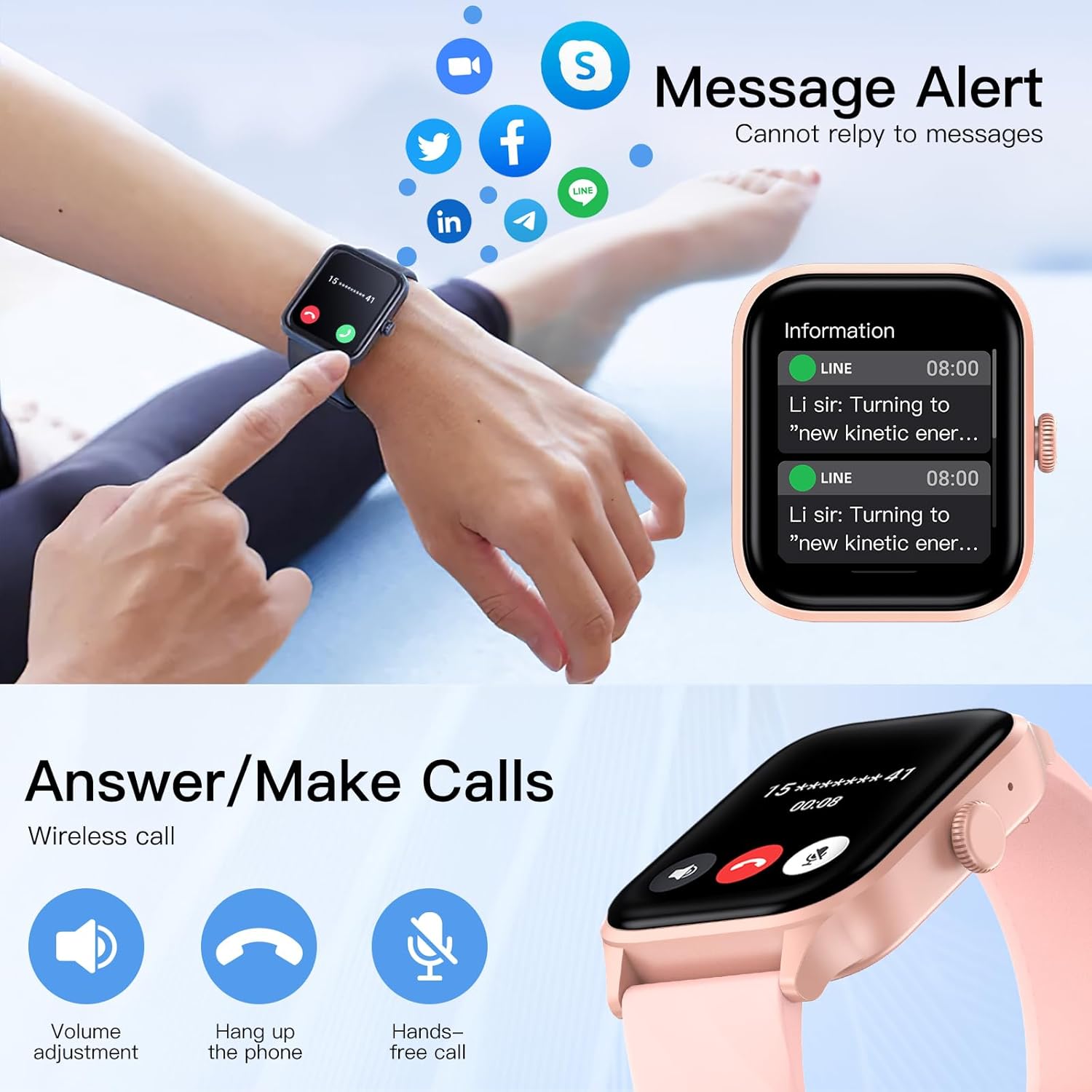
Image: The smartwatch and companion app interface showing options for customizing watch faces, including selecting from a gallery or using personal photos.
Maintenance
1. Cleaning
Regularly clean your smartwatch to ensure optimal performance and hygiene.
- Wipe the screen and watch body with a soft, lint-free cloth.
- If necessary, dampen the cloth slightly with water. Avoid using harsh chemicals or abrasive materials.
- Clean the charging contacts periodically to ensure a good connection.
2. Water Resistance (IP67)
The Weofly Active Smart Watch has an IP67 water resistance rating.
- This means it is resistant to sweat, hand washing, and rain.
- Important: Do not use the watch for swimming, diving, or showering with hot water, as this can compromise the water seal.
3. Battery Care
To prolong battery life:
- Avoid fully discharging the battery frequently.
- Charge the watch in a cool, dry environment.
- If storing the watch for an extended period, charge it to about 50% and store it in a cool, dry place.
Troubleshooting
If you encounter issues with your Weofly Active Smart Watch, try the following solutions:
- Watch not turning on: Ensure the watch is fully charged. Connect it to the charger for at least 30 minutes.
- Cannot pair with phone:
- Ensure Bluetooth is enabled on your phone and the watch.
- Make sure the watch is within range of your phone.
- Restart both your phone and the watch.
- Try unpairing and re-pairing the device through the app.
- Inaccurate health data: Ensure the watch is worn snugly on your wrist, about one finger's width from your wrist bone. Avoid excessive movement during measurements.
- Notifications not received:
- Check app notification settings on your phone and within the Weofly app.
- Ensure the watch is connected to your phone via Bluetooth.
- Disable and re-enable notifications in the app.
- Short battery life:
- Reduce screen brightness.
- Limit continuous heart rate monitoring if not needed.
- Turn off unnecessary notifications.
If problems persist, please contact Weofly customer support.
Specifications
| Brand | Weofly |
| Model Name | Active |
| Product Dimensions | 3.8 x 4.5 x 1.01 cm |
| Weight | 39 grams |
| Screen Size | 1.85 Inches |
| Display Type | TFT Touchscreen |
| Battery Capacity | 260 mAh Lithium Polymer |
| Battery Life (Normal Use) | 5-7 days |
| Standby Time | Up to 35 days |
| Charging Time | Approx. 2.5 hours |
| Memory | 128 MB |
| Connectivity | Bluetooth |
| Water Resistance | IP67 |
| Special Features | Weather forecast, Alarm clock, Call function, Activity tracker, Multisport tracker, Heart Rate, Blood Oxygen, Sleep Monitoring |

Image: Diagram illustrating the physical dimensions of the Weofly Active Smart Watch, including length, width, thickness, and strap length.
Warranty and Support
For warranty information and customer support, please refer to the warranty card included with your product or visit the official Weofly website. Keep your purchase receipt as proof of purchase.
Contact Information: Please refer to the contact details provided on the official Weofly website or your product packaging for support.


