
TOUCAN LBP08
TOUCAN 2K Wireless Outdoor Security Camera User Manual
Model: LBP08
Brand: TOUCAN
Introduction
This manual provides comprehensive instructions for the installation, operation, and maintenance of your TOUCAN 2K Wireless Outdoor Security Camera (Model LBP08). This camera is designed to enhance your home security with features such as 2K QHD video, two-way audio, PIR motion detection, and night vision, all within a durable, weatherproof design.
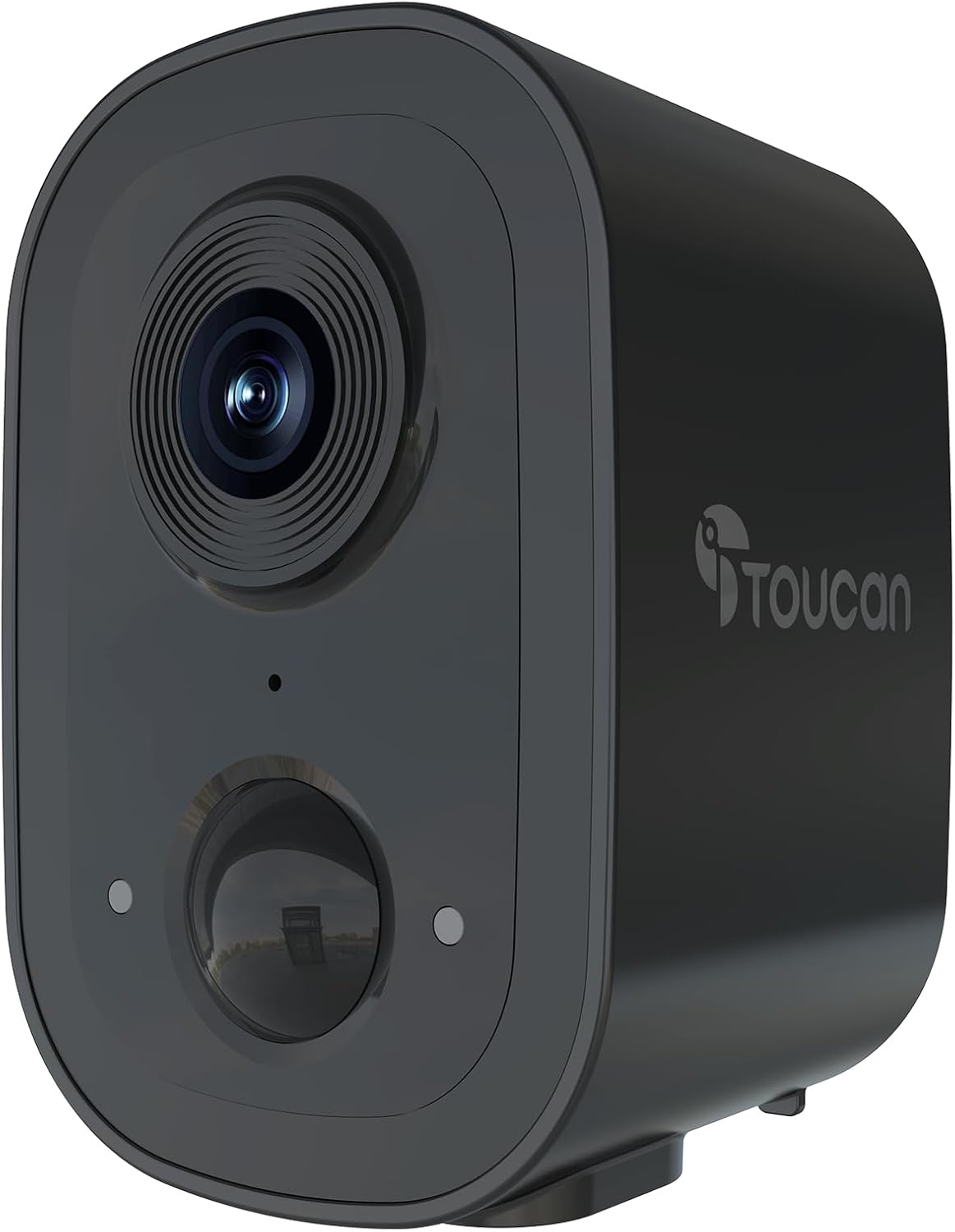
Image: Front view of the TOUCAN 2K Wireless Outdoor Security Camera, showcasing its sleek black design and lens.
What's in the Box
Please verify that all components are present before proceeding with installation:
- TOUCAN 2K Wireless Outdoor Security Camera
- Charging Cable (1m)
- Wall Mount Bracket
- 3 x Wall Screws
- 3 x Wall Anchors
- Quick Start Guide (QSG)
Setup Guide
1. Initial Charging
Before first use, fully charge the camera using the provided charging cable. Connect the cable to the camera's charging port and a standard USB power adapter (not included). The charging indicator light will provide status.
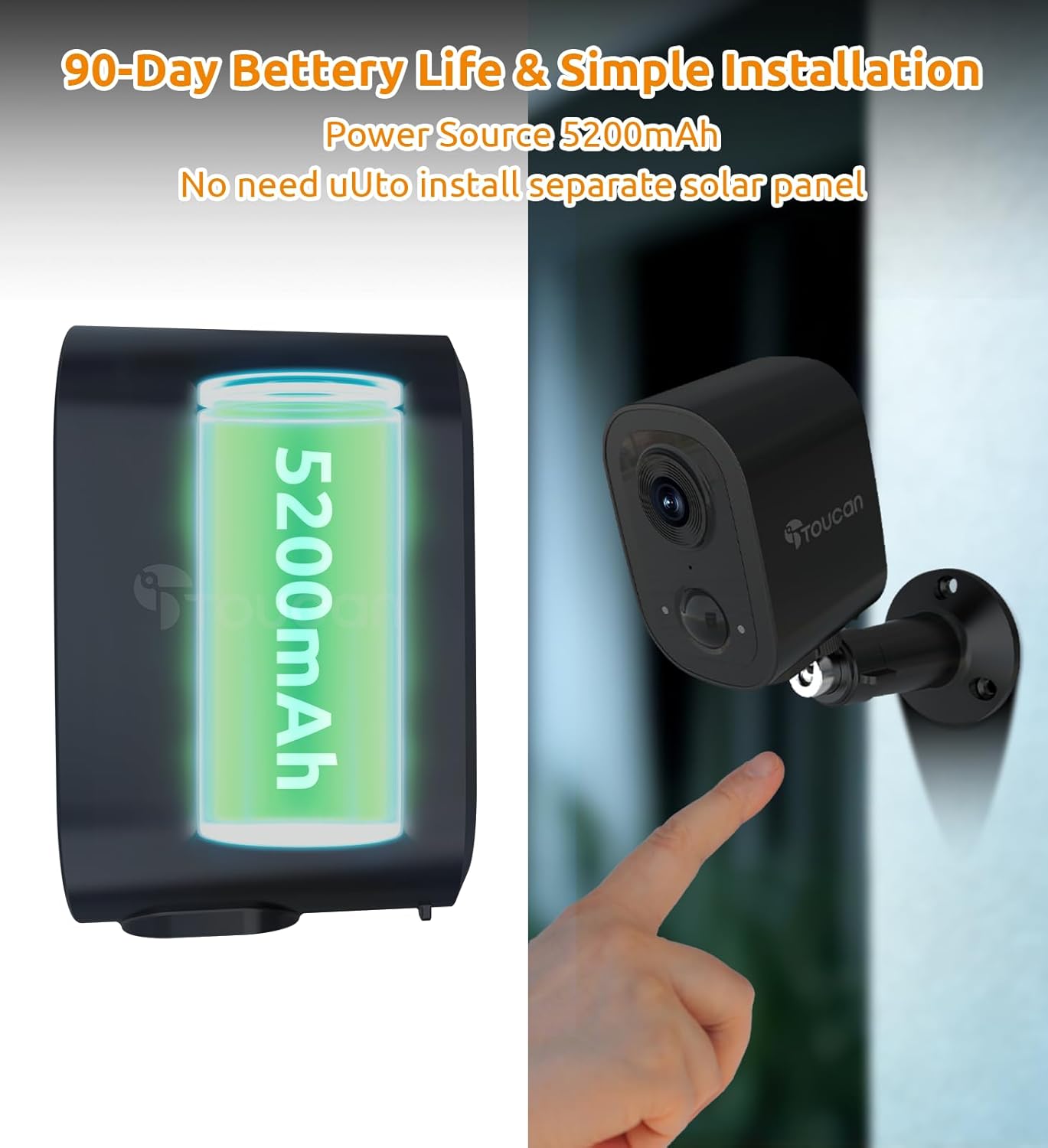
Image: Illustration showing the camera's internal 5200mAh battery and a finger pointing to the camera's mounting point, indicating simple installation.
2. App Download and Account Creation
Download the TOUCAN Smart Home App from your device's app store (iOS 11.0 or Above, Android 7 or above). Follow the in-app instructions to create an account and log in.
3. Device Pairing
- Open the TOUCAN Smart Home App and tap "Add Device" or the "+" icon.
- Select your camera model from the list.
- Follow the on-screen prompts to connect the camera to your 2.4GHz Wi-Fi network. Ensure your Wi-Fi signal is strong at the installation location.
- The app will generate a QR code. Hold your camera's lens approximately 6-8 inches (15-20 cm) in front of your phone screen until you hear a confirmation sound.
- Once paired, you can name your camera and begin live viewing.

Image: A four-panel graphic illustrating the setup process: 1) Downloading the Toucan Smart Home app, 2) Powering on the camera, 3) Scanning a QR code on the phone with the camera, and 4) Successful pairing. Below this, a three-panel graphic illustrates the mounting process: 1) Attaching the wall mount to the surface, 2) Screwing the camera onto the mount, and 3) Adjusting the camera angle.
4. Mounting the Camera
The camera can be mounted indoors or outdoors. Choose a location that provides the desired viewing angle and has a stable Wi-Fi signal.
- Mark the desired drilling points using the wall mount bracket as a template.
- Drill holes and insert the wall anchors if mounting on drywall or masonry.
- Secure the wall mount bracket to the surface using the provided screws.
- Attach the camera to the wall mount bracket by screwing it onto the threaded post.
- Adjust the camera angle for optimal coverage.
Operating Instructions
Live View and Recording
Access live video feed through the TOUCAN Smart Home App. You can manually record video or capture screenshots directly from the live view. The camera provides a wide 140-degree field of view for comprehensive coverage.

Image: A split image comparing 1080P video quality on the left with 2K HD video quality on the right, demonstrating the enhanced detail of 2K resolution in an outdoor setting.

Image: An illustration showing the TOUCAN camera mounted on a house, with a 140-degree wide-angle view highlighted, indicating broad coverage of the surrounding area.
Two-Way Audio
The camera features a built-in microphone and speaker for real-time two-way communication. Tap the microphone icon in the app's live view to speak through the camera. Noise-cancelling audio ensures clear conversations.
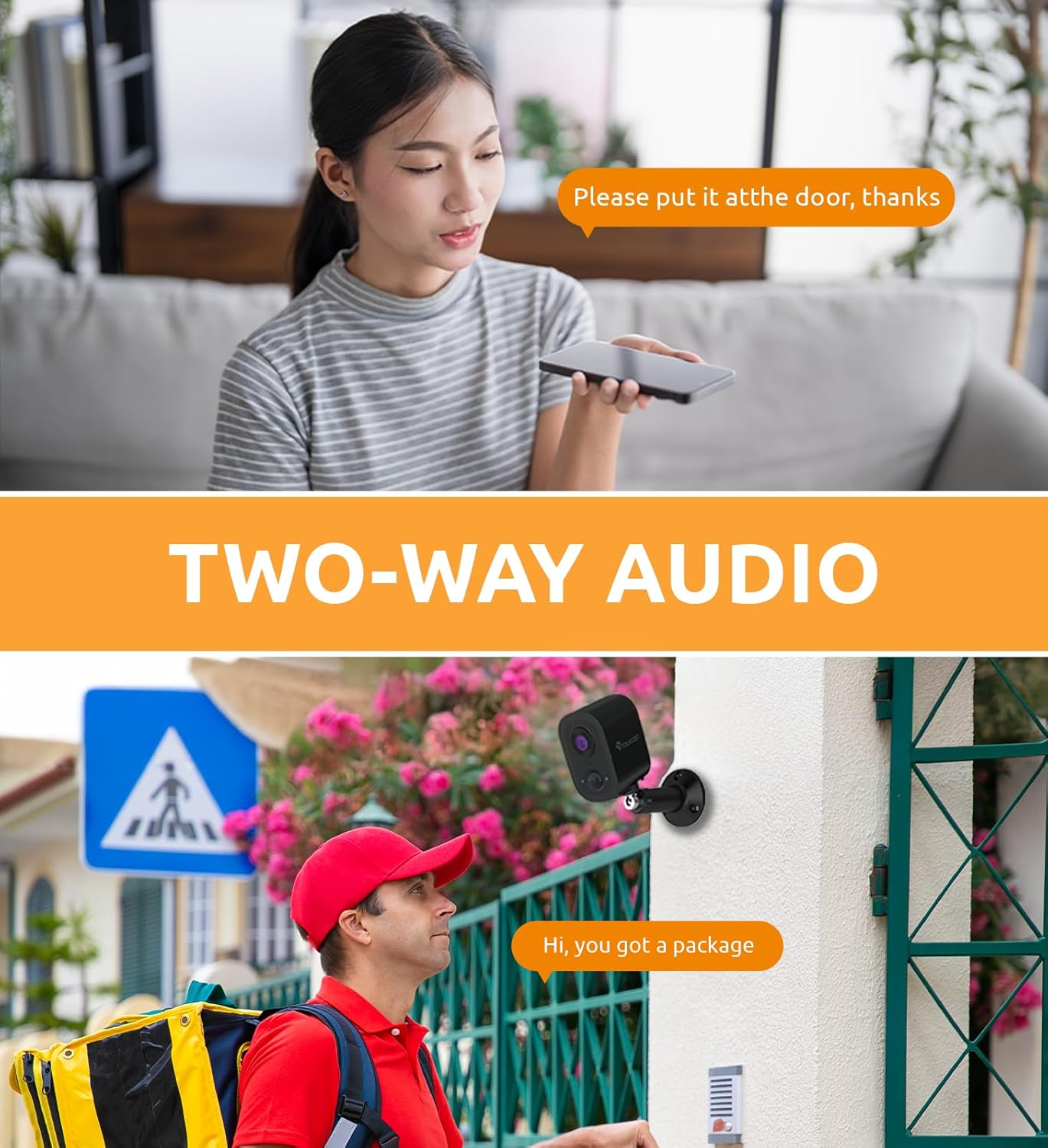
Image: A two-panel image demonstrating two-way audio. The top panel shows a woman speaking into her phone, with a speech bubble "Please put it at the door, thanks". The bottom panel shows a delivery person outside a house, with a speech bubble "Hi, you got a package", implying communication through the camera.
PIR Motion Detection
The integrated Passive Infrared (PIR) sensor detects heat signatures from people or animals, triggering instant alerts to your phone via the TOUCAN app. You can customize detection zones and sensitivity settings within the app to minimize false alarms.

Image: An outdoor scene with a person walking, highlighted by an orange detection box, demonstrating the PIR motion detection feature. A red alarm icon is visible in the corner.

Image: An outdoor scene with three children playing, with orange boxes highlighting customizable motion detection zones. A smartphone screen overlay shows a "Person Detection" notification from the Toucan app.
Night Vision
The camera automatically switches to night vision mode in low-light conditions, providing clear visibility up to a certain distance. This ensures round-the-clock protection for your property.
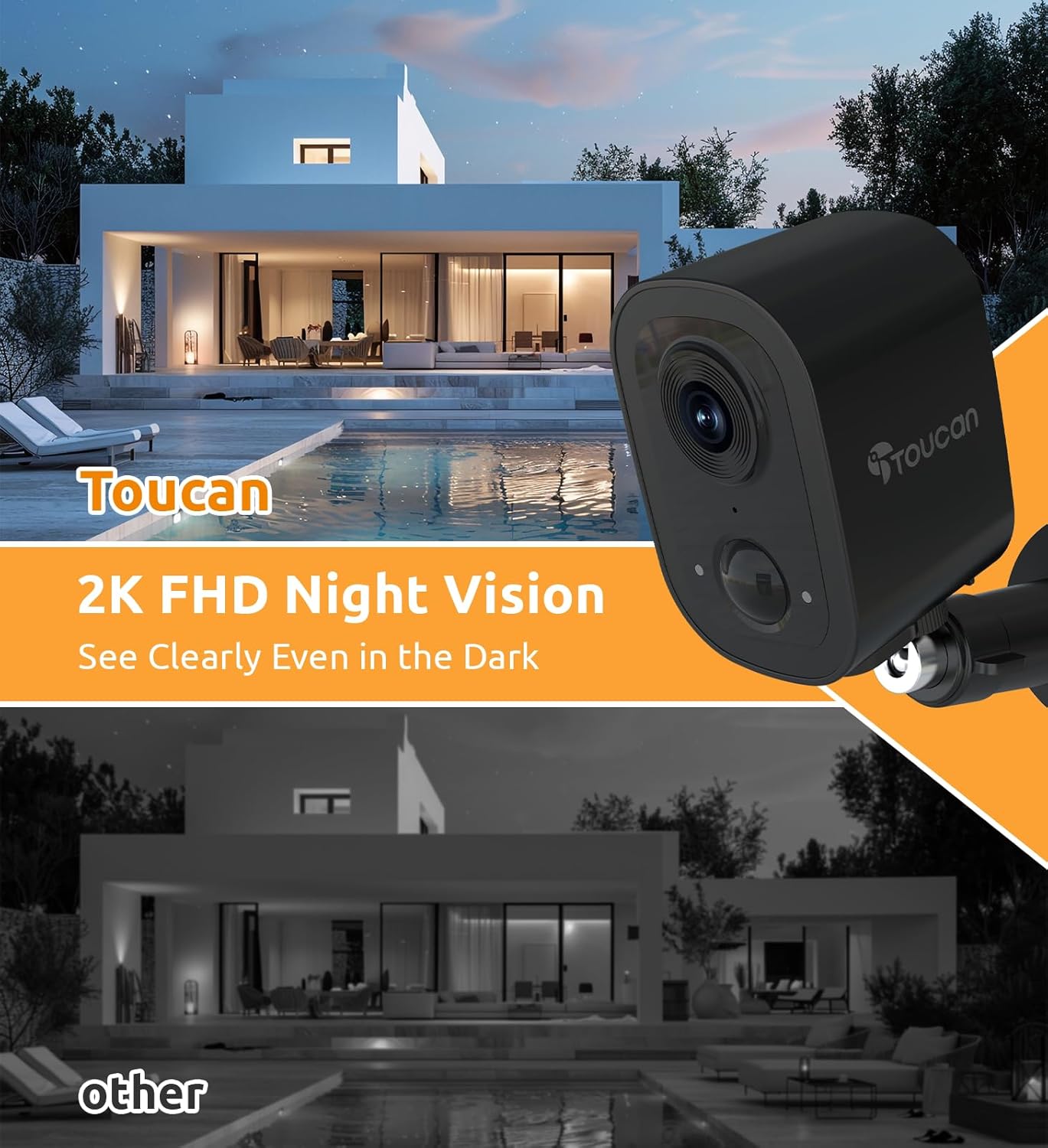
Image: A night scene of a house and pool area, with an overlay showing the TOUCAN camera and text "2K FHD Night Vision See Clearly Even in the Dark", contrasting with a darker "other" image below.
Storage Options
All video footage is encrypted. You can choose between secure cloud storage (subscription required for extended history) or local storage (if a microSD card slot is available and utilized, though not explicitly mentioned in specs for this model, it's a common feature for such cameras).
Smart Home Integration
The TOUCAN camera is compatible with Alexa and Google Home. Follow the instructions in your respective smart home app to link your TOUCAN account and enable voice commands for live view or other functions.
Maintenance
Battery Management
The camera operates on a built-in rechargeable battery. Battery life varies based on motion activity, recording frequency, and Wi-Fi signal strength. Monitor battery levels via the TOUCAN app and recharge as needed using the provided USB cable.
Cleaning
Wipe the camera lens and body with a soft, damp cloth to remove dust and debris. Do not use harsh chemicals or abrasive cleaners. Ensure the charging port cover is securely closed when not charging to maintain IP65 weather resistance.

Image: The TOUCAN camera mounted outdoors in the rain, demonstrating its IP65 weatherproof design. Icons below indicate Long Battery Life, AI Motion Detection, 1080P Color Night Vision, Cloud/SD Storage, and Multi-Users Share.
Troubleshooting
| Problem | Possible Cause / Solution |
|---|---|
| Camera won't power on. | Battery may be depleted. Charge the camera for several hours. |
| Unable to connect to Wi-Fi. |
|
| Motion detection alerts are too frequent/infrequent. | Adjust motion detection sensitivity and customize detection zones within the TOUCAN app. Ensure the camera lens is clean. |
| Poor video quality. |
|
| Two-way audio is unclear. | Ensure there is no obstruction near the microphone or speaker. Reduce background noise if possible. Check app volume settings. |
Specifications
| Feature | Detail |
|---|---|
| Model Name | LBP08 |
| Indoor/Outdoor Usage | Indoor, Outdoor |
| Video Capture Resolution | 1440p (2K QHD) |
| Connectivity Technology | Wireless (Wi-Fi 2.4GHz only) |
| Power Source | Battery Powered (12 Lithium Ion batteries included) |
| Special Feature | 2-Way Audio, PIR Motion Detection, Night Vision, IP65 Weatherproof |
| Compatible Devices | Desktop, Laptop, Smartphone (iOS 11.0+, Android 7+) |
| Mounting Type | Wall Mount |
| Product Dimensions | 3.23 x 2.19 x 2.18 inches |
| Item Weight | 10.2 ounces |
Warranty and Support
TOUCAN products are designed for reliability and performance. For warranty information, technical support, or customer service inquiries, please refer to the official TOUCAN website or contact their customer support team directly. Contact details are typically found in the Quick Start Guide or on the brand's official website.
For the latest information and support resources, please visit: www.toucansolution.com
Ask a question about this manual
Ask about setup, troubleshooting, compatibility, parts, safety, or missing instructions. Manuals+ will review the question and use this page’s manual context to help answer it.