
1. Safety Information
Operating a laser engraving machine involves potential hazards. Adhere strictly to the following safety guidelines to prevent injury or damage.
- Eye Protection: Always wear certified laser safety goggles when the machine is operating. The laser beam can cause permanent eye damage.
- Ventilation: Ensure adequate ventilation in the work area. Laser engraving and cutting can produce fumes and particles that may be harmful if inhaled.
- Fire Hazard: The laser can ignite flammable materials. Never leave the machine unattended during operation. Keep a fire extinguisher nearby.
- Material Safety: Only engrave or cut materials approved for laser processing. Avoid materials that produce toxic fumes or can catch fire easily.
- Children and Pets: Keep children and pets away from the machine during operation.
- Electrical Safety: Ensure the machine is properly grounded and connected to a stable power source. Do not operate with damaged cables or components.
2. Product Overview
The Usongshine TTS-10 PRO is a 10W diode laser engraver and cutter designed for precision work on various materials. It features a 0.06mm laser spot for fine detail and a maximum motion speed of 30000mm/min for efficient processing. The machine supports offline usage and is compatible with common laser software like LightBurn and GRBL Laser.

Image 2.1: The Usongshine TTS-10 PRO laser engraver, showcasing its design and examples of engraved items like a Christmas sign, tumblers, and wooden decorations.
3. Package Contents
Verify that all components are present upon unpacking:
- TTS-10 PRO Laser Engraver Frame Assembly
- 10W Laser Module
- Power Adapter and Cable
- USB Cable
- Safety Goggles
- Sample Materials (e.g., wood, acrylic)
- User Manual (this document)
- Tools for Assembly (e.g., wrenches, screws)
Note: This TTS-10 PRO kit does not include air assist, a rotating module, or a height raiser. These accessories may be purchased separately if required for specific applications.
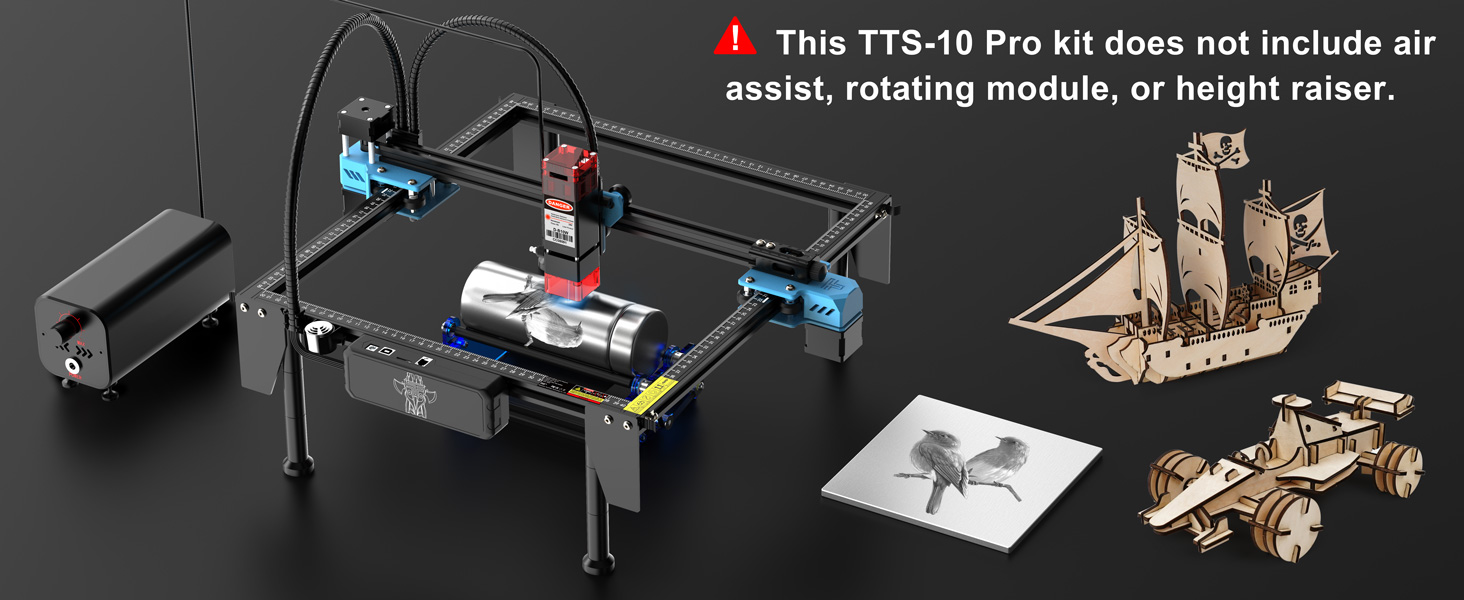
Image 3.1: An illustration of the TTS-10 PRO laser engraver, highlighting that air assist, rotating module, and height raiser are not included in the standard kit.
4. Setup
4.1 Assembly
Follow the detailed assembly instructions provided in the separate assembly guide or video. Ensure all screws are tightened securely and cables are connected correctly. The frame components typically slide together and are secured with fasteners.
4.2 Software Installation
The TTS-10 PRO is compatible with LightBurn and GRBL Laser software. Download the latest version of your preferred software from the official website. Install the software on your computer (Windows, macOS, or Linux).
4.3 Connecting the Machine
- Connect the USB cable from the machine to your computer.
- Connect the power adapter to the machine and then to a power outlet.
- Turn on the machine using the power switch.
- Open your chosen software (LightBurn or GRBL Laser) and configure the machine settings according to the software's instructions. This typically involves selecting the correct COM port and baud rate.

Image 4.1: The TTS-10 PRO laser engraver connected to various devices, illustrating its compatibility with LightBurn and GRBL Laser software on desktop and mobile platforms.
5. Operating Instructions
5.1 Material Preparation
Place the material to be engraved or cut securely on the working surface. Ensure it is flat and stable. For transparent materials like glass or clear acrylic, paint the surface black where the engraving is desired. This allows the laser to absorb and process the material effectively.
5.2 Focusing the Laser
The TTS-10 PRO features a fixed-focus laser. Adjust the height of the laser module or the material using the Z-axis lifting module (if available) to achieve the optimal focal distance. Refer to the laser module's specific instructions for precise focusing.
5.3 Software Operation
- Import your design into LightBurn or GRBL Laser.
- Adjust engraving/cutting parameters (power, speed, passes) based on the material type and desired outcome. Start with lower settings and gradually increase as needed.
- Position the design on the virtual workspace to match the material placement.
- Perform a frame test (dry run) to ensure the laser path is within the material boundaries.
- Start the engraving/cutting process. Monitor the machine closely during operation.

Image 5.1: Individuals observing the TTS-10 PRO laser engraver in operation, demonstrating typical usage in a home or workshop setting.
5.4 Air Assist (Optional)
For optimal cutting results, especially with wooden boards, it is recommended to use an air assist system. Air assist helps to blow away debris and smoke, resulting in cleaner cuts and reduced charring. This kit does not include air assist.
6. Maintenance
Regular maintenance ensures the longevity and optimal performance of your laser engraver.
- Laser Lens Cleaning: Periodically clean the laser lens with a soft, lint-free cloth and lens cleaning solution. A dirty lens can reduce laser power and engraving quality.
- Machine Frame Cleaning: Wipe down the machine frame and rails regularly to remove dust and debris.
- Belt Tension: Check the tension of the timing belts. They should be taut but not overly tight. Adjust if necessary to prevent skipping or inaccurate movement.
- Lubrication: Apply a small amount of lubricant to the linear rails and lead screws (if applicable) as recommended by the manufacturer to ensure smooth movement.
- Work Area Cleaning: Keep your work area clean and free of combustible materials.
7. Troubleshooting
Here are some common issues and their potential solutions:
| Problem | Possible Cause | Solution |
|---|---|---|
| Laser not firing or weak output | Dirty lens, incorrect focus, low power setting, loose cable. | Clean the laser lens. Adjust focus. Increase laser power in software. Check all cable connections. |
| Poor engraving/cutting quality | Incorrect speed/power, material not flat, dirty lens, loose belts. | Adjust speed and power settings. Ensure material is flat and secured. Clean lens. Check belt tension. |
| Machine not connecting to computer | Incorrect COM port, driver issue, faulty USB cable. | Verify COM port in software and Device Manager. Reinstall USB drivers. Try a different USB cable. |
| Machine makes grinding noises | Obstruction on rails, loose belts, motor issue. | Inspect rails for debris. Check belt tension. Contact support if motor issue is suspected. |
8. Specifications
Key technical specifications for the Usongshine TTS-10 PRO laser engraver:
- Laser Power: 10W (Optical Output)
- Laser Spot Size: 0.06mm (Compressed Spot)
- Motion Speed: Up to 30000mm/min
- Engraving Area: Approximately 300mm x 300mm (11.8 x 11.8 inches)
- Product Dimensions: 570mm x 510mm x 100mm (22.5 x 20 x 3.9 inches)
- Item Weight: 9.38 pounds
- Supported Materials: Wood, Metal (engraving), Acrylic, Glass (with preparation), Leather, Paper, Fabric, etc.
- Connectivity: USB, Offline (SD card)
- Software Compatibility: LightBurn, GRBL Laser
- Laser Class: 4

Image 8.1: The TTS-10 PRO laser engraver with key dimensions labeled, showing its compact footprint and working area.

Image 8.2: An illustration demonstrating the 10W laser power, capable of cutting 20mm pine board and 8mm acrylic in multiple passes.
9. Warranty Information
The Usongshine TTS-10 PRO laser engraver comes with a 2-year limited warranty from the date of purchase. This warranty covers manufacturing defects and malfunctions under normal use. It does not cover damage caused by misuse, accidents, unauthorized modifications, or consumables such as the laser diode's natural lifespan. Please retain your proof of purchase for warranty claims.
10. Customer Support
For technical assistance, troubleshooting, or warranty inquiries, please contact Usongshine customer support through the retailer where the product was purchased or visit the official Usongshine website for contact information.
Online Resources:
- Official Usongshine Store: Usongshine Amazon Store