
1. Introduction
Thank you for choosing the surmen Pink Creamy Keyboard GS98. This mechanical keyboard is designed for both gaming and office use, offering a compact 96% layout with a full number pad and advanced features. This manual provides detailed instructions for setup, operation, maintenance, and troubleshooting to ensure optimal performance and longevity of your device.

Image 1.1: The surmen Pink Creamy Keyboard GS98, showcasing its compact layout and aesthetic design.
2. Product Features
The surmen GS98 keyboard incorporates several key features for an enhanced user experience:
- 96% Compact Layout: This practical 98-key layout includes a number pad and standalone arrow keys, utilizing 20% less space compared to traditional 104-key keyboards.
- Hot-Swappable Design: The keyboard features a hot-swap PCB, allowing users to easily replace 3-pin or 5-pin switches without soldering. Keycaps are also freely replaceable.
- Gasket Structure & Sound Absorbing Foams: Equipped with an IXPE switch dampener pad and thicker sound-absorbing foams, this design reduces noise by 40% and eliminates 80% of hollow sounds, providing a creamy or thocky typing experience.
- Wired Connectivity: Experience high-speed and stable data transmission with the detachable Type-C wired connection.
- RGB Backlighting: Features 16.8 million color per-key LED backlighting with 16 distinct lighting effects to customize your setup.
- Macro Customization & N-Key Rollover: All keys support macro customization for recording and editing, and N-key rollover ensures multiple key presses are registered simultaneously, crucial for gaming.
- Multifunctional Knob: A dedicated knob provides convenient control over volume and media playback (play/pause).

Image 2.1: Overview of key features including 96% layout, massive RGB, linear switches, gasket structure, hot-swappable design, sound absorbing foam, and dye-sub PBT keycaps.

Image 2.2: Illustration of the hot-swappable feature, showing compatibility with 3-pin and 5-pin switches.
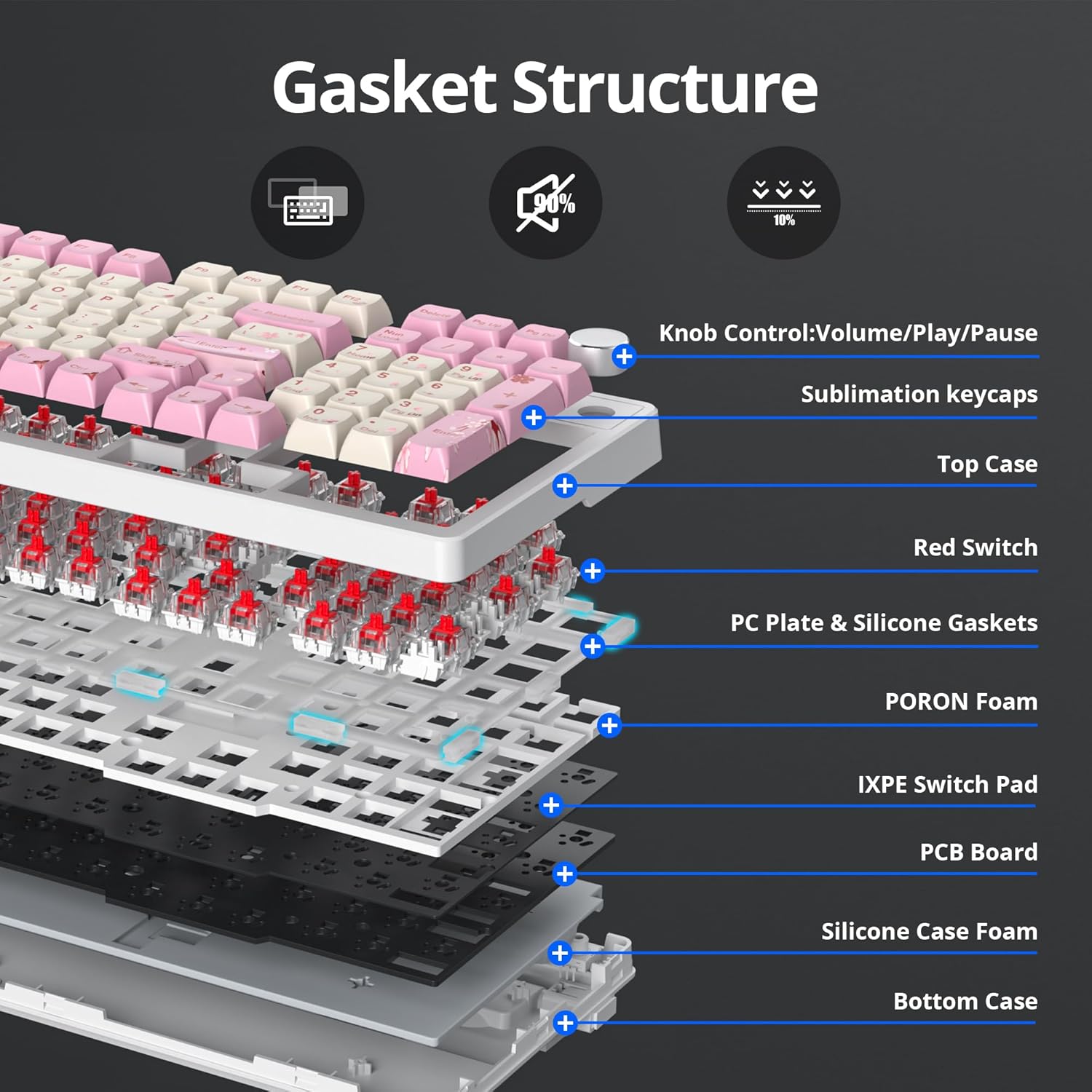
Image 2.3: Exploded view diagram detailing the gasket structure components, including sublimation keycaps, top case, red switches, PC plate & silicone gaskets, PORON foam, IXPE switch pad, PCB board, silicone case foam, and bottom case.
3. Setup Guide
Follow these steps to set up your surmen GS98 keyboard:
- Unpack the Keyboard: Carefully remove the keyboard and all accessories from the packaging. Ensure you have the keyboard, USB-C cable, and the keycap/switch puller.
- Connect the USB-C Cable: Insert the USB-C end of the provided cable into the port on the keyboard.
- Connect to Your Device: Plug the USB-A end of the cable into an available USB port on your computer (PC, laptop, or tablet).
- Initial Recognition: Your operating system should automatically detect and install the necessary drivers. The keyboard's RGB lighting will illuminate upon successful connection.
- Cable Management: The bottom case of the keyboard features grooves to direct the cable in three different directions, helping to keep your desk neat and organized.
4. Operating Instructions
4.1 Basic Typing and Layout
The GS98 features a 96% layout with 98 keys, including a full number pad and dedicated arrow keys. All standard typing functions operate as on a traditional keyboard.

Image 4.1: The 96% layout of the keyboard, highlighting the compact design while retaining a full number pad.
4.2 Multifunctional Knob
The knob located on the top right of the keyboard provides quick access to media controls:
- Rotate Clockwise: Increase volume.
- Rotate Counter-Clockwise: Decrease volume.
- Press Down: Play/Pause media.

Image 4.2: Diagram illustrating the functions of the multifunctional knob for volume control and play/pause.
4.3 RGB Lighting Control
The keyboard features 16 RGB lighting effects. Specific key combinations (often involving the 'Fn' key) are used to cycle through these effects, adjust brightness, and change speed. Refer to the quick start guide or manufacturer's software for detailed instructions on RGB customization and macro programming.
4.4 Macro Customization
The GS98 supports macro customization for all keys. This allows you to record and edit complex key sequences for gaming or productivity. Software for macro programming can typically be downloaded from the surmen official website.
5. Maintenance
5.1 Cleaning the Keyboard
To maintain the keyboard's appearance and functionality:
- Disconnect the keyboard from your computer before cleaning.
- Use a soft, lint-free cloth slightly dampened with water or a mild cleaning solution to wipe the keycaps and chassis.
- For dust and debris between keys, use compressed air or a small brush.
- Avoid using harsh chemicals or abrasive materials, as these can damage the finish.
5.2 Replacing Switches and Keycaps
The hot-swappable design allows for easy replacement of switches and keycaps:
- Use the provided keycap puller to gently remove the desired keycap.
- Use the provided switch puller to carefully grip the switch and pull it straight up to remove it from the PCB.
- Align the pins of the new switch with the holes on the PCB. Ensure the pins are straight to avoid bending.
- Gently press the new switch into place until it clicks securely.
- Place the new keycap onto the switch stem and press down firmly.
6. Troubleshooting
If you encounter issues with your surmen GS98 keyboard, refer to the following common solutions:
- Keyboard Not Responding:
- Ensure the USB-C cable is securely connected to both the keyboard and your computer.
- Try connecting the keyboard to a different USB port on your computer.
- Test the keyboard on another computer to rule out a system-specific issue.
- Restart your computer.
- RGB Lighting Not Working/Incorrect:
- Check if the lighting is turned off or set to a very low brightness level using the keyboard's function keys.
- Ensure any keyboard software is up to date and correctly configured.
- Specific Keys Not Registering:
- If a specific key is not working, it might be a faulty switch. Use the switch puller to remove the switch and inspect its pins for damage. Replace if necessary.
- Ensure the keycap is properly seated on the switch.
- Keyboard Software Issues:
- Download the latest software version from the official surmen website.
- Reinstall the keyboard software.
7. Specifications
| Feature | Detail |
|---|---|
| Layout | 96% (98 Keys) |
| Keycaps | PBT Doubleshot (OEM Profile) |
| Switches | Linear Red Switch |
| Mounting Style | Gasket Mounted |
| Dimensions | 15.2 x 5.5 inches (approx. 38.6 x 14 cm) |
| Weight | 3.19 pounds (approx. 1.45 kg) |
| Typing Angle | 6°; 11° (with feet extended) |
| RGB Backlighting | 16.8 Million Color Per-Key LED Backlighting |
| Switch Socket | 3/5 Pin Hotswap |
| Interface | USB-A |
| Cable | 4.92 ft (1.5 m); Removable USB-C to USB-A |
| Included Components | USB-C Cable, Keycap/Switch Puller |
8. Warranty and Support
8.1 Return Policy
This product is eligible for a return or replacement within 30 days of purchase. Please refer to the retailer's specific return policy for detailed instructions and conditions.
8.2 Manufacturer Support
For technical assistance, warranty claims beyond the return period, or further inquiries, please contact surmen customer support. Contact information can typically be found on the official surmen website or through your purchase documentation.