
1. Introduction
This manual provides detailed instructions for the EWO'S Rechargeable Voice Remote Control, Model EWO'S -1432A. This remote is designed to offer a seamless and enhanced control experience for your compatible Samsung Smart TV, featuring voice command capabilities and a convenient rechargeable battery.
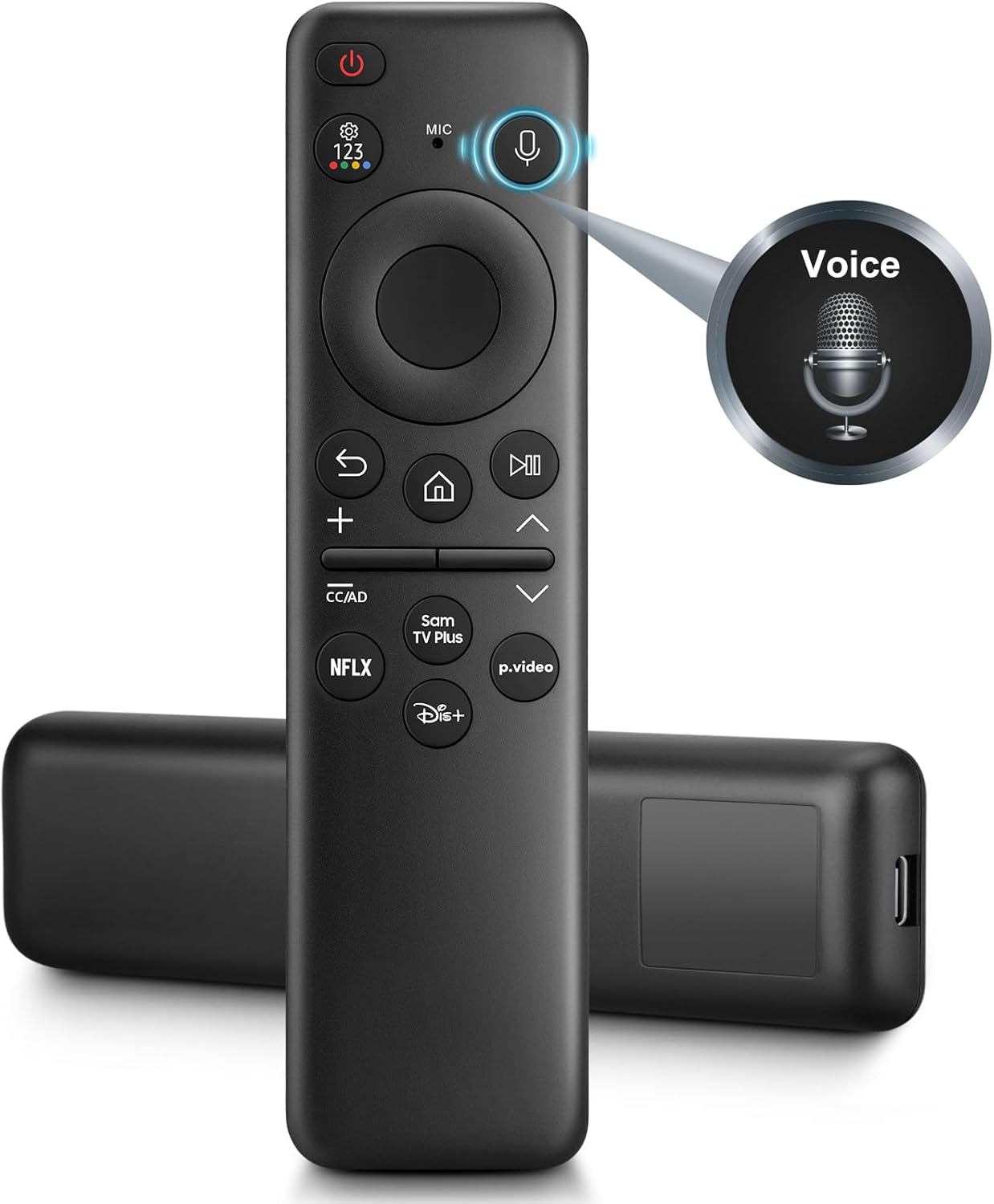
Figure 1: EWO'S Rechargeable Voice Remote Control
2. Key Features
- Voice-Controlled Functionality: Easily find content and control your TV using voice commands.
- Rechargeable Battery: Equipped with a built-in rechargeable battery and supports USB Type-C charging, eliminating the need for disposable batteries.
- Quick Access Buttons: Features dedicated shortcut buttons for popular applications, allowing one-click access.
- Wide Compatibility: Designed to work with a broad range of Samsung Smart TV models.
- Responsive Performance: Offers multi-angle signal transmission and fast response times for smooth operation.

Figure 2: USB Type-C Charging Port

Figure 3: Voice Search in Action
3. Compatibility
The EWO'S Rechargeable Voice Remote Control is compatible with a wide range of Samsung Voice Smart TV models. Please verify your TV model's compatibility before use.
3.1 Compatible Samsung TV Series:
- 8 Series, 9 Series
- CU8000, CU7000, CU8000D, DU7200, DU8000, DU6900
- TU8000, AU8000, TU8200, TU8300, TU850D, TU9000, RU8000
- G65B, G7, G70B, G85SB
- LS03, LS03B, LS03C, LS03D, LSP3B, LS24A, LS27A, LS05, LST7, LST9C
- M50C, M70B, M70C, M5, M7, M8, M80C
- Q60C, Q60D, Q70C, Q70CD, Q70D, Q80C, Q80CD, Q80D, QE1C
- QN800C, QN800D, QN850C, QN85C, QN85CD, QN85D, QN900C, QN900D, QN90C, QN90CD, QN90D, QN990C
- S9, S90C, S90D, S95C, S95D
- Q6F, Q7F, Q7C, Q8F, Q9F Series
3.2 Compatible Samsung Voice Remote Models:
This remote is compatible with models such as TM2360E BN59-01432A, BN59-01455A, TM2361E BN59-01456A, BN59-01439A, BP59-00149A, BN59-01312A, BN59-01266A, BN59-01385A, TM2281E, TM2280E, BN59-01391A, BN59-01330H, BN59-01330A, BN59-01363A, BN59-01357A. Note: This remote is not compatible with BN59-01315A and BN59-01199F.

Figure 4: Wide Compatibility with Samsung Smart TVs

Figure 5: EWO'S Remote alongside other Samsung Remote Models
4. Setup
4.1 Initial Charging
Before first use, ensure the remote is fully charged. Connect a USB Type-C charging cable (not included) to the remote's charging port. The remote has a 250mAh battery, and a full charge can last up to 1 year of continuous use with approximately 2 hours of charging.
4.2 Pairing with Your Samsung TV
The EWO'S remote is designed for easy pairing. Follow these steps:
- Ensure your Samsung TV is powered on.
- Press and hold the "Return" button (↶) and the "Play/Pause" button (⏸) simultaneously.
- Continue holding both buttons until you see the message "Pairing Complete" appear on your TV screen.
- The remote is now paired and ready for use.
If you experience issues with voice commands after initial pairing, re-pairing the remote might resolve the issue. For some Samsung 800-series models, navigate to Connection Guide → Accessories → Remote Control to pair correctly.

Figure 6: Remote Pairing Process
Video: Must Watch Before Buying Samsung Rechargeable Voice Remote
This video provides a general overview and demonstration of the Samsung rechargeable voice remote, highlighting its features and benefits.
Video: A Great Rechargeable Remote Replacement? Watch First!
A user review demonstrating the remote's functionality and ease of use as a replacement for Samsung Smart TVs.
5. Operating Instructions
The EWO'S remote features an intuitive layout for easy navigation and control of your Samsung Smart TV.
5.1 Button Functions

Figure 7: Remote Control Button Layout
- Power Button: Turns the TV on or off.
- MIC / LED: Indicates microphone activity and remote status.
- Voice Assistant: Press and hold to activate voice commands. Speak your command and release the button.
- Settings/Number/Color Button: Accesses settings menu, virtual numeric pad, or color buttons.
- Directional Buttons (Up, Down, Left, Right): Navigates menus and selections.
- Select Button: Confirms selections.
- Smart Hub / Return: Returns to the previous screen or accesses the Smart Hub.
- Play / Pause: Controls media playback.
- Volume (+/-): Adjusts volume. Press and hold to display Accessibility Shortcuts menu.
- Channel (+/-): Changes channels.
- Launch App Buttons (Netflix, Samsung TV Plus, Prime Video, Disney+): Direct access to specified streaming services.
5.2 Using Voice Control
To use the voice control feature, press and hold the Voice Assistant button (microphone icon), speak your command clearly, and then release the button. Examples include: "Turn on the sports channel," "Play some music," "Open Netflix," "Volume set to 10," or "Go home."
Video: Responsive and Rugged Samsung TV Voice Remote
This video demonstrates the responsiveness and durability of the remote, including its voice control features.
6. Maintenance
6.1 Charging the Remote
To charge the remote, connect a USB Type-C cable to the charging port located on the bottom edge of the remote. A full charge typically takes about 2 hours and can provide power for up to 1 year of continuous use. The remote includes a Lithium Ion battery.
Video: Over 1 Year Endurance, Saves You Much Spense and Time!
This video highlights the long battery life and rechargeable nature of the remote, emphasizing its convenience and cost-saving aspects.
7. Troubleshooting
7.1 Remote Not Responding
- Check Battery: Ensure the remote is sufficiently charged. Connect it to a USB Type-C charger.
- Re-pair Remote: If the remote stops responding or voice commands are not working, try re-pairing it with your TV. Press and hold the "Return" and "Play/Pause" buttons simultaneously until "Pairing Complete" appears on screen.
- Line of Sight: Ensure there are no obstructions between the remote and the TV's infrared receiver.
7.2 Voice Function Not Working
- Check TV Settings: Confirm that your Samsung TV allows voice functionality. Refer to your TV's user manual for specific settings.
- Re-pair Remote: As mentioned above, re-pairing can often resolve voice command issues.
- Speak Clearly: Ensure you are speaking clearly and directly into the remote's microphone.
8. Specifications
| Feature | Detail |
|---|---|
| Product Dimensions | 5.5 x 1.3 x 0.3 inches |
| Item Weight | 1.76 ounces |
| Item Model Number | EWO'S -1432A |
| Batteries | 1 Lithium Ion battery (included) |
| Special Features | 2 Year Warranty, Extremely Long Life, Lightweight, Rechargeable, Voice Search |
| Max Number of Supported Devices | 1 |
| Compatible Devices | Television |
| Connectivity Technology | Infrared |

Figure 8: Remote Control Dimensions
9. Warranty and Support
9.1 Warranty Information
The EWO'S Rechargeable Voice Remote Control comes with a 2-Year Warranty. Please retain your proof of purchase for warranty claims.
9.2 Customer Support
If you have any questions, encounter issues, or require further assistance with your remote control, please feel free to contact EWO'S customer support directly. We aim to respond to all inquiries within 12 hours.
For the latest support information and contact details, please visit the official EWO'S store on Amazon: EWO'S Store