
Avylet RC06
Avylet Wireless Portable Carplay Screen User Manual
Brand: Avylet | Model: RC06
Introduction
The Avylet Wireless Portable Carplay Screen is designed to enhance your driving experience by integrating advanced features such as wireless Apple CarPlay and Android Auto, a high-resolution 4K dash camera, and a 1080P backup camera. This 9.26-inch IPS touchscreen unit offers voice control, GPS navigation, mirror link capabilities, and multiple audio output options, providing a safer and more intuitive journey.

Image: Avylet Wireless Portable Carplay Screen with included accessories, showcasing the main unit, suction cup mount, phone screen displaying CarPlay/Android Auto, and a 64GB SD card.
Key Features
- Wireless Apple CarPlay & Android Auto: Seamlessly connect your smartphone via Bluetooth and Wi-Fi for navigation, music, messages, and calls.
- Front 4K + Rear 1080P Dual Camera: Capture high-quality road footage with a 4K front camera and an IP67 waterproof 1080P rear lens for comprehensive video coverage.
- Real-time Voice Control & Navigation: Utilize Siri or Google Assistant for hands-free control of navigation, messaging, and music playback.
- 9.26" IPS Touchscreen with Split-Screen & Mirror Link: Enjoy vivid 1600x600 visuals with split-screen multitasking and wireless Mirror Link for phone content display.
- Stable Multi-Channel Audio Output: Flexible sound options including Bluetooth 5.0, FM transmitter, AUX, or built-in speakers.
- Plug & Play Compatibility: Supports 12–32V power input via Type-C, compatible with various vehicles without complex installation.
- Loop Recording + G-Sensor: Ensures critical moments are captured and protected from overwriting with automatic impact detection.
- Custom Boot Logo: Personalize your device with a custom startup logo.

Image: Diagram illustrating the 4K front camera and 1080P rear camera capabilities, including wide 170-degree viewing angles and split-screen display for simultaneous views.

Image: Visual representation of the four audio output modes: Bluetooth, AUX, FM transmitter, and built-in speakers, showing how audio can be transmitted to the car's stereo system.
Package Contents
Verify that all items listed below are included in your package:
- 9.26'' Portable Wireless Carplay Screen with 4K Front Camera
- 1080p Rear Camera
- 64GB Memory Card (pre-inserted into the card slot)
- Adhesive Bracket
- Suction Cup Bracket
- Spare Adhesive / Accessories
- User Manual (in 6 languages)
- Type-C to Cigarette Lighter Power Cable (11.5ft)
- AUX Audio Cable (5ft)

Image: An overhead view of all components included in the Avylet Wireless Portable Carplay Screen package, neatly laid out.
Setup
Installation Methods
The Avylet Carplay Screen offers flexible installation options to suit your vehicle's dashboard or windshield.

Image: Depiction of three primary installation methods: Adhesive Bracket, Windshield Installation, and Suction Cup Bracket, showing the device mounted in different positions within a car interior.
Quick Installation Guide - Suction Cup Bracket
- Clean the surface: Ensure the dashboard or windshield surface is clean and dry.
- Stick adhesive pad: Peel off the protective film from the adhesive pad and stick it to the desired location. Allow it to sit for 24 hours for optimal adhesion.
- Peel off suction cup transparent film: Remove the protective film from the suction cup.
- Press firmly and lock: Press the suction cup firmly onto the adhesive pad and engage the locking mechanism.
- Attach the screen: Align the screen with the bracket and securely attach it.
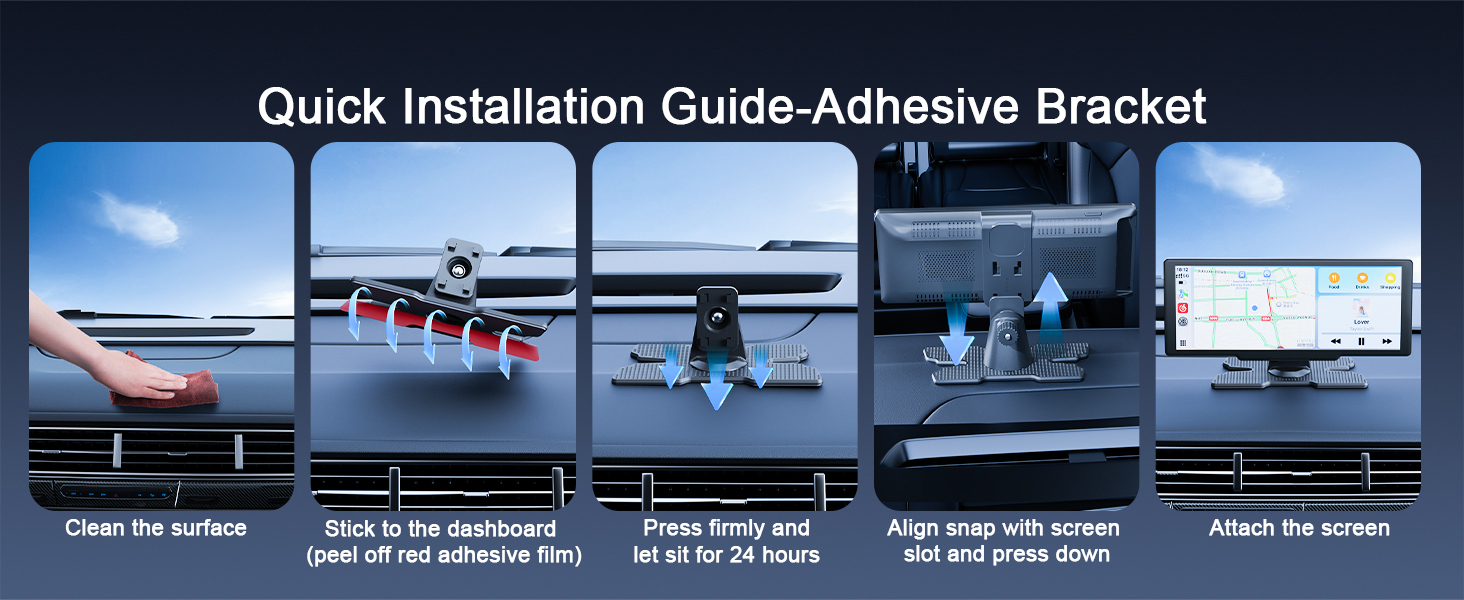
Image: Step-by-step visual guide for installing the device using the suction cup bracket, from cleaning the surface to attaching the screen.
Quick Installation Guide - Adhesive Bracket
- Clean the surface: Ensure the dashboard surface is clean and dry.
- Stick to the dashboard: Peel off the red adhesive film from the bracket and firmly stick it to the dashboard. Allow it to sit for 24 hours for optimal adhesion.
- Align snap with screen slot and press down: Align the screen's slot with the bracket's snap and press down to secure.
- Attach the screen: Ensure the screen is firmly attached to the bracket.
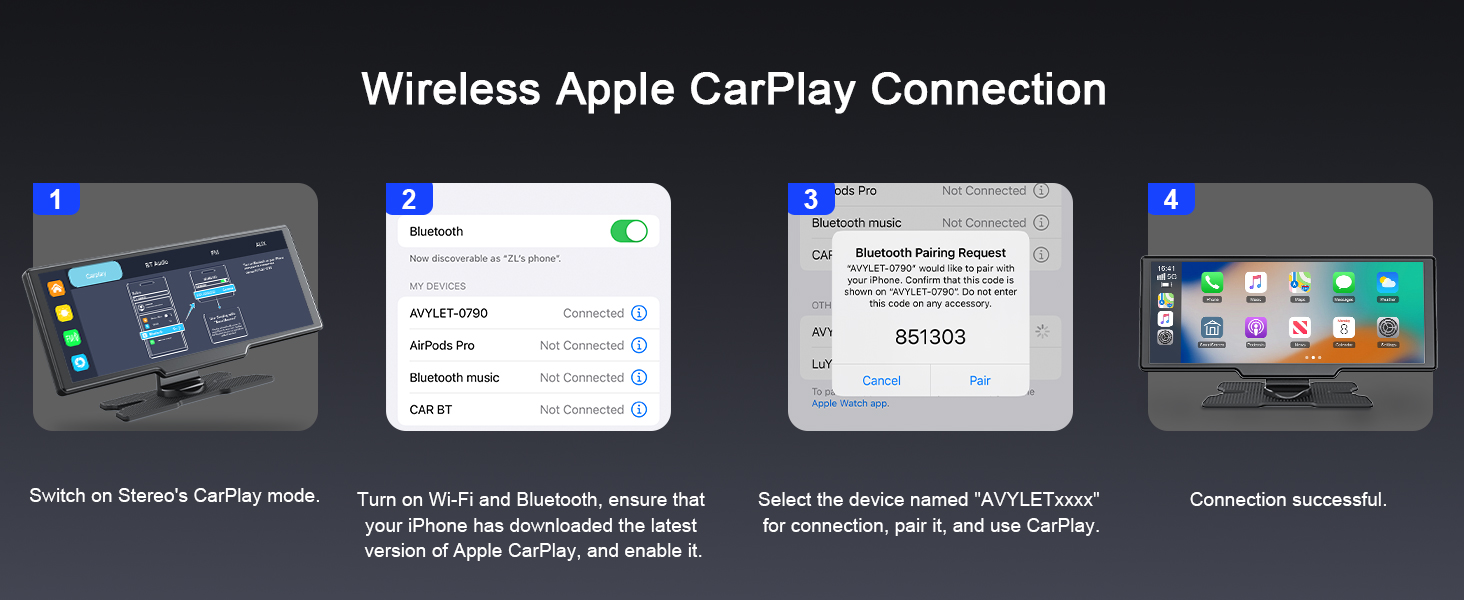
Image: Step-by-step visual guide for installing the device using the adhesive bracket, showing the process from cleaning the surface to attaching the screen.
Rear Camera Installation
For the 1080P rear camera, connect the camera's red wire to the positive terminal of your vehicle's reverse light. This will activate the display of guidelines on the screen for safer parking when reversing.
Operating Instructions
Wireless Apple CarPlay Connection
- Switch the Carplay Screen to CarPlay mode.
- On your iPhone, turn on Wi-Fi and Bluetooth. Ensure you have the latest version of Apple CarPlay enabled.
- Select the device named "AVYLETxxxx" from your iPhone's Bluetooth settings, pair it, and confirm the pairing request.
- Connection successful. CarPlay will now be displayed on the screen.
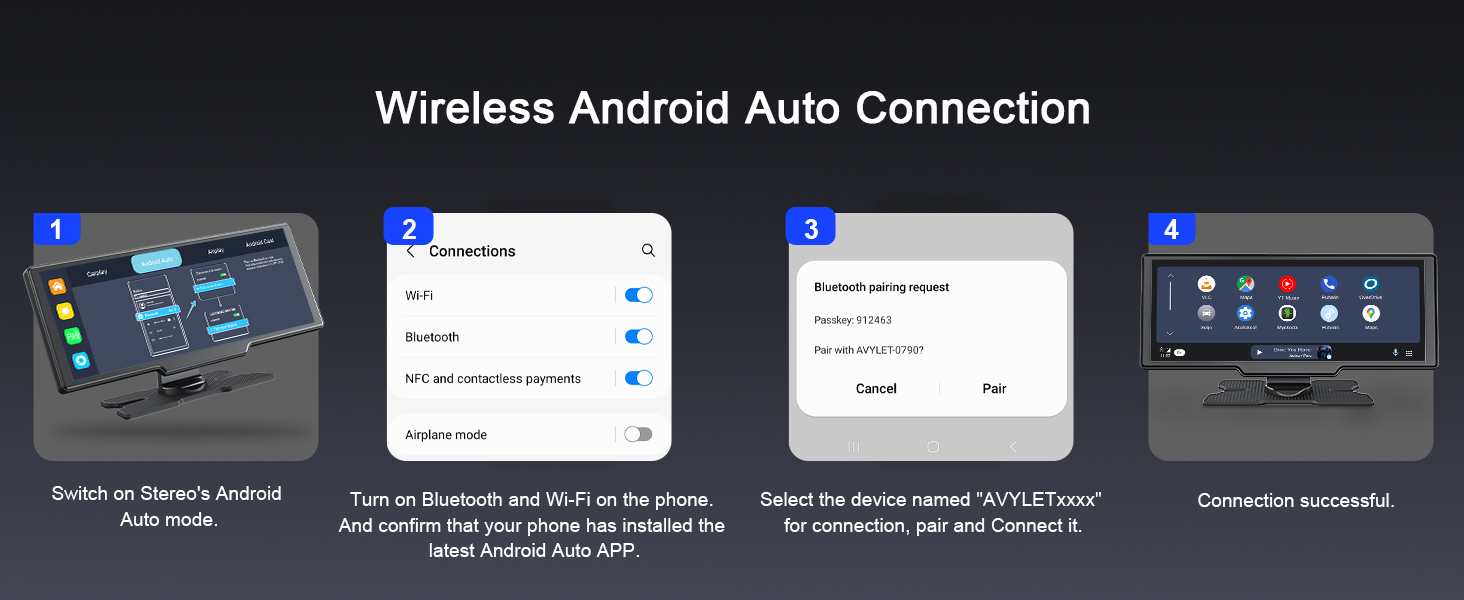
Image: Step-by-step visual guide for connecting an iPhone to the Carplay Screen via wireless Apple CarPlay, showing the device interface and phone settings.
Wireless Android Auto Connection
- Switch the Carplay Screen to Android Auto mode.
- On your Android phone, turn on Wi-Fi and Bluetooth. Confirm that you have the latest Android Auto app installed.
- Select the device named "AVYLETxxxx" from your Android phone's Bluetooth settings, pair it, and connect.
- Connection successful. Android Auto will now be displayed on the screen.

Image: Step-by-step visual guide for connecting an Android phone to the Carplay Screen via wireless Android Auto, showing the device interface and phone settings.
Wireless Phone Screen Mirroring (Mirror Link)
The device supports both AirPlay for iOS and Android Cast for Android devices.
AirPlay (iOS)
- Switch the Carplay Screen to AirPlay mode.
- On your iPhone, connect to the Wi-Fi network named "AIRPLAY-xxxxxx".
- Turn on Screen Mirroring from your iPhone's Control Center and select the device.
- Connection successful. Your iPhone screen will be mirrored.
Android Cast
- Switch the Carplay Screen to Android Cast mode.
- Turn on Wi-Fi on your Android phone and connect to the device named "CARLINK-xxxxxx" in the TClink app. You may need to download the TClink app by scanning a QR code displayed on the screen.
- Start recording or casting from your phone and select "Start Now".
- Connection successful. Your Android phone screen will be mirrored.

Image: Step-by-step visual guide for wireless phone screen mirroring (AirPlay for iOS and Android Cast), showing the connection process and mirrored display.
Voice Control
Once connected to Apple CarPlay or Android Auto, you can use voice commands via Siri or Google Assistant for various functions:
- Navigation: "Hey Siri, give me directions to the airport." or "Hey Google, navigate to home."
- Calling: "Hey Siri, call Eliza's mobile." or "Hey Google, call Kevin."
- Messaging: "Hey Siri, text Emma 'On my way'." or "Hey Google, send a message to Liam."
- Music: "Hey Siri, play music." or "Hey Google, play my driving playlist."

Image: A driver's perspective showing the Carplay Screen displaying navigation, with examples of voice commands for calling, messaging, and music.
Audio Output Modes
The device supports multiple audio output methods to integrate with your car's audio system:
- Bluetooth 5.0: Transmit audio wirelessly to your car's stereo if it has Bluetooth functionality.
- FM Transmitter: Tune both the Carplay Screen and your car's stereo to the same unused FM frequency.
- AUX: Connect the Carplay Screen to your car's AUX input using the provided AUX audio cable.
- Built-in Speakers: The device has its own integrated speakers for audio playback.
Maintenance
To ensure the longevity and optimal performance of your Avylet Carplay Screen, follow these maintenance guidelines:
- Cleaning: Use a soft, lint-free cloth to clean the screen and exterior. For stubborn smudges, slightly dampen the cloth with water or a screen-safe cleaner. Avoid abrasive materials or harsh chemicals.
- Temperature: Avoid exposing the device to extreme temperatures (hot or cold) for extended periods, as this can affect battery life and screen performance.
- Storage: If storing the device for a long time, keep it in a cool, dry place away from direct sunlight.
- Cable Management: Ensure all cables are properly routed and not pinched or tangled to prevent damage.
Troubleshooting
Here are solutions to common issues you might encounter:
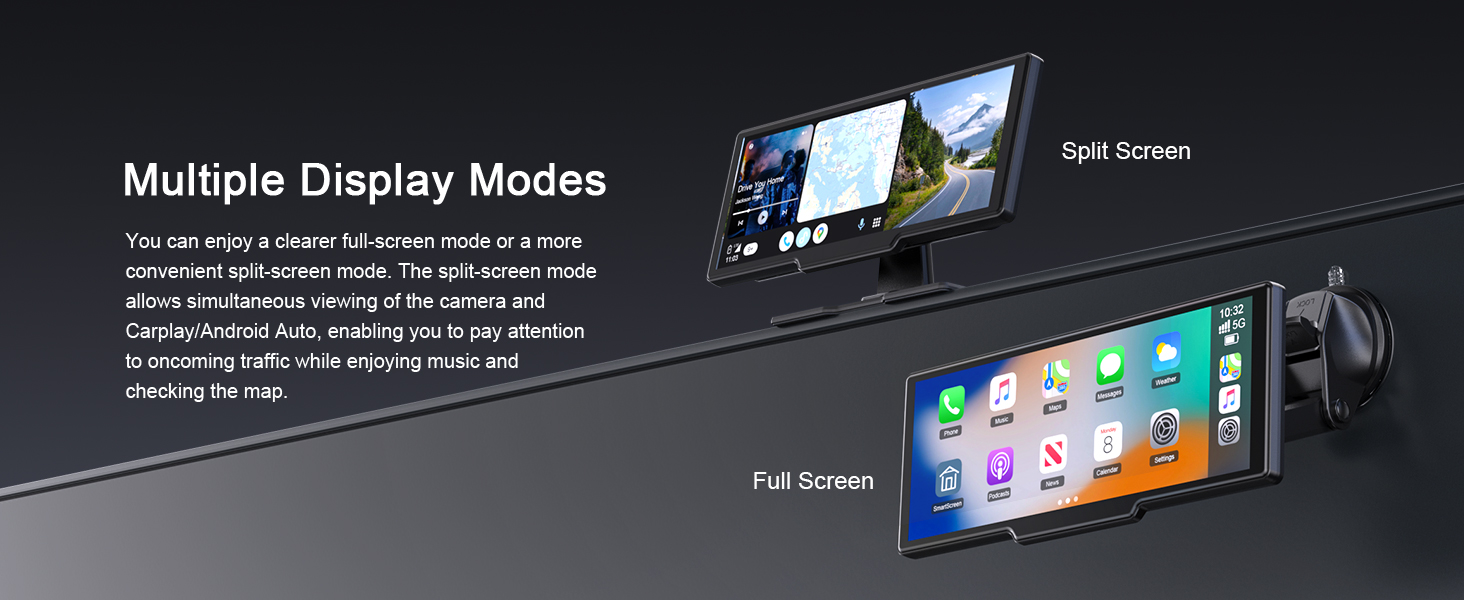
Image: A visual representation of common questions and answers regarding the Avylet Carplay Screen, including compatibility, freezing issues, and rear camera wiring.
| Issue | Solution |
|---|---|
| Carplay screen occasionally freezes. |
|
| When installing a rearview camera, how do I connect the red wire? | When reversing, simply connect the camera's red wire to the positive terminal of the reverse light. This will activate the display of guidelines on the camera for safer parking. |
| Device does not power on. | Ensure the Type-C to Cigarette Lighter Power Cable is securely plugged into both the device and the vehicle's cigarette lighter socket. Check if the vehicle's cigarette lighter socket is receiving power. |
| No audio output. | Verify the selected audio output mode (Bluetooth, FM, AUX, Built-in Speakers) is correctly configured. If using FM, ensure both the device and car stereo are on the same unused frequency. Check volume levels on both the device and car stereo. |
Specifications
| Feature | Detail |
|---|---|
| Brand | Avylet |
| Model | RC06 |
| Screen Size | 9.26 Inches |
| Screen Resolution | 1600x600 (IPS Touchscreen) |
| Front Camera Resolution | 4K |
| Rear Camera Resolution | 1080P (IP67 Waterproof) |
| Included Memory Card Size | 64 GB (Supports up to 256GB) |
| Connectivity Technology | Bluetooth 5.0, Wi-Fi, FM Transmitter, AUX, USB |
| Compatible Devices | Smartphone (iOS/Android), Car Stereo |
| Power Input | 12–32V (via Type-C to Cigarette Lighter Cable) |
| Special Features | Apple CarPlay/Android Auto/Mirror Link, Real-time GPS Navigation/Voice Control/Hands-Free Calling, Auto Brightness Adjust, Loop Recording, G-Sensor, Boot Logo Customisation |
| Product Dimensions | 21 x 4 x 8 cm; 436 g |
Warranty and Support
Your Avylet Wireless Portable Carplay Screen includes a 1-year warranty and lifetime technical support.
For fast assistance, please visit Avylet.com or refer to the contact information provided in your product package. Inquiries are typically answered within 12 hours to ensure a smooth setup and user experience.
Ask a question about this manual
Ask about setup, troubleshooting, compatibility, parts, safety, or missing instructions. Manuals+ will review the question and use this page’s manual context to help answer it.