
Introduction
This manual provides detailed instructions for the safe and efficient operation of your RetroAudio Portable Bluetooth CD Player, Model CD-001. Please read this manual thoroughly before using the device and retain it for future reference.
Product Overview
The RetroAudio CD-001 is a versatile portable CD player designed for home use, featuring multiple playback options and a retro aesthetic. It combines modern technology with a classic design, offering a comprehensive audio experience.
Key Features:
- All-In-One Functionality: Portable rechargeable CD player, unique spectrum light, Bluetooth 5.0 Receiver, Bluetooth wireless transmitter, USB flash drive music player, and 3.5mm Aux out jack.
- Design: Features a transparent dust cover, exquisite appearance, and special spectrum lights that synchronize with music.
- Bluetooth Connectivity: Supports both Bluetooth input (receiving audio from smartphones/tablets/laptops) and Bluetooth output (transmitting audio to Bluetooth speakers or headphones in CD mode).
- Portability: Equipped with a 4000mAh large-capacity battery for extended use, supporting simultaneous charging and playback. Compact size for easy transport.
- User-Friendly: Includes comfortable control buttons and a wireless remote control. Compatible with multiple formats: CD, CD-R, CD-RW, MP3, WMA.

Figure 1: The RetroAudio CD Player highlighting its multifunctional capabilities including CD playback, HiFi sound, USB port, Type-C charging, spectrum light, Bluetooth in & out, headphone jack, and 4000mAh battery.

Figure 2: The CD Player emphasizing its HIFI Stereo Sound with dual speakers and compatibility with CD, CD-R, CD-RW, MP3, and WMA formats.
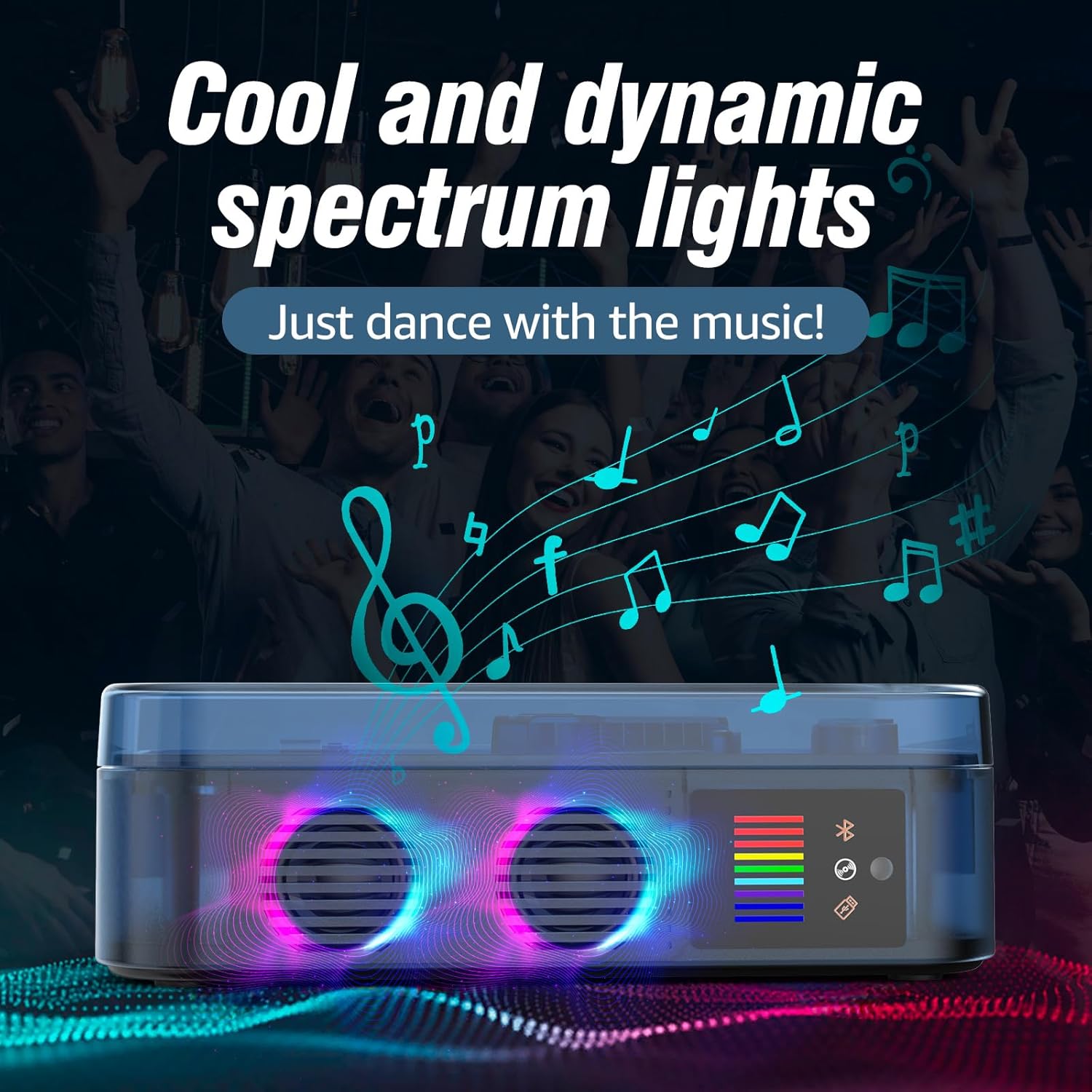
Figure 3: The CD Player showcasing its cool and dynamic spectrum lights that dance with the music.
What's in the Box
Please check the package contents upon receipt to ensure all items are present:
- RetroAudio CD Player (Model CD-001)
- Wireless Remote Control
- Type-C Charging Cable
- User Manual (this document)
Component Identification
Familiarize yourself with the various parts and controls of your CD player:

Figure 4: Detailed diagram of the CD player's controls and ports. Key components include: (1) Tone Arm (Switch), (2) Change Mode button, (3) Previous Song button, (4) Pause button, (5) Next Song button, (6) Volume Knob, (7) Mode Display, (8) Remote Control Receiver, (9) Spectrum Light. Side ports include USB Input Port, AUX OUT, and Type-C Charging Port. The concave buttons are designed for comfortable pressing.
Remote Control:
The included wireless remote control allows for convenient operation from a distance. It requires 2 AA batteries (not included).

Figure 5: The CD Player shown with its wireless remote control, which enables switching songs or modes from a distance.
Setup
Charging the Battery:
The CD player has a built-in 4000mAh Lithium Ion battery. Before first use, fully charge the device using the provided Type-C charging cable. Connect the cable to the Type-C Charging Port on the side of the unit and plug the other end into a compatible USB power adapter (not included). The device supports simultaneous charging and playback.

Figure 6: The CD Player highlighting its 4000mAh rechargeable battery, providing approximately 2.5 hours of playback time.
Powering On/Off:
To power on the device, rotate the Volume Knob (6) clockwise. To power off, rotate it counter-clockwise until it clicks.
Operating Instructions
1. CD Playback:
- Open the transparent dust cover.
- Place a CD (CD/CD-R/CD-RW/MP3/WMA format) onto the spindle.
- Close the dust cover.
- Ensure the Tone Arm (1) is in the playing position.
- The player will automatically detect the CD and begin playback. If not, press the Play/Pause button (4) or select 'CD Mode' using the Change Mode button (2) or remote.
- Use the Volume Knob (6) to adjust the volume.
- Use the Previous Song (3) and Next Song (5) buttons to navigate tracks.
2. Bluetooth Mode (Receiving):
- Press the Change Mode button (2) or the mode button on the remote until 'Bluetooth Mode' is announced or displayed.
- On your external device (smartphone, tablet, laptop), enable Bluetooth and search for 'RetroAudio CD-001'.
- Select the device to pair. Once paired, you can stream audio from your device to the CD player's speakers.

Figure 7: The CD Player illustrating its Bluetooth receiving and transmitting functions, allowing connection to various devices like headphones, PCs, laptops, tablets, smartphones, and external speakers.
3. Bluetooth Mode (Transmitting):
In CD mode, the player can transmit audio to external Bluetooth speakers or headphones.
- Ensure your Bluetooth speakers/headphones are in pairing mode.
- While in CD mode, activate the Bluetooth transmitting function (refer to specific remote control instructions if available, or consult the device's full manual for detailed steps).
- The CD player will search for and connect to nearby Bluetooth audio devices.
4. USB Playback:
- Insert a USB flash drive into the USB Input Port on the side of the unit.
- Press the Change Mode button (2) or the mode button on the remote until 'USB Mode' is announced or displayed.
- The player will automatically detect and begin playing audio files from the USB drive.
- Use the control buttons or remote for playback control.
5. AUX Out:
Connect external audio devices (e.g., headphones, external speakers) using a 3.5mm audio cable (not included) to the AUX OUT port for private listening or enhanced sound.
Maintenance
Cleaning:
- Wipe the exterior of the unit with a soft, dry cloth.
- Do not use abrasive cleaners or solvents.
- Keep the CD compartment free of dust and debris. Use a soft brush or compressed air if necessary.
Battery Care:
- To prolong battery life, avoid fully discharging the battery frequently.
- Charge the device regularly, even if not in use, to maintain battery health.
- Store the device in a cool, dry place when not in use for extended periods.
Troubleshooting
| Problem | Possible Cause | Solution |
|---|---|---|
| CD not playing / Disc error | Disc is dirty, scratched, or inserted incorrectly. Incorrect mode selected. | Clean the CD with a soft cloth. Reinsert the CD correctly. Ensure 'CD Mode' is selected. Try a different CD. |
| No sound | Volume is too low or muted. External device not connected properly (AUX/Bluetooth). | Increase volume using the knob or remote. Check AUX cable connection. Re-pair Bluetooth device. |
| Bluetooth not connecting | Device is out of range. Bluetooth mode not active. Pairing failed. | Ensure devices are within 10 meters. Select 'Bluetooth Mode' on the CD player. Restart both devices and try pairing again. |
| USB drive not recognized | USB drive not inserted correctly. Incompatible file format. | Reinsert USB drive. Ensure files are in MP3/WMA format. |
| Remote control not working | Batteries are dead or inserted incorrectly. Obstruction between remote and player. | Replace batteries (2 AA). Ensure clear line of sight to the remote control receiver. |
Specifications
- Model Number: CD-001
- Brand: RetroAudio
- Connectivity: Bluetooth 5.0, USB, AUX Out
- Supported Disc Formats: CD, CD-R, CD-RW, MP3, WMA
- Battery: 4000mAh Lithium Ion (included)
- Charging Port: Type-C
- Item Weight: 2.64 pounds
- Package Dimensions: 10 x 8 x 3 inches
- Special Feature: Portable, LED Spectrum Light
Warranty and Support
For warranty information and customer support, please refer to the documentation included with your purchase or contact RetroAudio customer service. Keep your proof of purchase for any warranty claims.