
AOGUERBE C01
AOGUERBE Wireless CarPlay Adapter C01 User Manual
Model: C01
1. Introduction
The AOGUERBE Wireless CarPlay Adapter C01 is designed to convert your vehicle's factory-wired CarPlay system into a wireless experience. This adapter provides a seamless and convenient connection for Apple iPhone users (iOS 10+), allowing access to navigation, music, calls, and voice assistants without the need for a physical cable connection to your car's infotainment system. It is compatible with most vehicles equipped with wired CarPlay from 2017 onwards.
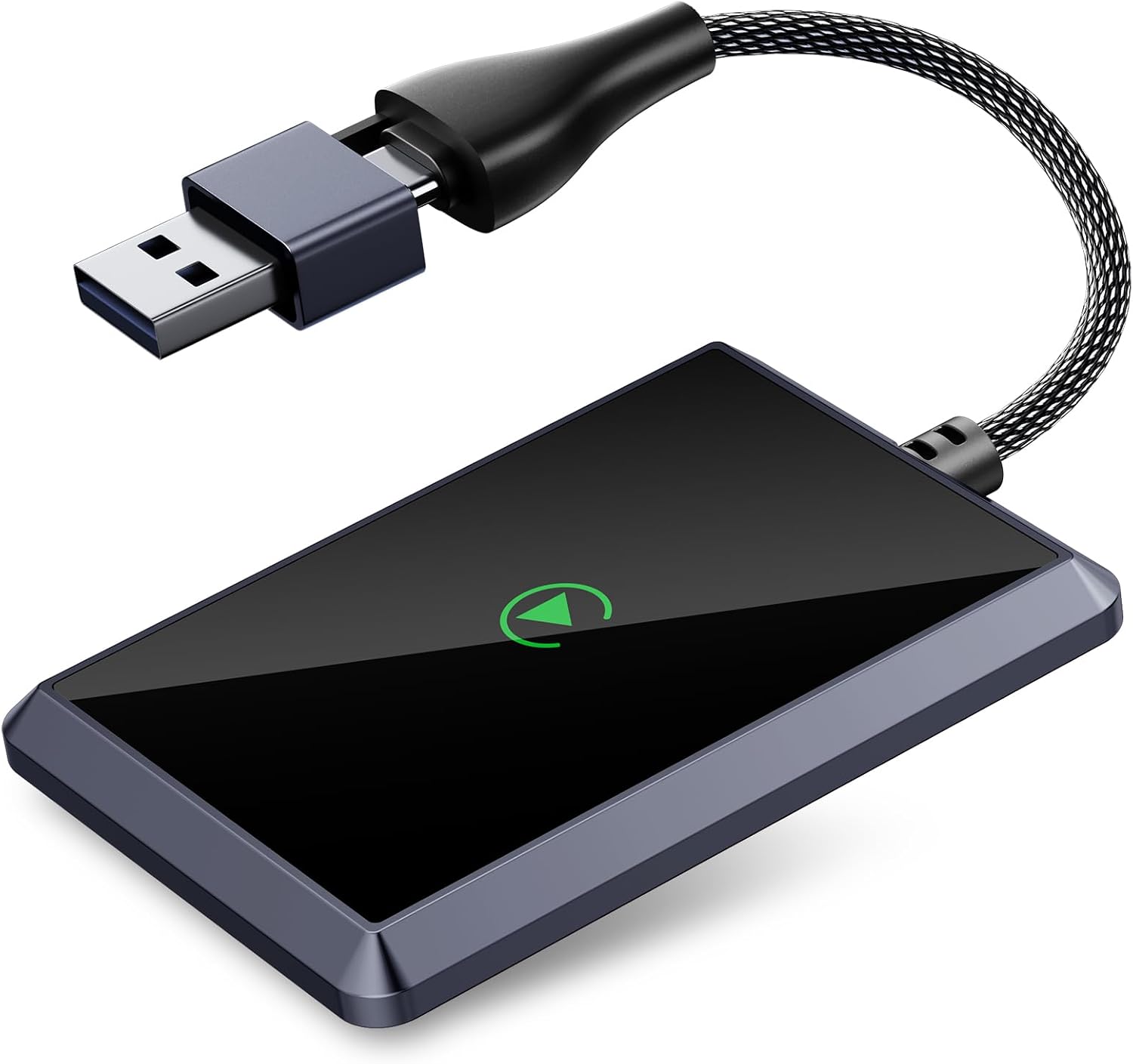
Image 1.1: The AOGUERBE Wireless CarPlay Adapter C01, a compact device designed to enable wireless CarPlay functionality.
2. Package Contents
Please verify that all items are present in your package:
- AOGUERBE Wireless CarPlay Adapter C01
- USB-A to USB-C Adapter (for compatibility with various car USB ports)
- User Manual (this document)
3. Compatibility
The AOGUERBE Wireless CarPlay Adapter C01 is compatible with:
- Vehicles: Most cars equipped with factory-wired CarPlay from the year 2017 onwards.
- Mobile Devices: Apple iPhones running iOS 10 or later.
- Car USB Ports: Supports both USB-A and USB-C ports in your vehicle using the included adapter.

Image 3.1: Visual representation of compatible car brands and iPhone models (iOS 10+).
4. Setup Instructions
Follow these three simple steps to set up your AOGUERBE Wireless CarPlay Adapter:
- Plug In the Adapter: Connect the AOGUERBE Wireless CarPlay Adapter into your car's USB port that supports wired CarPlay. Use the provided USB-A to USB-C adapter if your car has a USB-C port. The adapter's indicator light will illuminate.
- Enable Wi-Fi and Bluetooth on iPhone: On your iPhone, go to Settings and ensure both Wi-Fi and Bluetooth are turned ON. Do not connect to any Wi-Fi network at this stage.
- Pair Bluetooth: On your iPhone, open Bluetooth settings and search for available devices. Select the device named 'SmartBox-xxxx' (or similar, as displayed on your car's screen) and pair with it. Once paired, your car's screen should automatically switch to the CarPlay interface.

Image 4.1: Visual guide illustrating the plug-in, Wi-Fi/Bluetooth activation, and Bluetooth pairing steps.
5. Operating Instructions
Once successfully set up, the adapter will automatically connect to your iPhone each time you start your vehicle, provided your iPhone's Bluetooth and Wi-Fi are enabled.
5.1 Automatic Reconnection
After the initial pairing, the adapter is designed to automatically reconnect to your iPhone within approximately 3 seconds when you enter your vehicle, ensuring a hassle-free experience.

Image 5.1: Illustration of the automatic reconnection feature when entering the car.
5.2 CarPlay Functionality
The adapter enables full access to CarPlay features on your car's display, including:
- Navigation (Maps)
- Music and Audio Playback
- Phone Calls
- Siri Voice Assistant
- Calendar and other compatible applications

Image 5.2: Display of the CarPlay interface with various supported applications.
5.3 Control Methods
You can interact with CarPlay using your vehicle's original control methods:
- Touchscreen: Directly interact with the car's display.
- Knob Control: Use your car's rotary knob or joystick.
- Steering Wheel Controls: Utilize buttons on your steering wheel for audio, calls, and voice commands.
- Voice Assistant (Siri): Activate Siri for hands-free control by saying "Hey Siri" or pressing the voice command button.

Image 5.3: Demonstrates voice control and other interaction methods like touchscreen, knob, and steering wheel controls.
6. Maintenance
The AOGUERBE Wireless CarPlay Adapter C01 requires minimal maintenance. To ensure optimal performance and longevity:
- Keep the adapter clean and free from dust and debris. Use a soft, dry cloth for cleaning.
- Avoid exposing the adapter to extreme temperatures, direct sunlight, or moisture.
- Handle the adapter and its cable gently to prevent damage to the connectors.
- Ensure the adapter is securely plugged into the USB port to prevent accidental disconnections.
7. Troubleshooting
If you encounter issues with your AOGUERBE Wireless CarPlay Adapter, please refer to the following common problems and solutions:
| Problem | Possible Cause | Solution |
|---|---|---|
| Adapter not connecting or frequently disconnecting. | Weak signal, incorrect pairing, car USB port issue, phone settings. |
|
| Audio cutting out or lagging. | Interference, phone processing, software issue. |
|
| CarPlay interface not appearing on screen. | Incorrect connection, car not recognizing adapter. |
|
8. Specifications
| Feature | Detail |
|---|---|
| Model Name | C01 |
| Connectivity Technology | USB, Wireless (5.8 GHz WiFi) |
| Connector Type | USB-A (with included USB-C adapter) |
| Special Feature | Low Latency, Automatic Reconnection |
| Compatible Devices | Apple iPhone (iOS 10+), Vehicles with factory-wired CarPlay (2017+) |
| Color | Cosmic Gray |
| Item Weight | 2.39 ounces |
| Package Dimensions | 4.25 x 3.31 x 0.75 inches |
| Manufacturer | Shenzhen Zhilianxintong Electronics Co., Ltd |

Image 8.1: Internal chip details and physical dimensions of the adapter.
9. Warranty and Support
AOGUERBE is committed to providing quality products and customer satisfaction. While specific warranty details are not provided in this manual, the product is backed by a professional support team.
9.1 Technical Support
For any inquiries, troubleshooting assistance, or technical support regarding your AOGUERBE Wireless CarPlay Adapter C01, please contact AOGUERBE customer service through the retailer where you purchased the product or refer to the official AOGUERBE website for contact information.
9.2 Quality Assurance
The adapter is crafted with high-quality components to ensure stable and uninterrupted performance. If you experience any manufacturing defects or issues not covered in the troubleshooting section, please reach out to customer support for assistance.
Related documentsC01

Ask a question about this manual
Ask about setup, troubleshooting, compatibility, parts, safety, or missing instructions. Manuals+ will review the question and use this page’s manual context to help answer it.