
Introduction
This manual provides essential information for the setup, operation, maintenance, and troubleshooting of your Newsoul 16" 3K OLED Portable Monitor M160B04. This monitor is designed to offer a high-quality visual experience with its 3K 2880x1800 resolution, 120Hz refresh rate, and 0.1ms response time. Its OLED technology ensures vibrant colors, deep blacks, and a 100,000:1 contrast ratio, complemented by 500 nits brightness and 100% DCI-P3 color gamut. The ultra-slim design enhances portability for various applications, including laptops, PCs, smartphones, and game consoles.

Figure 1: Newsoul 16" 3K OLED Portable Monitor with its magnetic smart cover acting as a stand.
Package Contents
Please verify that all items listed below are included in your package:
- 1 * 16" 3K OLED Portable Monitor
- 1 * Mini HDMI Cable 4K
- 2 * Type C to Type C Cable
- 1 * PD 30W Power Charger
- 1 * Smart Cover

Figure 2: All included accessories and the monitor neatly packaged.
Setup
1. Power Connection
Connect the provided 30W USB-C Power Charger to one of the monitor's USB-C ports. For stable operation and to prevent flickering or screen shutdown, ensure you use a 30W or higher Power Delivery (PD) power adapter.
2. Device Connection
The monitor supports two primary connection methods:
- USB-C (DisplayPort Alt Mode): Use one of the provided USB-C to USB-C cables to connect your laptop, smartphone, or game console. This connection supports 3K 2880x1800 resolution at 120Hz and can also deliver power to your connected device if the monitor is powered by the 30W PD adapter.
- Mini HDMI: Use the provided Mini HDMI to HDMI cable to connect devices. Note that for 120Hz refresh rate over HDMI, a lower resolution may be required, as it typically drops to 100Hz at 2880x1800.
The monitor's smart cover can be folded to act as a stand, allowing for various viewing angles.

Figure 3: Monitor connected to a laptop, demonstrating a typical setup.
Operating the Monitor
On-Screen Display (OSD) Menu
The monitor features physical buttons on its side to access and navigate the On-Screen Display (OSD) menu. These buttons allow you to adjust various display settings.
Display Settings
Through the OSD menu, you can customize the following settings:
- Brightness: Adjust the overall luminance of the screen (up to 500 nits).
- Contrast: Modify the difference between the brightest and darkest areas (100,000:1 ratio).
- ECO Mode: Select from various preset display modes for different content types.
- DCR (Dynamic Contrast Ratio): Enable or disable dynamic contrast enhancement.
- Sharpness: Adjust the clarity of image edges.
- Color Temperature: Fine-tune color balance (Red, Green, Blue levels).
- Aspect Ratio: Choose between different aspect ratios (e.g., 16:10, 16:9).
- Black Level: Adjust the depth of black colors.
- Hue & Saturation: Control color tint and intensity.
- HDR Mode: Enable or disable High Dynamic Range for enhanced visual fidelity.
- Low Power Mode: Optimize power consumption.
Refresh Rate and Resolution
The monitor natively supports 3K 2880x1800 resolution at a 120Hz refresh rate. For optimal performance, especially 120Hz at full resolution, a USB-C connection with DisplayPort Alt Mode is recommended. When using HDMI, the 120Hz refresh rate may be limited to a lower resolution.
VESA Compatibility
The monitor is VESA compatible (75x75 mm, M4x4 mm screws), allowing it to be mounted on compatible arms or stands for flexible positioning, including seamless landscape to portrait transitions.
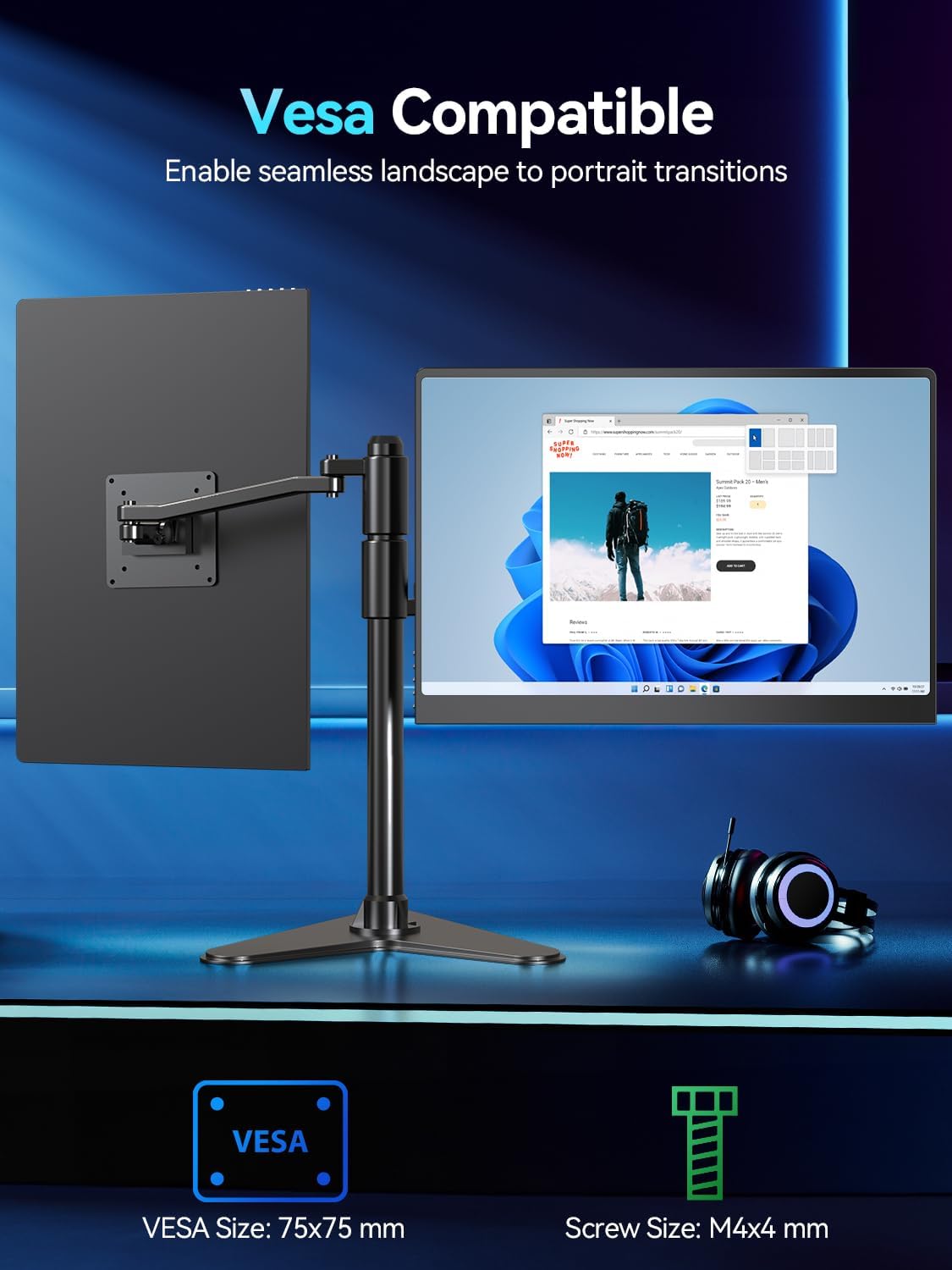
Figure 4: VESA mounting options for the portable monitor.
Maintenance
Cleaning the Screen
To clean the screen, gently wipe it with a soft, lint-free cloth. For stubborn smudges, slightly dampen the cloth with water or a screen-safe cleaning solution. Avoid using harsh chemicals, abrasive materials, or spraying liquid directly onto the screen.
General Handling and Storage
Handle the monitor with care to prevent damage. When not in use, store the monitor in its smart cover to protect the screen from scratches and impacts. Avoid placing heavy objects on the monitor or exposing it to extreme temperatures or humidity.
Troubleshooting Common Issues
- No Signal:
Ensure all cables (USB-C or HDMI) are securely connected to both the monitor and your device. Verify that the monitor is receiving adequate power from the 30W PD adapter. Check your device's display settings to ensure it is configured to output to an external monitor. - Flickering or Screen Shutdown:
This often indicates insufficient power. Ensure you are using the provided 30W USB-C PD power adapter or another power source of 30W or higher. Lower-power sources may cause instability. - 120Hz Refresh Rate Not Achieved:
For full 3K 2880x1800 resolution at 120Hz, a USB-C connection utilizing DisplayPort Alt Mode is required. If using HDMI, the 120Hz refresh rate may only be available at lower resolutions. Check your device's display settings to select the desired refresh rate. - No Sound:
Check the volume settings on both the monitor (via the OSD menu) and your connected device. Ensure the audio output is directed to the portable monitor.
Technical Specifications
| Feature | Specification |
|---|---|
| Brand | Newsoul |
| Model Number | M160B04 |
| Screen Size | 16 Inches |
| Resolution | 3K 2880x1800 Pixels |
| Aspect Ratio | 16:10 |
| Refresh Rate | 120Hz (via USB-C) |
| Response Time | 0.1ms |
| Image Brightness | 500 Candela (Nits) |
| Contrast Ratio | 100,000:1 |
| Color Gamut | 100% DCI-P3 |
| Color Depth | 8-Bit + FRC |
| Screen Surface | Glossy |
| Product Dimensions | 0.27 x 13 x 9 inches |
| Item Weight | 1.6 pounds (approx. 0.73 kg) |
| Total USB Ports | 2 (USB-C) |
| Video Input | USB-C (DisplayPort Alt Mode), Mini HDMI |
| VESA Compatibility | 75x75 mm (M4x4 mm screws) |
Warranty Information and Customer Support
For warranty claims, technical support, or any product-related inquiries, please refer to the contact information provided in the included 'Portable Monitor User Manual' or visit the official Newsoul website. Keep your purchase receipt as proof of purchase for warranty services.