
Introduction
Thank you for choosing the ZEALOT S49 Pro Portable Bluetooth Speaker. This manual provides essential information for the safe and efficient use of your speaker. Please read it thoroughly before operation and retain it for future reference.
The ZEALOT S49 Pro is a compact and lightweight portable speaker designed to deliver clear, high-quality audio with powerful bass. It features multiple connectivity options, including Bluetooth, USB, TF card, and AUX input, and supports TWS (True Wireless Stereo) pairing for an enhanced 40W 360-degree stereo experience. With IPX5 water resistance and a long-lasting 3000mAh battery, it is suitable for various indoor and outdoor environments.

Figure 1: HiFi Sound Quality with 360° Omnidirectional Sound
Package Contents
- ZEALOT S49 Pro Portable Bluetooth Speaker
- Power Cable (USB-C charging cable)
- User Manual
Product Overview
Familiarize yourself with the various parts and controls of your ZEALOT S49 Pro speaker.
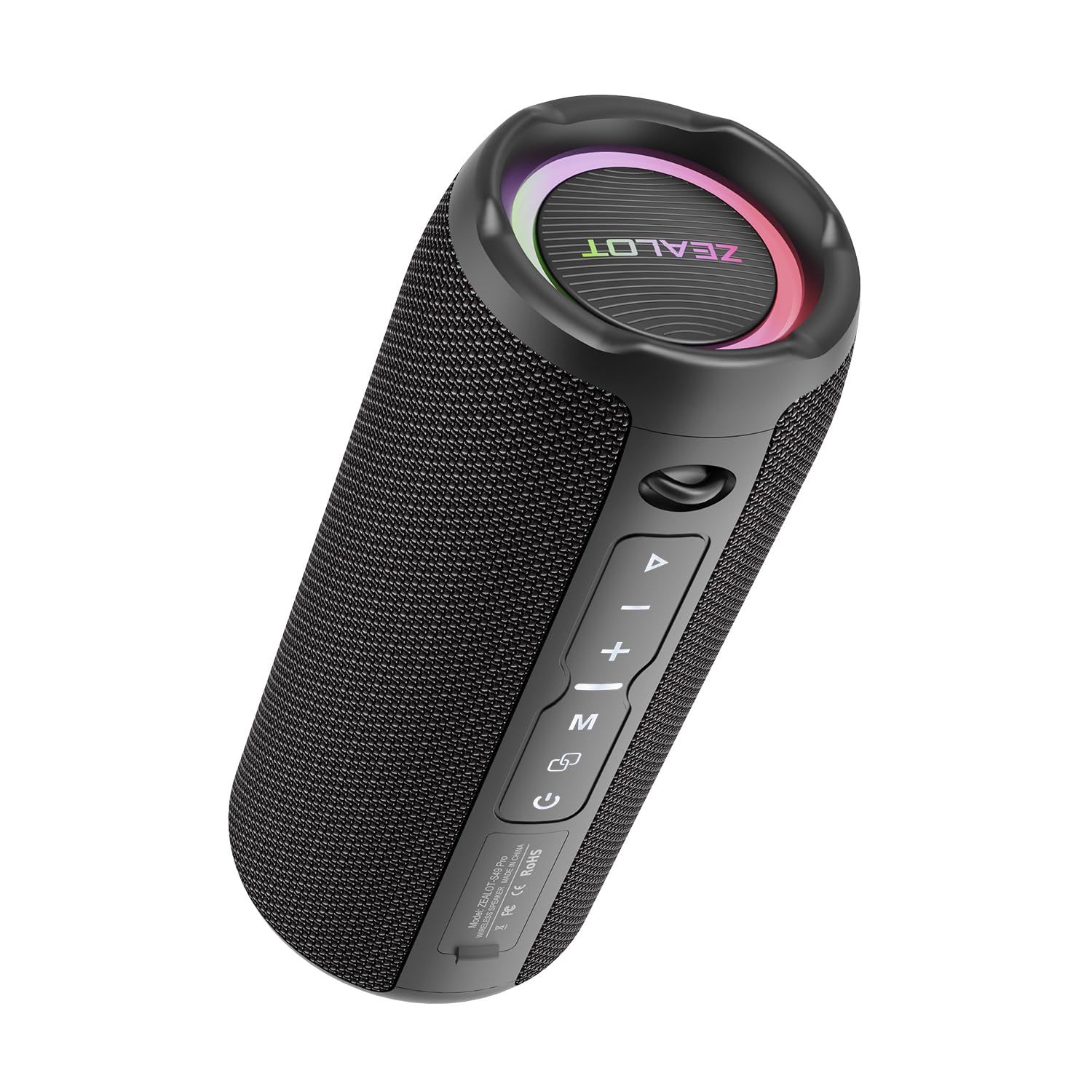
Figure 2: ZEALOT S49 Pro Speaker Front View
Controls and Ports:
- Power Button: Press and hold to turn the speaker on or off.
- Play/Pause Button: Press to play or pause music. Press to answer or end calls.
- Volume Up / Next Track Button (+): Short press to increase volume. Long press to skip to the next track.
- Volume Down / Previous Track Button (-): Short press to decrease volume. Long press to go to the previous track.
- Mode Button (M): Press to switch between Bluetooth, USB, TF Card, and AUX input modes.
- TWS Button (∞): Press to initiate True Wireless Stereo pairing with another S49 Pro speaker.
- DC5V Port: USB-C port for charging the speaker.
- TF Card Slot: Insert a TF (MicroSD) card for music playback.
- USB Port: Insert a USB flash drive for music playback.
- AUX Port: Connect external audio devices via a 3.5mm audio cable.

Figure 3: Connectivity Ports
Setup
1. Charging the Speaker
Before first use, fully charge the speaker. Connect the provided power cable to the DC5V port on the speaker and the other end to a USB power adapter (not included) or a computer's USB port. The charging indicator light will show the charging status.

Figure 4: Charging the Speaker
2. Powering On/Off
Press and hold the Power Button for approximately 3 seconds to turn the speaker on or off. A sound prompt will indicate the power status.
3. Bluetooth Pairing
- Turn on the speaker. It will automatically enter Bluetooth pairing mode, indicated by a flashing LED light.
- Enable Bluetooth on your device (smartphone, tablet, etc.).
- Search for "ZEALOT S49 Pro" in your device's Bluetooth list and select it to connect.
- Once connected, the LED light will stop flashing, and you will hear a confirmation sound.
4. True Wireless Stereo (TWS) Pairing
To achieve a 40W 360-degree stereo sound experience, you can pair two ZEALOT S49 Pro speakers together:
- Ensure both S49 Pro speakers are powered on and not connected to any other Bluetooth device.
- On one of the speakers (this will be the primary speaker), short press the TWS Button (∞). The speaker will enter TWS pairing mode.
- The two speakers will automatically connect to each other. You will hear a confirmation sound once paired.
- Now, connect your device to the primary speaker via Bluetooth as described in "3. Bluetooth Pairing". Both speakers will play audio in stereo.

Figure 5: TWS Pairing for Stereo Sound
Operating Instructions
1. Music Playback
- Bluetooth Mode: After successful Bluetooth pairing, open your music player app and start playing audio.
- USB/TF Card Mode: Insert a USB flash drive or TF card into the respective port. The speaker will automatically switch to the corresponding mode and begin playing music. Press the Mode Button (M) to switch if it doesn't.
- AUX Mode: Connect your audio device to the speaker's AUX port using a 3.5mm audio cable. Press the Mode Button (M) to switch to AUX mode.

Figure 6: Speaker Internal Components for Enhanced Bass
2. Volume Control
Short press the + Button to increase volume. Short press the - Button to decrease volume.
3. Track Control
Long press the + Button to skip to the next track. Long press the - Button to go to the previous track.
4. Call Management
When connected via Bluetooth, if a call comes in, press the Play/Pause Button to answer the call. Press it again to end the call. Long press to reject an incoming call.
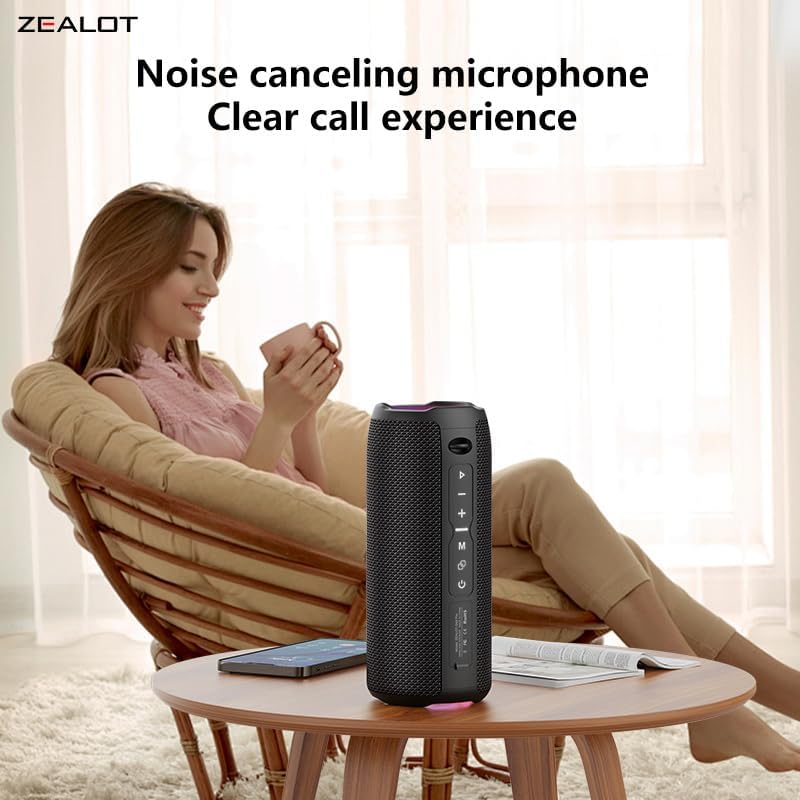
Figure 7: Clear Call Experience with Built-in Microphone
5. Mode Switching
Press the Mode Button (M) to cycle through available input modes: Bluetooth, USB, TF Card, and AUX.
6. RGB Lighting
The speaker features RGB colorful lights. These lights typically synchronize with the music rhythm. Specific controls for the lights are not detailed in the provided information, but they are an aesthetic feature.

Figure 8: RGB Colorful Light Show
Maintenance
- Cleaning: Use a soft, dry cloth to clean the speaker. Do not use abrasive cleaners or solvents.
- Water Resistance: The speaker is IPX5 water-resistant, meaning it can withstand splashes and light rain. Do not submerge the speaker in water or expose it to strong jets of water. Ensure all port covers are securely closed before exposure to water.
- Storage: Store the speaker in a cool, dry place away from direct sunlight and extreme temperatures.
- Battery Care: To prolong battery life, charge the speaker regularly, even if not in use for extended periods. Avoid fully discharging the battery frequently.

Figure 9: IPX5 Water Resistance
Troubleshooting
| Problem | Possible Cause | Solution |
|---|---|---|
| Speaker does not turn on. | Low battery. | Charge the speaker fully. |
| Cannot pair via Bluetooth. | Speaker is not in pairing mode or already connected to another device. Device Bluetooth is off. | Ensure speaker is in pairing mode (flashing LED). Disconnect from other devices. Turn on Bluetooth on your device and search again. |
| No sound. | Volume too low. Incorrect input mode. Device not playing. | Increase speaker and device volume. Press 'M' button to switch modes. Ensure music is playing on your connected device. |
| TWS pairing fails. | Speakers are too far apart. One speaker is already connected to a device. | Ensure speakers are close to each other. Disconnect both speakers from any Bluetooth devices before initiating TWS pairing. |
| Poor sound quality. | Low battery. Device too far from speaker. Obstructions. | Charge the speaker. Move device closer to the speaker. Remove any obstacles between the speaker and device. |
Specifications
| Feature | Detail |
|---|---|
| Brand | Zealot |
| Model Name | ZEALOT S49 Pro |
| Speaker Type | Subwoofer |
| Connectivity Technology | Bluetooth, USB, TF Card, AUX (3.5mm) |
| Wireless Communication Protocol | Bluetooth |
| Maximum Speaker Output Power | 20 Watts |
| Frequency Response | Up to 20 KHz |
| Audio Output Mode | Stereo (2.0 Channel) |
| TWS Pairing | Yes, for 40W 360-degree stereo sound |
| Material | Acrylonitrile Butadiene Styrene (ABS) |
| Color | Black |
| Water Resistance Level | IPX5 (Waterproof/Splash-proof) |
| Special Features | Portable, Water Resistant, USB Port, Built-in Microphone, RGB Lighting |
| Control Method | Push Button |
| Battery Type | 2 Lithium Ion batteries (Included) |
| Battery Capacity | 3000 mAh |
| Battery Life | Up to 12 hours (Varies with volume and content) |
| Power Source | Battery Powered (Rechargeable via USB-C) |
| Product Dimensions (DxWxH) | 8.6 x 8.6 x 20.4 cm (3.38 x 3.38 x 8.03 inches) |
| Item Weight | 762 grams |
| Included Components | Power cable |

Figure 10: Product Dimensions
Warranty and Support
Warranty Information
The ZEALOT S49 Pro Portable Bluetooth Speaker comes with a one-year manufacturer's warranty from the date of purchase. This warranty covers manufacturing defects and workmanship under normal use. It does not cover damage caused by misuse, accidents, unauthorized modifications, or normal wear and tear.
Customer Support
If you encounter any issues or have questions regarding your ZEALOT S49 Pro speaker, please contact our customer support team. For the fastest service, please have your product model number (S49 Pro) and proof of purchase ready.
Contact Information:
- Website: www.zealot.cc (Please check the official website for the most up-to-date contact details.)
- Email: support@zealot.cc (Example email, please verify with actual product documentation)


