
Introduction
This manual provides essential information for the safe and efficient use of your LG 27GQ5B Ultragear Gaming Monitor. Please read this manual thoroughly before operating the product and retain it for future reference. It covers setup, operation, maintenance, and troubleshooting procedures.
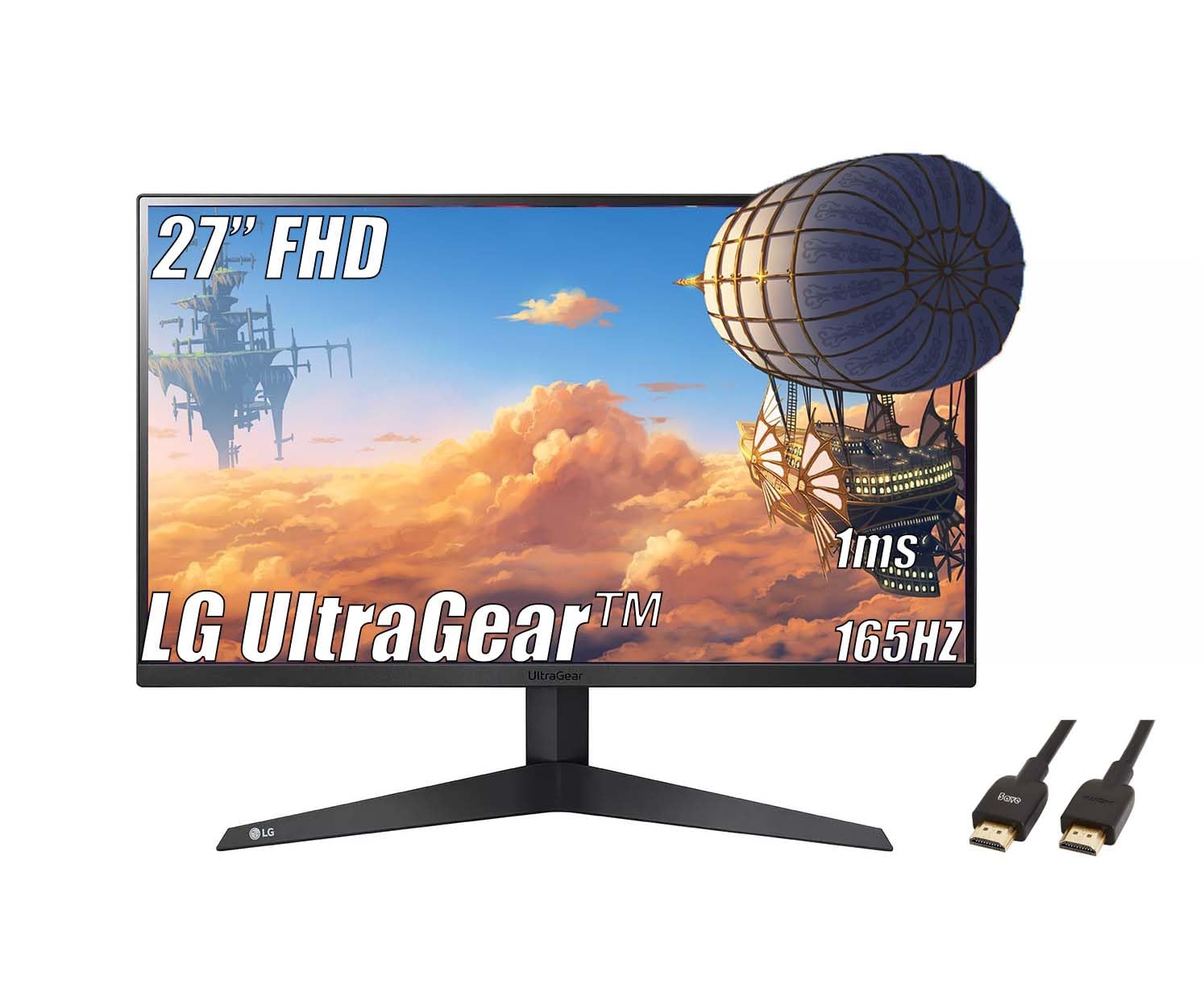
Image: Front view of the LG 27GQ5B Ultragear Gaming Monitor.
Safety Information
Always observe the following safety precautions to prevent electric shock, fire, or damage to the product.
- Do not expose the monitor to rain or moisture.
- Do not open the monitor casing. Refer all servicing to qualified service personnel.
- Ensure proper ventilation around the monitor.
- Use only the power adapter supplied with the monitor.
- Avoid placing heavy objects on the power cord.
Setup
1. Unpacking and Package Contents
Carefully remove all components from the packaging. Verify that all items are present:
- Monitor Display
- Stand Base
- Stand Neck
- Power Adapter and Power Cord
- HDMI Cable
- User Manual (this document)
2. Stand Assembly
- Attach the stand neck to the stand base. Secure with the captive screw.
- Carefully attach the assembled stand to the back of the monitor display until it clicks into place.

Image: Front view of the monitor with the stand assembled.

Image: Side view of the monitor, showing the stand profile.
3. Connecting the Monitor
Connect the monitor to your computer and power source.
- Power Connection: Connect the power adapter to the monitor's power input, then plug the power cord into a wall outlet.
- Video Connection: Connect one end of the HDMI cable to the HDMI port on your computer's graphics card and the other end to the HDMI port on the monitor. Alternatively, use a DisplayPort cable for DisplayPort connections.

Image: Rear view of the monitor, highlighting the power, HDMI, and DisplayPort inputs.
4. Initial Power On
Press the power button (usually a joystick on the bottom center) to turn on the monitor. The monitor will automatically detect the input signal.
Operating the Monitor
1. OSD Menu Navigation
The On-Screen Display (OSD) menu is controlled by a joystick button located on the bottom center of the monitor. Press the joystick to access the main menu, then move it up/down/left/right to navigate and select options.
2. Picture Settings
Adjust display settings to optimize your viewing experience:
- Brightness: Adjusts the overall luminance of the screen.
- Contrast: Controls the difference between light and dark areas.
- Color: Fine-tune color temperature and saturation.
- Black Stabilizer: Enhances visibility in dark areas of games by brightening them.
3. Gaming Features
The LG 27GQ5B monitor includes features designed to enhance gaming performance:
- 165Hz Refresh Rate: Provides smoother motion and reduced input lag compared to standard monitors.
- 1ms Response Time: Minimizes motion blur for clear, fast-paced action.

Image: Visual representation of high refresh rate and low response time in a gaming scenario.
- AMD FreeSync Premium: Synchronizes the monitor's refresh rate with your graphics card's frame rate to reduce screen tearing and stuttering during gameplay.

Image: Diagram illustrating the function of AMD FreeSync Premium technology.

Image: The monitor displaying a game, showcasing its virtually borderless design.
4. Input Source Selection
To switch between connected devices (e.g., PC via HDMI, console via DisplayPort), access the OSD menu and select the desired input source.
Maintenance
1. Cleaning the Screen and Casing
- Always power off the monitor and unplug the power cord before cleaning.
- Use a soft, lint-free cloth slightly dampened with water or a specialized screen cleaner.
- Do not spray cleaner directly onto the screen.
- Avoid using abrasive cleaners, waxes, or solvents.
2. Storage Guidelines
If storing the monitor for an extended period, ensure it is powered off, unplugged, and stored in a cool, dry place away from direct sunlight and extreme temperatures. Use original packaging if available.
Troubleshooting
Refer to the following table for common issues and their solutions:
| Problem | Possible Cause | Solution |
|---|---|---|
| No power | Power cord not connected; Power outlet not working | Check power cord connection; Test power outlet with another device |
| No signal | Video cable not connected; Incorrect input source selected | Ensure video cable is securely connected; Select correct input source via OSD menu |
| Screen flickering | Loose video cable; Graphics card driver issue; Refresh rate mismatch | Check video cable; Update graphics drivers; Adjust refresh rate in display settings |
| Dead pixels | Manufacturing defect | Refer to LG's pixel policy for warranty coverage. |
Specifications
Key technical specifications for the LG 27GQ5B Ultragear Gaming Monitor:
| Feature | Specification |
|---|---|
| Model Number | 27GQ5B |
| Brand | LG |
| Screen Size | 27 Inches |
| Resolution | FHD (1920 x 1080) |
| Aspect Ratio | 16:9 |
| Refresh Rate | 165 Hz |
| Response Time | 1 Millisecond |
| Contrast Ratio | 1800:1 |
| Brightness | 250 cd/m² |
| Display Type | LED |
| Connectivity | 1x HDMI, 1x DisplayPort |
| Adaptive Sync | AMD FreeSync Premium |
| Additional Features | Tilt Adjustment |
| Dimensions (with stand) | 26"D x 20"W x 8"H |

Image: Diagram showing the dimensions of the monitor with its stand.
Warranty Information
LG provides a limited warranty for this product. Specific warranty terms and conditions may vary by region. Please refer to the warranty card included in your product packaging or visit the official LG website for detailed information regarding your product's warranty coverage.
Customer Support
For technical assistance, service inquiries, or additional product information, please contact LG Customer Support:
- Website: Visit the official LG support website (www.lg.com/us/support) for FAQs, driver downloads, and service requests.
- Phone: Refer to your product documentation or the LG website for local support contact numbers.