
Motorola Edge 50 neo
Motorola Edge 50 neo 5G User Manual
Model: Edge 50 neo
1. Introduction
Welcome to the user manual for your new Motorola Edge 50 neo 5G smartphone. This guide will help you understand the features and functions of your device, ensuring a smooth and efficient user experience. Please read this manual carefully before using your phone.
What's in the Box
- Motorola Edge 50 neo (GSM)
- USB Type-C to USB Type-C cable
- SIM Tray Ejector
2. Device Overview
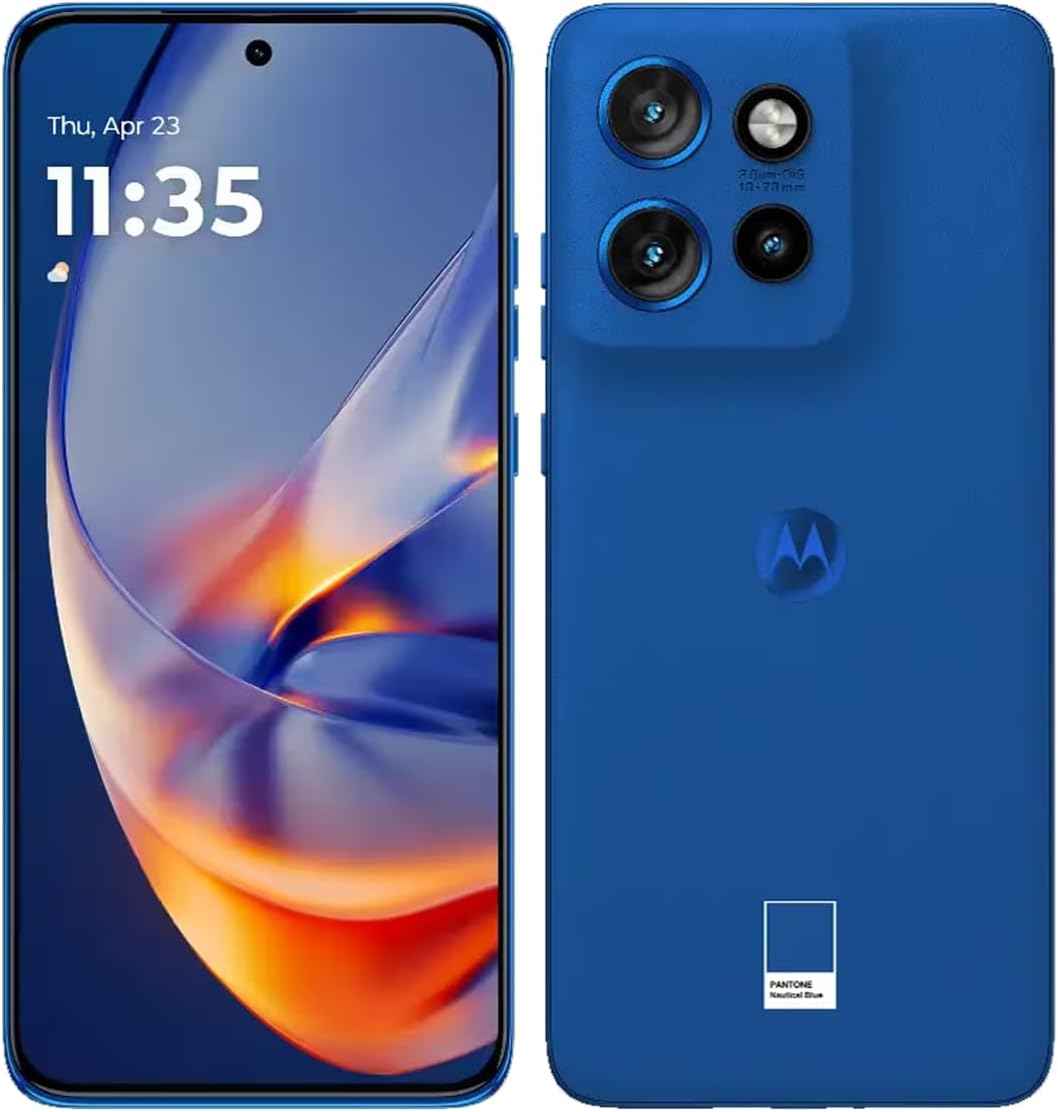
Figure 2.1: Front and Rear View of the Motorola Edge 50 neo 5G (Blue variant).
The Motorola Edge 50 neo 5G features a 6.4-inch pOLED display and a versatile camera system. It is designed for optimal performance and user convenience.
Key Components
- Front Camera: 32MP for high-quality selfies and video calls.
- Rear Camera System: Includes a 50MP main sensor, 10MP, and 13MP lenses for diverse photography.
- Display: 6.4-inch pOLED, AMOLED, Super HD (2670 x 1220) with a 120Hz refresh rate for smooth visuals.
- Power Button: Located on the side, used to turn the device on/off and lock/unlock the screen.
- Volume Buttons: Adjust media volume and ringtone volume.
- USB Type-C Port: For charging and data transfer.
- SIM/eSIM Tray: Supports Dual SIM (1 Nano SIM + eSIM).
3. Setup Guide
3.1 Inserting the SIM Card
- Locate the SIM tray on the side of your phone.
- Insert the SIM tray ejector tool into the small hole next to the tray.
- Gently push until the tray pops out.
- Place your Nano-SIM card into the designated slot on the tray. Ensure the gold contacts face downwards.
- Carefully push the tray back into the phone until it clicks into place.
Note: This device supports Dual SIM functionality, allowing for one physical Nano-SIM and one eSIM.
3.2 Initial Power On and Setup
- Press and hold the Power button until the Motorola logo appears.
- Follow the on-screen prompts to select your language, connect to a Wi-Fi network, and set up your Google account.
- You will be guided through setting up security features, including fingerprint unlock.
3.3 Charging the Device
Connect the provided USB Type-C to USB Type-C cable to the phone's charging port and then to a compatible power adapter (sold separately) or a computer's USB port. The battery indicator will show charging progress. For optimal battery life, use Motorola-approved chargers.
4. Operating Your Device
4.1 Basic Navigation
- Touch: Tap an icon to open an app or select an item.
- Swipe: Drag your finger across the screen to scroll or navigate between screens.
- Pinch: Use two fingers to zoom in or out on photos and web pages.
- Home Screen: Customize your home screen with widgets and app shortcuts.
4.2 Calls and Messaging
- Making Calls: Open the Phone app, enter the number, and tap the call icon.
- Contacts: Save and manage your contacts in the Contacts app.
- Sending Messages: Use the Messaging app to send and receive text messages.
4.3 Camera Functions
Your Motorola Edge 50 neo 5G is equipped with advanced cameras to capture your moments.
- Open the Camera app from your home screen or app drawer.
- Switch between front and rear cameras using the camera flip icon.
- Tap the shutter button to take a photo.
- Explore various modes like Portrait, Night Vision, and Pro Mode for enhanced photography.
4.4 Connectivity
- Wi-Fi: Connect to wireless networks for internet access. Go to Settings > Network & internet > Wi-Fi.
- Bluetooth: Pair with Bluetooth devices like headphones or speakers. Go to Settings > Connected devices > Connection preferences > Bluetooth.
- 5G Network: Enjoy fast mobile data speeds on supported 5G networks.
4.5 Security Features
Protect your device and data using the built-in security options:
- Fingerprint Sensor: Unlock your phone quickly and securely using your registered fingerprint.
- Face Unlock: Use facial recognition for convenient unlocking.
- PIN/Pattern/Password: Set up a traditional lock screen method for primary security.
5. Maintenance
5.1 Cleaning Your Device
To clean your phone, use a soft, lint-free cloth. Avoid using abrasive cleaners or solvents that may damage the screen or finish. Do not expose the device to excessive moisture.
5.2 Software Updates
Keep your phone's software up to date to ensure optimal performance and security. Your device runs on Android 14. You will receive notifications when new updates are available. To check manually, go to Settings > System > System updates.
5.3 Storage Management
Your phone comes with 512 GB of internal storage. Regularly manage your storage by deleting unnecessary files, clearing app caches, and backing up important data to cloud services or an external drive.
6. Troubleshooting
Common Issues and Solutions
- Device not turning on: Ensure the battery is charged. Press and hold the Power button for at least 10 seconds to force a restart.
- Poor network signal: Check your SIM card insertion. Move to an area with better network coverage. Restart your phone.
- Apps crashing: Clear the app's cache (Settings > Apps > [App Name] > Storage & cache > Clear cache). If the issue persists, reinstall the app.
- Battery draining quickly: Reduce screen brightness, disable unnecessary background apps, and turn off Wi-Fi/Bluetooth when not in use.
Factory Reset
If you experience persistent issues, a factory reset may be necessary. This will erase all data on your phone. Back up your data before proceeding. Go to Settings > System > Reset options > Erase all data (factory reset).
7. Specifications
| Feature | Specification |
|---|---|
| Model Name | Edge 50 neo |
| Operating System | Android 14 |
| Display Size | 6.4 Inches |
| Display Resolution | 2670 x 1220 (Super HD) |
| Processor | MediaTek Dimensity 7300 |
| RAM | 12 GB LPDDR4X |
| Storage | 512 GB uMCP |
| Rear Camera | 50MP + 10MP + 13MP |
| Front Camera | 32MP |
| Battery Capacity | 4310 mAh |
| Connectivity | 2G (GSM), 3G, 4G (LTE), 5G |
| Bluetooth | 5.3 |
| Wi-Fi | 802.11 a/b/g/n/ac/ax |
| SIM Type | Dual SIM (1 Nano SIM + eSIM) |
| Weight | 12.7 ounces (0.36 Kilograms) |
8. Warranty and Support
8.1 Product Warranty
Your Motorola Edge 50 neo 5G comes with a limited manufacturer's warranty. Please refer to the warranty card included in your product packaging for specific terms and conditions, including coverage period and limitations.
8.2 Customer Support
For technical assistance, troubleshooting, or warranty claims, please visit the official Motorola support website or contact their customer service. Keep your proof of purchase handy when seeking support.
- Motorola Support Website: www.motorola.com/support
- Online Resources: FAQs, user forums, and additional guides may be available on the support website.
Related documentsEdge 50 neo


Ask a question about this manual
Ask about setup, troubleshooting, compatibility, parts, safety, or missing instructions. Manuals+ will review the question and use this page’s manual context to help answer it.