
1. Introduction
This manual provides instructions for the EIGHTREE Outdoor Smart Plug, Model ET77. This device is designed to offer smart control over your outdoor electrical appliances with its dual independently controlled outlets, IP44 waterproof rating, and Wi-Fi connectivity. It integrates with popular smart home platforms for voice and remote control.
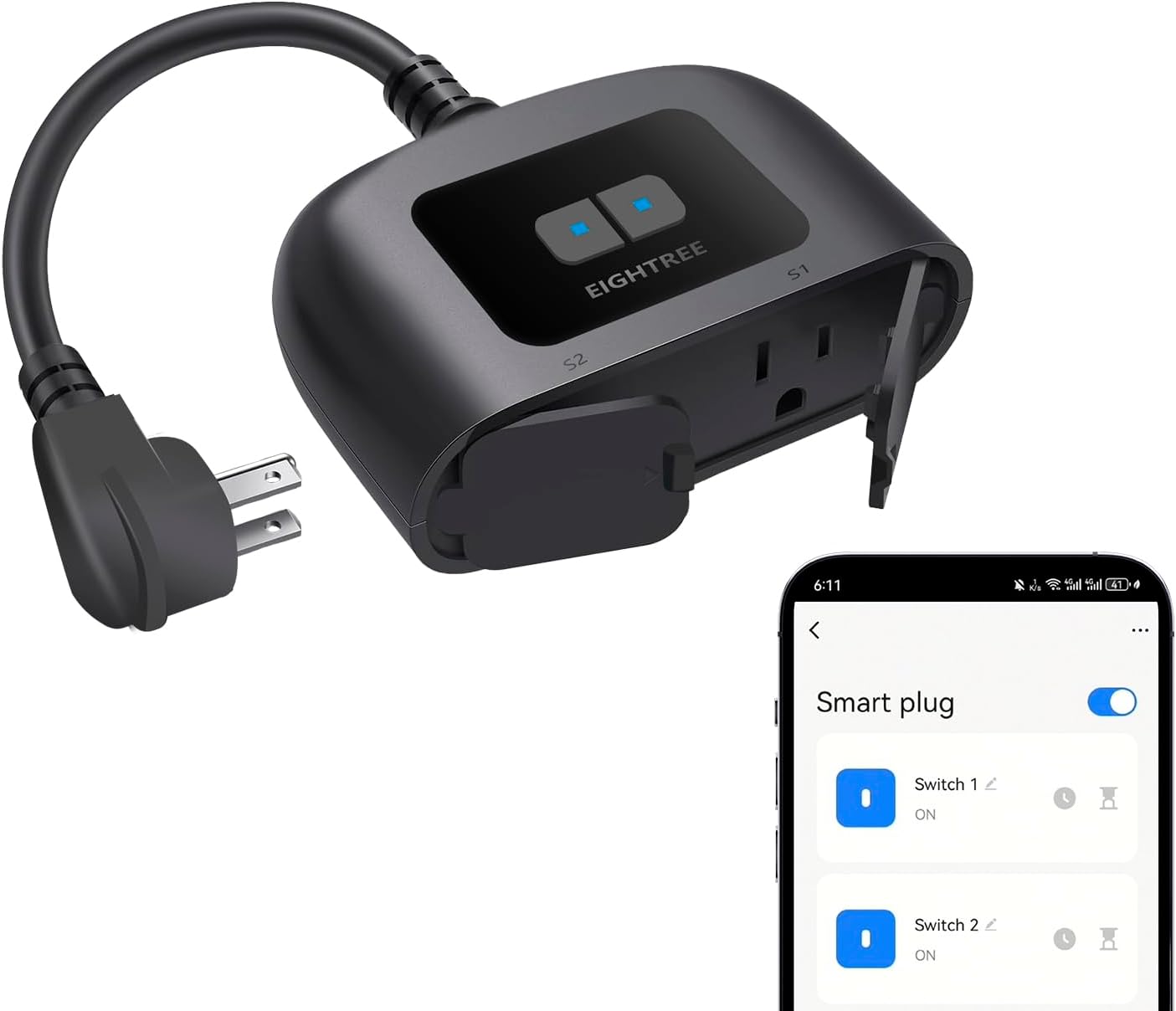
Image 1.1: EIGHTREE Outdoor Smart Plug and its mobile application interface.
2. Safety Information
- IP44 Waterproof Rating: The device is IP44 certified, meaning it is protected against splashing water from any direction. It is suitable for outdoor use in conditions like light rain. Important Note: This device is splash-resistant, not suitable for immersion in water or exposure to heavy rain.
- Operating Temperature: Ensure the device operates within the specified temperature range of -20°C to 40°C (-4°F to 104°F).
- Electrical Specifications: The plug operates at 120 Volts, with a current rating of 15 Amps and a maximum wattage of 1800 watts. Do not exceed these limits.
- Certifications: The product is FCC and ETL certified, ensuring compliance with safety standards.
- Installation: Always plug the device into a grounded 3-prong outlet.

Image 2.1: IP44 waterproof rating and key features of the smart plug.
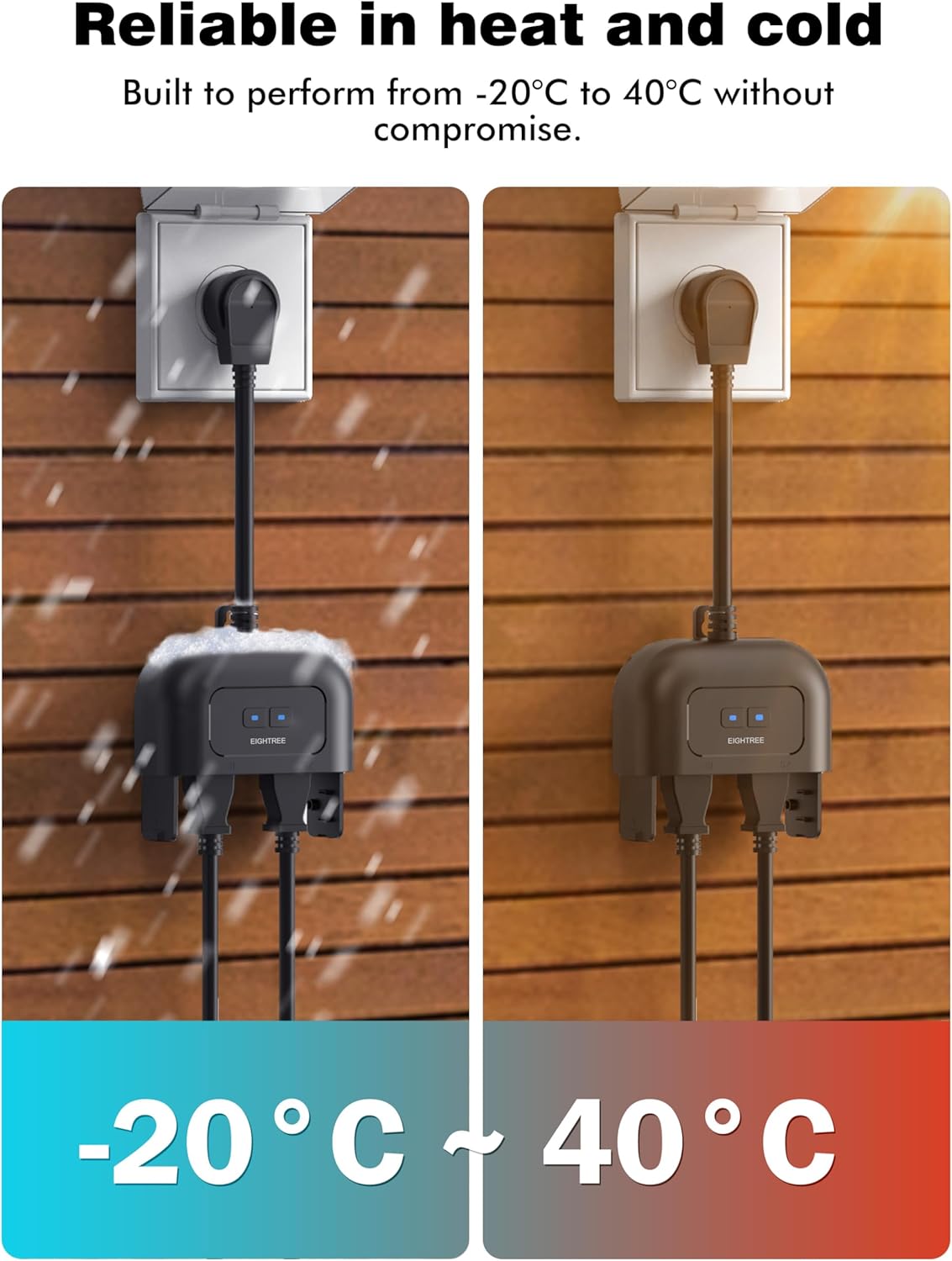
Image 2.2: The smart plug's reliability across a wide temperature range.
3. Package Contents
Upon opening the package, verify that all items are present:
- EIGHTREE Outdoor Smart Plug (Model ET77)
- User Manual (this document)
4. Setup
4.1 Wi-Fi Requirements
- The EIGHTREE Outdoor Smart Plug supports 2.4GHz Wi-Fi networks only. It is not compatible with 5GHz Wi-Fi networks.
- Ensure your Wi-Fi router is configured to support 2.4GHz. Many modern routers are dual-band (2.4GHz and 5GHz); ensure your phone is connected to the 2.4GHz network during setup.
- The device features an extended Wi-Fi range, providing stable connectivity up to 300 feet in unobstructed conditions.
4.2 App Installation and Pairing
- Download the Smart Life app from your mobile device's app store (available for iOS and Android).
- Register or log in to your Smart Life account.
- Plug the EIGHTREE Outdoor Smart Plug into a suitable outdoor electrical outlet. The indicator light on the plug should begin to blink, indicating it is in pairing mode.
- Open the Smart Life app, tap the "+" icon (usually in the top right corner) to add a device.
- The app may automatically detect the smart plug. If not, manually select "Electrical Outlet" or "Smart Plug" from the device list.
- Follow the on-screen instructions to connect the plug to your 2.4GHz Wi-Fi network. You will need to enter your Wi-Fi password.
- Once connected, you can rename the device and its individual outlets (Switch 1, Switch 2) for easier identification.
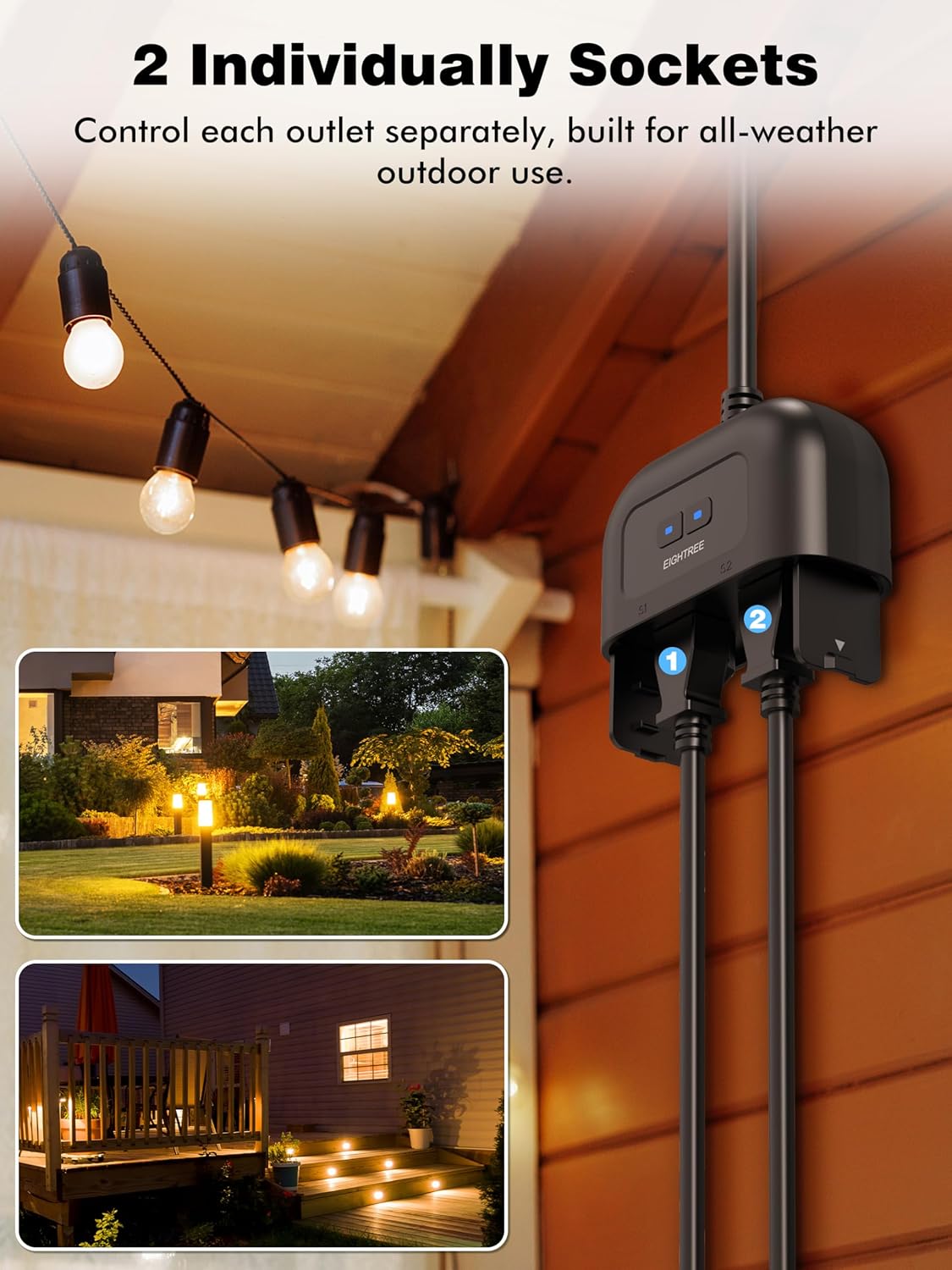
Image 4.1: The smart plug features two independently controlled outlets for versatile use.
4.3 Voice Assistant Integration
The EIGHTREE Outdoor Smart Plug is compatible with Alexa, Google Home, and SmartThings. To enable voice control:
- Ensure your smart plug is successfully set up in the Smart Life app.
- Open your Alexa, Google Home, or SmartThings app.
- Navigate to the 'Skills' or 'Works with Google' section and search for 'Smart Life'.
- Enable the Smart Life skill/service and link your Smart Life account.
- Discover devices. Your EIGHTREE Outdoor Smart Plug and its individual outlets should now appear and be controllable via voice commands.
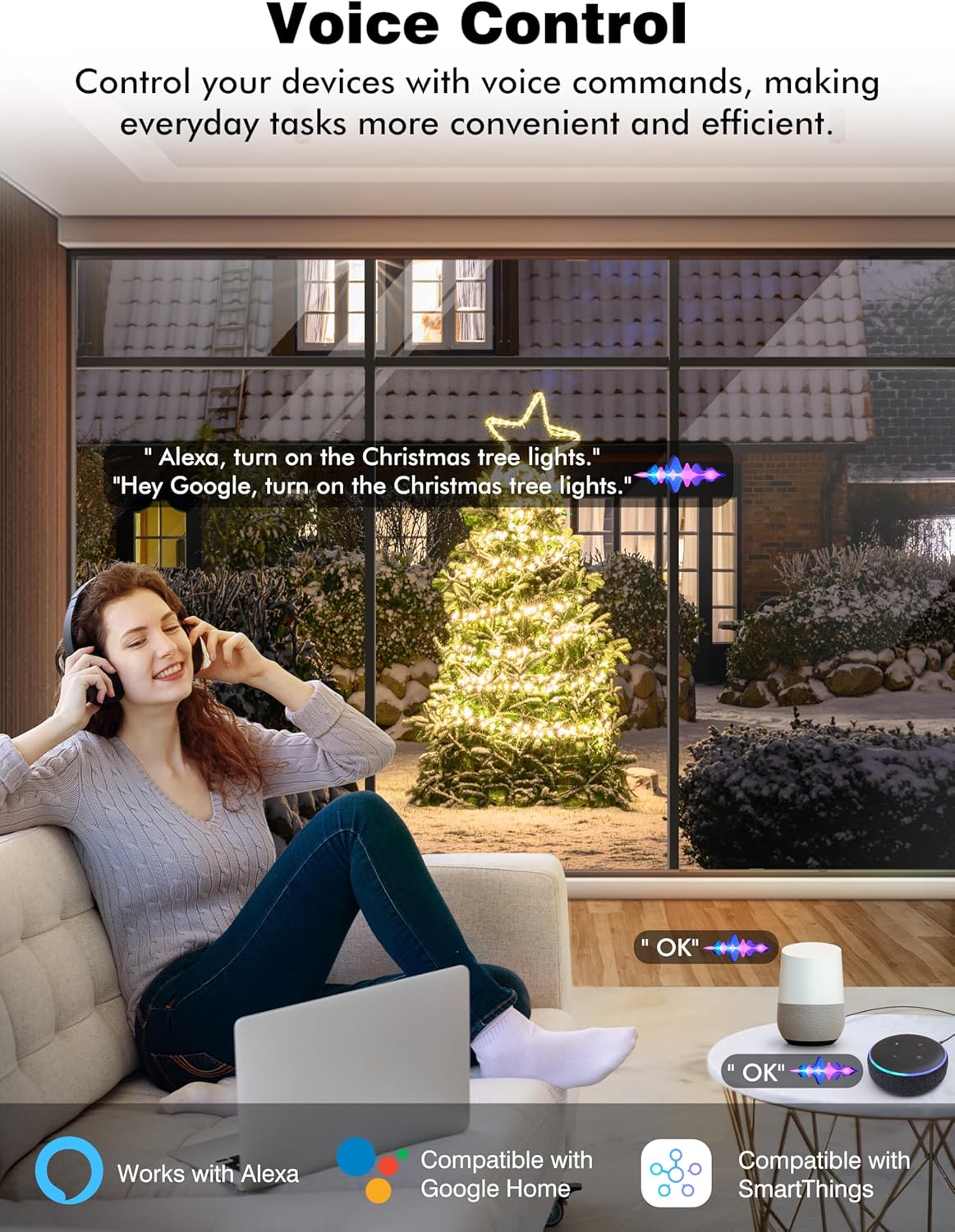
Image 4.2: Voice control integration with popular smart assistants.
5. Operating Instructions
5.1 Manual Control
Each outlet on the smart plug has a physical button (S1 and S2) that allows you to manually turn the connected device on or off. The indicator lights will show the status of each outlet.
5.2 App Control (Remote Control)
Using the Smart Life app, you can control each of the two outlets independently from anywhere with an internet connection. Simply open the app, select your EIGHTREE Outdoor Smart Plug, and toggle the switches for Outlet 1 and Outlet 2.
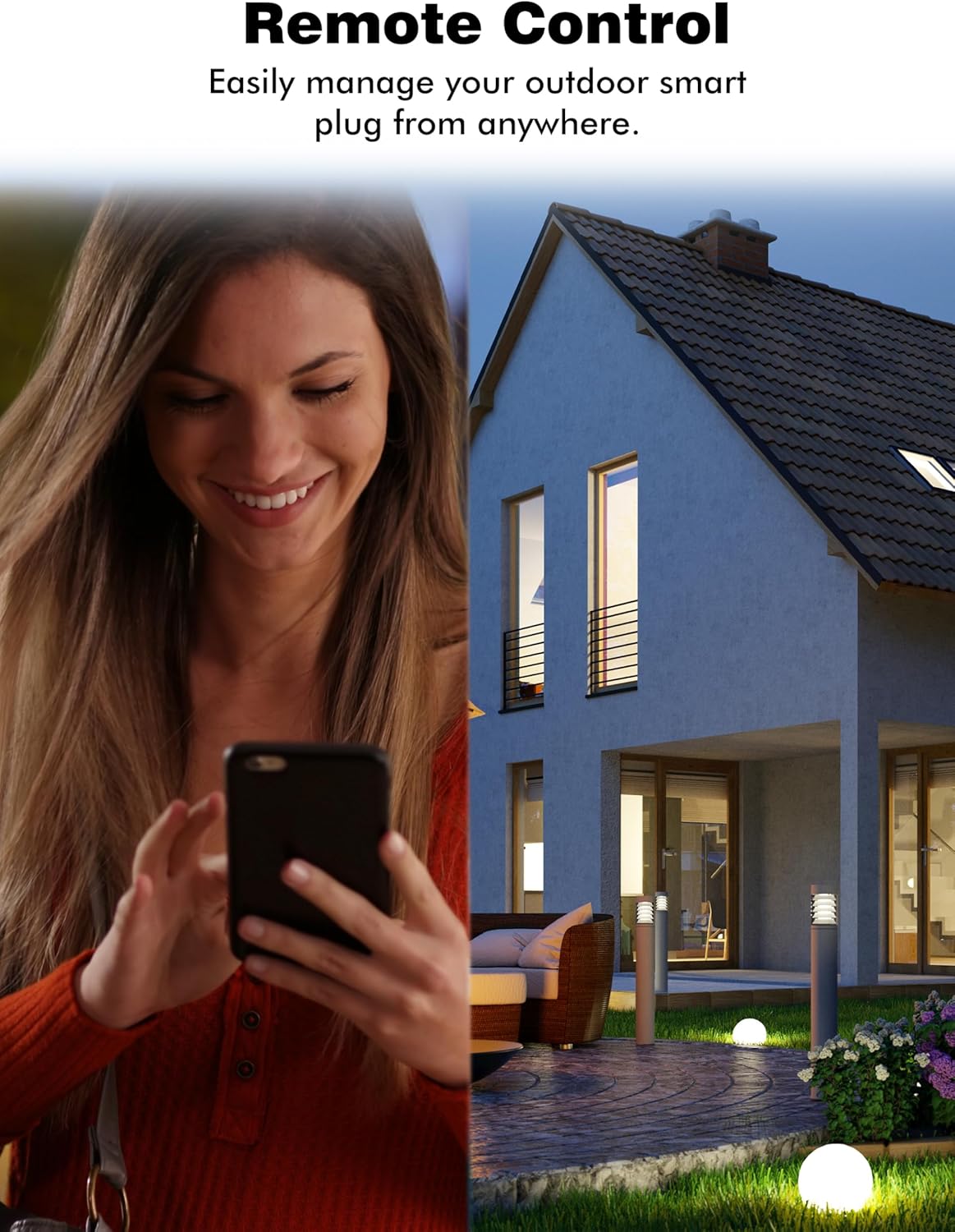
Image 5.1: Remote control functionality via the mobile app.
5.3 Voice Control
Once integrated with Alexa, Google Home, or SmartThings, you can use voice commands to control your devices. Examples:
- "Alexa, turn on the holiday lights in the yard."
- "Hey Google, turn off the lawn irrigation valve."
5.4 Timer and Schedule Functions
The Smart Life app allows you to set custom schedules and timers for each outlet. This includes:
- Scheduling: Set specific times for devices to turn on or off daily, weekly, or on custom days.
- Countdown Timer: Set a countdown for a device to turn on or off after a specified duration.
- Sunrise/Sunset Modes: Automate devices to turn on or off based on local sunrise and sunset times.
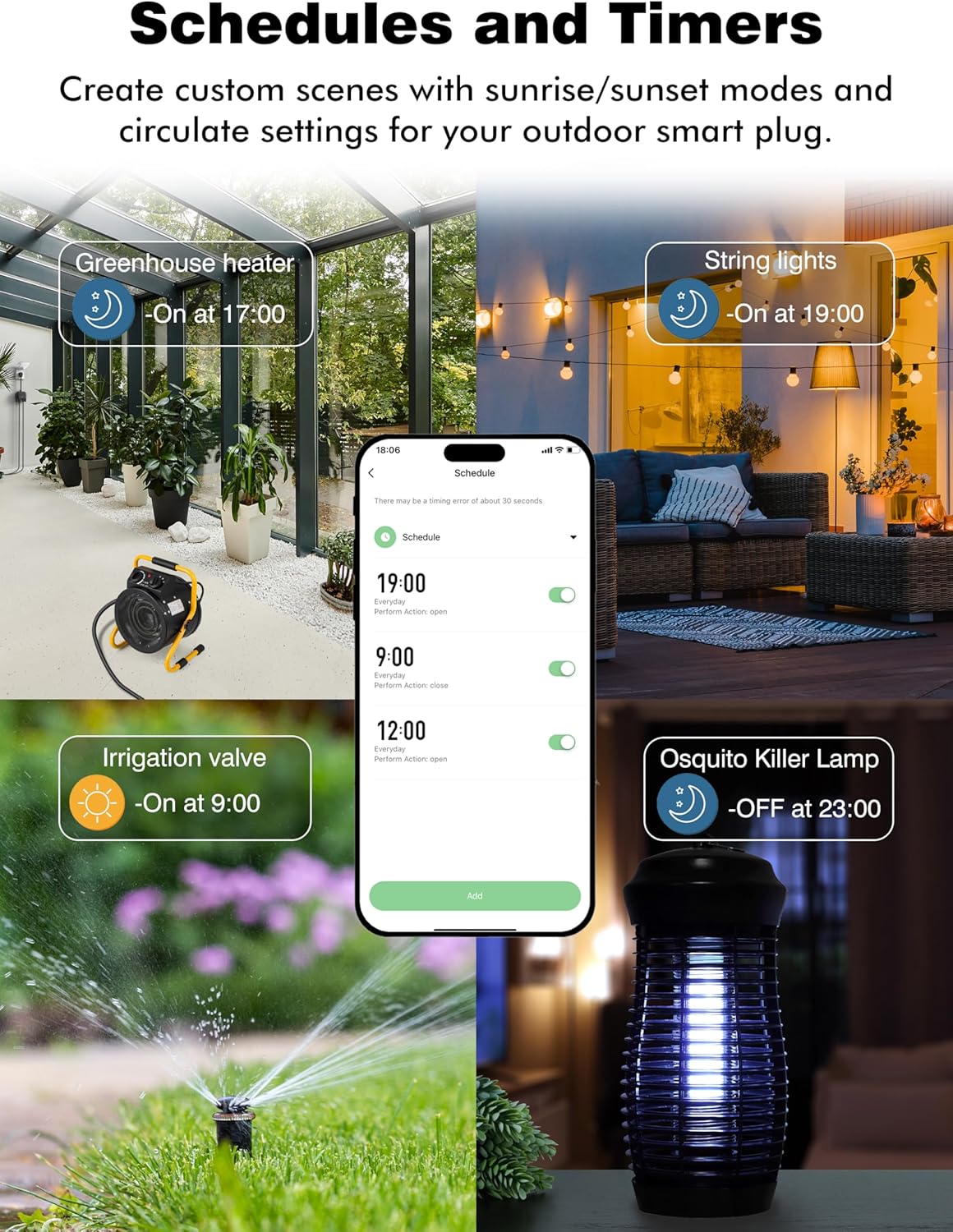
Image 5.2: Setting custom schedules and timers for automated control.
6. Maintenance
- Cleaning: Disconnect the smart plug from power before cleaning. Use a soft, dry cloth to wipe the surface. Do not use liquid cleaners or abrasive materials.
- Environmental Protection: While IP44 rated, avoid exposing the device to extreme weather conditions such as heavy rain, snow accumulation, or direct water jets. Ensure the outlet covers are securely closed when not in use.
- Storage: If storing the device for an extended period, ensure it is clean, dry, and stored in a cool, dry place away from direct sunlight.
7. Troubleshooting
- Device Not Connecting to Wi-Fi:
- Ensure your Wi-Fi network is 2.4GHz. The device does not support 5GHz Wi-Fi.
- Verify your phone is connected to the 2.4GHz network during the setup process.
- Check if the Wi-Fi signal strength is adequate at the installation location.
- Try resetting the smart plug by unplugging it and plugging it back in, or by pressing and holding the control button for approximately 5 seconds until the indicator light blinks rapidly.
- Ensure your Wi-Fi password is entered correctly in the Smart Life app.
- Voice Control Not Working:
- Confirm that the Smart Life skill/service is enabled and linked correctly in your Alexa, Google Home, or SmartThings app.
- Ensure the device names in the Smart Life app are recognized by your voice assistant. Try re-discovering devices in your voice assistant app.
- Outlets Not Responding:
- Check if the smart plug is powered on and connected to Wi-Fi (indicator light status).
- Verify that the connected appliance is working correctly when plugged directly into a standard outlet.
- Ensure the total wattage of connected devices does not exceed 1800W.
8. Specifications
| Feature | Specification |
|---|---|
| Model Number | ET77 |
| Brand | EIGHTREE |
| Operating Voltage | 120 Volts |
| Current Rating | 15 Amps |
| Wattage | 1800 watts |
| International Protection Rating | IP44 |
| Operating Temperature | -20°C to 40°C (-4°F to 104°F) |
| Connectivity Protocol | Wi-Fi (2.4GHz only), Bluetooth |
| Control Method | App, Remote, Touch, Voice |
| Number of Outlets | 2 (Independently Controlled) |
| Certifications | FCC, ETL |
| Item Weight | 8.1 ounces |
| Package Dimensions | 5.16 x 4.53 x 2.05 inches |
9. Warranty and Support
EIGHTREE provides a 24-month worry-free warranty for the Outdoor Smart Plug ET77, covering any manufacturing defects or issues arising from normal use. Additionally, EIGHTREE offers 24 months of customer support for any questions or concerns you may have regarding the product.
For technical assistance or warranty claims, please contact EIGHTREE customer service through the contact information provided on the product packaging or the official EIGHTREE website.

