
1. Introduction
The HoneyGuaridan Automatic Cat Feeder (Model S303D) is designed to provide convenient and consistent feeding for up to two cats. Featuring 2.4GHz Wi-Fi connectivity, app control, dual power supply options, and a fresh-keeping system, this smart feeder ensures your pets are fed according to a customized schedule, even when you're away.
2. Product Components
Carefully unpack all items and ensure all components are present:
- Main Feeder Unit
- Food Storage Container
- Lid with Desiccant Compartment
- Stainless Steel Bowls (2)
- Bowl Holders/Base
- Type C Power Adapter and Cable
- Desiccant Bag
- Wall Hook (for optional wall mounting)
- User Manual (this document)
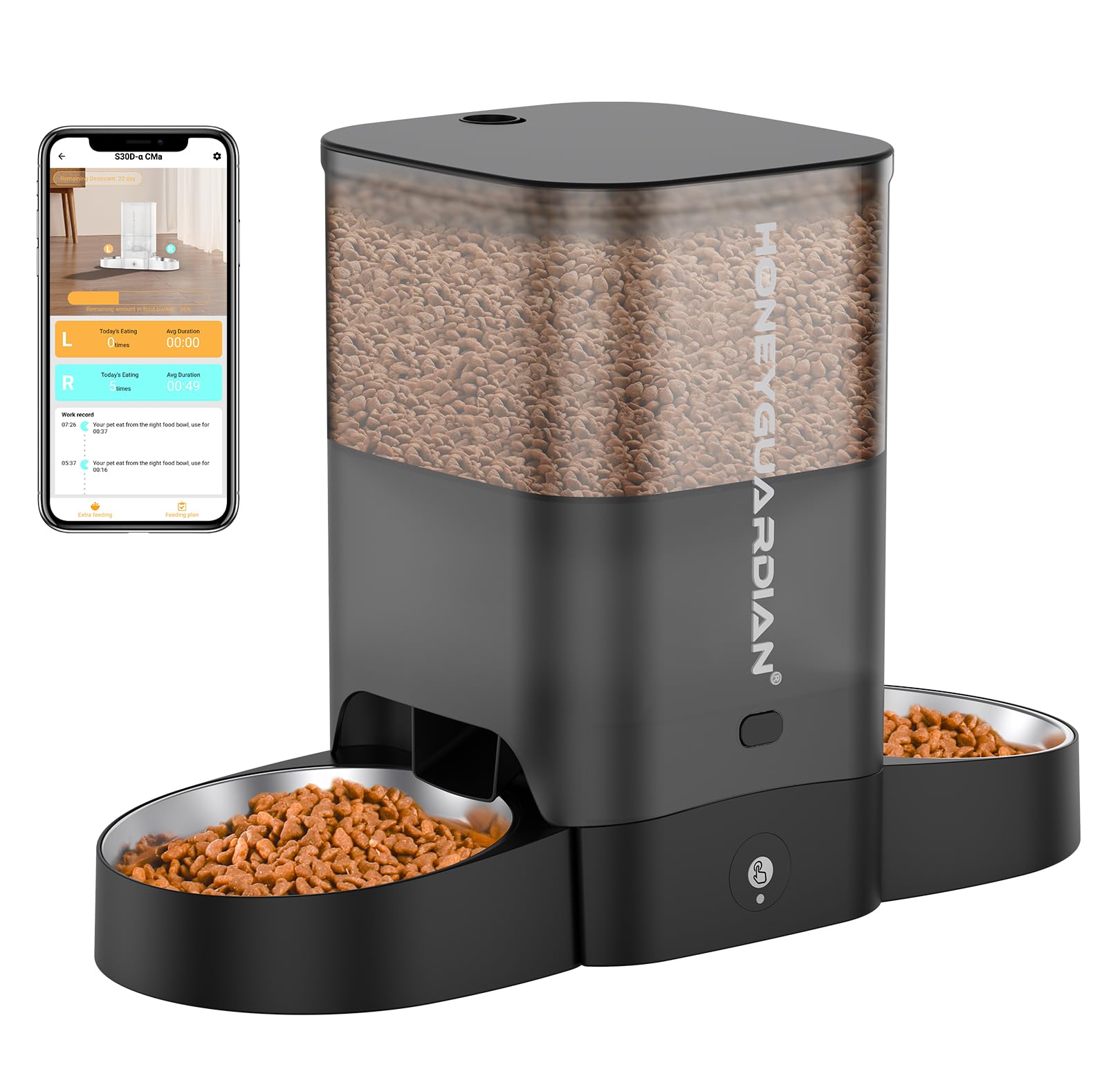
Image 2.1: Overview of the HoneyGuaridan Automatic Cat Feeder with two cats.
3. Setup Instructions
3.1 Assembly
- Install Batteries (Optional): Open the battery compartment on the bottom of the main feeder unit. Insert 3 D-cell batteries (not included) for backup power.
- Connect Power: Plug the Type C power cable into the feeder and the adapter into a wall outlet.
- Attach Bowl Holders: Slide the two bowl holders onto the metal rods extending from the main feeder unit.
- Place Stainless Steel Bowls: Insert the stainless steel bowls into the bowl holders.
- Install Desiccant Bag: Open the lid of the food container. Place the desiccant bag into its designated compartment on the underside of the lid. Close the lid securely.
- Fill Food Container: Pour dry pet food into the food storage container. Ensure the kibble size is between 2-15mm to prevent clogging.
Video 3.1: Visual guide for assembling the pet feeder components, including battery installation, power connection, and bowl setup.
3.2 App Download & Wi-Fi Connection
The HoneyGuaridan feeder connects to the "HGsmart" app for remote control and scheduling. The feeder only supports 2.4GHz Wi-Fi networks.
- Download the App: Scan the QR codes below or search for "HGsmart" in your device's app store.
- Enable Wi-Fi Pairing Mode: Long press the reset button on the feeder for 3 seconds until the Wi-Fi indicator light starts to flash blue.
- Add Device in App: Open the HGsmart app. Click "Add Device" or the "+" icon. The app should detect the feeder.
- Enter Wi-Fi Credentials: Select your 2.4GHz Wi-Fi network and enter the password.
- Complete Connection: Follow the on-screen prompts to complete the connection. The Wi-Fi indicator light on the feeder will turn solid blue once connected.
- Set Food Capacity: In the app, navigate to the device settings and set the current food capacity (e.g., 100% after filling).

Image 3.2: QR codes for downloading the HGsmart app. Android users can find the app here, and iOS users here.
Video 3.3: Detailed steps on how to connect the feeder to your 2.4GHz Wi-Fi network using the HGsmart app.
4. Operating Instructions
4.1 App Control
The HGsmart app provides comprehensive control over your feeder:
- Manual Feed: Dispense food instantly by selecting the desired portion size (1-5 portions) and tapping the "Feed" button.
- Set Feeding Schedule: Create a customized feeding plan with up to 6 meals per day. For each meal, you can specify the time and the number of portions (0-24 portions, approximately 6g per portion).
- Record Meal Calls: Record a 10-second voice message that will play during feeding times to call your pets.
- View Feeding Records: Access a history of all dispensed meals to monitor your pet's eating habits.
- Slow Feed Function: Enable this feature in the app settings to dispense food in smaller increments over a longer period, promoting healthier eating habits.
- Food Shortage Reminder: Receive app notifications when the food level in the container is low.
- Share Device: Share control of the feeder with other family members through the app.

Image 4.1: The HGsmart app allows for convenient scheduling and manual feeding.

Image 4.2: View detailed feeding records within the app.

Image 4.3: Reference table for setting appropriate portion sizes.
4.2 Manual Feed (Device Button)
To manually dispense food directly from the feeder, press the manual feed button located on the front panel. Each press will dispense one portion of food into each bowl.
Video 4.4: Demonstrates the manual feed function and voice recording feature of the feeder.
5. Maintenance
5.1 Cleaning
Regular cleaning ensures hygiene and proper functioning of the feeder:
- Disassemble the food container, lid, and stainless steel bowls.
- Wash these removable parts with mild soap and water. Rinse thoroughly and dry completely before reassembly.
- Important: The main feeder base, which contains electronic components, is NOT washable. Wipe it clean with a damp cloth only.

Image 5.1: The removable parts of the feeder are easy to disassemble and clean.
5.2 Desiccant Replacement
To maintain food freshness, replace the desiccant bag approximately once a month. You can reset the desiccant expiry date within the HGsmart app.
6. Troubleshooting
If you encounter issues with your HoneyGuaridan Automatic Cat Feeder, consider the following:
- Feeder not dispensing food: Check if the food container is empty. Ensure the feeder is powered on and connected to Wi-Fi. Verify that the kibble size is within the recommended 2-15mm range.
- App not connecting to feeder: Ensure your smartphone is connected to a 2.4GHz Wi-Fi network. Confirm the feeder's Wi-Fi indicator is flashing blue during pairing mode. Try resetting the feeder's Wi-Fi connection by long-pressing the reset button.
- Food not fresh: Ensure the lid is securely closed and the desiccant bag is replaced regularly (monthly).
- Power outage: If using batteries, the feeder will continue to operate on its programmed schedule. Ensure batteries are installed and charged.
7. Specifications
- Model Number: S303D
- Capacity: 3.5 Liters
- Dimensions: 17.78 x 25.4 x 20.32 cm
- Weight: 1.77 kg
- Material: Polyethylene Terephthalate, Stainless Steel
- Connectivity: 2.4GHz Wi-Fi (5GHz not supported)
- Power Supply: Type C Adapter (included), 3 D-cell Batteries (not included, for backup)
- Recommended Kibble Size: 2-15 mm
8. Warranty and Support
For warranty information, technical support, or any product-related inquiries, please refer to the contact details provided on the product packaging or the official HoneyGuaridan website. Keep your purchase receipt for warranty claims.