
Dekala PlaySmart
Dekala PlaySmart Kids Phone User Manual
Model: PlaySmart
Introduction
The Dekala PlaySmart Kids Phone is a multifunctional device designed to provide a safe, educational, and entertaining experience for children aged 3 to 12 years. This device combines the fun of a toy phone with educational games, a camera, music player, and parental control features, making it an ideal tool for children to explore technology responsibly.
This manual provides comprehensive instructions on how to set up, operate, and maintain your PlaySmart Kids Phone, ensuring a smooth and enjoyable experience for both children and parents.
Safety Information
Please read all safety instructions before using the PlaySmart Kids Phone. Failure to follow these instructions may result in injury or damage to the device.
- Age Recommendation: This product is suitable for children aged 3 years and older.
- Charging: Always use the original data cable for charging. Supervise children during charging.
- Water Exposure: The device is not waterproof. Avoid exposure to water or other liquids.
- Cleaning: Clean the device with a soft, dry cloth. Do not use harsh chemicals.
- Battery Safety: Do not attempt to replace the battery. Do not expose the battery to extreme temperatures or dispose of it in fire.
- Screen Care: Avoid pressing the screen with sharp objects.
What's in the Box
Upon opening the package, please ensure all items are present and in good condition:
- Dekala PlaySmart Kids Phone
- Charging Cable (USB)
- User Manual (this document)
- Silicone Protective Case (pre-installed or included)
Setup
1. Initial Charging
Before first use, fully charge the PlaySmart Kids Phone. Connect the provided charging cable to the phone's charging port and plug the other end into a compatible USB power adapter (not included) or a computer's USB port.
- A full charge typically takes approximately 2-3 hours.
- The battery indicator on the screen will show charging progress.
2. Powering On/Off
To power on the device, press and hold the Power button (usually located on the side) for a few seconds until the screen lights up. To power off, press and hold the Power button again, then select "Power Off" on the screen.

Figure 1: The PlaySmart Kids Phone displaying its main interface with various educational and entertainment applications.
Operating Instructions
Navigating the Interface
The PlaySmart Kids Phone features a user-friendly touchscreen interface. Swipe left or right to navigate between screens, and tap on icons to open applications.

Figure 2: A child engaging with the PlaySmart Kids Phone, highlighting its full-featured capabilities including creative and utility apps.
Camera and Video Recording
The phone is equipped with a 180° rotatable camera, allowing children to take photos and record videos. Tap the "Camera" icon to open the camera application.
- Taking Photos: Tap the shutter button on the screen to capture an image.
- Recording Videos: Switch to video mode within the camera app and tap the record button to start/stop recording.
- Viewing Media: Access captured photos and videos through the "Gallery" application.
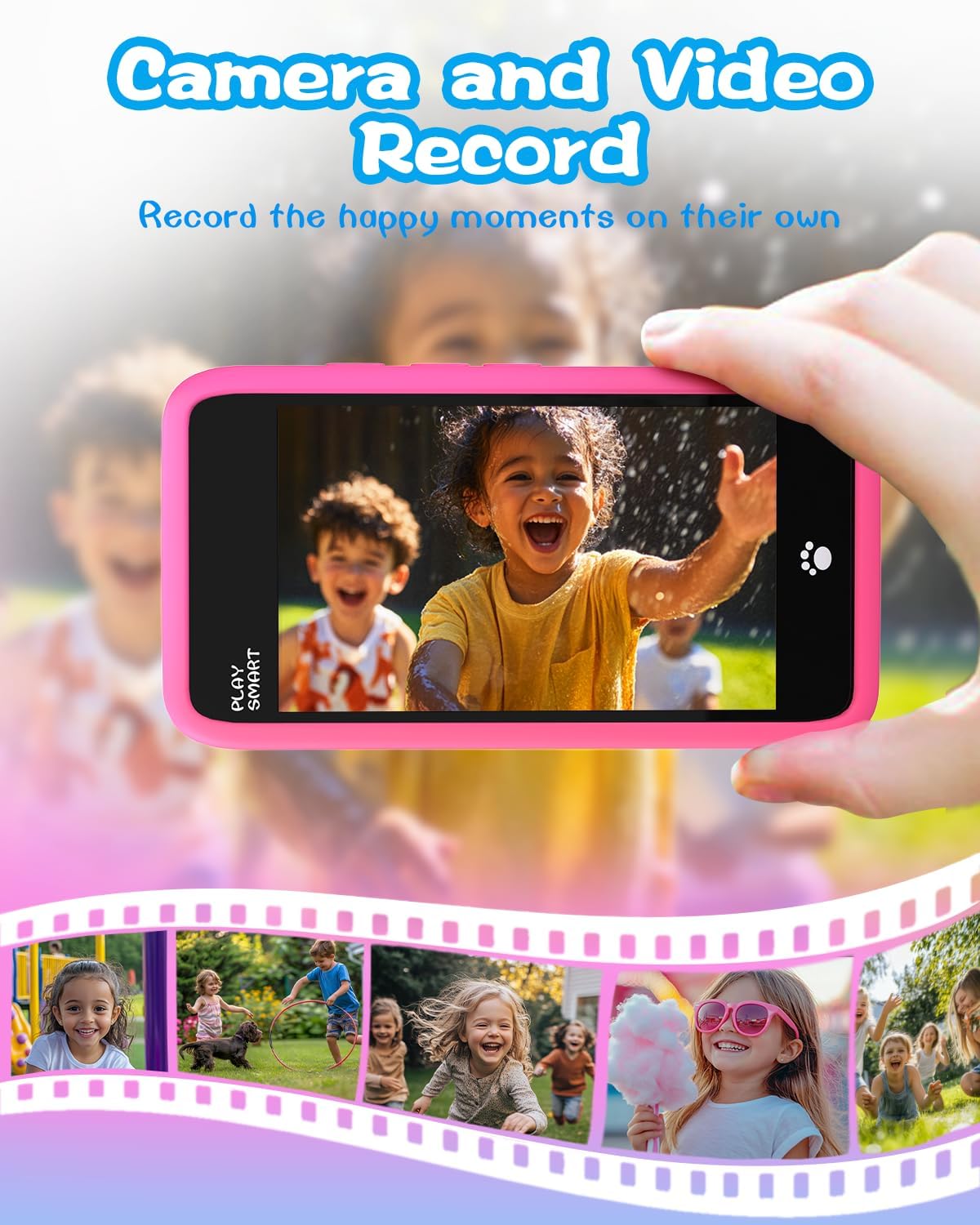
Figure 3: Demonstrating the camera and video recording feature, allowing children to capture their own moments.
Educational Games
The PlaySmart Kids Phone comes preloaded with over 200 educational games designed to enhance learning in various subjects like numbers, colors, and animals. Tap the "Games" or specific learning app icons to start playing.
- Games are categorized into areas such as Montessori, Art and Craft, First Learning, Brain Training, and STEM.
- Each game offers interactive challenges suitable for different age groups within the recommended range.

Figure 4: A visual representation of the diverse range of educational games available on the PlaySmart Kids Phone.
Music Player and Stories
The device includes a music player with 21 preloaded soothing music tracks and white noise, ideal for relaxation or sleep aid. It also features audio storybooks.
- Music: Tap the "Music" icon to access the music player. You can adjust volume and select track duration.
- Stories: Explore interactive stories through the "Story" application.

Figure 5: The PlaySmart Kids Phone's features for captivating music and engaging stories, promoting relaxation and learning.
Parental Control Mode
The PlaySmart Kids Phone offers robust parental control features to ensure a safe and managed environment for your child. Access parental controls through the settings menu.
- Password Protection: Set a password to prevent unauthorized access to settings.
- App Management: Control which applications your child can access.
- Time Management: Set daily usage limits or specific time windows for play.
- Account Creation: Create and manage multiple child accounts.
Maintenance
- Cleaning: Use a soft, lint-free cloth to gently wipe the screen and body of the phone. Do not use abrasive cleaners or sprays.
- Storage: Store the phone in a cool, dry place away from direct sunlight and extreme temperatures.
- Battery Care: To prolong battery life, avoid fully discharging the battery frequently. Charge the device regularly, even if not in use for extended periods.
- Protective Case: Keep the silicone protective case on the phone to shield it from accidental drops and impacts.
Troubleshooting
| Problem | Possible Cause | Solution |
|---|---|---|
| Device does not turn on. | Low battery or completely discharged. | Connect the phone to the charger and allow it to charge for at least 30 minutes before attempting to power on again. |
| Screen is unresponsive. | Temporary software glitch. | Perform a soft reset by pressing and holding the Power button for about 10-15 seconds until the device restarts. |
| Games or apps are slow/lagging. | Too many applications running in the background or low storage. | Close unused applications. Check available storage and delete unnecessary files if needed. |
| Cannot connect to Wi-Fi or make calls. | The PlaySmart Kids Phone does not support Wi-Fi or calling functions. | This is by design. The device is intended for offline play and learning. |
Specifications
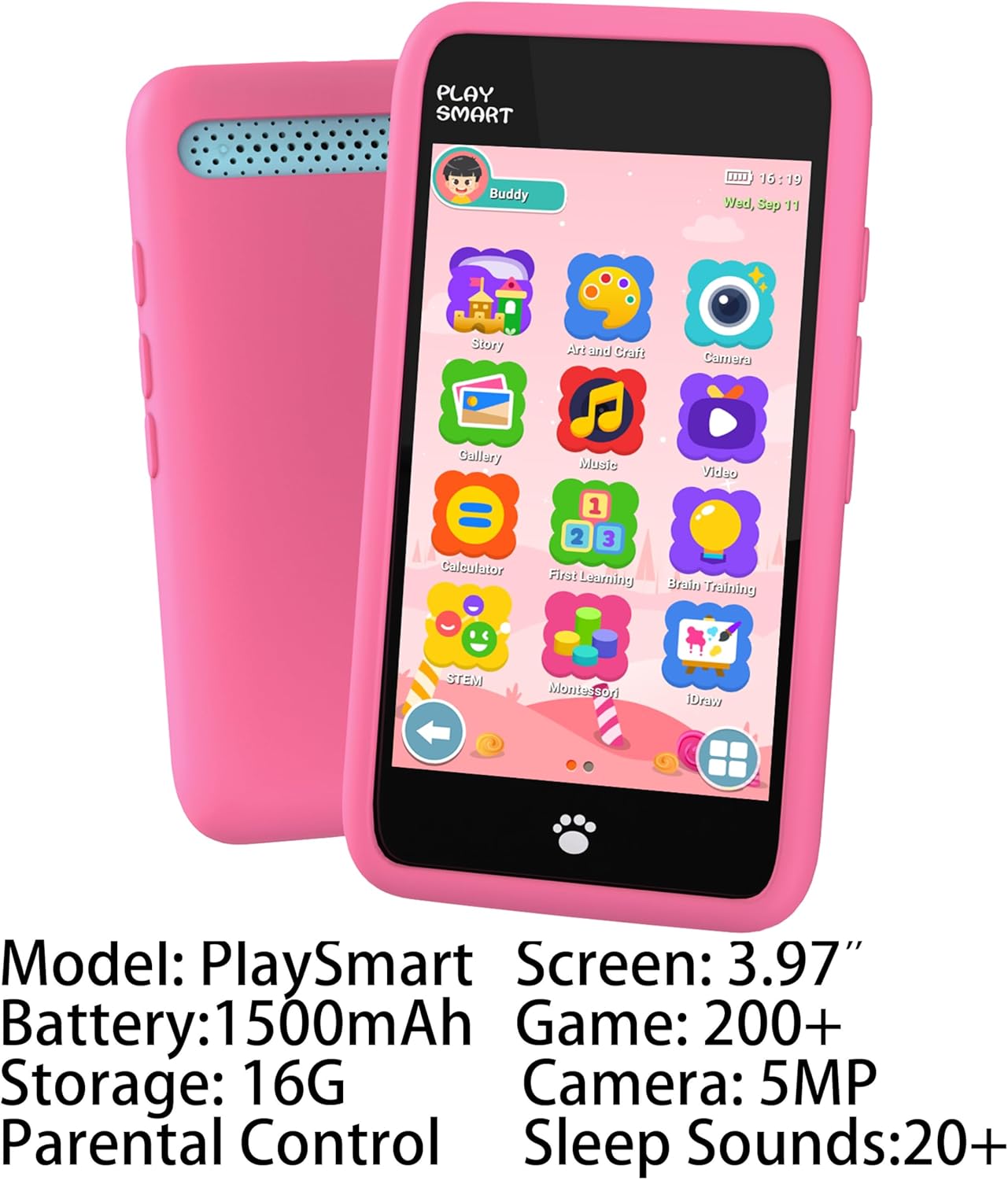
Figure 6: Key specifications of the PlaySmart Kids Phone.

Figure 7: A comparative overview of the PlaySmart Kids Phone's specifications against other similar products.
- Model: PlaySmart
- Screen Size: 3.97 inches HD Touch Screen
- Battery Capacity: 1500mAh (Nonstandard Battery, included)
- Internal Storage: 16GB
- Camera Resolution: 5MP (180° rotatable)
- Preloaded Games: 200+ educational games
- Preloaded Music/Sounds: 21 soothing music tracks and white noise
- Connectivity: No Wi-Fi, No Calling Function
- Product Dimensions: 0.32 x 0.19 x 0.04 inches
- Item Weight: 5 ounces
- Recommended Age: 36 months - 12 years
- Manufacturer: Dekala
Warranty and Support
For warranty information and customer support, please refer to the contact details provided on the product packaging or visit the official Dekala website. Keep your purchase receipt as proof of purchase for any warranty claims.
For further assistance or technical support, please contact Dekala Customer Service.
Ask a question about this manual
Ask about setup, troubleshooting, compatibility, parts, safety, or missing instructions. Manuals+ will review the question and use this page’s manual context to help answer it.