
WisFox 2.4GHz Full-Size Silent Wireless Keyboard and Mouse Combo (White)
WisFox 2.4GHz Wireless Keyboard and Mouse Combo User Manual
Model: Full-Size Silent Wireless Keyboard and Mouse Combo (White)
1. Introduction
Thank you for choosing the WisFox 2.4GHz Wireless Keyboard and Mouse Combo. This product is designed to provide a comfortable, efficient, and quiet wireless computing experience. This manual will guide you through the setup, operation, and maintenance of your new device.

Figure 1: WisFox Wireless Keyboard and Mouse Combo (White) with USB receiver.
2. Safety Information
- Keep the device away from water, fire, and high temperatures.
- Do not attempt to disassemble or repair the device yourself. Contact qualified service personnel for assistance.
- Dispose of batteries according to local regulations. Do not mix old and new batteries.
- Avoid dropping or subjecting the device to strong impacts.
3. Package Contents
Please check the package contents upon opening:
- 1 x WisFox Wireless Keyboard
- 1 x WisFox Wireless Mouse
- 1 x USB Receiver (stored in the mouse battery compartment)
- 1 x User Manual (this document)
Note: Appropriate batteries are not included and must be purchased separately.
4. Setup Guide
4.1. Installing Batteries
- For the Mouse: Open the battery compartment cover on the bottom of the mouse. Insert the appropriate battery (not included), ensuring correct polarity (+/-). Close the cover.
- For the Keyboard: Open the battery compartment cover on the back of the keyboard. Insert the appropriate batteries (not included), ensuring correct polarity (+/-). Close the cover.

Figure 2: Location of battery compartment and USB receiver storage on the mouse.
4.2. Connecting the USB Receiver
- Locate the USB receiver, which is conveniently stored in the battery compartment of the mouse. Gently pull it out.
- Plug the USB receiver into an available USB port on your computer, laptop, or compatible device.
- Your operating system should automatically detect and install the necessary drivers. This is a Plug and Play device, requiring no additional software installation.

Figure 3: USB receiver connected to a device, enabling 2.4GHz wireless communication.
4.3. Powering On
- For the Mouse: Locate the ON/OFF switch on the bottom of the mouse (near the battery compartment) and slide it to the "ON" position.
- For the Keyboard: The keyboard typically powers on automatically once batteries are inserted and the USB receiver is connected. Some models may have an ON/OFF switch on the back or side.
Your keyboard and mouse are now ready for use.
5. Operating Instructions
5.1. General Usage
The WisFox Wireless Keyboard and Mouse Combo provides a seamless and responsive experience for daily computing tasks. The 2.4GHz wireless connection ensures a stable link up to 33 feet (10 meters) with minimal delays or dropouts.
5.2. Ergonomic Design and Comfort
- Keyboard Tilt: The keyboard features an 8° foldable stand on the back, allowing you to adjust the typing angle for optimal comfort and to reduce wrist fatigue during long periods of use.
- Full-Size Layout: The keyboard includes a full-size F-keys row, a dedicated numeric keypad, and arrow keys for enhanced productivity.

Figure 4: Keyboard with 8° foldable tilt and ergonomic mouse design.
5.3. Quiet Operation
- Silent Mouse: The mouse is designed for 100% silent clicking, ensuring a quiet working environment.
- Quiet Keyboard: The keyboard's keys are engineered to be over 90% quieter than standard keyboards, minimizing typing noise.
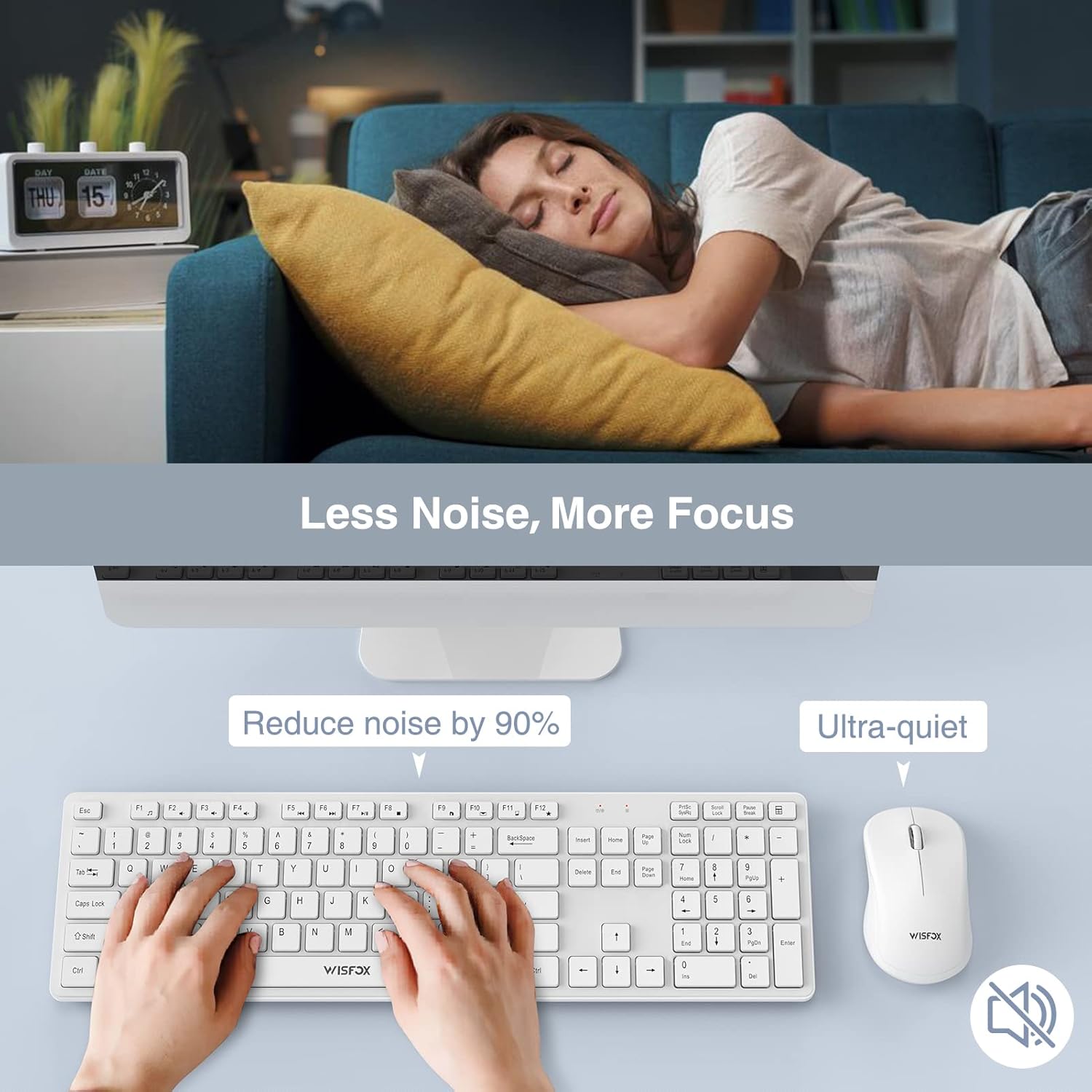
Figure 5: The quiet design of the combo promotes a peaceful work environment.
5.4. Power Saving Features
To conserve battery life, both the keyboard and mouse feature intelligent power-saving modes:
- The mouse will enter sleep mode after 1 minute of inactivity.
- The keyboard will enter sleep mode after 8 minutes of inactivity.
- To wake the devices, simply press any key on the keyboard or click/move the mouse.
- Both devices also have ON/OFF switches to manually power them down for extended storage or travel, further prolonging battery life up to 365 days.
5.5. Multimedia Keys (Fn+ Keys)
The keyboard includes 12 multimedia keys accessible by pressing the Fn key in combination with the F1-F12 keys. These provide quick access to functions such as volume control, media playback, and more.

Figure 6: The combo's features, including multimedia keys, enhance efficiency.
5.6. Wide Compatibility
This keyboard and mouse combo is compatible with a broad range of operating systems and devices, including:
- All Windows system versions (e.g., Windows 2000/Vista/XP/7/8/10/Visa)
- Linux
- Chrome OS
- Mac OS
It works well with desktops, Chromebooks, PCs, laptops, computers, and even Smart TVs and HTPCs.
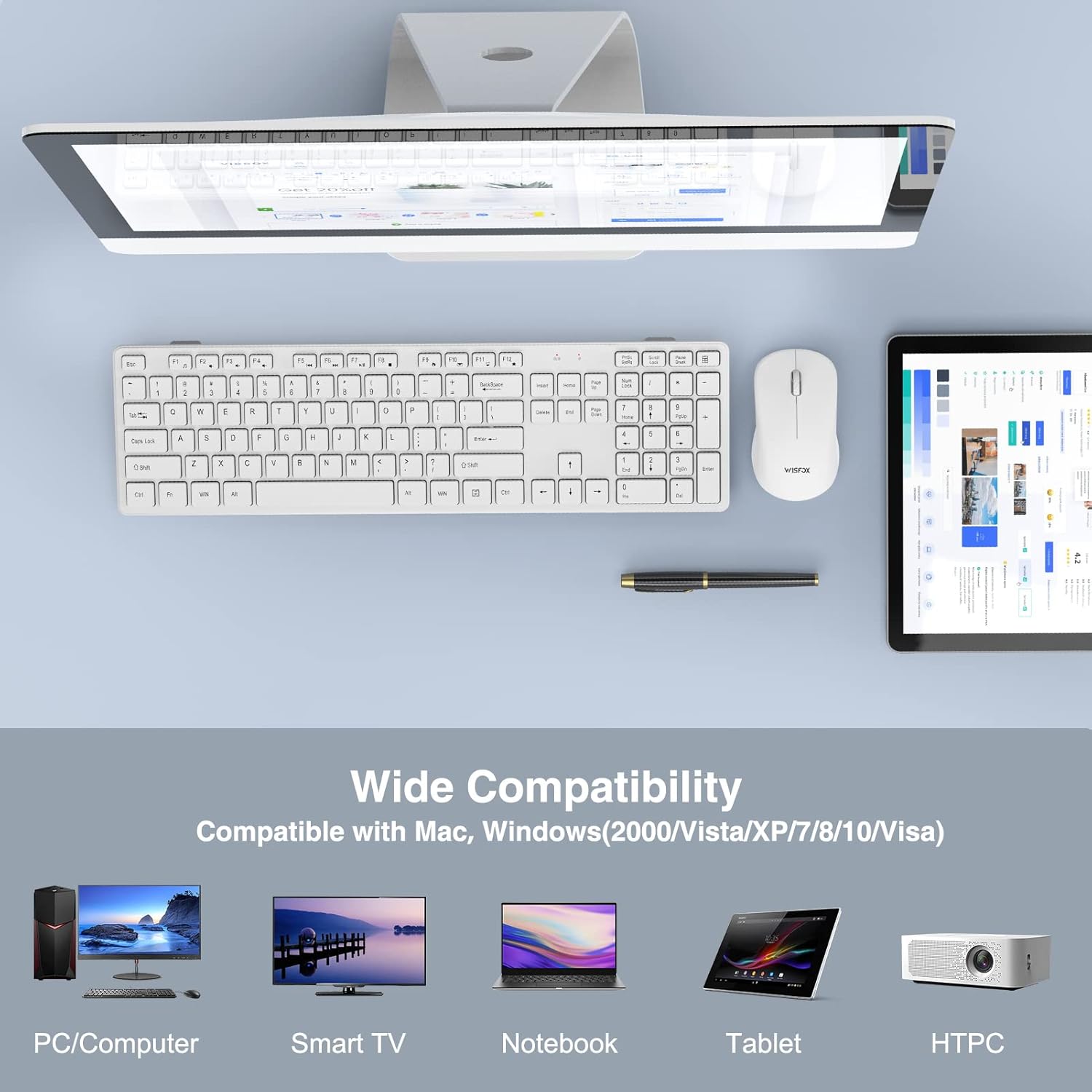
Figure 7: Broad compatibility with various devices and operating systems.
6. Maintenance
- Cleaning: Use a soft, dry cloth to clean the surfaces of the keyboard and mouse. For stubborn dirt, a slightly damp cloth can be used, but ensure no liquid enters the device. Do not use harsh chemicals or abrasive cleaners.
- Battery Replacement: When the devices stop responding or show signs of low power, replace the batteries with new ones, ensuring correct polarity.
- Storage: If storing the devices for an extended period, remove the batteries to prevent leakage and turn off the power switches.
7. Troubleshooting
| Problem | Possible Cause | Solution |
|---|---|---|
| Keyboard/Mouse not responding |
|
|
| Lag or intermittent connection |
|
|
| Mouse cursor erratic or not moving smoothly |
|
|
8. Specifications
| Feature | Detail |
|---|---|
| Brand | WisFox |
| Model | 2.4GHz Full-Size Silent Wireless Keyboard and Mouse Combo |
| Color | White |
| Connectivity Technology | 2.4GHz Wireless (USB Receiver) |
| Wireless Range | Up to 33 feet (10 meters) |
| Keyboard Layout | Full-Size with Numeric Keypad and F-keys |
| Keyboard Special Features | 8° Foldable Tilt, 12 Multimedia Keys, Quiet Operation |
| Mouse Special Features | 100% Silent Click, Optical Sensor |
| Power Saving | Auto-sleep mode, ON/OFF switches |
| Battery Life (Standby) | Up to 365 days |
| Compatible Devices | Personal Computer (Desktops, Laptops, Chromebooks, Smart TVs, HTPCs) |
| Operating System Compatibility | Windows (all versions), Linux, Chrome OS, Mac OS |
| Keyboard Dimensions | 16.93 x 4.72 x 0.7 inches (43 x 12 x 1.8 cm) |
| Mouse Dimensions | 4.16 x 2.4 x 1.45 inches (10.6 x 6.1 x 3.7 cm) |
| Item Weight | 1.54 pounds (0.7 kg) |
| Manufacturer | WisFox |
| Country of Origin | China |
9. Warranty and Support
For warranty information or technical support, please refer to the product packaging or contact WisFox customer service directly. You can typically find contact details on the manufacturer's official website or through your point of purchase.
For the latest information and support, please visit the WisFox Store on Amazon.
Ask a question about this manual
Ask about setup, troubleshooting, compatibility, parts, safety, or missing instructions. Manuals+ will review the question and use this page’s manual context to help answer it.