1. Introduction
This manual provides essential information for the proper setup, operation, and maintenance of your Packard Bell airFrame 24 Inch FHD Monitor and Wireless Keyboard & Mouse Bundle. Please read this manual thoroughly before using the product to ensure optimal performance and safety.
The Packard Bell airFrame Series monitors are designed to deliver high-quality visuals and responsive performance for various applications, including gaming, office work, and educational use. This bundle includes two 24-inch FHD monitors, a wireless keyboard, and a wireless mouse.
2. Package Contents
Verify that all items are present in the package:
- 2x Packard Bell airFrame 24 Inch FHD Monitors
- 2x Monitor Stands
- 1x Wireless Keyboard
- 1x Wireless Mouse
- 1x USB Receiver (for keyboard and mouse)
- 2x HDMI Cables
- 2x Power Adapters
- 1x User Manual (this document)

Image: Contents of the Packard Bell 2X 24 Inch FHD Monitor and Wireless Keyboard & Mouse Bundle.
3. Setup Instructions
3.1 Monitor Assembly
- Carefully remove the monitor and stand components from the packaging.
- Attach the stand base to the stand neck. Secure with the provided screw if applicable.
- Attach the assembled stand to the back of the monitor. Ensure it clicks securely into place or is fastened with screws.
- Place the monitor on a stable, flat surface.

Image: The monitor stand allows for ergonomic tilt adjustment, ranging from -5 degrees forward to +15 degrees backward.
Optional: VESA Mount Installation
The airFrame 24 monitor is VESA mount compatible. To mount the monitor on a wall or desk arm:
- Remove the stand from the monitor.
- Attach the VESA-compatible mounting bracket (not included) to the back of the monitor using the appropriate screws.
- Follow the instructions provided with your VESA mount for secure installation.
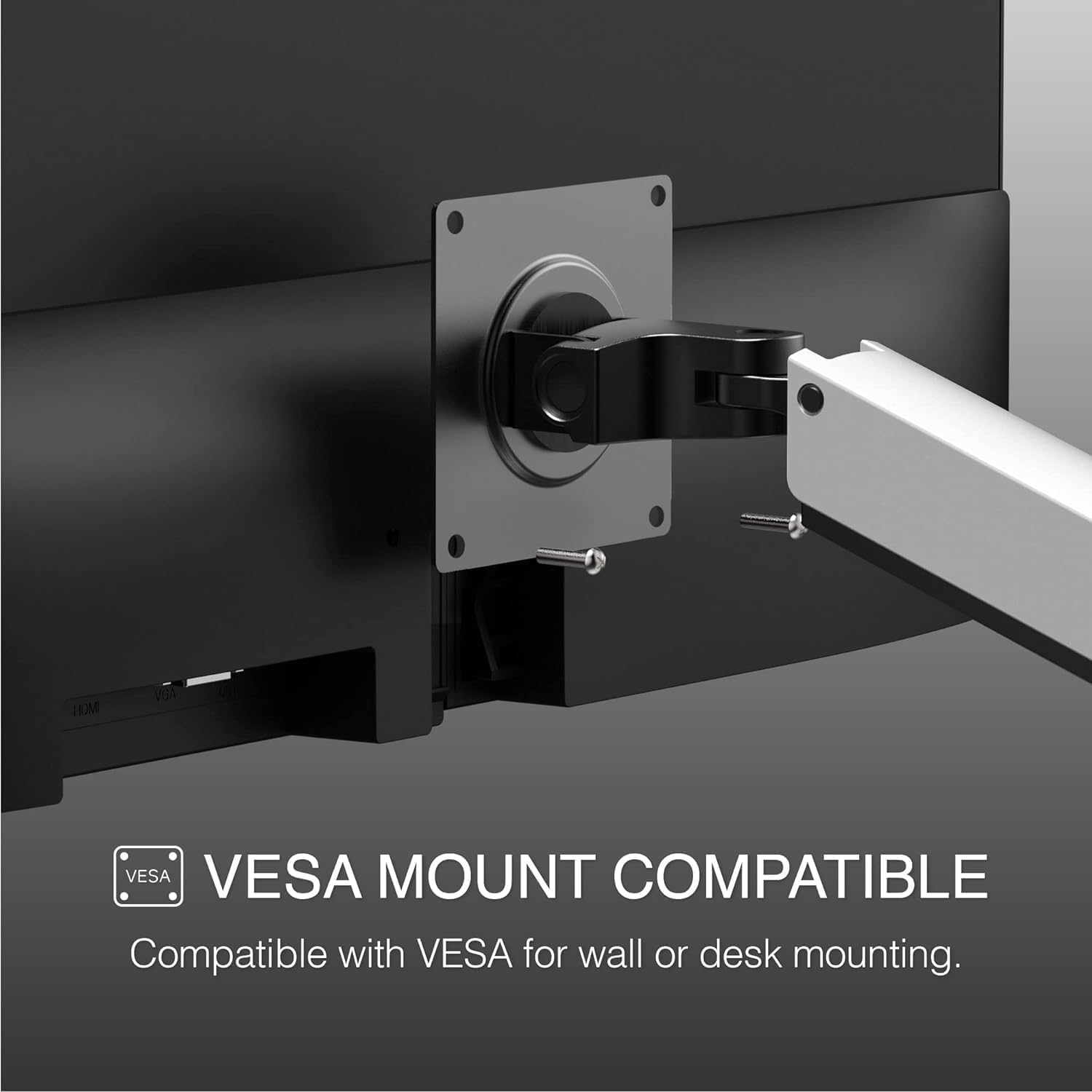
Image: The monitor features VESA mount compatibility for alternative mounting solutions.
3.2 Connecting the Monitors
- Connect one end of the HDMI cable to the HDMI port on the monitor.
- Connect the other end of the HDMI cable to the HDMI port on your computer or other video source.
- Repeat for the second monitor if using a dual-monitor setup.
- Connect the power adapter to the monitor's power input and then plug the adapter into a power outlet.
- Press the power button on the monitor to turn it on.
3.3 Wireless Keyboard and Mouse Setup
- Locate the USB receiver for the wireless keyboard and mouse. It is typically stored in the battery compartment of the mouse.
- Insert the USB receiver into an available USB port on your computer.
- Install batteries (not included) into the keyboard and mouse if they are not pre-installed. Ensure correct polarity.
- Turn on the keyboard and mouse using their respective power switches (if available).
- The keyboard and mouse should automatically connect to your computer. If not, refer to the troubleshooting section.
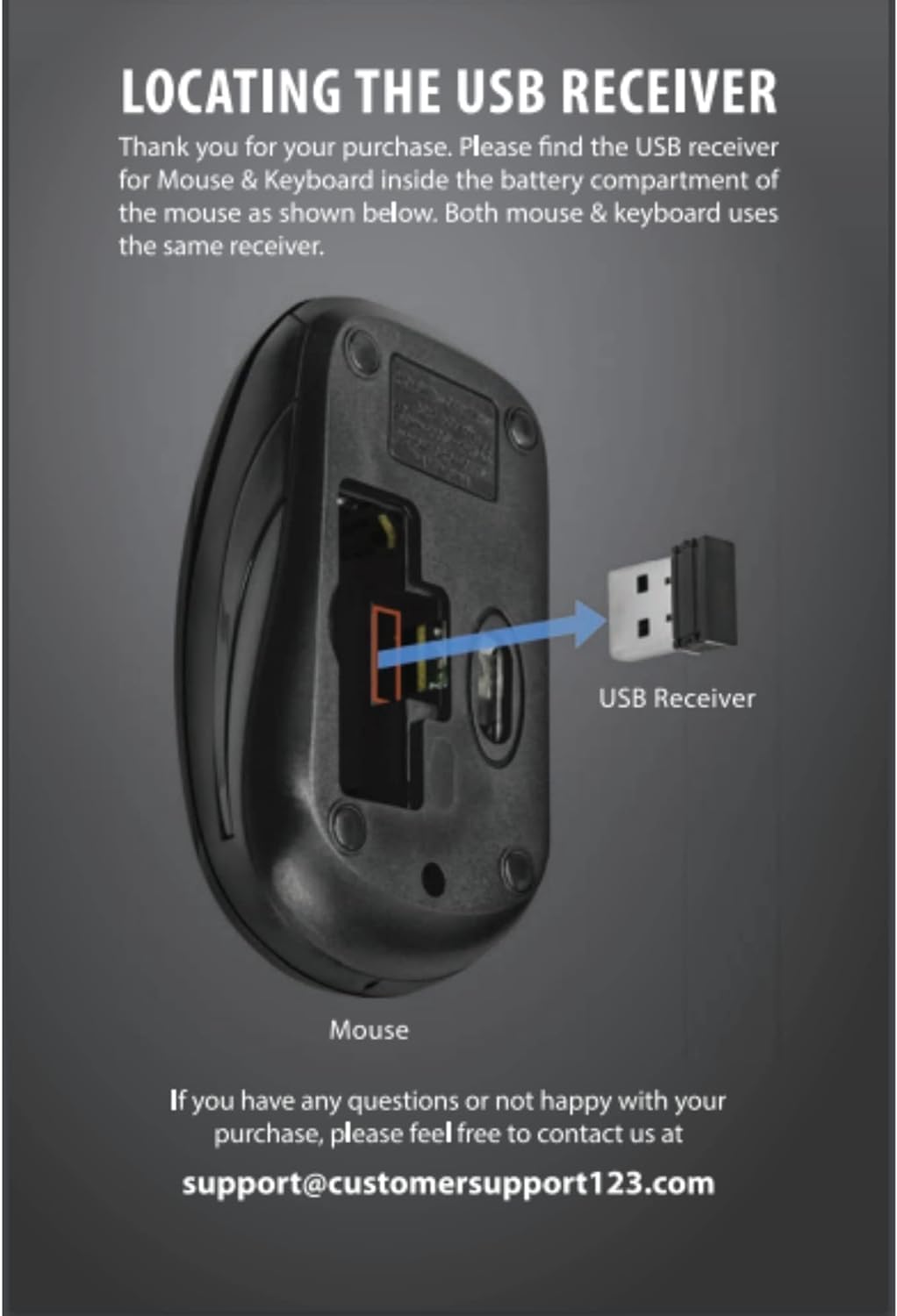
Image: The USB receiver for the wireless keyboard and mouse is located within the mouse's battery compartment.

Image: The included wireless keyboard and mouse peripherals.
4. Operating Instructions
4.1 Monitor Controls
The monitor features intuitive controls, typically located on the back or bottom right side, for adjusting settings. Common controls include:
- Power Button: Turns the monitor on or off.
- Menu Button: Accesses the On-Screen Display (OSD) menu.
- Navigation Buttons: Used to navigate through OSD menu options and adjust values.
- Input Select Button: Switches between available input sources (HDMI, VGA).
4.2 On-Screen Display (OSD) Menu
The OSD menu allows you to customize various display settings:
- Brightness/Contrast: Adjusts the overall luminance and contrast of the display.
- Color Settings: Modifies color temperature, hue, and saturation.
- Input Source: Manually selects the video input.
- Picture Mode: Pre-set display modes for different content types (e.g., Standard, Game, Movie).
- Aspect Ratio: Adjusts the display's aspect ratio (e.g., 16:9, 4:3).
- Audio: Controls volume and mute for built-in speakers (if available) or audio output.

Image: The monitor provides a 1920x1080 Full High Definition resolution for clear visuals.

Image: The monitor offers a 178-degree wide viewing angle, ensuring consistent image quality from various perspectives.

Image: The monitor features an edge-to-edge screen with an ultra-thin bezel for an immersive viewing experience.
4.3 Keyboard and Mouse Usage
The wireless keyboard and mouse operate like standard peripherals. Ensure they are within range of the USB receiver for optimal performance. If experiencing lag or disconnections, check battery levels and ensure no obstructions are blocking the signal.
5. Maintenance
5.1 Cleaning the Monitor
- Always power off and unplug the monitor before cleaning.
- Use a soft, lint-free cloth lightly dampened with water or a non-abrasive screen cleaner.
- Do not spray cleaner directly onto the screen.
- Avoid using alcohol, ammonia, or abrasive cleaners, as they can damage the screen surface.
5.2 Cleaning Peripherals
- Use a soft, dry cloth to wipe down the keyboard and mouse.
- For stubborn dirt, a lightly dampened cloth with mild soap solution can be used, ensuring no liquid enters the devices.
- Use compressed air to remove dust and debris from between keyboard keys.
5.3 Battery Replacement
When the wireless keyboard or mouse batteries are low, replace them with new ones of the same type. Refer to the battery compartment for specific battery requirements (e.g., AA, AAA).
6. Troubleshooting
6.1 Monitor Issues
- No Power:
- Ensure the power cable is securely connected to the monitor and the power outlet.
- Verify the power outlet is functional.
- No Signal:
- Check that the HDMI cable is securely connected to both the monitor and the computer.
- Ensure the correct input source is selected on the monitor's OSD menu.
- Verify the computer's display output is active.
- Flickering/Distorted Image:
- Check cable connections.
- Adjust resolution and refresh rate settings on your computer.
- Test with a different cable or video source if possible.
6.2 Keyboard and Mouse Issues
- No Response:
- Ensure the USB receiver is properly plugged into a working USB port.
- Check battery levels and replace if necessary.
- Ensure the keyboard/mouse power switch is in the "On" position.
- Try plugging the USB receiver into a different USB port.
- Lag/Intermittent Connection:
- Reduce the distance between the peripherals and the USB receiver.
- Remove any potential sources of interference (e.g., other wireless devices, large metal objects).
7. Specifications
| Feature | Specification |
|---|---|
| Brand | Packard Bell |
| Model Number | airFrame 24 |
| Screen Size | 24 Inches |
| Resolution | 1920 x 1080 (FHD 1080p) |
| Refresh Rate | 75 Hz |
| Response Time | 5 ms |
| Aspect Ratio | 16:9 |
| Viewing Angle | 178 Degrees |
| Tilt Adjustment | -5° to +15° |
| VESA Compatibility | Yes |
| Connectivity | HDMI, VGA |
| Voltage | 120 Volts (AC) |
| Color | Full Color Range |
8. Warranty and Support
For warranty information and technical support, please refer to the documentation included with your purchase or visit the official Packard Bell website. Keep your proof of purchase for warranty claims.
For general inquiries or assistance, you may contact customer support at support@customersupport123.com.


