
1. Introduction
This manual provides detailed instructions for the proper use and maintenance of your SUNYIN Wireless Bluetooth Page Turner Pedal. Please read this manual thoroughly before operating the device to ensure optimal performance and longevity. This pedal is designed to provide hands-free page turning for digital documents, music scores, and other applications on compatible devices.
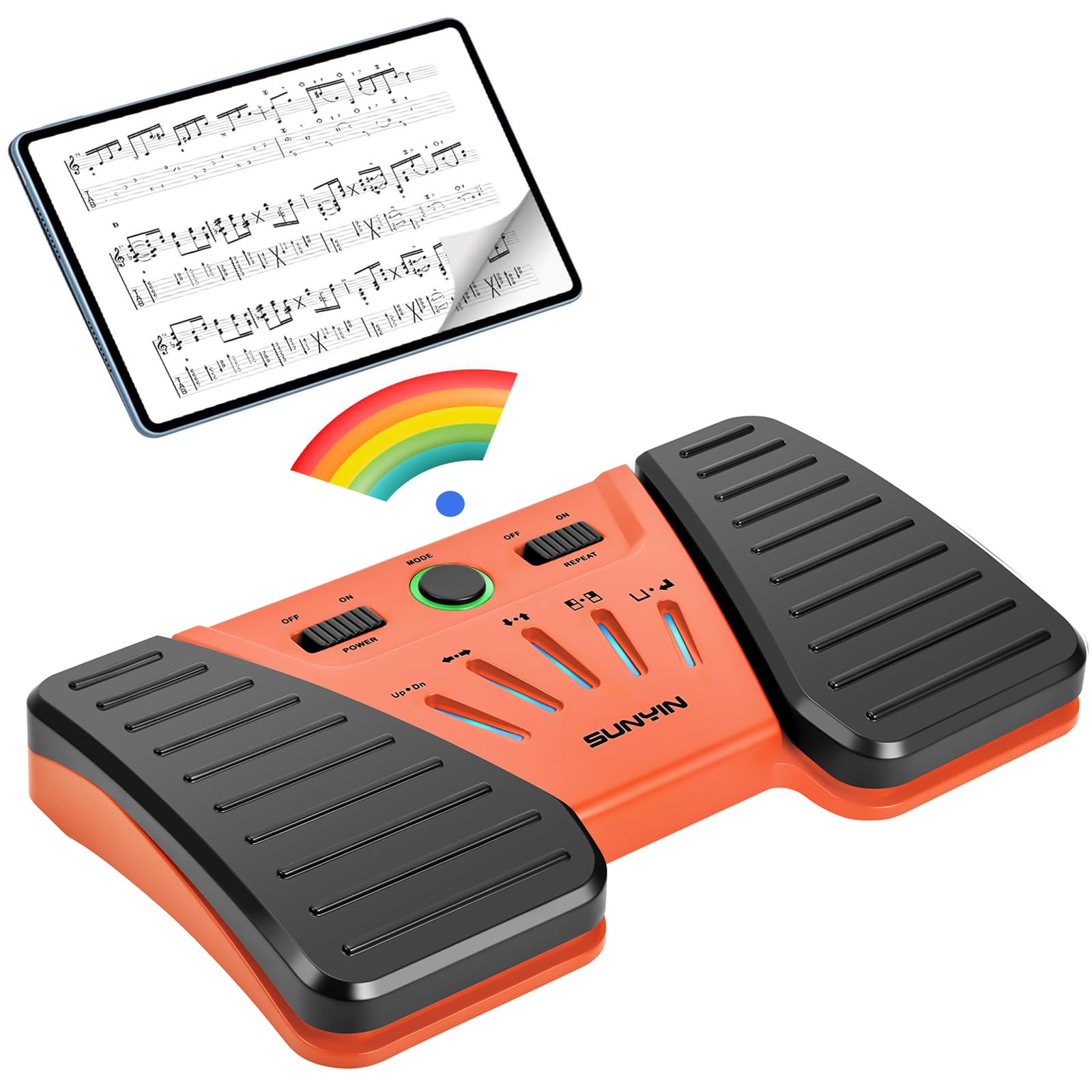
Image 1: SUNYIN Wireless Bluetooth Page Turner Pedal (Orange)
2. Product Overview
Key Features:
- Hands-Free Operation: Seamlessly turns pages for digital content, allowing uninterrupted practice or performance.
- Wide Compatibility: Compatible with various platforms including phones, tablets (iPad, Android), Mac, and PC. Supports multiple applications like ForScore.
- Anti-Slip & Silent Design: Features a quiet pedal mechanism and grippy rubber pads on the bottom to prevent sliding during use.
- Long Battery Life: Rechargeable battery provides up to 60 hours of continuous use on a full charge.
- Stable Bluetooth Connection: Ensures a consistent signal without interference up to 33 feet.
- Five Control Modes: Offers versatile control options for different applications and user preferences.
Components:
The pedal features two foot pedals, a central control panel with power and repeat switches, a mode selection button, and LED indicators.

Image 2: Page Turner Pedal Details (Dimensions, Anti-slip Rubber Pad)
3. Setup
3.1 Charging the Device
Before first use, fully charge the pedal. Connect the supplied USB-C cable to the charging port on the pedal and the other end to a 5V, 0.5A USB power source (e.g., computer USB port, wall adapter). A full charge typically takes about 2 hours. The LED indicator will show charging status (e.g., Red for low, Blue for mid, Green for full).

Image 3: Charging and Battery Life Indicators
3.2 Bluetooth Pairing
- Ensure the pedal is charged and powered on using the 'POWER' switch.
- On your device (phone, tablet, PC), navigate to the Bluetooth settings.
- Turn on Bluetooth.
- Search for available devices. The pedal will appear as "SP-2S" (or SP-1S/SP-3S depending on model).
- Select "SP-2S" to pair. Once connected, the device is ready for use.

Image 4: Bluetooth Connectivity
4. Operating Instructions
4.1 Power On/Off
Use the 'POWER' switch located on the control panel to turn the pedal ON or OFF.
4.2 Mode Selection
The pedal offers five control modes to suit different applications. Press the 'MODE' button in the center of the control panel to cycle through the modes. The corresponding LED indicator will light up to show the active mode:
- Mode 1: Page Up & Down (Up/Dn indicator) - For scrolling pages vertically.
- Mode 2: Indicator Left & Right (Left→Right indicator) - For navigating horizontally.
- Mode 3: Indicator Up & Down (Up↑Dn indicator) - For vertical scrolling, similar to Page Up/Down.
- Mode 4: Mouse-clicking Left/Right (Mouse icon indicator) - Simulates left and right mouse clicks.
- Mode 5: Keyboard Space-bar/Enter (Keyboard icon indicator) - Simulates Spacebar and Enter key presses.
4.3 Repeat Switch
Engage the 'REPEAT' switch to enable continuous page turning or scrolling when a pedal is held down. This is useful for quickly navigating through long documents or music sheets.
4.4 Usage Scenarios
The pedal can be used for various activities including:
- Turning music pages for musicians.
- Scrolling through recipes while cooking.
- Navigating presentations or teleprompters.
- Browsing web pages or e-books.

Image 5: Versatility and Compatibility
4.5 Demonstration Video
The following video demonstrates the page turning functionality of the pedal.
Video: Demonstration of the SUNYIN Wireless Page Turner Pedal in action.
5. Maintenance
To ensure the longevity of your page turner pedal, follow these maintenance guidelines:
- Keep the device clean and free from dust and debris. Use a soft, dry cloth for cleaning.
- Avoid exposing the pedal to extreme temperatures, moisture, or direct sunlight.
- Do not use abrasive cleaners or solvents.
- Store the pedal in a cool, dry place when not in use.

Image 6: Anti-skid Rubber Pad Detail
6. Troubleshooting
If you encounter issues with your pedal, refer to the following common solutions:
| Problem | Possible Cause | Solution |
|---|---|---|
| Pedal does not power on. | Low battery. | Charge the pedal fully using the provided USB cable. |
| Cannot pair via Bluetooth. | Bluetooth is off on your device or pedal. Device is out of range. | Ensure Bluetooth is enabled on both the pedal and your device. Move the device closer to the pedal (within 33ft). Restart both devices. |
| Page turning is not working in an application. | Incorrect mode selected. Application incompatibility. | Cycle through the 5 modes using the 'MODE' button to find the correct setting for your application. Some applications (e.g., Adobe Acrobat Reader) may not support external page turners. Try a different application (e.g., MobileSheets, ForScore). |
| Pedal slides during use. | Used on a soft or uneven surface. | Ensure the pedal is placed on a firm, flat surface. The anti-slip rubber pads are most effective on hard floors, not soft carpets. |
7. Specifications
- Item Weight: 9.6 ounces
- Package Dimensions: 7.4 x 4.53 x 1.38 inches
- Batteries: 1 Lithium Polymer battery (included)
- Material Type: Plastic
- Color: Orange (for this specific model variant)
- Connectivity: Bluetooth
- Battery Life: Up to 60 hours (after 2 hours full charge)
8. Warranty and Support
For warranty information or technical support, please contact SUNYIN customer service. Refer to your purchase documentation for specific warranty terms and contact details. You may also reach out to the seller, symusic, for assistance.