
1. Introduction
This manual provides essential information for the proper operation and maintenance of your onewscan Wireless 1D Barcode Scanner and Data Collector, Model 7106. Please read these instructions carefully before using the device to ensure optimal performance and longevity.
2. Package Contents
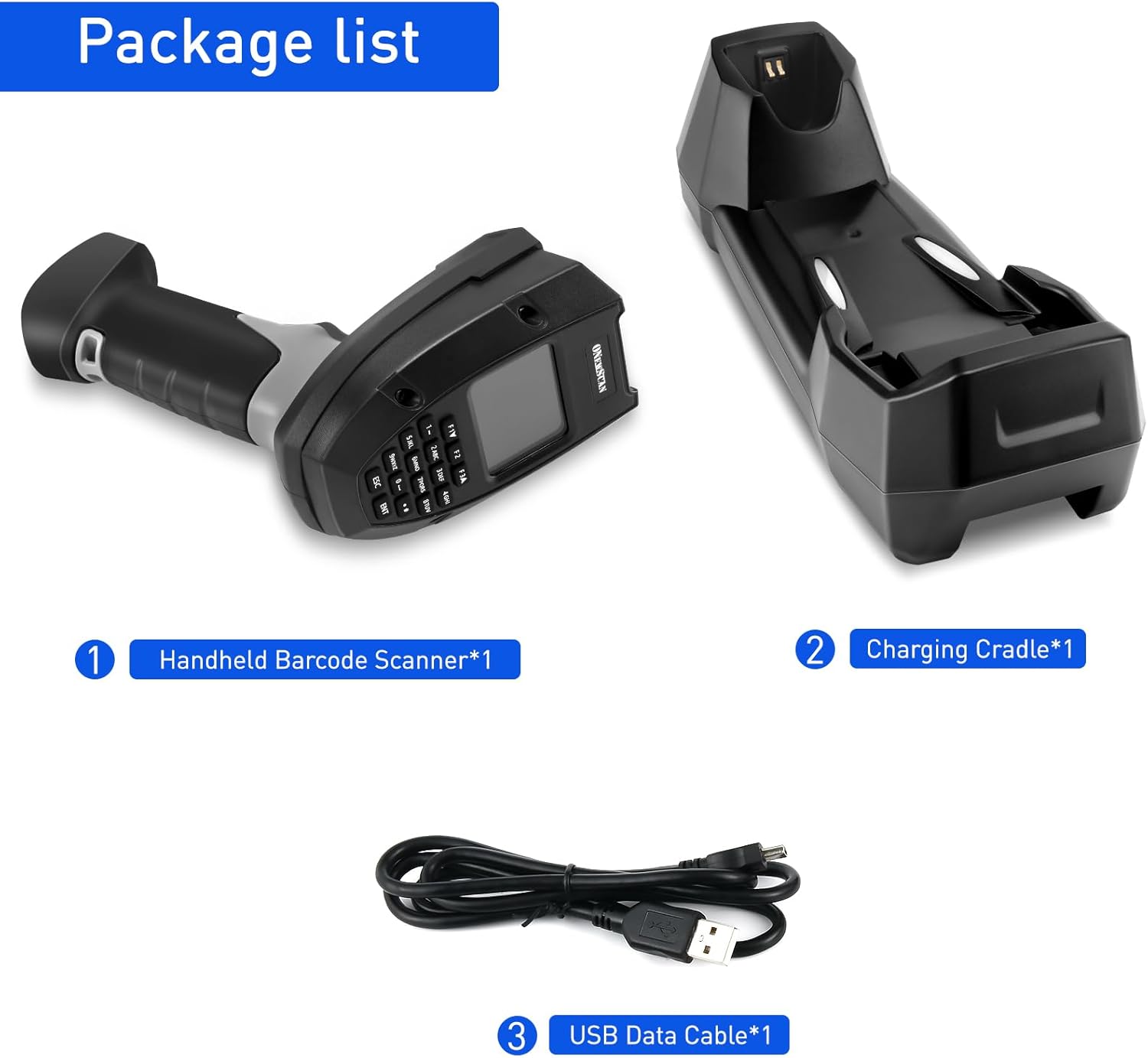
Verify that all items listed below are included in your package. If any items are missing or damaged, please contact customer support.
- Handheld Barcode Scanner
- Charging Cradle
- USB Data Cable
3. Product Overview
Familiarize yourself with the components of your onewscan 7106 barcode scanner.

- HD Screen: Displays current wireless channel, signal strength, battery level, barcode content, type, and length.
- Cancel Key: Used to cancel operations or navigate back.
- OK Key: Confirms selections or actions.
- High-performance Scan Head: Ensures accurate and rapid barcode reading.
- Scan Job Key: Initiates scanning operations.
- Ergonomic Handle Design: Provides comfortable grip for extended use.
4. Setup
Follow these steps to set up your barcode scanner for use.
4.1 Wireless Connection
The onewscan 7106 connects wirelessly via a 2.4G dongle, offering plug-and-play functionality without the need for driver installation.
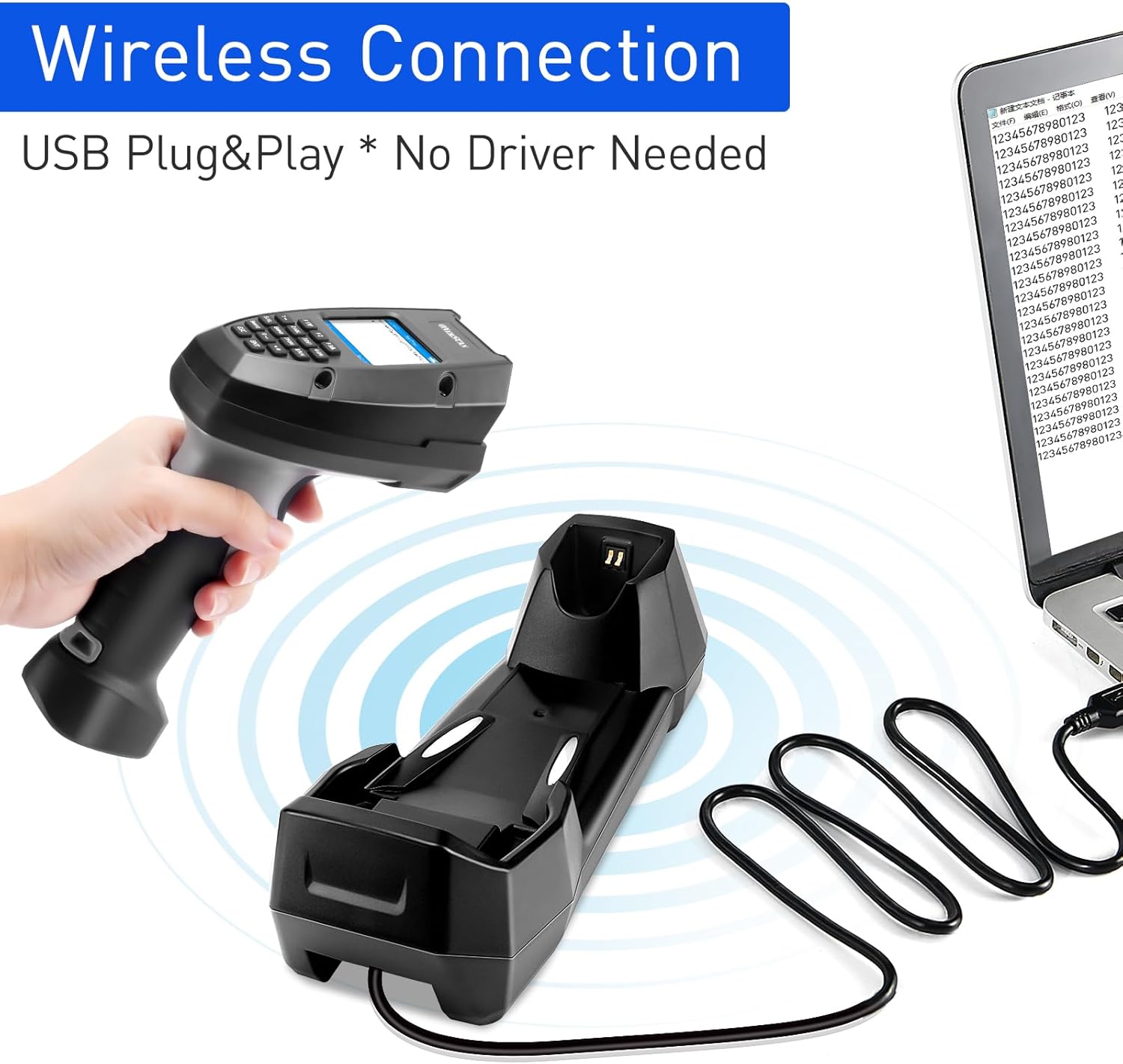
- Insert the 2.4G wireless dongle into an available USB port on your computer or host device.
- Power on the barcode scanner.
- The scanner will automatically pair with the dongle. A confirmation sound or indicator on the screen will confirm successful connection.
4.2 Wired Connection
For a direct connection, use the provided USB data cable.
- Connect one end of the USB data cable to the scanner and the other end to a USB port on your computer.
- The scanner will function as a wired device, transmitting barcode data in real-time.
5. Operating Modes
The onewscan 7106 offers multiple operating modes to suit various inventory and data collection needs.

5.1 Wireless Mode
In Wireless Mode, barcode data is instantly uploaded to your connected device.
- Scan a barcode, and the data will be transmitted in real-time to your computer or host system.
- This mode is ideal for immediate data entry and processing.
5.2 Collect Mode
Collect Mode allows you to scan and store barcodes, then review and export them later.
- Scan barcodes, and the device will display the barcode content, type, and length on its screen.
- You can manually input or automatically add quantities for each scanned item.
- Export the collected data to your device when ready.
5.3 Inventory Mode
Inventory Mode is designed for tracking and managing inventory quantities.
- Scan barcodes to record items and their quantities.
- The device can store up to 3,000,000 barcodes.
- Easily export inventory data for analysis and management.
- The collection function is designed for situations where barcode repetition is undesirable. Press F2 to toggle a specific barcode on/off for repeated scanning. This feature is suitable for tracking numbers, serial numbers, and material numbers in various industries such as express delivery, supermarkets, retail, drugstores, and warehouses.
6. Scanning Capabilities
The onewscan 7106 is capable of scanning a wide range of 1D barcodes from both paper and digital screens.

Supported 1D Barcode Types:
- UPC
- EAN
- Code 128
- Code 39
- ITF25
- Codabar
- Code 93
- MSI 1D
- EAN-128
- EAN-8
- EAN-13
- UPC-A
- ISBN
Note: This scanner does not support Square POS or Square Register systems.
7. Connectivity
The onewscan 7106 offers flexible connectivity options with an extended range.
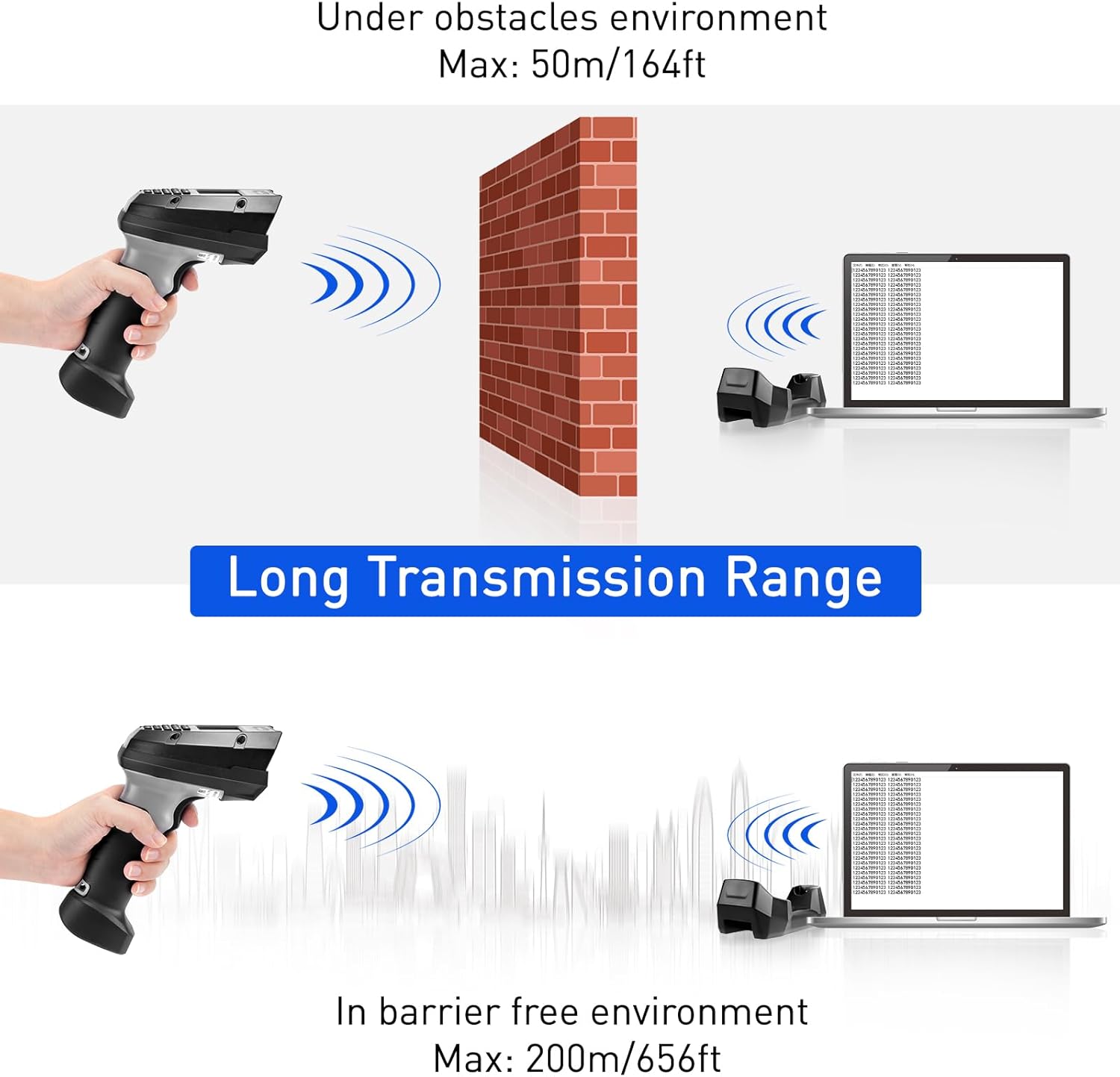
- Wireless Range: Up to 50 meters (164 feet) in environments with obstacles, and up to 200 meters (656 feet) in barrier-free environments.
- Dual Mode: Supports both 2.4G wireless and USB wired connections for data transmission to your PC.
8. Battery and Charging
The scanner is equipped with a high-capacity rechargeable battery for extended operation.
- Battery Capacity: 2000mAh rechargeable lithium-ion battery.
- Operating Time: Provides up to 20 hours of continuous hands-free scanning or 100,000 continuous scans on a full charge.
- Charging: Place the scanner in the charging cradle. Connect the charging cradle to a power source using the USB data cable. The scanner's screen will indicate charging status.
9. Maintenance
Proper maintenance ensures the longevity and performance of your scanner.
- Cleaning: Use a soft, dry cloth to clean the scanner's exterior. For the scan window, use a lint-free cloth and a mild cleaning solution if necessary. Avoid abrasive materials or harsh chemicals.
- Storage: Store the scanner in a cool, dry place away from direct sunlight and extreme temperatures.
- Drop Resistance: The scanner is built with durable plastic and can withstand drops from up to 5 feet (1.5 meters). However, avoid unnecessary drops to prevent potential damage.
10. Troubleshooting
If you encounter issues with your scanner, refer to the following common problems and solutions.
| Problem | Possible Cause | Solution |
|---|---|---|
| Scanner does not power on | Low battery or power issue | Charge the scanner using the charging cradle and USB cable. Ensure the cable and power source are working. |
| No data transmission in wireless mode | Dongle not connected or scanner not paired | Ensure the 2.4G dongle is securely plugged into your device. Re-pair the scanner if necessary (refer to setup instructions). Check wireless signal strength on the scanner screen. |
| Cannot scan certain barcodes | Barcode type not supported or damaged barcode | Verify the barcode type is listed as supported (1D codes only). Ensure the barcode is clear and not excessively damaged. Adjust scanning distance. |
| Data not exporting from Collect/Inventory Mode | Incorrect export procedure | Follow the specific export steps for Collect or Inventory Mode as outlined in Section 5. Ensure the scanner is connected to your device. |
11. Specifications
| Feature | Detail |
|---|---|
| Brand | onewscan |
| Model | 7106 |
| Connectivity Technology | 2.4G Wireless, USB Cable |
| Power Source | Battery Powered |
| Battery Type | 1 Lithium Polymer Battery (included) |
| Compatible Devices | Smartphone, Tablet, Desktop, Laptop |
| Display | 2.0-inch HD LCD Screen |
| Barcode Support | 1D (UPC, EAN, Code128, Code39, ITF25, Codabar, Code93, MSI 1D, EAN-128, EAN-8, EAN-13, UPC-A, ISBN) |
| Wireless Range (Obstacles) | Max 50m / 164ft |
| Wireless Range (Barrier-free) | Max 200m / 656ft |
| Drop Resistance | Up to 5 feet / 1.5m |
12. Warranty and Support
For warranty information and technical support, please refer to the documentation included with your purchase or contact onewscan customer service through their official website or the retailer where the product was purchased.


