
MOKiN UD1501
MOKiN UD1501 Dual-Bay NVMe M.2 SSD Enclosure User Manual
Model: UD1501
Product Overview
The MOKiN UD1501 is a high-performance dual-bay NVMe M.2 SSD enclosure designed for both data storage and offline cloning. It features a 40Gbps USB4 interface for extreme speeds and an upgraded automatic heat dissipation system with a built-in cooling fan to ensure stable operation and safeguard your hard drives. Its tool-free design allows for quick and easy installation of M.2 NVMe SSDs.

Figure 1: MOKiN UD1501 Enclosure and Included Accessories
Setup and Installation
The UD1501 enclosure features a tool-free design for convenient SSD installation.
- Open the Enclosure: Push the cover in the direction of the arrow to open the enclosure.
- Install SSDs: Insert your NVMe M.2 SSDs into the designated slots. Ensure the 'Source' SSD is in the correct slot and the 'Target' SSD is in its respective slot.
- Secure SSDs: Use the provided clips or fasteners to secure the SSDs firmly in place.
- Close the Enclosure: Slide the cover back until it clicks into place.
- Connect Power: Connect the included 12V/2A power adapter to the enclosure and plug it into a power outlet.
- Turn On: Flip the power switch to the 'On' position.

Figure 2: SSD Installation Steps
Operating Instructions
Offline Clone Function
The UD1501 allows for direct, offline cloning of SSDs without needing a computer connection. Ensure the capacity of the 'Target SSD' is greater than or equal to the 'Source SSD'.
- Insert SSDs: Place the source SSD into the 'Source' slot and the target SSD into the 'Target' slot.
- Power On: Connect the power adapter and turn on the enclosure.
- Initiate Clone: Press and hold the 'Clone' button for 3 seconds until all LED indicators light up. Release the button, then press it again immediately to start the cloning process.
- Monitor Progress: The blue LED indicators (25%, 50%, 75%, 100%) will illuminate sequentially to show the cloning progress. When the 100% indicator is solid, the cloning is complete.

Figure 3: Offline Clone Setup

Figure 4: Enclosure Components and Indicators
Data Transfer (Online Mode)
To use the enclosure as an external SSD drive for data transfer, connect it to your computer using the provided USB-C to USB-C or USB-C to USB-A/C cable. The enclosure supports USB4 speeds up to 40Gbps.

Figure 5: High-Speed Data Transfer via USB4
Video 1: Demonstration of the 40Gbps NVMe M.2 Duplicator Dual-Bay Offline Clone Tool-Free functionality.
Maintenance
The MOKiN UD1501 features an upgraded automatic heat dissipation system with a built-in cooling fan to prevent overheating during prolonged use or high-speed operations. This system actively dissipates heat, ensuring the longevity and security of your SSDs.
- Ensure the cooling vents on the enclosure are not obstructed to allow for proper airflow.
- Keep the enclosure in a well-ventilated area.
- Clean the exterior of the enclosure with a soft, dry cloth as needed. Avoid using liquid cleaners.
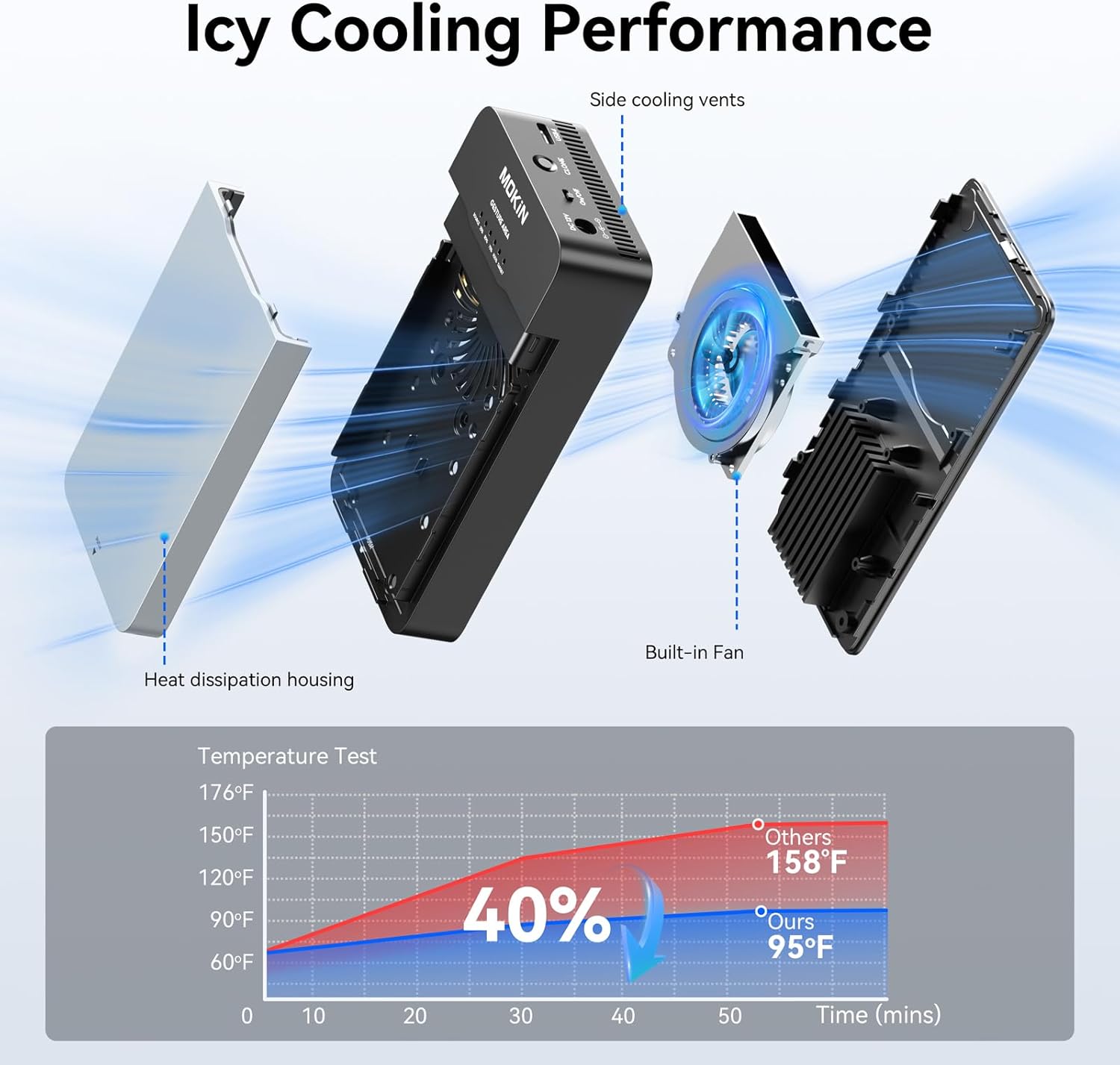
Figure 6: Icy Cooling Performance Features
Troubleshooting
| Problem | Possible Cause | Solution |
|---|---|---|
| Red Constant Light on Indicator |
|
|
| Slow Data Transfer Speeds |
|
|
| Enclosure Not Detected by Computer |
|
|
Specifications
- Model: UD1501
- Brand: MOKiN
- Memory Storage Capacity: Up to 8 TB
- Compatible Devices: Desktop, Laptop, Router, Smartphone, Tablet
- Hard Disk Form Factor: M.2 (2230/2242/2260/2280)
- Max Number of Supported Devices: 2
- Data Transfer Rate: 40 Gigabits Per Second (USB4)
- Hardware Interface: USB 3.0 Type C, USB 3.2 Gen 2x2, USB Type C
- Color: Black
- Material: Metal
- Item Weight: 11.3 ounces
- Package Dimensions: 4.96 x 4.88 x 1.69 inches
Compatibility
The MOKiN UD1501 enclosure is designed for wide compatibility:
- SSD Type: Supports M.2 PCIe NVMe SSDs with B&M Key or M Key.
- SSD Sizes: Compatible with 2230, 2242, 2260, and 2280 form factors.
- Operating Systems: Works with Windows, Linux, Mac OS, Chrome OS, and Android.
- Important Note: This enclosure DOES NOT support M.2 SATA SSDs (B Key or B&M Key) or PCIe AHCI SSDs (M Key).
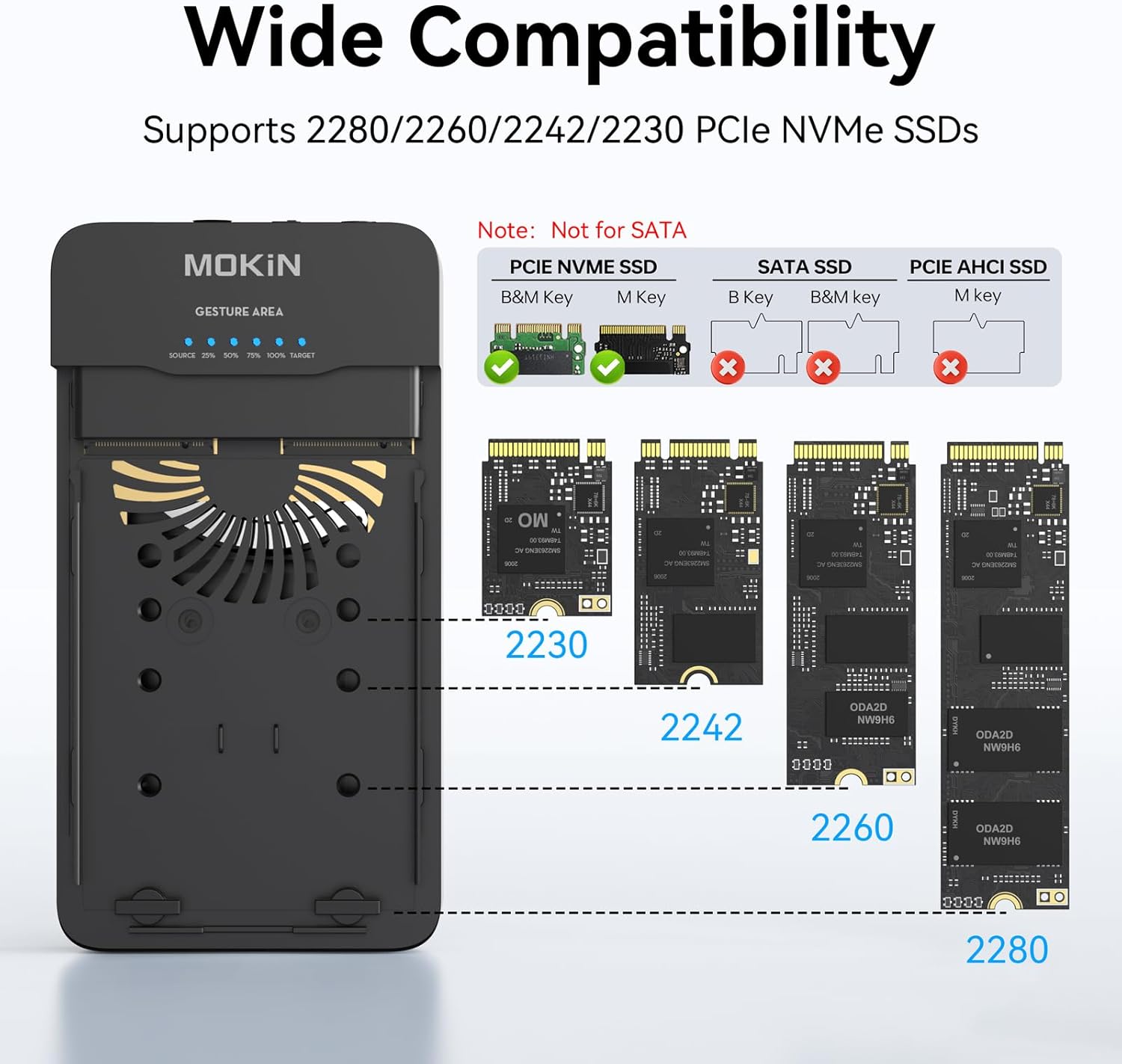
Figure 7: Wide Compatibility Overview
Warranty and Support
For warranty information, technical support, or any inquiries regarding your MOKiN UD1501 enclosure, please refer to the official MOKiN website or contact their customer support directly. Contact details are typically provided in the product packaging or on the manufacturer's website.
You can visit the MOKiN Store for more information: MOKiN Store on Amazon
Ask a question about this manual
Ask about setup, troubleshooting, compatibility, parts, safety, or missing instructions. Manuals+ will review the question and use this page’s manual context to help answer it.