
1. Introduction and Overview
The Genmitsu Kiosk 10W Laser Engraver is a compact and powerful tool designed for precision engraving and cutting. Ideal for DIY enthusiasts and small businesses, this machine offers a user-friendly experience with advanced features for various materials. Its portable design allows for flexible placement in your workspace, while robust safety mechanisms ensure a secure operating environment.

Figure 1: Genmitsu Kiosk 10W Laser Engraver
2. Safety Information
Your safety is paramount when operating the Genmitsu Kiosk Laser Engraver. This device is classified as Laser Safety Class 1, meaning it is safe under all conditions of normal use. However, it is crucial to adhere to the following safety guidelines:
- Integrated Safety Enclosure: The machine is equipped with an orange acrylic enclosure that protects against direct laser exposure. Always ensure the safety cover is closed during operation.
- Safety Mechanisms: The laser cutting machine will automatically stop operation if the safety cover is opened or if the machine is tilted more than 12°+5° for more than one second. This ensures a safe and controlled work environment.
- Ventilation: Always operate the laser engraver in a well-ventilated area to dissipate fumes and smoke produced during engraving and cutting. Consider using an external smoke extractor for optimal air quality.
- Eye Protection: Although the enclosure provides protection, never look directly at the laser beam.
- Material Safety: Be aware of the materials you are processing. Some materials may produce hazardous fumes when laser engraved or cut. Research material safety data sheets (MSDS) if unsure.
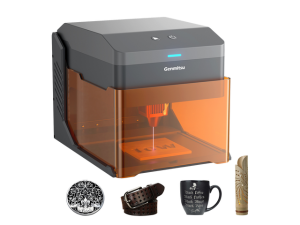
Figure 2: Safety Class 1 Certification
3. Product Features
The Genmitsu Kiosk 10W Laser Engraver is packed with features to enhance your creative projects:
- Powerful 10W Diode Laser: Capable of deep engraving and cutting. It can cut through 8mm plywood and 5mm solid wood in a single pass.
- Versatile Material Compatibility: Engraves a wide range of materials including leather, plastic, stainless steel, titanium alloy, cardboard, and deep color fabrics. Transparent acrylic/glass can also be engraved with the use of laser marking spray.
- Genmitsu APP V2.0.0 Support: The updated Genmitsu APP provides comprehensive functionalities including design, editing, and machine control. Key updates include Simplified Network Setup, Intuitive Control Interface, Convenient Re-Editing, Diverse Image Processing Options, and Quick Image Uploading.
- Compact & Portable Design: Weighing only 6.17 lbs (2.8 kg) and measuring 235 x 280 x 220 mm, the machine is easy to carry and requires minimal desk space.
- Effortless Laser Engraving: Features a removable base plate to protect your work surface and allow for engraving larger items like tables or chairs. Built-in air assist enhances cutting precision.
- High Precision and Speed: Achieves engraving speeds of up to 12,000 mm/min with 0.01 mm accuracy.

Figure 3: 10W Laser Cutting Capability

Figure 4: Easy to Lift - Laser Height Extends Up to 123mm

Figure 5: Compact and Portable Design
4. Setup
The Genmitsu Kiosk comes largely pre-assembled for quick setup:
- Unboxing: Carefully remove the machine from its packaging. The frame is pre-assembled.
- Laser Module Installation: Ensure the laser module is securely seated in its designated slot.
- Power Connection: Connect the power adapter to the machine and plug it into a suitable power outlet.
- Initial Placement: Place the machine on a stable, level surface in a well-ventilated area.
- App Connection: Download the Genmitsu APP V2.0.0 from your device's app store. Follow the in-app instructions to connect your machine via Wi-Fi. This typically involves connecting your phone to the machine's Wi-Fi hotspot, then configuring the machine to connect to your home Wi-Fi network.

Figure 6: Ready to Use - Pre-assembled Frame
Video: Connect Genmitsu App
This video demonstrates the process of connecting your Genmitsu Kiosk to the Genmitsu App for seamless control and operation.
5. Operating Instructions
Operating your Genmitsu Kiosk is intuitive, whether through the dedicated app or compatible software:
- Genmitsu APP Control: Use the Genmitsu APP for designing, editing, and controlling your engraving projects. The app allows for precise adjustments of laser power, speed, and movement.
- One-Touch Control: Effortlessly cycle through engraving preview, start, pause, and stop with a single button press on the machine.
- Offline Engraving: Import design files via a TF card for offline engraving, providing flexibility without constant computer connection.
- Compatible Software: The machine supports popular laser software such as CutlabX, LightBurn, and LaserGRBL for advanced design and control options.
- Material Preparation: Ensure your material is clean and properly secured on the engraving bed. For transparent materials, a laser marking spray may be required.
- Focusing: The machine features an ingenious zeroize measuring stick built-in for easy and accurate focusing, eliminating the need for manual calibration.

Figure 7: One-Touch Control for Easy Operation

Figure 8: Multi-Platform Support and Offline Engraving
Video: Kiosk Laser Engraver Overview
This video provides a brief overview of the Genmitsu Kiosk laser engraver's features and capabilities.
6. Maintenance
Regular maintenance ensures the longevity and optimal performance of your Genmitsu Kiosk Laser Engraver:
- Laser Lens Cleaning: The laser lens can become clouded by smoke and debris, especially when engraving materials like pine and cedar. Clean the lens regularly (daily for frequent use) with a soft, lint-free cloth and appropriate lens cleaner.
- Exhaust Fan Cleaning: The internal exhaust fan can accumulate residue. While an external smoke extractor is recommended, periodically clean the machine's internal fan to maintain airflow and prevent buildup.
- General Cleaning: Keep the engraving bed and the interior of the machine clean from dust and material scraps. Use a soft brush or vacuum to remove debris.
- Lubrication: Periodically check and lubricate moving parts as indicated in the detailed user guide to ensure smooth operation.
7. Troubleshooting
If you encounter issues with your Genmitsu Kiosk, refer to the following common troubleshooting steps:
- App Connection Issues: If the app fails to connect, ensure your phone is connected to the machine's Wi-Fi hotspot or your home Wi-Fi if previously configured. Try restarting both the app and the machine. Refer to the "Connect Genmitsu App" video in the Setup section for detailed steps.
- Green Flashing Light / Board Issue: If the machine displays a green flashing light and is unresponsive, it may indicate a main board issue. In such cases, contact SainSmart customer support for assistance.
- Laser Losing Center / Door Switch Malfunction: If the laser module frequently loses its center or the door switch is not recognized, try reflashing the firmware. If the issue persists, it may indicate a main board problem requiring professional support.
- Software/USB/SD Card Issues: Ensure all software is correctly installed and drivers are up to date. If using a USB or SD card, verify their functionality and ensure files are correctly formatted and placed.
- Poor Engraving Quality: Check the laser lens for cleanliness. Ensure the material is properly focused and the correct power/speed settings are applied for the specific material.
For further assistance, consult the SainSmart Resource Centre or contact customer support.
8. Specifications
| Attribute | Detail |
|---|---|
| Model Number | KKW10 |
| Laser Power | 10W (10000mW) Diode Laser |
| Engraving Area | 3.9 x 3.9 inches (100 x 100 mm) |
| Engraving Speed | Up to 12,000 mm/min |
| Precision | 0.01 mm |
| Product Dimensions | 12.8 x 10.63 x 10.83 inches (32.5 x 27 x 27.5 cm) |
| Item Weight | 8.8 pounds (4 kg) |
| Manufacturer | Genmitsu |
| Country of Origin | China |
| Date First Available | October 29, 2024 |
9. Warranty and Support
The Genmitsu Kiosk Laser Engraver comes with a one-year warranty, ensuring peace of mind regarding manufacturing defects and performance issues.
For any questions, technical support, or warranty claims, please refer to the SainSmart Resource Centre or contact SainSmart customer support directly. Detailed contact information can be found on the official SainSmart website or within the Genmitsu APP.
SainSmart Official Store: Visit the SainSmart Store on Amazon