
1. Introduction
This manual provides detailed instructions for the installation, operation, and maintenance of the Huacaoe Zigbee 1-Channel Intelligent Temperature Sensor Smart Switch (Model TYZGTH1CH-D1RF). This device combines a smart switch with a high-precision waterproof temperature probe, enabling remote monitoring and control of electrical appliances based on temperature. It requires a Tuya Zigbee hub for full functionality.
2. Product Overview
2.1 Package Contents
- 1 x Huacaoe Zigbee 1CH Smart Switch
- 1 x 1-meter Waterproof DS18B20 Temperature Probe Sensor Cable
- 1 x Instruction Manual (this document)
2.2 Key Features
- Wireless Standard: Zigbee 3.0 protocol for reliable connectivity.
- Power Supply: AC 85-250V or USB 5V.
- Maximum Load: 10A, 3000W.
- Temperature Probe: DS18B20 stainless steel waterproof probe.
- Measurement Range: -40°C to 80°C (device operating temp), -55°C to 125°C (probe measurement range).
- Remote Control: Turn devices ON/OFF from anywhere via the Tuya Smart Life app.
- Temperature Automation: Automatically control appliances based on preset temperature ranges.
- Real-time Monitoring: View current temperature and device status in the app.
- Voice Control: Compatible with Amazon Alexa.
- Timing Functions: Schedule ON/OFF times, countdowns, and cycle timers.
- Energy Monitoring: Monitor daily power consumption in the Tuya Smart Life app.
- Zigbee Repeater: Strengthens your Zigbee mesh network.
2.3 Product Diagram
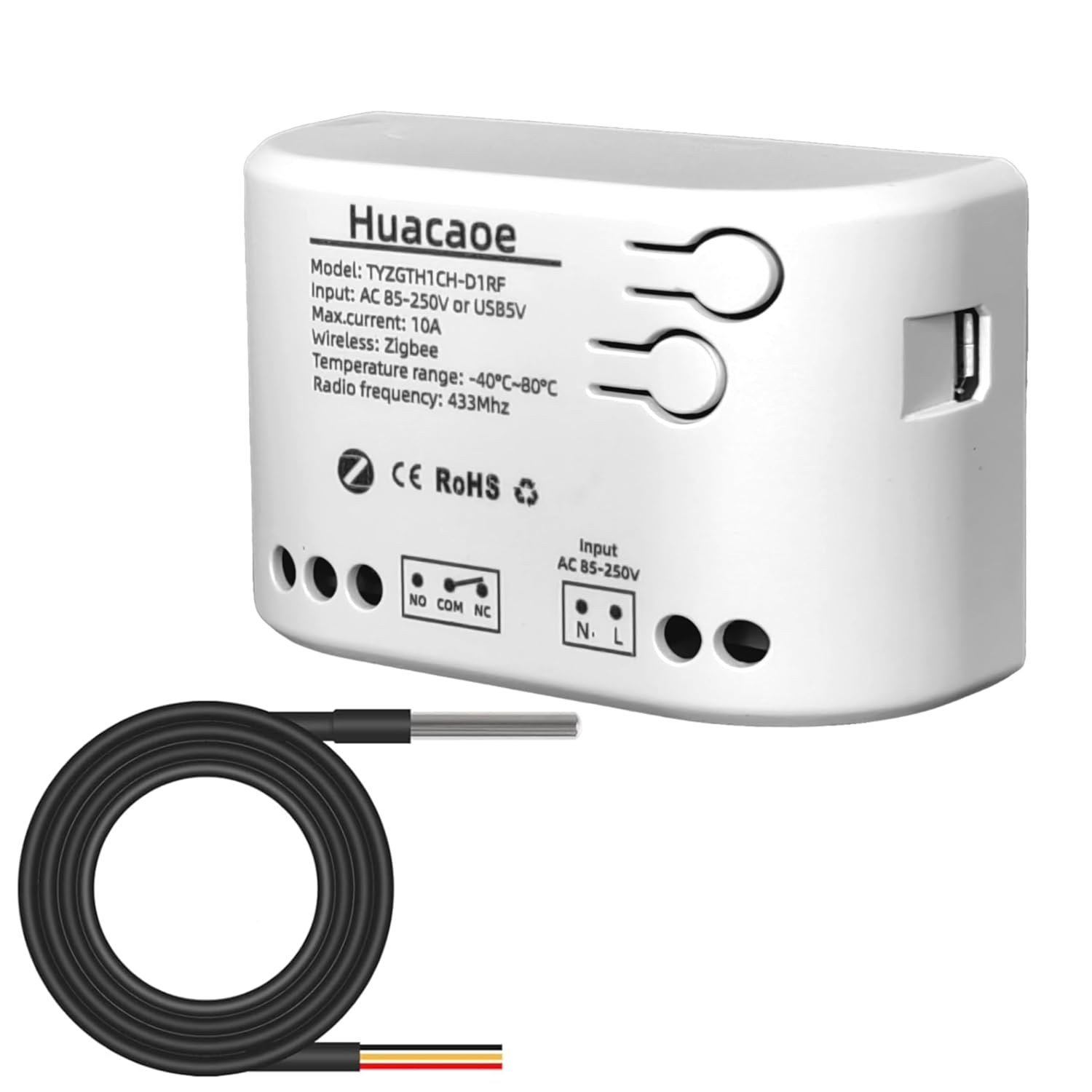
Figure 1: Huacaoe Zigbee 1CH Smart Switch and included waterproof temperature probe. The switch features input terminals for AC 85-250V or USB 5V, output terminals (NO, COM, NC), and a port for the temperature sensor.
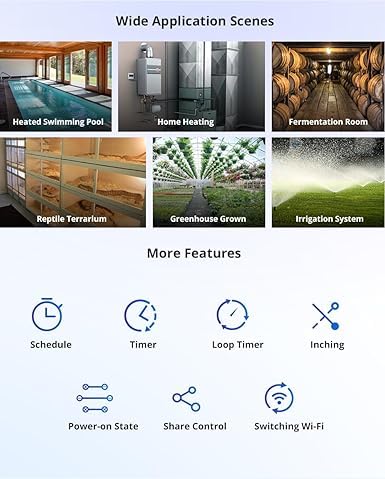
Figure 2: Close-up view of the waterproof stainless steel temperature sensor probe. It has a measurement range of -55°C to 125°C and operates at 3.0-5.5V.
3. Safety Information
- Electrical Safety: Installation should be performed by a qualified electrician or individuals with knowledge of electrical wiring. Always turn off power at the circuit breaker before performing any wiring.
- Voltage Compatibility: Ensure the power supply voltage (AC 85-250V or USB 5V) matches the device's requirements.
- Maximum Load: Do not exceed the maximum load current of 10A or 3000W to prevent damage to the device and potential hazards.
- Environment: Do not expose the main switch unit to water or extreme humidity. The temperature probe is waterproof, but the main unit is not.
- Children: Keep the device out of reach of children.
4. Setup
4.1 Wiring Instructions
The Huacaoe Smart Switch can be powered by AC 85-250V or USB 5V. The output terminals (NO, COM, NC) allow for flexible control of connected appliances.
- Power Off: Before any wiring, ensure the main power supply is turned off at the circuit breaker.
- Connect Power Input:
- For AC 85-250V: Connect the Live wire to the 'L' terminal and the Neutral wire to the 'N' terminal.
- For USB 5V: Connect a micro USB cable to the USB port on the side of the device.
- Connect Appliance:
- To control an appliance (e.g., a light bulb), connect the Live wire from the power supply to the 'COM' (Common) terminal.
- Connect one wire from the appliance to the 'NO' (Normally Open) terminal for standard ON/OFF control. When the switch is activated, the circuit between COM and NO will close.
- Alternatively, use the 'NC' (Normally Closed) terminal if you require the circuit to be closed by default and open when the switch is activated.
- Connect the other wire from the appliance to the Neutral wire of the power supply.
- Connect Temperature Probe: Insert the 3-pin connector of the DS18B20 temperature probe into the dedicated port on the switch.
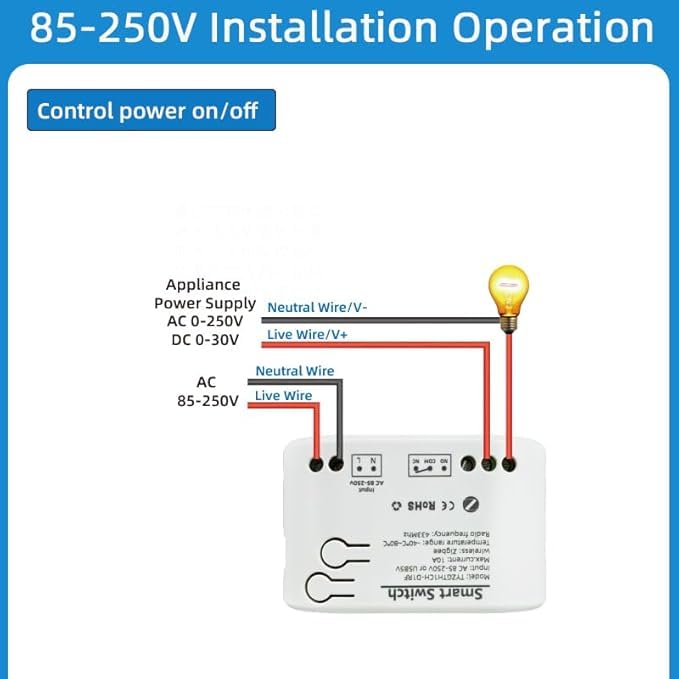
Figure 3: Wiring diagram illustrating how to connect the Huacaoe Smart Switch to an AC 85-250V power supply and an appliance for ON/OFF control.
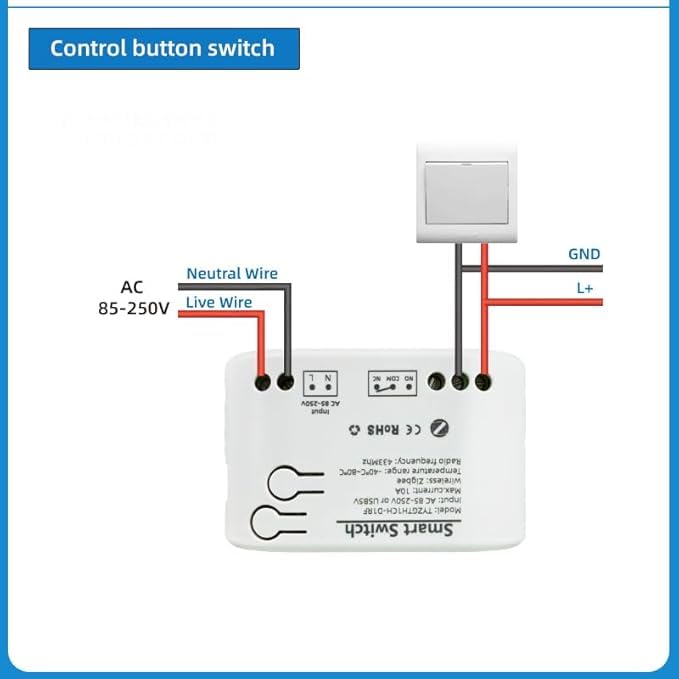
Figure 4: Wiring diagram showing how to connect an external control button switch to the Huacaoe Smart Switch.
4.2 Pairing with Tuya Smart Life App
The Huacaoe Smart Switch requires a Tuya Zigbee hub (sold separately) to connect to the Tuya Smart Life app.
- Install Tuya Smart Life App: Download and install the "Tuya Smart Life" app from your smartphone's app store (iOS or Android). Register or log in to your account.
- Add Zigbee Hub: If you haven't already, add your Tuya Zigbee hub to the app.
- Enter Pairing Mode: Power on the Huacaoe Smart Switch. Press and hold the pairing button on the switch (refer to device for exact location, usually a small button) until the indicator light flashes rapidly.
- Add Device in App: Open the Tuya Smart Life app, go to your Zigbee hub, and select "Add sub-device" or "Add device". The app will scan for nearby Zigbee devices.
- Confirm Pairing: Once the switch is discovered, confirm its addition in the app. You may need to rename the device for easier identification.
- Proximity: For best results during pairing, place the switch close to your Zigbee hub.
5. Operation
5.1 App Interface and Control
After successful pairing, you can control and monitor the device through the Tuya Smart Life app.
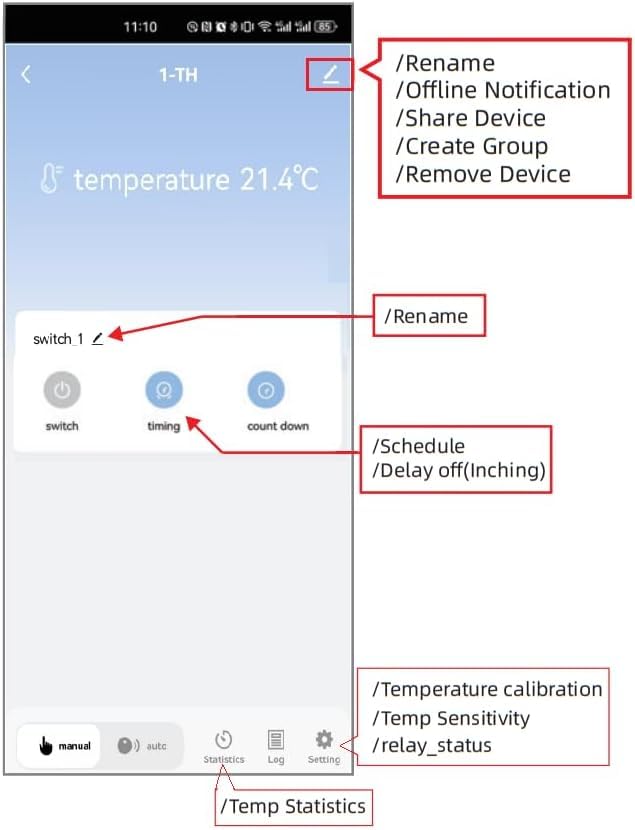
Figure 5: Screenshot of the Tuya Smart Life app interface for the temperature sensor switch. It shows current temperature, switch control, timing options, and settings for calibration and sensitivity.
- Remote ON/OFF: Tap the "switch" button in the app to manually turn the connected appliance on or off.
- Temperature Monitoring: The app displays the current temperature detected by the probe. You can switch between Celsius (°C) and Fahrenheit (°F).
- Auto Mode: Set specific temperature thresholds to automatically turn the appliance ON or OFF. For example, turn on a heater if the temperature drops below 18°C, or turn on a fan if it exceeds 25°C.
- Manual Mode: Override automatic settings and control the switch manually.
- Temperature Calibration: Adjust the temperature reading for accuracy if needed, found in the settings.
- Temperature Sensitivity: Configure how sensitive the device is to temperature changes before triggering actions.
- Statistics: View historical temperature data and power consumption.

Figure 6: Illustration of the app's remote monitoring and control capabilities, demonstrating how it can manage heating and cooling based on temperature thresholds (e.g., 20°C for heating, 30°C for cooling).
5.2 Timing Functions
The app allows you to set various timing functions for automated control.

Figure 7: Examples of devices that can be controlled using the timing function, such as humidifiers, fish tanks, kettles, and lamps.
- Schedule: Set specific times for the switch to turn ON or OFF daily or on selected days of the week.
- Countdown: Set a timer for the switch to turn ON or OFF after a specified duration.
- Cycle Timer: Configure the switch to repeatedly turn ON and OFF at set intervals.
5.3 Voice Control
Once configured with the Tuya Smart Life app, the device can be linked to Amazon Alexa for voice control. Follow the instructions within the Tuya Smart Life app to connect to your Alexa account.
6. Maintenance
- Cleaning: Wipe the main switch unit with a dry, soft cloth. Do not use harsh chemicals or abrasive cleaners.
- Probe Care: The stainless steel temperature probe is waterproof and can be submerged. Ensure the cable is not kinked or damaged.
- Firmware Updates: Periodically check the Tuya Smart Life app for any available firmware updates for the device to ensure optimal performance and security.
7. Troubleshooting
- Device Not Pairing:
- Ensure a Tuya Zigbee hub is powered on and connected to your network.
- Place the smart switch close to the Zigbee hub during pairing.
- Confirm the switch is in pairing mode (indicator light flashing rapidly).
- Check your Wi-Fi network for stability.
- No Temperature Reading in App:
- Ensure the temperature probe is securely connected to the switch.
- Verify the device is correctly added to the Tuya Smart Life app.
- For advanced users integrating with Home Assistant or other platforms, a specific "ZHA quirk" or custom integration might be required to display temperature data. Search relevant community forums for "TYZGTH1CH-B1RF ZHA quirk" for guidance.
- Device Does Not Respond After Power Cycle:
- Some units may require a manual button press to resume operation after a power outage or unplugging. If this occurs, consider the placement of the device for easy access.
- Appliance Not Turning ON/OFF:
- Check all wiring connections for security and correctness (refer to Section 4.1).
- Ensure the appliance itself is functional and properly connected.
- Verify the switch is receiving power.
- Check the maximum load (10A/3000W) is not exceeded.
- Inaccurate Temperature Readings:
- Use the temperature calibration feature in the Tuya Smart Life app settings to adjust the reading.
- Ensure the probe is placed in a location representative of the temperature you wish to measure and away from direct heat sources or drafts that could skew readings.
8. Specifications
| Parameter | Value |
|---|---|
| Model Number | TYZGTH1CH-D1RF |
| Power Supply | AC 85-250V or USB 5V |
| Wireless Standard | Zigbee 3.0 |
| Max. Current | 10A |
| Max. Power | 3000W |
| Operating Temperature (Device) | -40°C to 80°C |
| Temperature Probe Type | DS18B20 Waterproof Stainless Steel |
| Temperature Probe Measurement Range | -55°C to 125°C |
| Temperature Probe Operating Voltage | 3.0-5.5V |
| Product Dimensions | 2.8 x 1.8 x 1.1 inches (7.1 x 4.6 x 2.8 cm) |
| Weight | 1.76 ounces (50g) |
9. Warranty and Support
For warranty information and technical support, please refer to the official Huacaoe website or contact your retailer. Keep your purchase receipt as proof of purchase.